Time-Saving Chromebook Keyboard Shortcuts [Free PDF Cheat Sheet]
 by
Juniya Sankara
Post Updated: January 16, 2026
by
Juniya Sankara
Post Updated: January 16, 2026
Looking to speed things up on your Chromebook? We’ve pulled together a list of time-saving shortcuts, some well-known, others that will completely change how you work.
In 2026, ChromeOS is all about flow. By mastering these specific combos, you can dock windows, recover lost tabs, and manage your clipboard without breaking your focus.
Have a favorite shortcut we missed? Contact us here or leave a comment below.
Download the Time-Saving Cheat Sheet
Get the PDF Cheat Sheet
The top 10 essential shortcuts for speed and multitasking.
1. Launch Apps from the Shelf
Why click icons when you can just count? Use Alt + 1 through Alt + 8 to instantly open the corresponding app on your “Shelf” (Taskbar).

2. Switch Between Windows & Tabs
- Alt + Tab: Toggle between open windows. (Hold Alt to see a visual overview).
- Ctrl + Tab: Switch between tabs inside your current browser window.
3. Dock Windows (Split Screen)
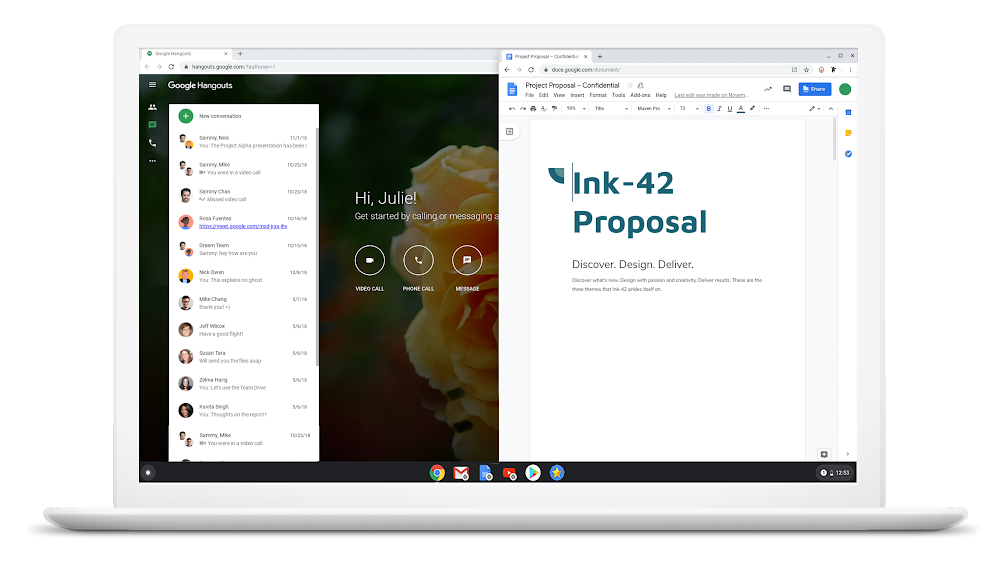
Working on a document while researching? Snap windows side-by-side instantly:
- Alt + [ : Docks window to the Left.
- Alt + ] : Docks window to the Right.
4. Reopen Closed Tabs
Accidentally closed a tab? Don’t panic. Press Ctrl + Shift + T to restore it instantly. Keep pressing it to bring back earlier tabs.
5. Switch Between Accounts
If you have both Personal and Work profiles signed in, use Ctrl + Alt + < or Ctrl + Alt + > to toggle between them instantly without logging out.
6. Enable Caps Lock
Chromebooks replaced the Caps Lock key with the Search key. To toggle Caps Lock, press Alt + Search (🔍).
Pro Tip: Want a dedicated button? Go to Settings > Device > Keyboard and remap the Search key to be a permanent Caps Lock key.
7. Master Screenshots
There are three ways to capture your screen:
- Standard: Press Ctrl + Show Windows (🔳) for a full screenshot.
- Partial: Press Ctrl + Shift + Show Windows to select a region.
- Menu: Click the clock > Screen Capture to record video or take GIFs.
8. The Clipboard Manager (New!)
Stop copying and pasting one item at a time. Press Search (🔍) + V to open the Clipboard Manager. You can see your last 5 copied items (text or images) and click to paste them.
🧭 Related Guides
- Ultimate Google Chrome Cheat Sheet
- Chrome Shortcuts for Linux Users
- Chrome Shortcuts for Windows Users
- Chrome Shortcuts for Mac Users
Discover more from Chrome Geek
Subscribe to get the latest posts sent to your email.