Chromecast: Easily Cast Android Screen To Your TV
 by
Juniya Sankara
Post Updated: January 1, 2026
by
Juniya Sankara
Post Updated: January 1, 2026
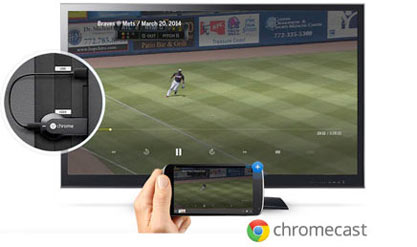
Been your Android screen to your TV with Chromecast
Hello everyone, how is your Friday evening so far? Anyone cracked open a beer yet? Don’t be shy, we know work is tough lol anyway, let us continue with more Chromecast tutorials.
Today we will teach you how to cast your Android screen to your TV using Google’s Chromecast dongle. Don’t worry, it is easy.
Note: Casting your Android screen is currently in beta and available on devices running Android 4.4.2 or higher.
Cast Your Android Tablet or Phone Screen
- Connect your Android device to the same Wi-Fi network as your Chromecast
- Open the Chromecast App
- From the navigation drawer, select Cast Screen
- Touch the Cast Screen button
- Select your Chromecast
How to stop Casting Your Android Device
- Reopen the Chromecast App
- From the navigation drawer, select Cast Screen
- Select the Disconnect button
Other related tutorials: Use your phone as a physical remote on a Chromecast, Unlock your Chromebook with your Android phone & Turn on Guest Mode on Chromecast
Discover more from Chrome Geek
Subscribe to get the latest posts sent to your email.