Google Keep Chrome Extension: Save to Notes in One Click
 by
Frank Cross
December 8, 2025
by
Frank Cross
December 8, 2025
 The Google Keep Chrome extension is the fastest way to save websites, images, and text snippets to your personal notes.
Built by Google, this tool creates a direct link between your browser and your Google Keep account. When you find something interesting, you don’t need to copy-paste the URL into a new tab or email it to yourself.
You simply click the icon, add a quick label, and it is instantly saved. Because it syncs with your Google account, whatever you save on your computer is immediately available on your phone.
This guide covers how to install it, how to save specific images, and how to organize your research with labels. You can contact us or leave a comment below, we would love to hear from you.
How to Install Google Keep Extension
Since this is an official Google tool, the installation is seamless. Here is how to get it running:
Installation Steps
- Visit the Google Keep Store listing.
- Click “Add to Chrome”.
- Sign in to Chrome (if you aren’t already) to ensure your notes sync to the correct account.
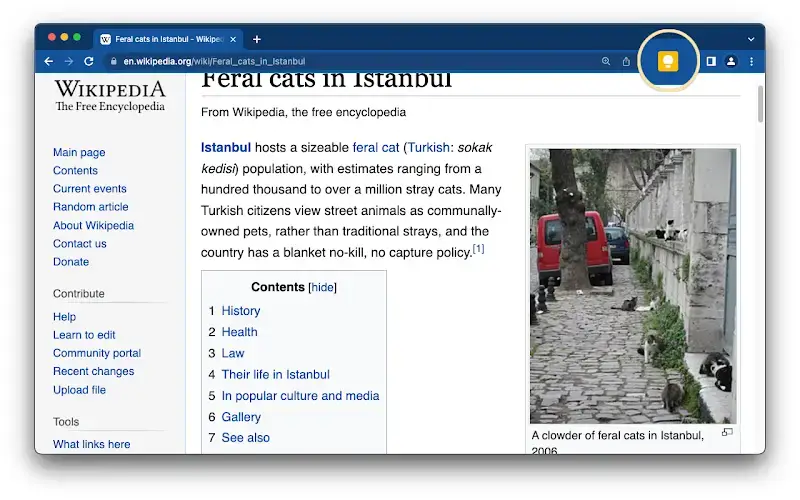
- Recommended: Pin the “Lightbulb” icon to your toolbar so you can save pages with one click.
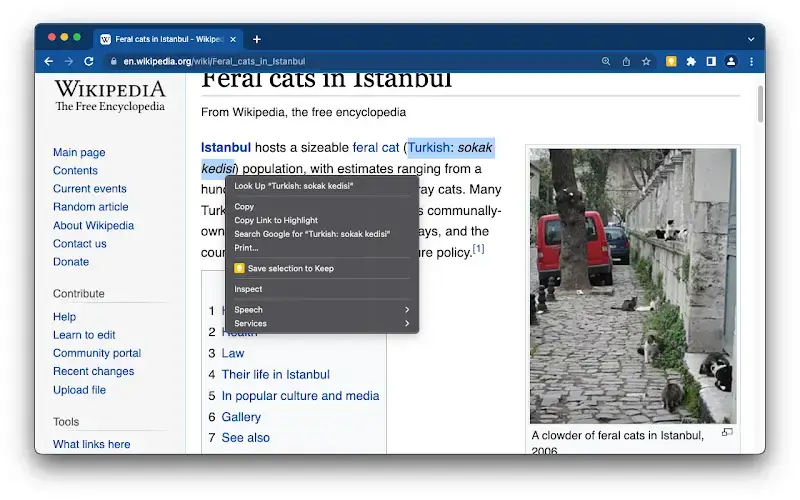
Quick Tip: 💡 You can right-click any image or text on a webpage and select “Save to Keep” without even opening the extension menu.
Utility & Use Cases
This extension functions as a “read later” button for the entire internet. It is commonly used for:
- Shopping: Saving product pages to a “Gifts” list to compare later on your phone.
- Recipes: Saving a recipe URL directly to a “Dinner Ideas” label.
- Research: Highlighting a specific quote in an article and saving it with the source link attached.
Key Functions
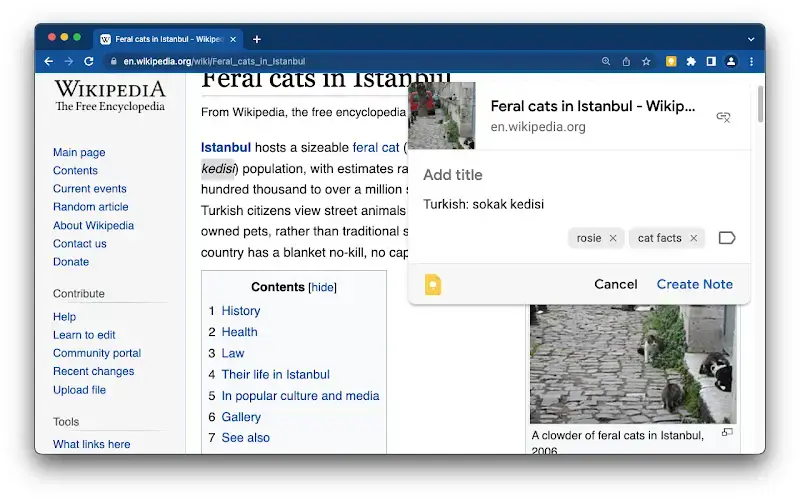
The extension is simple by design, but it offers three distinct ways to capture information.
1. Save Current Page
Clicking the lightbulb icon instantly creates a new note. It automatically attaches the URL of the page you are visiting. You can type a note (like “Buy this for Mom”) and it saves automatically.
2. Save Selected Text
If you highlight a paragraph of text on a website and right-click it, you will see “Save selection to Keep.” This creates a note that contains the text and a link back to the source.
3. Save Images
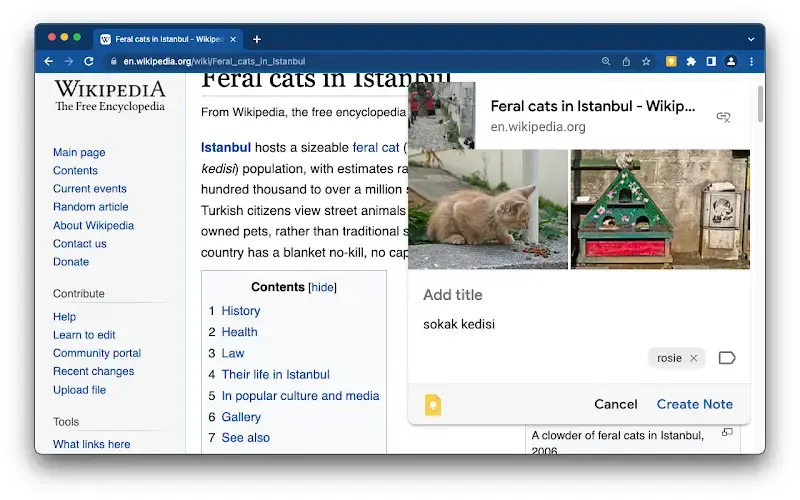
Similar to text, you can right-click any image and save it directly to your notes. This is useful for designers collecting inspiration or mood boards.
Video & Interface
This tutorial demonstrates how to use the extension to capture notes and sync them to your mobile device:
Interface Screenshots
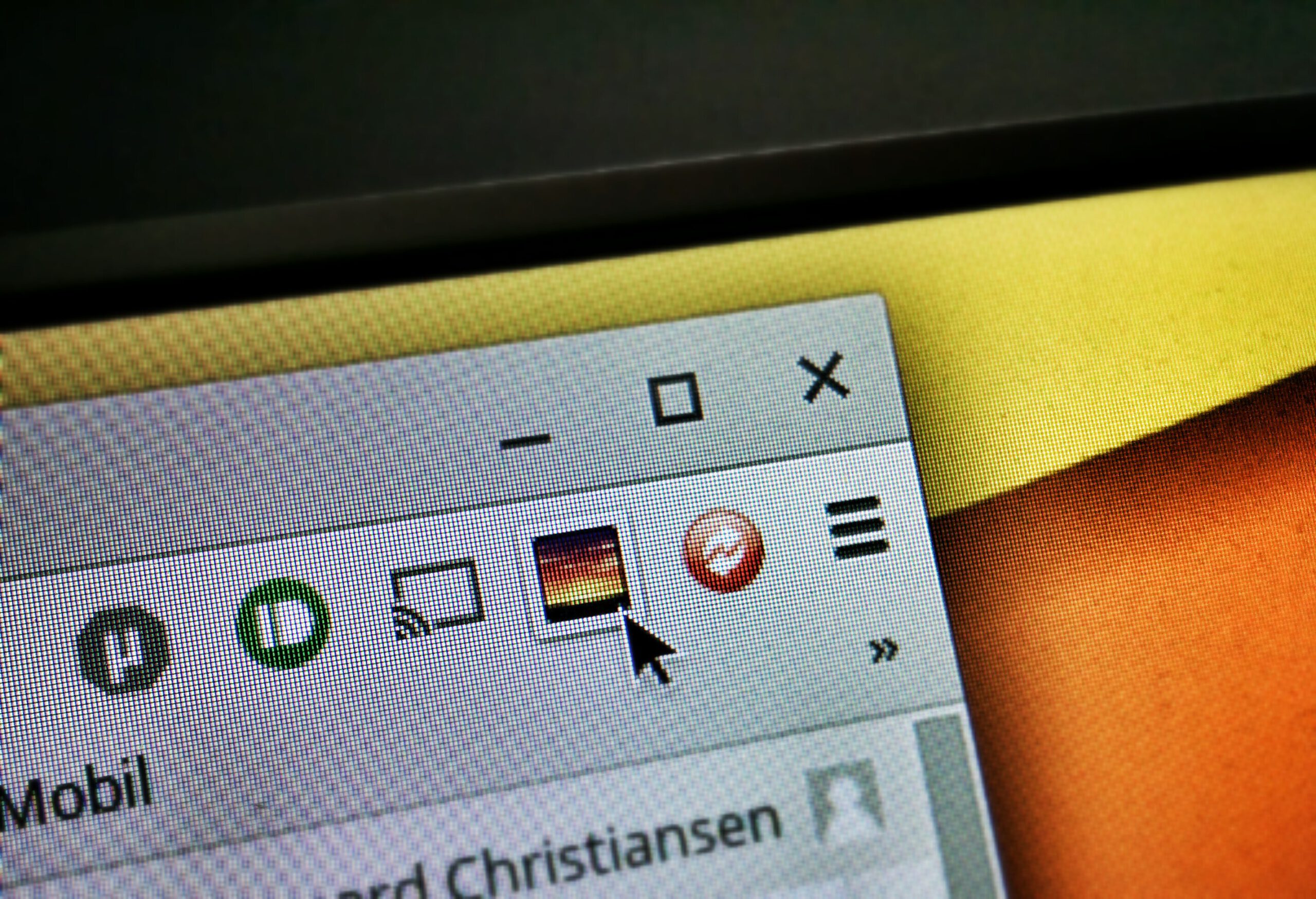
Here is what the “Save to Keep” menu looks like in action:
FAQs & Technical Details
System Compatibility
- Browser: Works on Chrome, Edge, Brave, and Vivaldi.
- Mobile Sync: Requires the Google Keep app on Android or iOS to view notes on the go.
Frequently Asked Questions
- Is it free? Yes, Google Keep is completely free with your Google Account.
- Where do my notes go? They are stored in the cloud at keep.google.com. You can access them from any computer or phone.
- Can I use it offline? The Chrome extension requires an internet connection to save new clips, but the mobile app works offline.
Check out our other guides: Image Downloader Extension, Google Arts & Culture Extension and the Google Dictionary Extension.
Discover more from Chrome Geek
Subscribe to get the latest posts sent to your email.