How to Change (Spoof) MAC Address on Chromebook: 2026 Guide
 by
Juniya Sankara
Post Updated: January 20, 2026
by
Juniya Sankara
Post Updated: January 20, 2026
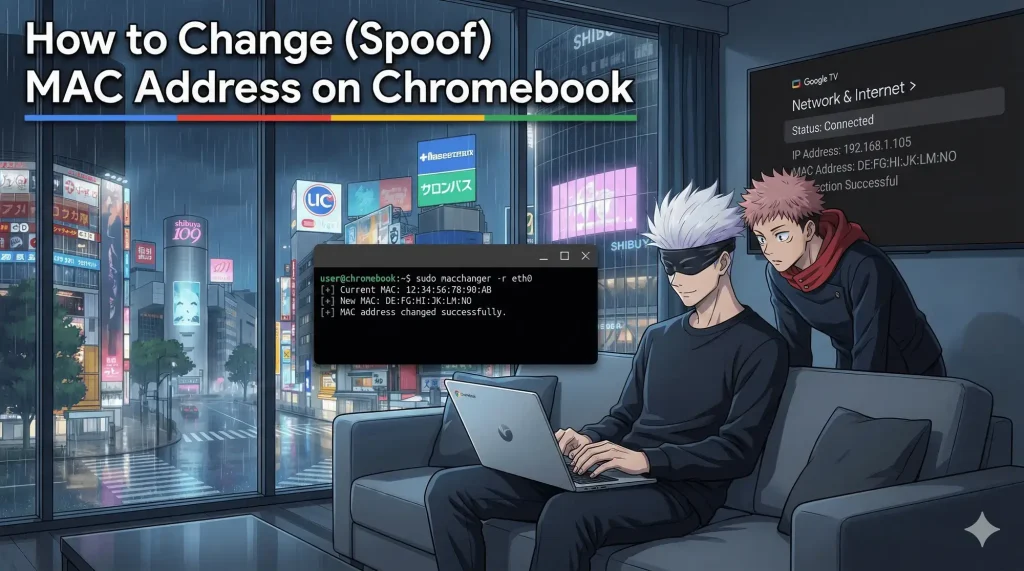
To change your MAC address on a Chromebook, you have two options. For simple privacy, go to Settings > Network > Wi-Fi > [Your Network] > Privacy and enable “Use Randomized MAC Address.”
However, if you need to “spoof” a specific MAC address (to bypass a router filter, for example), you must enable Developer Mode and use the Crosh command line.
In 2026, ChromeOS is locked down tight, so changing hardware identifiers requires root access.
Stuck on a command? Contact us here or leave a comment below.
Method 1: MAC Randomization (No Dev Mode)
If you just want to hide your identity on a coffee shop Wi-Fi, use this built-in 2026 feature. It protects you from tracking without requiring any hacking.
- Open Quick Settings (click the clock) and select the Network arrow.
- Click the Settings Gear ⚙️.
- Select Wi-Fi and click on the network you are connected to.
- Click Advanced to expand the menu.
- Under “Privacy,” toggle “Use randomized MAC address” to ON.
Method 2: Command Line Spoofing (Requires Dev Mode)
If you need a specific address (e.g., cloning an old laptop’s MAC to bypass a router block), you must be in Developer Mode.
Step 1: Open Crosh Shell
Press Ctrl + Alt + T to open the terminal. Then type the following to enter the Linux shell:
Step 2: Identify Your Interface
Type this command to find your Wi-Fi interface name (usually wlan0 or mlan0):
Step 3: Shut Down the Interface
You cannot change the MAC address while the Wi-Fi card is active. Turn it off:
Step 4: Spoof the Address
Replace 00:11:22:33:44:55 with the MAC address you want to use:
Step 5: Turn It Back On
Note: This change is temporary. If you reboot your Chromebook, it will revert to the original hardware MAC address.
🔐 Geek Tip for IT Admins
Trying to track devices in your school or office? Don’t rely on MAC addresses (since students can randomize them!). Use Google Workspace Device Management to track Chromebooks by their immutable Serial Number instead.
🎥 Watch it in Action
Here is a quick video tutorial showing the Crosh commands:
🔗 Related Guides from ChromeGeek
- Enable Developer Mode on Chromebook + Shortcuts
- What Is Crosh Shell on Chromebook?
- Important Crosh Shell Commands
- Unlock your Chromebook using a phone
- ChromeOS PowerControl: Advanced Hardware Management
Discover more from Chrome Geek
Subscribe to get the latest posts sent to your email.