
Image Downloader for Chrome: Save All Photos in One Click
 by
Juniya
Post Updated: December 8, 2025
by
Juniya
Post Updated: December 8, 2025

The Image Downloader extension is a massive time-saver for designers, marketers, or anyone who needs to grab multiple photos from a website quickly.
Built by Imageye, this tool finds every image on a page, including hidden background patterns, and lists them in a simple grid.
If you are tired of right-clicking “Save Image As” on every single photo, this extension fixes that. Instead of saving files one by one, you can download everything you need with just a single click.
This guide covers installation, advanced filtering, and bulk download strategies. Questions or feedback? Feel free to contact us anytime.
How to Install Image Downloader Extension
You install Image Downloader by going to the Chrome Web Store and adding it to your browser. Here is how to do it:
Installation Steps
- Open the Chrome Web Store listing.
- Click “Add to Chrome”.
- Confirm the permission dialog (it requires access to “read website data” to find the images).
- Pin it: Click the puzzle piece → pin icon next to the extension for one-click access.
Quick Tip: 💡 If you don’t see the images you expect, try scrolling down the webpage first to trigger “lazy loading,” then open the extension again.
Why You Might Like This Extension
The extension transforms the chaotic task of asset gathering into a structured, visual process.
For users who manage content or research visual trends, this removes the friction of file management and format conversion.
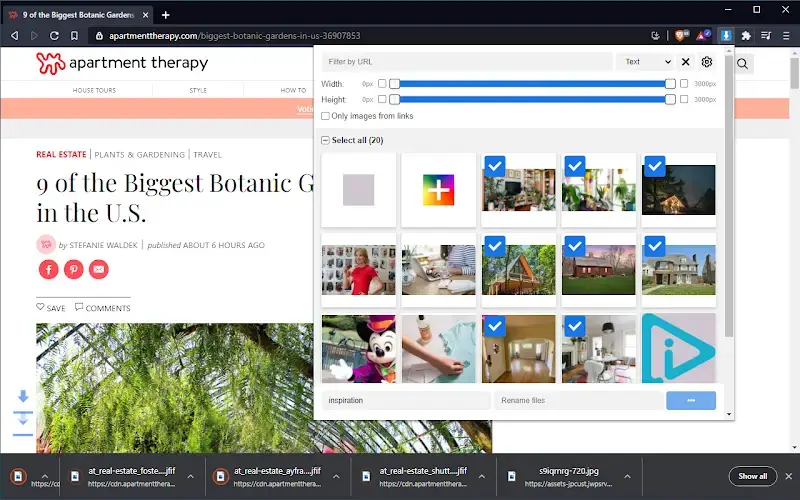
- Visual Filtering: It displays image dimensions on top of every thumbnail, letting you spot high-res assets at a glance.
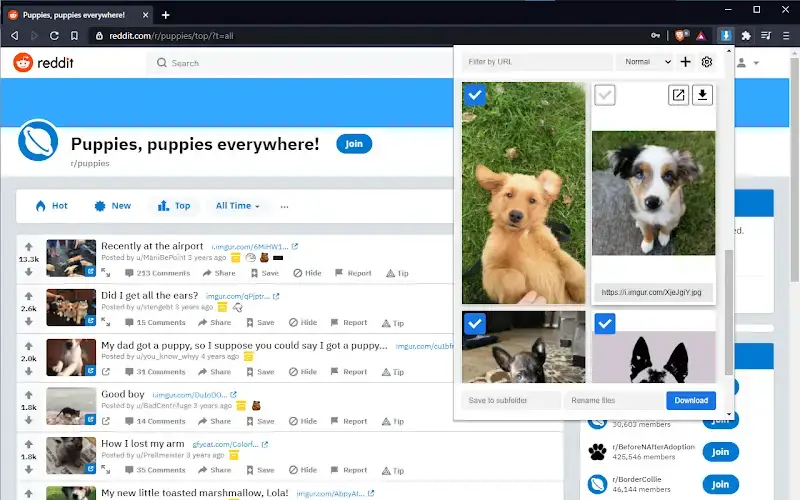
- Sanity checks: You can see the file URL and type (JPG, PNG, WebP) before you download.
- Bulk Action: The “Select All” feature combined with sub-folder routing organizes your downloads automatically.
Key Functions & Capabilities
The extension focuses on speed and precision, offering specific tools to manage how you interact with page content.
1. Advanced Image Filtering
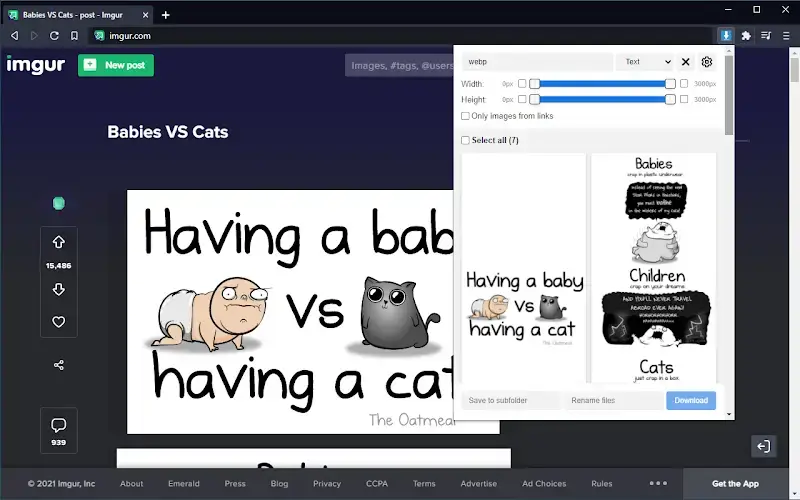
Open the extension on a media-rich page (like Pinterest or a news site). Use the “Width” and “Height” sliders at the top to filter out small icons and tracking pixels. You can also filter by URL string to find specific file types.
Benefit of this Function: Eliminates clutter by hiding irrelevant icons and logos, allowing you to focus solely on high-quality content.
2. One-Click Bulk Downloads
- Open the extension and wait for the grid to populate.
- Check the “Select All” box.
- Click “Download” and confirm the prompt.
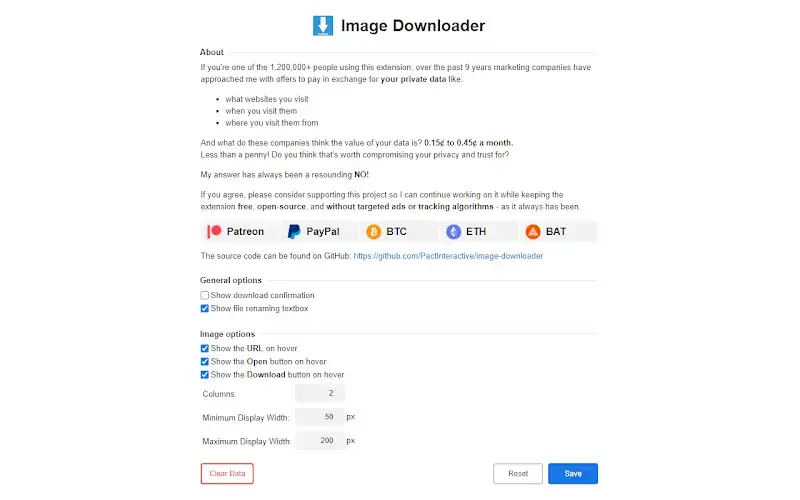
- Optional: Toggle “Ask where to save each file” OFF in Chrome settings to prevent 50 popup windows.
Benefit of this Function: Perfect for scraping reference material or backing up galleries in seconds rather than hours.
Video & Screenshots
I found a helpful tutorial that walks through the filtering and download process:
Screenshots Gallery
Some photos of the interface and filtering options:
FAQs & Technical Details
System Requirements
- OS: Windows / macOS / Linux / ChromeOS
- Browser: Chrome 90+ (Works on Edge/Brave/Vivaldi)
- Permissions: Requires “Read and change all your data on websites” to locate image URLs.
Frequently Asked Questions
- Can it download Instagram photos? Yes, but you may need to click into the specific post for the highest resolution.
- Why are some images missing? Some websites use complex scripts or “Canvas” elements to hide images. Try scrolling the page to load them first.
- Is it free? The core features are free. Some advanced bulk features may prompt for a premium upgrade depending on the version.
- Does it work on YouTube thumbnails? It can often detect the thumbnail preview if it is loaded on the page.
Like this extension? You might also enjoy: GoFullPage Screen Capture, Google Arts & Culture Extension, Google Dictionary Extension, and the Google Keep Extension.
Discover more from Chrome Geek
Subscribe to get the latest posts sent to your email.