Google Home App for Chromebook: 2026 Guide & Features
 by
Frank Cross
Post Updated: January 20, 2026
by
Frank Cross
Post Updated: January 20, 2026
Readers like you help support this site. When you make a purchase using links on our site, we may earn an affiliate commission. All opinions remain our own.
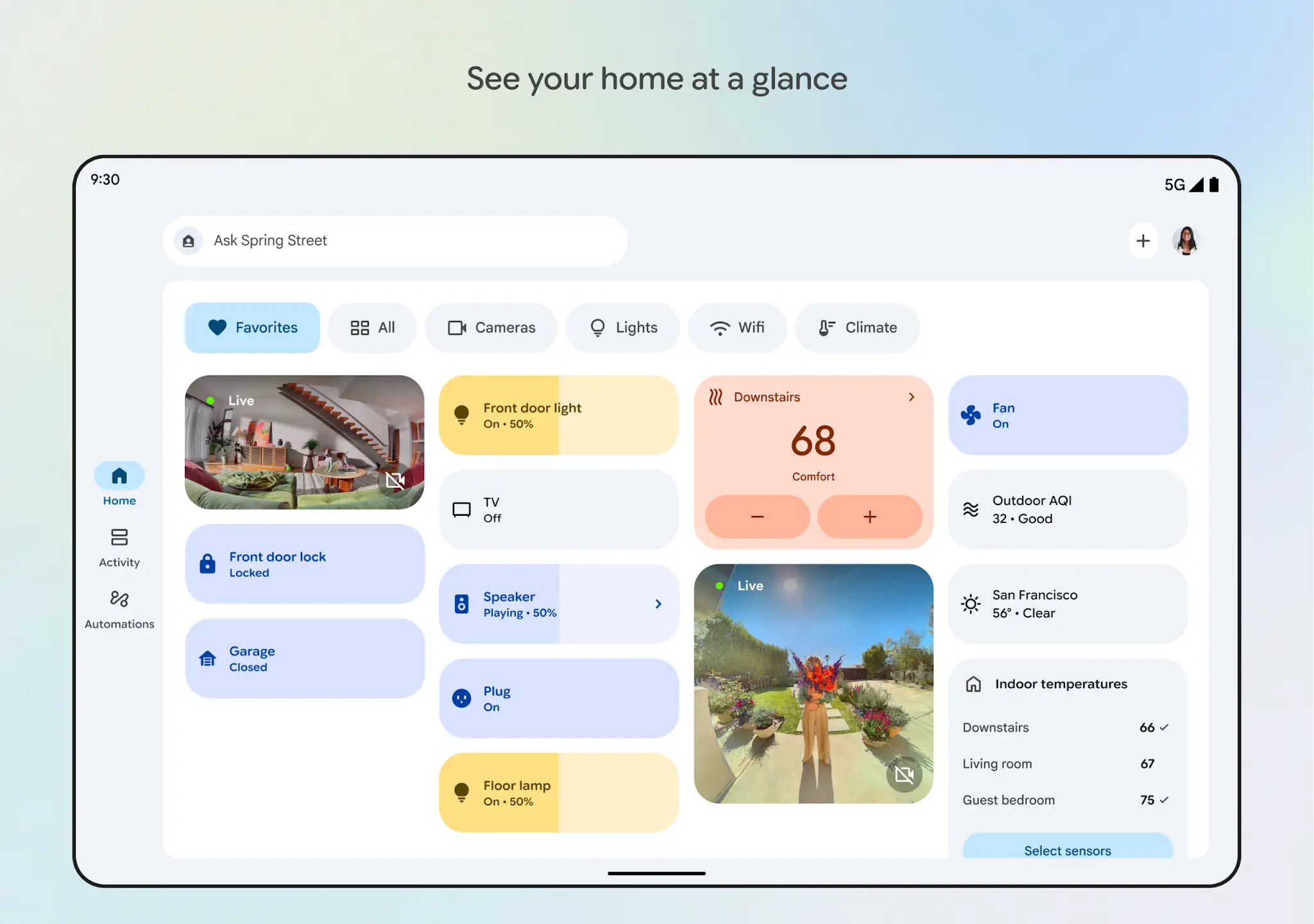
The Google Home app for Chromebook is a centralized dashboard that lets you control smart home devices, like lights, cameras, and thermostats,directly from your laptop.
Instead of reaching for your phone, you can view security camera feeds on your larger Chromebook screen or adjust the temperature while you work.
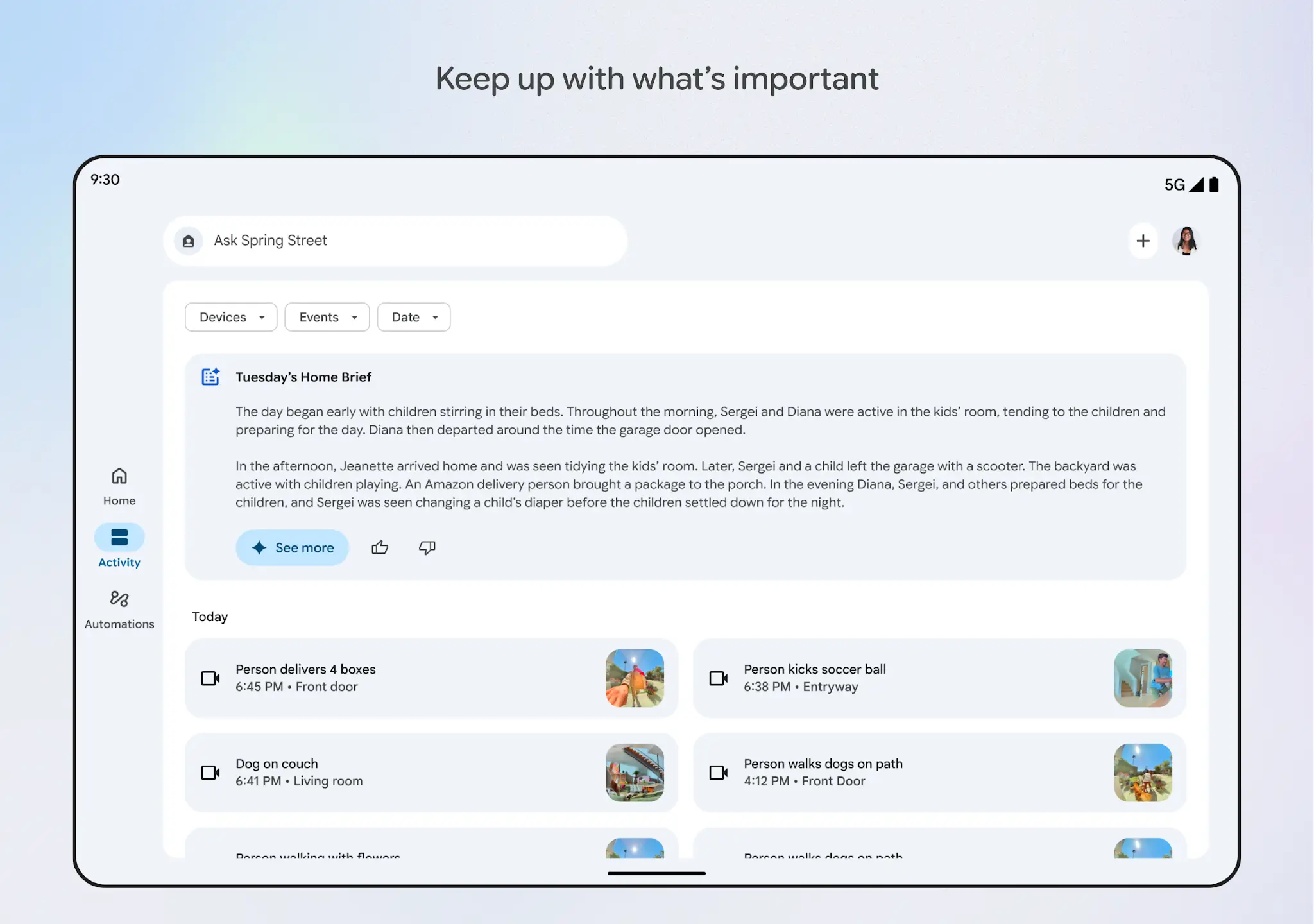
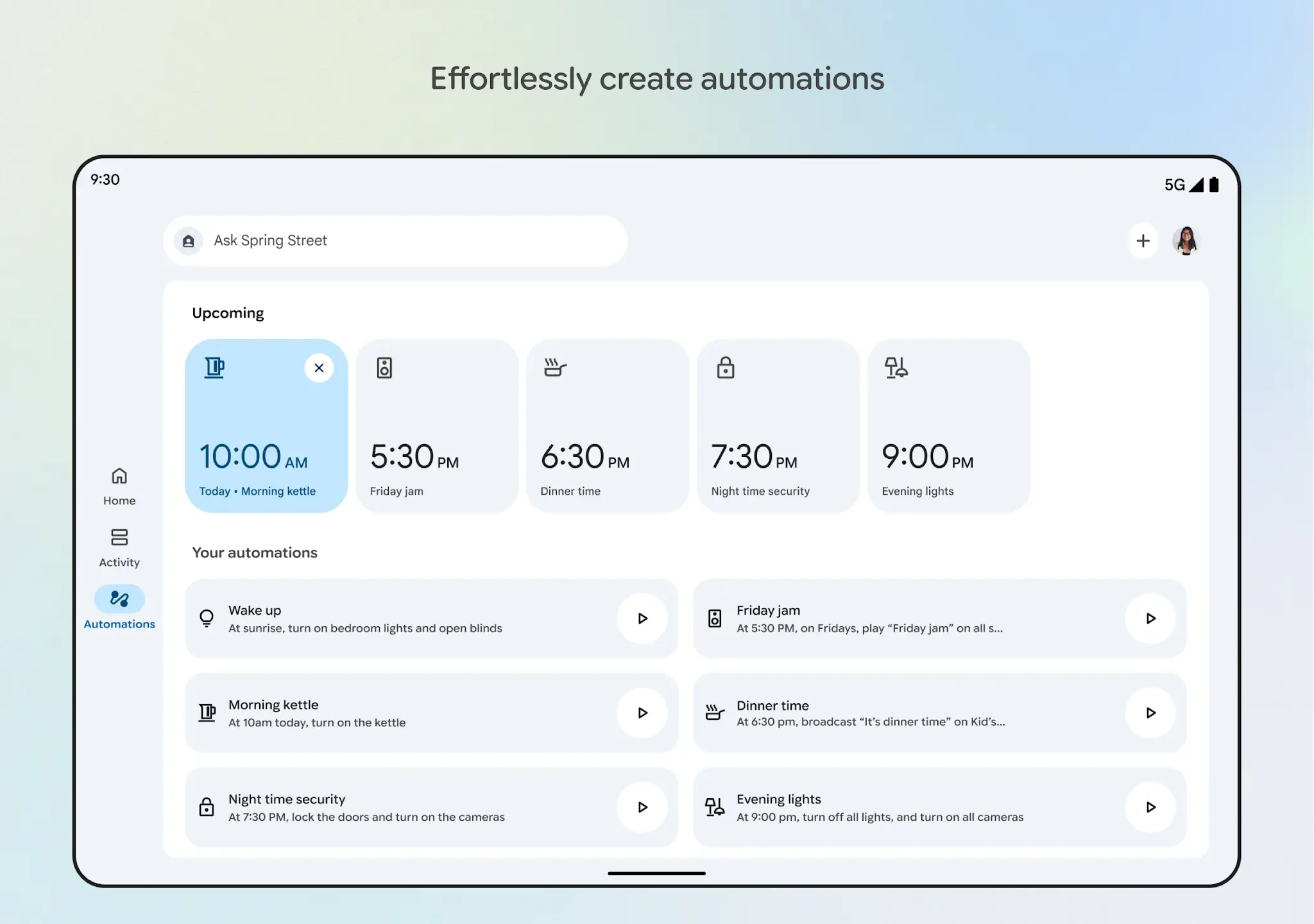
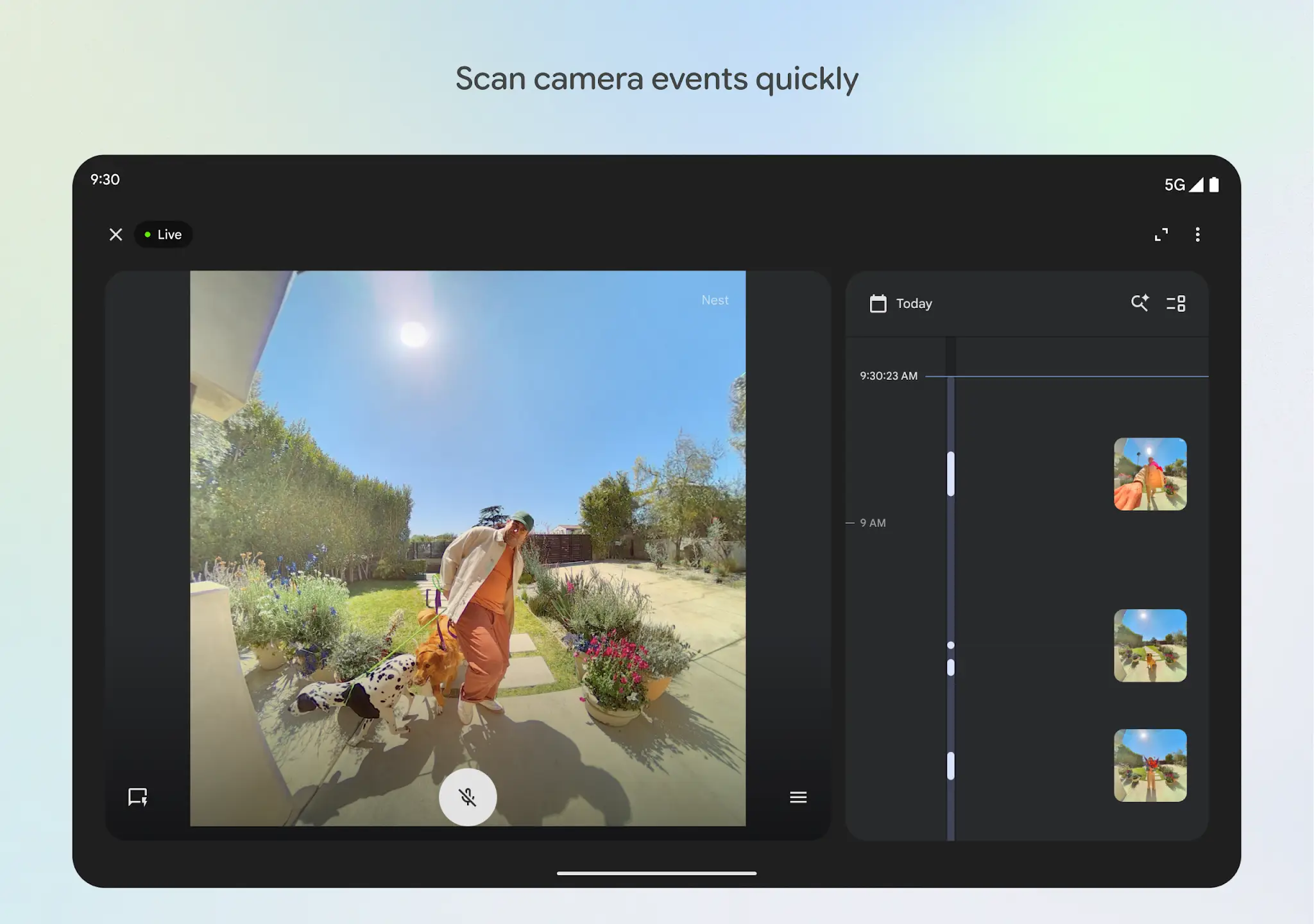
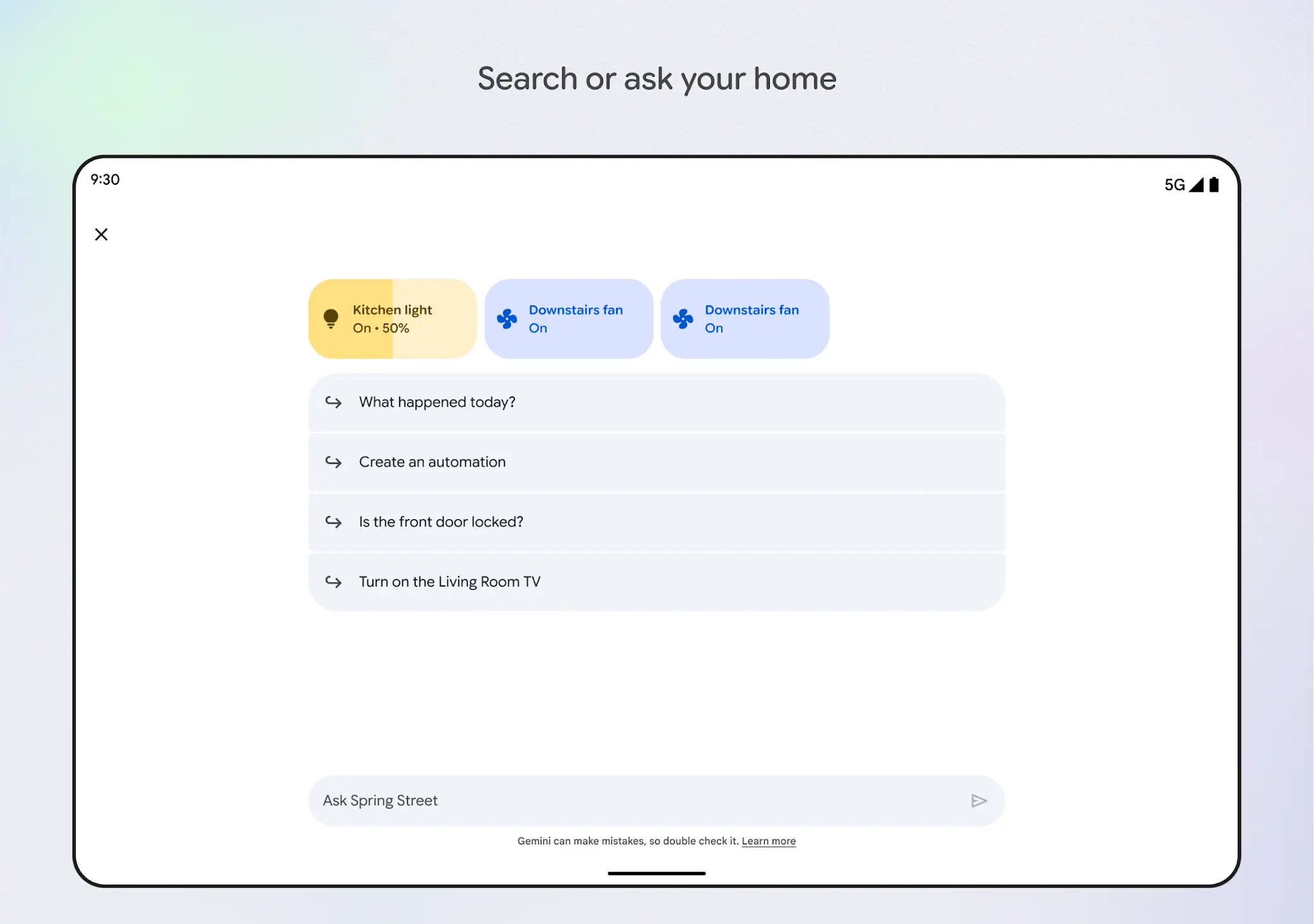
In 2026, the app received a major overhaul with Gemini AI integration, allowing you to create complex automations using plain English and search your camera history by asking questions like “Did a package arrive today?”
You can do a lot more, and this guide covers how to install Google Home on your Chromebook, complete with screenshots and a detailed features list.
If you need help or have any feedback, feel free to contact us or leave a comment below.
How to Install Google Home on Chromebook
- Open the Launcher (Circle icon in the bottom-left corner).
- Click on the Google Play Store icon.
- Type “Google Home” in the search bar.
- Click the green Install button.
- Open the app and log in with your primary Google account.
What’s New in the 2026 Update?
App Interface & Visuals
Here is what the redesigned app looks like:
Watch the Video Walkthrough
See the new Gemini features in action:

Managing a family? Use Google Workspace to sync family calendars with your Google Home displays.
🔗 Related Articles
- Manage your family life with these Chromebook apps
- Best Apps for your Google TV Streamer
- How to connect Bluetooth devices to Chromebook
Discover more from Chrome Geek
Subscribe to get the latest posts sent to your email.