Best Chrome Extensions for Web Developers
 by
Frank Cross
Post Updated: October 14, 2026
by
Frank Cross
Post Updated: October 14, 2026
 The best Chrome extensions for web developers include Web Developer for inspecting CSS and page elements, Lighthouse for checking website performance and accessibility, and Wappalyzer for identifying the technologies used to build a website.
Whether you’re fixing a broken layout, testing a website before launch, or working on a client’s project, the right Chrome extensions can save you time. They put useful development tools right inside your browser, making everyday tasks easier.
We’ve put together some of the most useful extensions for debugging, web design, testing, and managing websites. Whether you’re a beginner or an experienced developer, you’ll find tools worth adding to your workflow.
For more useful browser tools, check out our guide to the best Chrome extensions.
Debug and test web applications
Tools for troubleshooting web apps, checking accessibility and spotting performance problems.
1. Web Developer
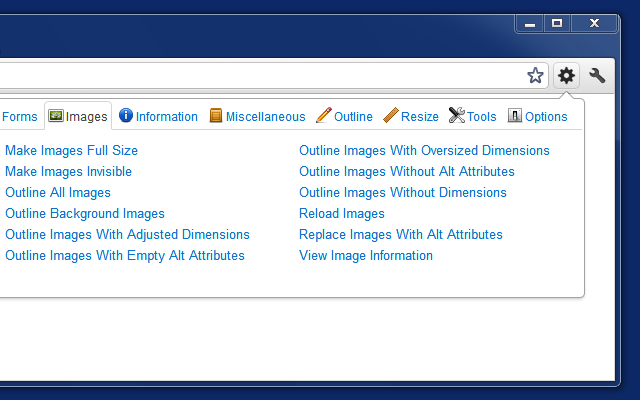
What it does: Adds a drop-down toolbar to Chrome with quick toggles and inspection controls for CSS, JavaScript, cookies, forms, images and page outlines.
Why we like it: It groups practical browser controls into one menu so you can test how a page behaves without JavaScript, disable styles, outline block elements or find images missing alt attributes in a couple of clicks. You can also resize the viewport to check custom breakpoints quickly.
Good to know: Many of its individual checks also exist inside Chrome DevTools, so this toolbar is mainly a faster way to reach common toggles during manual testing.
2. React Developer Tools
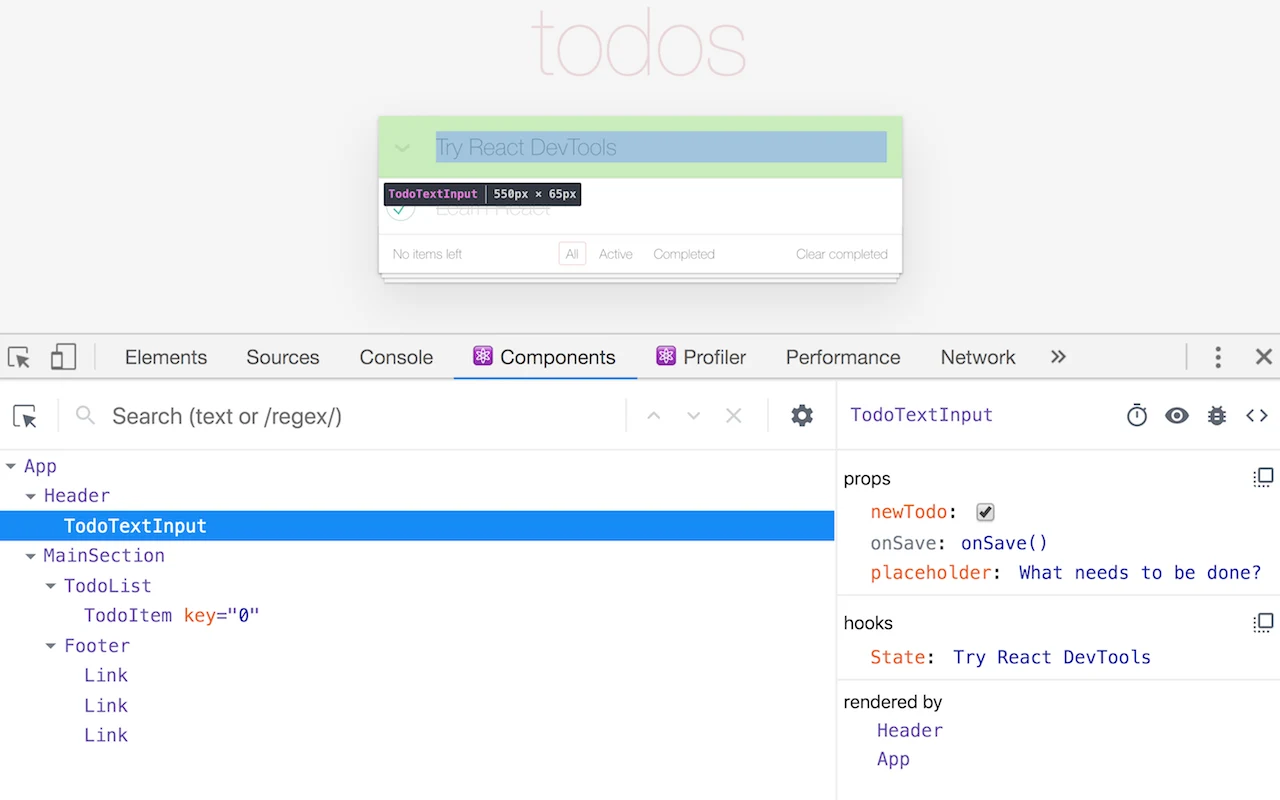
What it does: Adds Components and Profiler tabs to Chrome DevTools for inspecting React component hierarchies, props, state and hooks.
Why we like it: Instead of digging through compiled DOM nodes in the Elements panel, you can view the actual React component tree and edit props or state values live to test UI states. The Profiler tab records rendering passes so you can see which components re-render and why.
Good to know: It only works on pages built with React and cannot debug unrelated frontend frameworks. It also requires permission to access page data so it can read the React tree.
3. Redux DevTools
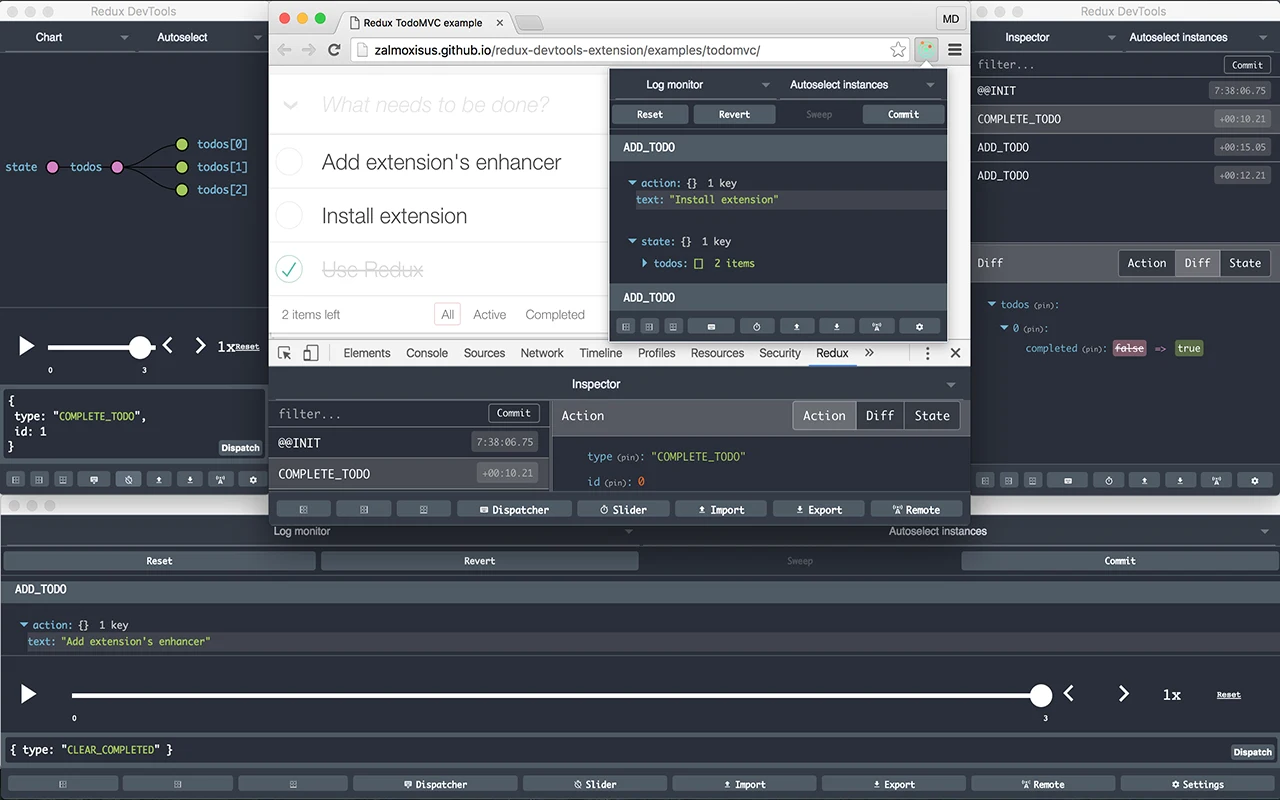
What it does: Inspects application state changes, dispatched actions and state diffs for Redux and compatible state-management setups.
Why we like it: When a complex interface updates unexpectedly, you can step backward and forward through each dispatched action to see the exact state tree before and after the change. You can also dispatch test actions directly from the panel or export state logs to reproduce a bug.
Good to know: It is primarily useful for projects that use Redux or stores wired for the Redux DevTools protocol, so you do not need it for every React app.
4. Lighthouse
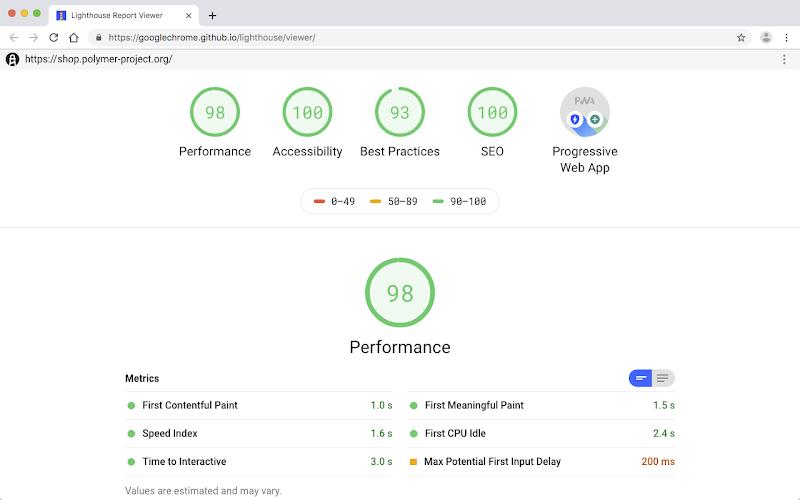
What it does: Runs automated lab audits on a web page and generates a report covering performance, accessibility, best practices and basic technical SEO checks.
Why we like it: Running a quick lab check before pushing a page live helps you spot oversized images, render-blocking scripts, missing meta tags and basic accessibility problems early. Each failed check links to documentation explaining how to fix the issue.
Good to know: Lighthouse is a simulated lab tool, so its scores do not prove search rankings or replace real-user Core Web Vitals field data. Lighthouse is also built directly into Chrome DevTools, so you do not need the extension unless you want a toolbar shortcut.
5. axe DevTools – Web Accessibility Testing
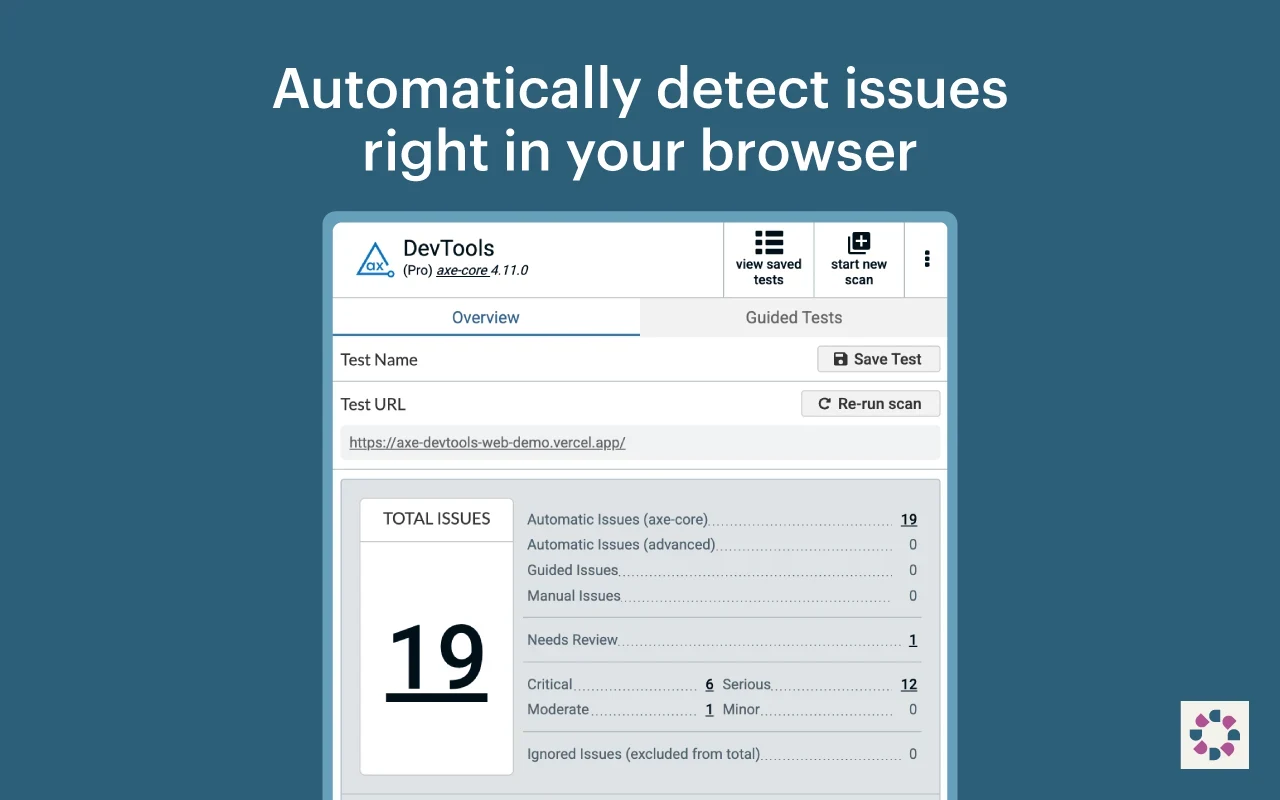
What it does: Scans web pages inside Chrome DevTools using the axe-core rules engine to flag automated accessibility issues.
Why we like it: It highlights the exact DOM element behind each finding, such as missing form labels, invalid ARIA attributes or insufficient color contrast, and explains how to fix the markup. Using it during component development catches common barriers before QA.
Good to know: Free automated page scans are included, while guided tests, issue exporting and team features require a paid Pro plan. Also remember that automated checks only catch a portion of accessibility issues and cannot prove full accessibility or legal compliance on their own.
Inspect design, layout and site technology
Find out how sites are built, inspect their styles and measure page layouts.
6. Wappalyzer
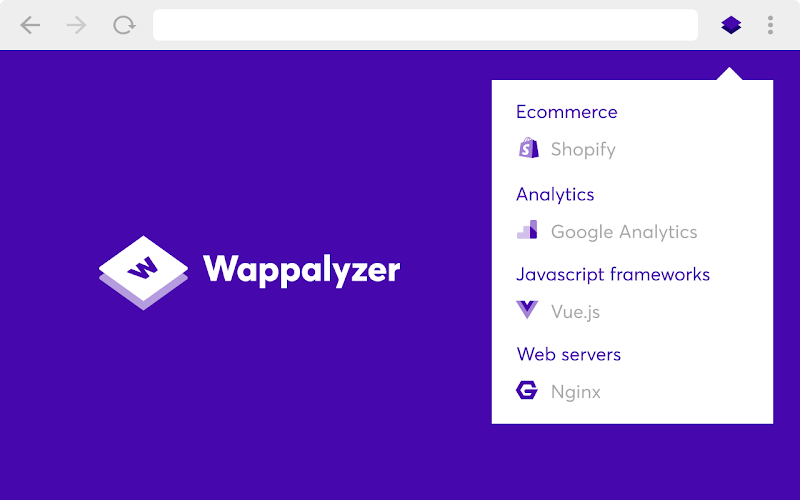
What it does: Identifies likely web technologies on the page you are visiting, including CMS platforms, JavaScript frameworks, analytics scripts and CDNs.
Why we like it: When you are scoping a client site or researching how another site handles its frontend, one click gives you a quick look at the public stack. It is a fast way to check whether a site runs WordPress, Shopify, Vue or specific analytics tools before digging into page source.
Good to know: Wappalyzer relies on visible scripts, markup patterns and HTTP headers, so its output is an estimate of exposed tools rather than an exact or complete inventory of a site’s backend stack. Basic browser lookups are free, while bulk lookups and lead lists require a paid plan.
7. WhatFont
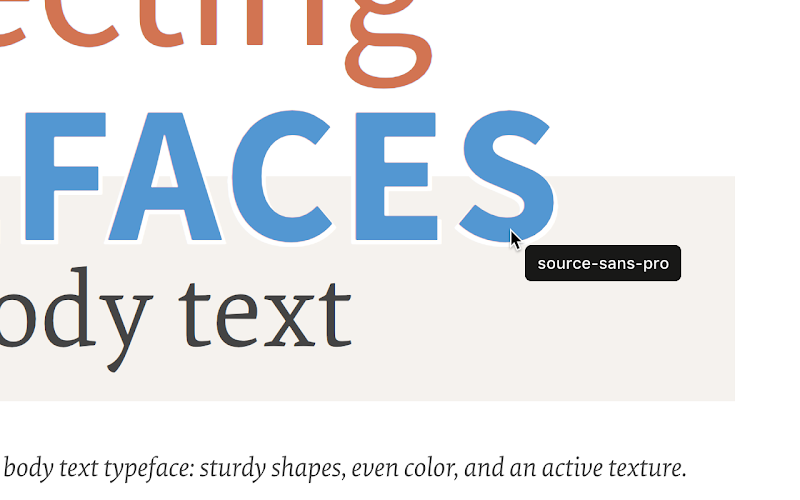
What it does: Shows the font family on hover and opens a small popover with font size, weight, line height and text color when you click any text element.
Why we like it: It focuses strictly on typography, making it faster than opening the Computed tab in DevTools when you just need to verify headings and body text across a page. It also notes whether a typeface is served from Google Fonts or Adobe Fonts.
Good to know: It only reports the computed font rules visible in the browser, and you should press Escape or click the toolbar icon again to exit inspection mode when finished.
8. ColorZilla
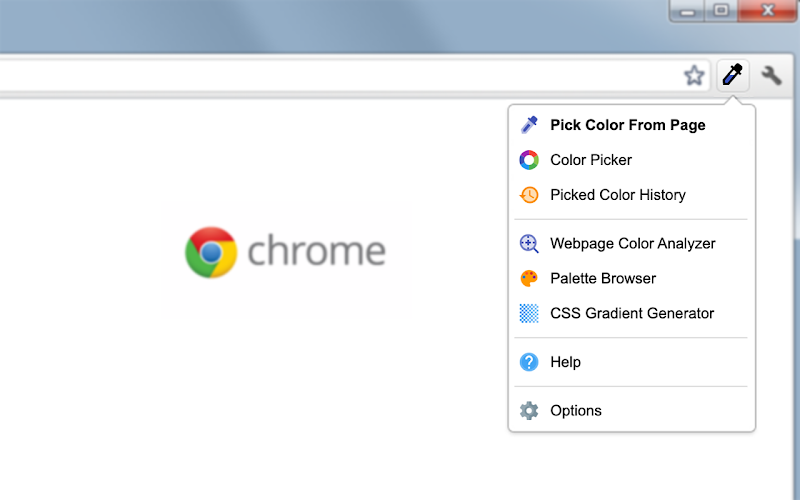
What it does: Samples color values from any pixel in the browser window, maintains a history of picked colors and generates CSS gradients.
Why we like it: Where WhatFont handles type, ColorZilla focuses on color sampling and palette checks. You can grab HEX or RGB values from page elements or images, review a full color palette for the current webpage and adjust shades in the built-in picker.
Good to know: Sampling colors inside cross-origin iframes or browser-protected pages can be restricted by Chrome security rules.
9. CSS Peeper
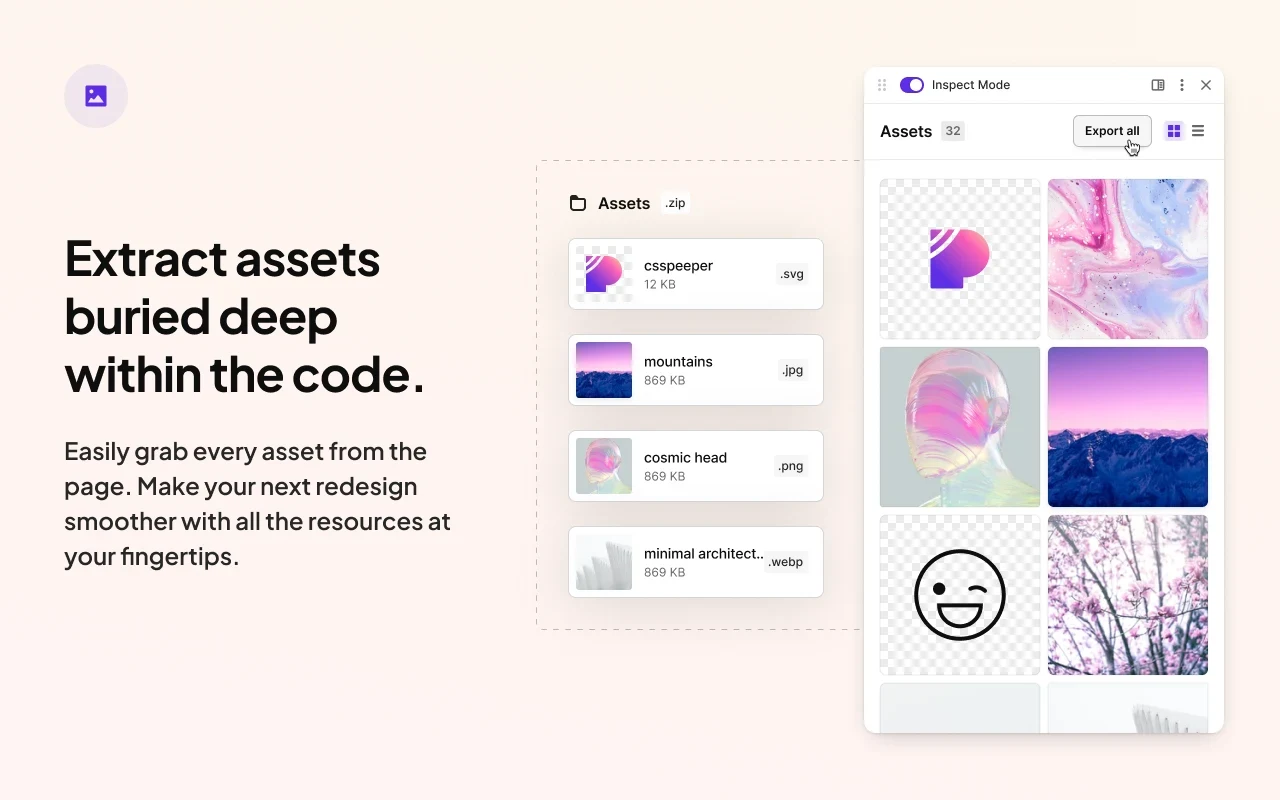
What it does: Displays computed CSS properties, page color palettes, typography styles and downloadable page assets in an organized visual panel.
Why we like it: It is helpful during design QA when you want to check element dimensions, spacing, colors and embedded SVG or WebP assets without scrolling through raw stylesheet rules. The asset tab also lists images on the page so you can download them in one place.
Good to know: Basic property inspection, color browsing and asset downloads are free, while copying CSS snippets, contrast scanning, Smart Inspector and Sidebar Mode require a paid plan. It only reads rendered browser styles and assets, not hidden design source files.
10. VisBug
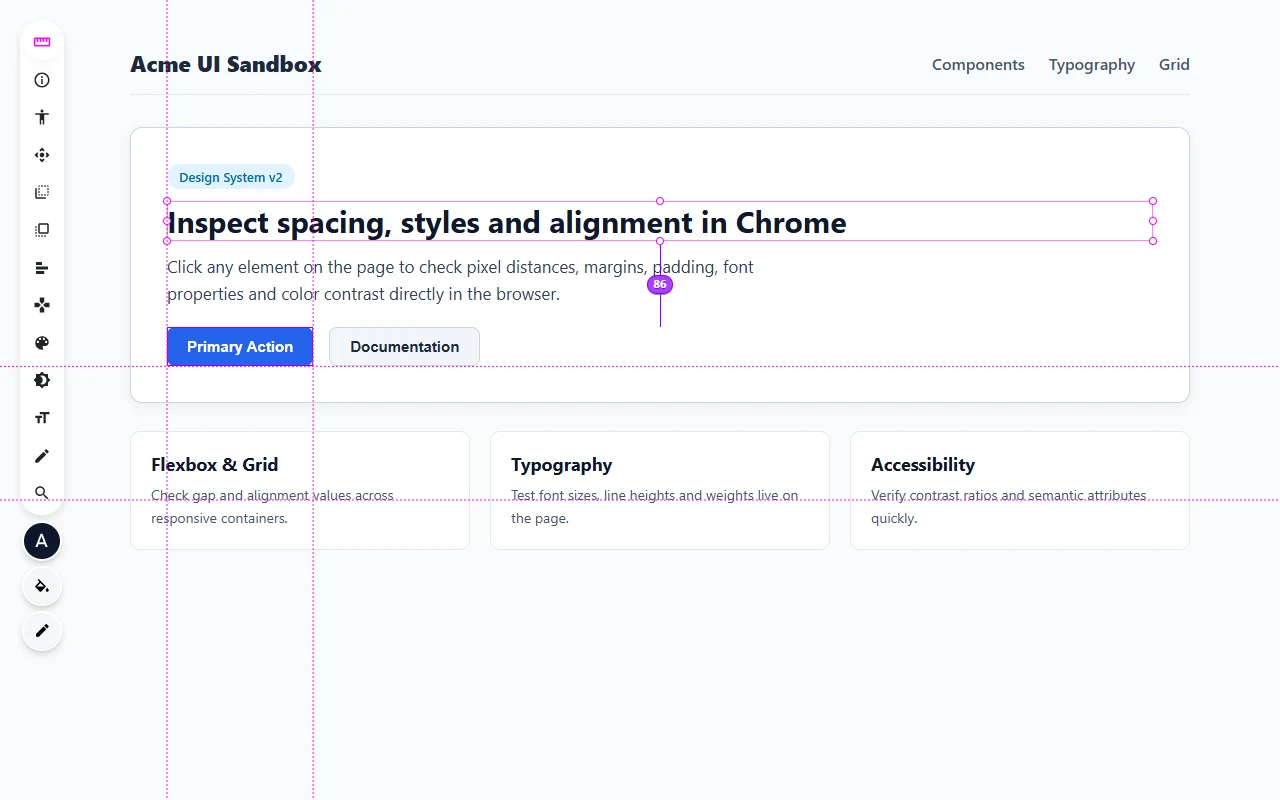
What it does: Provides an on-page toolbar for inspecting spacing, alignment, accessibility attributes and temporary visual style edits directly in the viewport.
Why we like it: You can click and hover elements to see pixel distances, nudge margins or padding with keyboard shortcuts and test text or color changes right on the live page. It is great for trying out layout adjustments with a designer or teammate before editing your code.
Good to know: All layout and style edits happen only inside your current browser tab and disappear on refresh; VisBug does not update your project’s source files.
11. Page Ruler
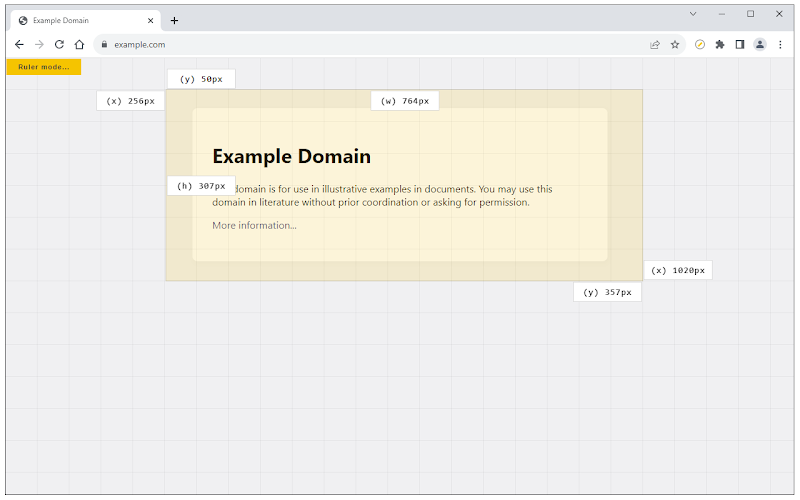
What it does: Draws a resizable rectangular overlay on any webpage to measure pixel width, height and X/Y screen coordinates.
Why we like it: When you just want to check the pixel distance between two visual blocks or verify the rendered size of a banner, dragging a box on screen is quick and direct. It stays out of the way until you click its toolbar icon.
Good to know: It only measures static pixel distances on your current screen size, so a ruler alone cannot validate how a responsive layout behaves across viewports.
Work with APIs, cookies, forms and caching
Check API data, change test requests and fill forms without repetitive typing.
12. JSON Viewer Pro
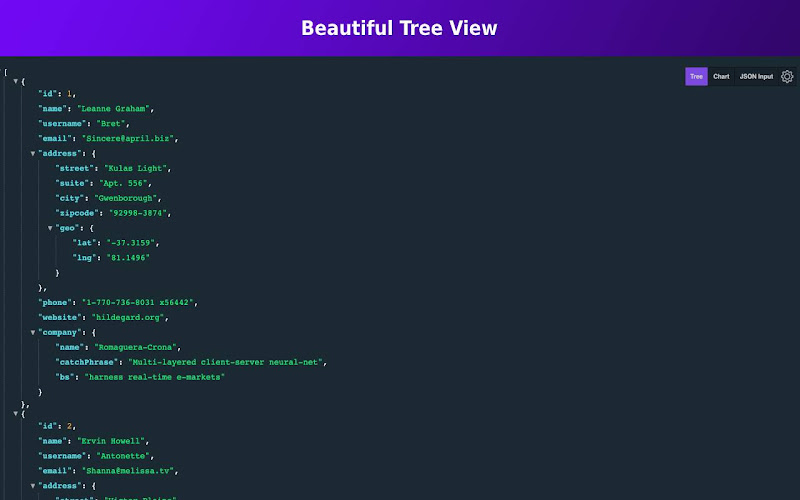
What it does: Formats raw JSON responses in the browser into a collapsible, searchable tree or chart view with property path copying.
Why we like it: Opening a raw API endpoint in Chrome usually shows an unformatted block of text. This extension turns valid JSON responses into an expandable tree, lets you copy the exact path to nested keys and supports importing local JSON, YAML or XML files.
Good to know: It is a viewer for valid JSON documents and responses, not a full API client for sending authenticated POST requests or debugging backend server logic.
13. Requestly: Intercept & Modify HTTP Requests
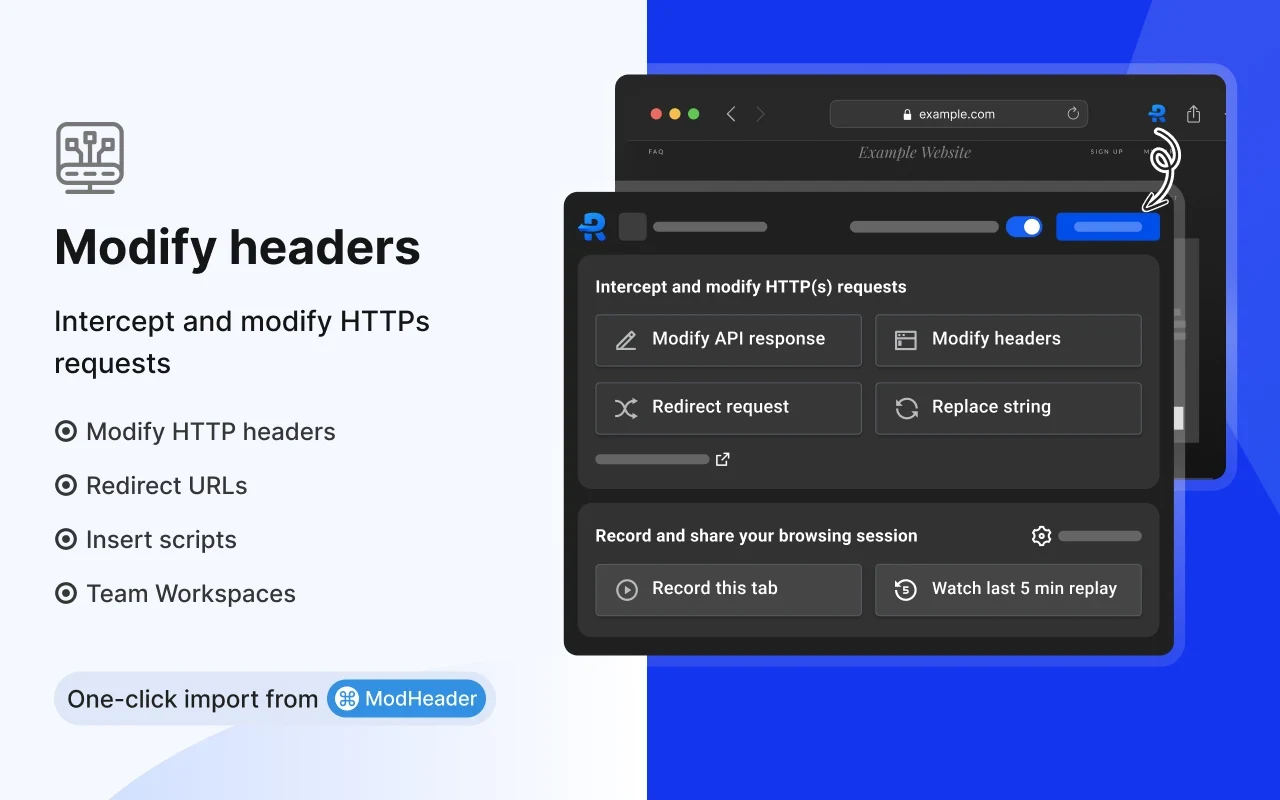
What it does: Intercepts and modifies HTTP requests and responses in Chrome, including custom headers, URL redirects and mocked API responses.
Why we like it: You can test how your frontend handles error status codes, mock REST or GraphQL payloads before the backend is ready or redirect a production script URL to your local dev server. It also replaces older header-only tools by combining header rules and response mocking in one interface.
Good to know: Core local rules are free, while some advanced mocking and team workspace features require a paid plan. Handle auth tokens and request overrides carefully, and always turn off active rules when you finish testing so they do not break normal browsing.
14. Cookie-Editor
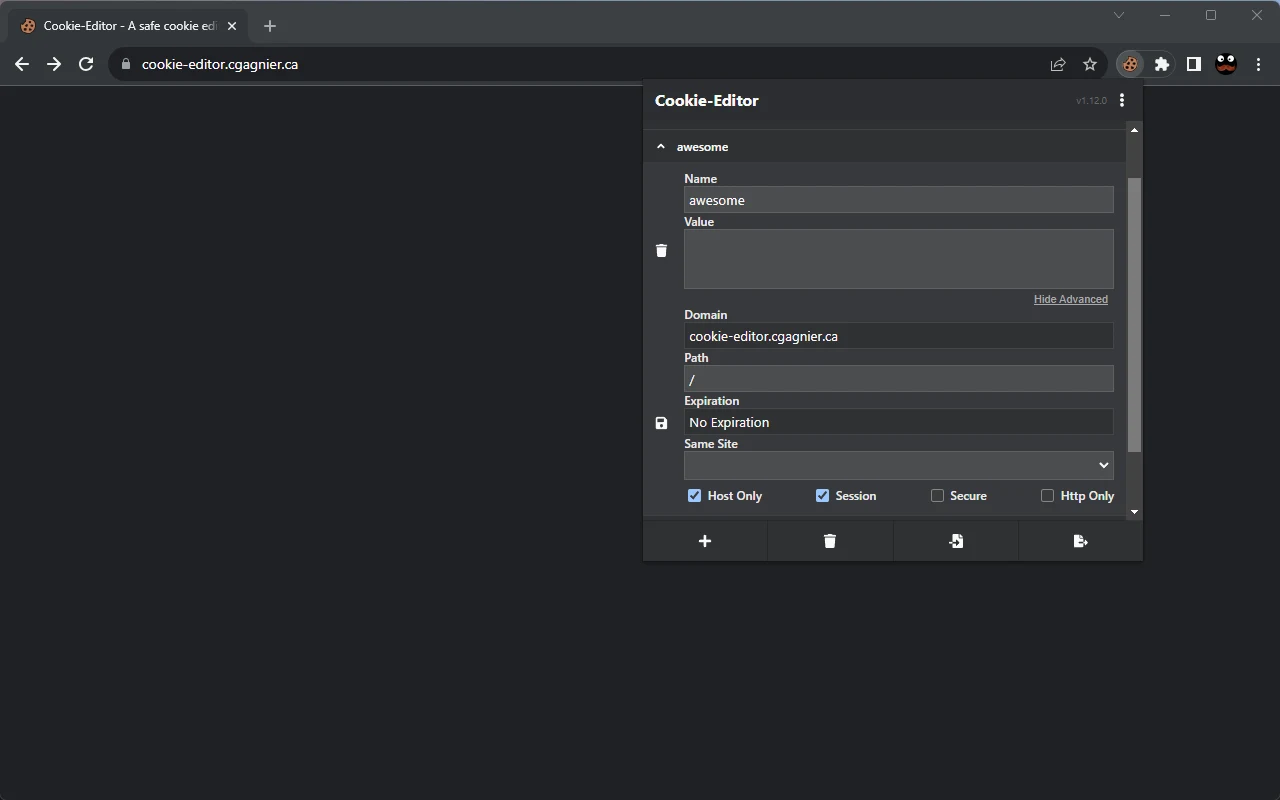
What it does: Lists all cookies for the current tab so you can search, create, edit, delete, import or export cookies without opening DevTools.
Why we like it: When testing login states, consent banners or feature flags stored in cookies, you can edit cookie values or toggle flags like Secure, Session and SameSite in a couple of clicks. It also exports and imports cookies in JSON, Netscape or header string formats for test setups.
Good to know: It helps you inspect and edit cookies during testing, but it will not fix underlying authentication bugs. Never share exported cookies or live session tokens with anyone, since they can grant full access to your accounts.
15. Fake Filler
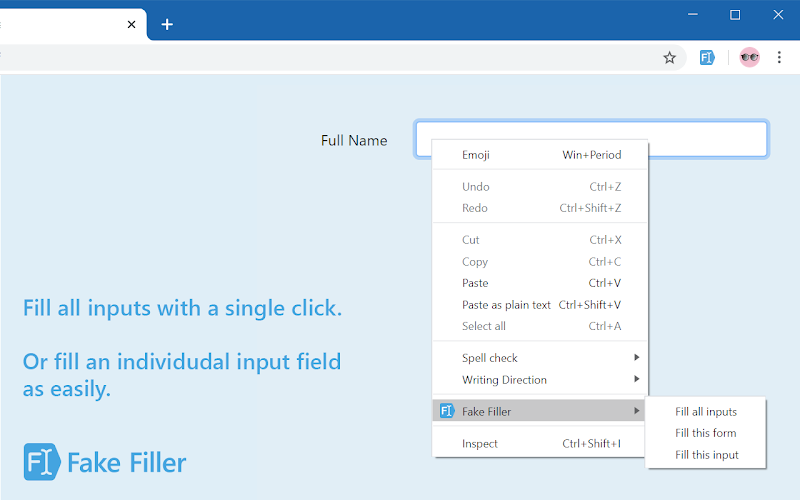
What it does: Fills form inputs on a page with randomly generated dummy names, emails, phone numbers and text using a keyboard shortcut or right-click menu.
Why we like it: Testing multi-field registration, checkout or profile forms gets repetitive when you have to type sample inputs every time. Fake Filler populates visible inputs in one step while skipping hidden, disabled, read-only and CAPTCHA fields.
Good to know: Use it only on local, staging or dedicated test forms, and avoid submitting fabricated data to live production websites. Standard form filling is free, while custom field sync and extra profiles require a paid plan.
16. Clear Cache
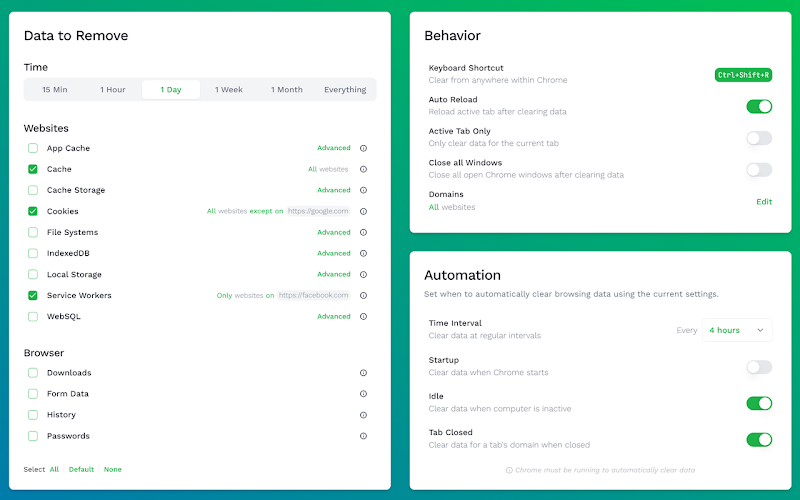
What it does: Clears selected browser data types such as cache, cookies, local storage or IndexedDB from a toolbar button or keyboard shortcut.
Why we like it: Instead of opening Chrome’s settings dialog during development, you can configure which data types and time ranges to clear and trigger them with one click or shortcut. You can also limit clearing to the active tab and auto-reload the page afterward.
Good to know: It only clears the specific data types and scopes enabled in its settings, so check your checkboxes before relying on it for service workers or site storage. Basic one-click clearing is free, while custom presets, domain rules and scheduled clearing require Clear Cache Plus.
Check websites and manage development work
Find broken links and manage WordPress, GitHub and browser sessions.
17. Check My Links
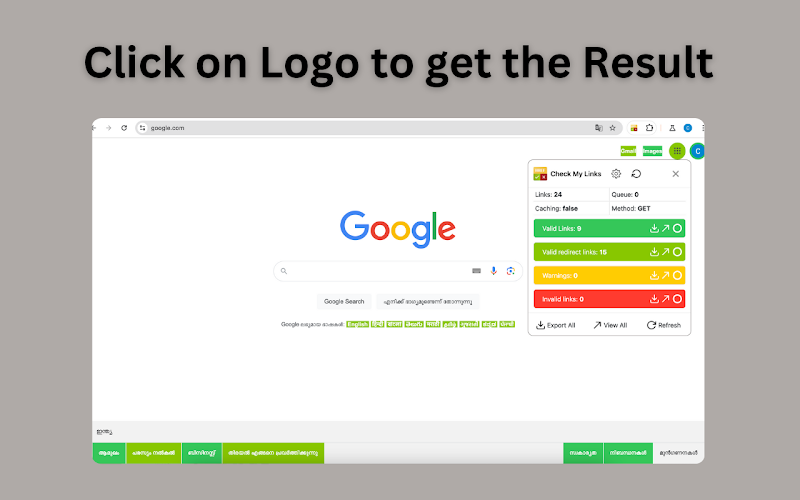
What it does: Scans all links on the current webpage and highlights valid links, redirects, warnings and broken URLs.
Why we like it: Before publishing a new template, documentation page or site migration, you can run a quick scan in your tab to spot 404 links or unexpected redirects. It color-codes links right on the page and lets you export the results for review.
Good to know: It checks only the page currently open in your browser rather than crawling an entire domain, and some sites block automated head requests and show false warnings.
18. WordPress Admin Switcher
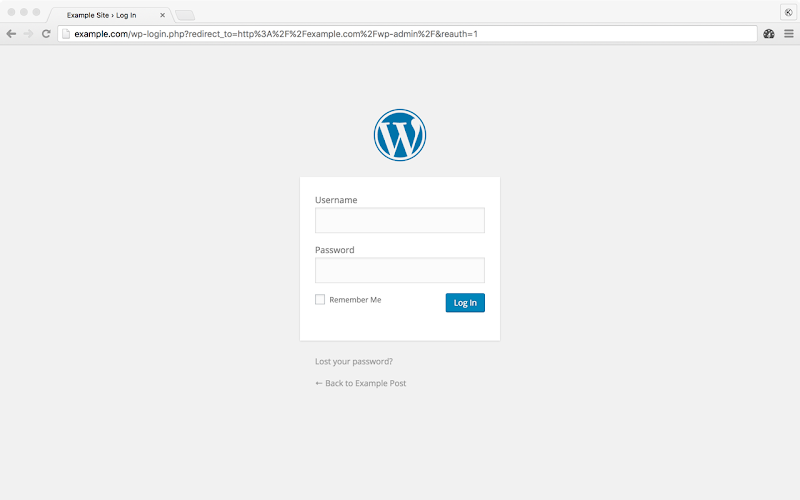
What it does: Lets you switch between a WordPress page on the frontend and its corresponding admin edit screen using a keyboard shortcut or toolbar click.
Why we like it: When you work on WordPress themes or content with the admin bar hidden, or when you want to jump straight to `/wp-admin/` without editing the URL bar by hand, a single shortcut takes you to the login or edit screen.
Good to know: It is a navigation shortcut for WordPress URLs and does not bypass WordPress authentication; you still need a valid user account to sign in.
19. Session Buddy
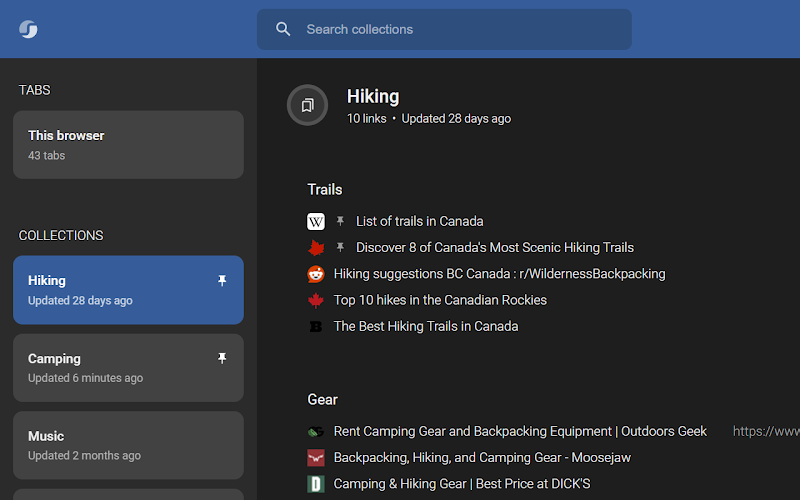
What it does: Saves open browser windows and tabs into named collections that you can search, export and restore later.
Why we like it: Developers often keep dozens of documentation, issue tracker and staging tabs open for different projects. Session Buddy lets you save an entire project’s tabs as a collection, close them to free up memory and reopen the exact set when you return to that task.
Good to know: Session data is stored locally in your browser by default and does not automatically sync across devices, so export your collections if you want a backup or need to move them to another computer.
20. Refined GitHub
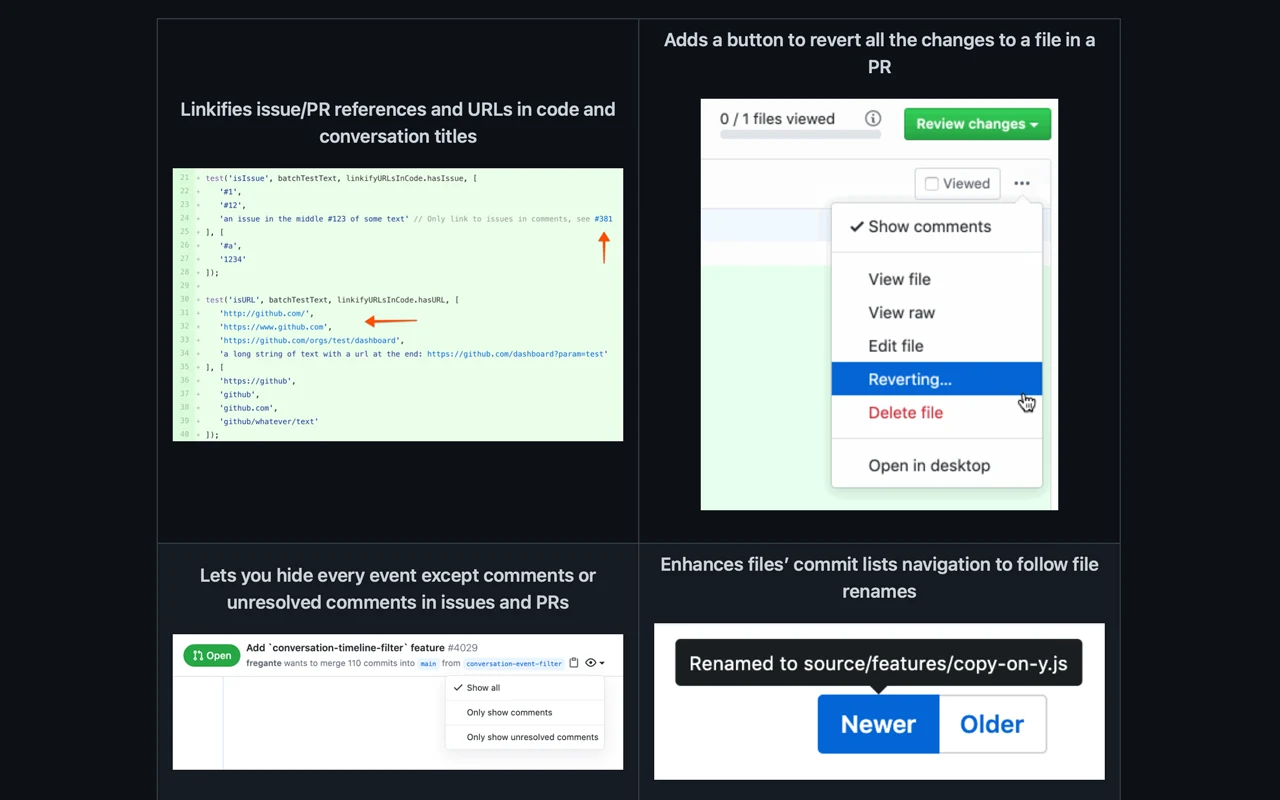
What it does: Adds practical interface improvements and shortcuts to GitHub repositories, pull requests, issues and code views.
Why we like it: It streamlines everyday code review on GitHub by making whitespace characters visible in diffs, adding one-click merge conflict helpers, letting you filter PR timelines to unresolved comments and linking issue references inside code comments.
Good to know: It modifies GitHub’s web interface inside your browser rather than replacing GitHub itself, and you can toggle individual features off in the extension options if a change does not fit your workflow.
Looking for more Chrome tools?
If you want to round out your browser setup for bug reporting and daily work, take a look at these related ChromeGeek guides:
Discover more from Chrome Geek
Subscribe to get the latest posts sent to your email.