Essential Chromebook Keyboard Shortcuts [Free PDF Cheat Sheet]
 by
Juniya Sankara
Post Updated: January 15, 2026
by
Juniya Sankara
Post Updated: January 15, 2026
Looking for the latest Chromebook shortcuts? Whether you’re working, browsing, or multitasking across Virtual Desks, these time-saving combos will help you work smarter, not harder.
In 2026, mastering the Everything Button (🔍) is the key to unlocking features like the Clipboard Manager, Emoji Picker, and Gemini Search instantly.
This guide covers every essential combination to help you ditch the trackpad.
Have a shortcut request? Contact us here or leave a comment below.
Download the Chromebook Shortcuts Cheat Sheet
Get the PDF Cheat Sheet
Includes all legacy shortcuts plus new Virtual Desk commands.
What is the “Everything Button”?
On standard keyboards, it’s the Caps Lock key. On Chromebooks, it’s the Search (🔍) or Launcher (⚪) key. It is the most important modifier key you have for launching apps and searching files.
Pro Tip: Press Ctrl + Alt + / at any time to see an interactive map of all shortcuts on your screen.
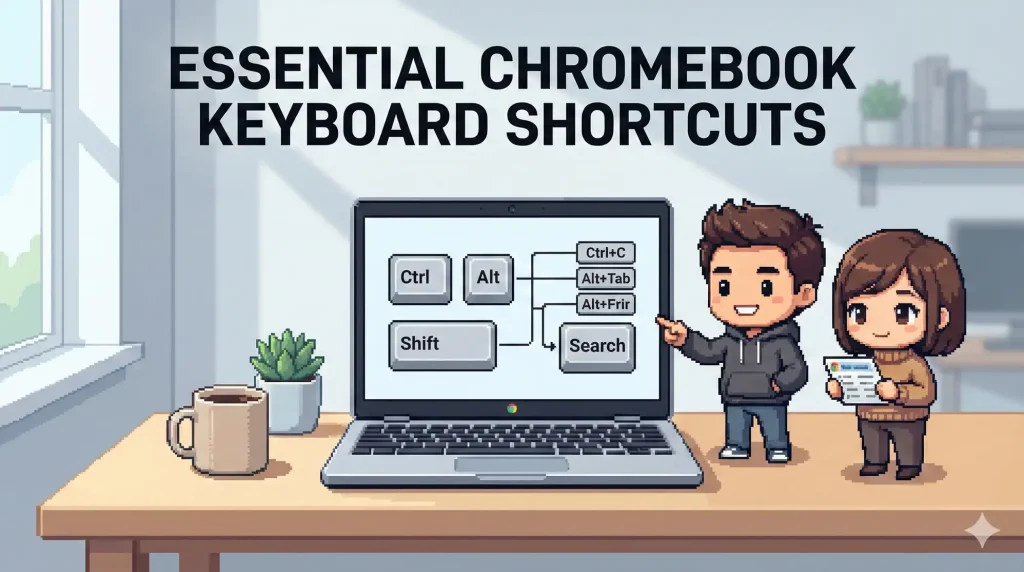
Page & Browser Navigation
Navigating web pages without a trackpad is the hallmark of a power user. Use these keys to scroll, zoom, and reload pages instantly.
| Shortcut | Action |
|---|---|
| Alt + ↑ / ↓ | Page Up / Page Down (Scroll quickly). |
| Ctrl + Alt + ↑ / ↓ | Home / End (Jump to Top or Bottom). |
| Ctrl + R | Reload page. |
| Ctrl + Shift + R | Hard Reload: Reloads without using cached data (fixes glitches). |
| Ctrl + + / – | Zoom In / Out. |
| Ctrl + 0 | Reset Zoom to 100%. |
| Esc | Stop page loading. |
| Alt + Click Link | Open link in background tab. |
| Ctrl + D | Bookmark current page. |
| Ctrl + Shift + D | Bookmark all open tabs in a new folder. |
| Ctrl + F | Open Find bar. |
| Ctrl + G / Shift + Enter | Find Next / Previous match. |
| Ctrl + K / E | Search from address bar (Google Search). |
| Ctrl + Enter | Add www. and .com to text in address bar. |
| Ctrl + U | View page source code. |
| Ctrl + Shift + I | Toggle Developer Tools. |
Tab & Window Management
Stop clicking the tiny ‘x’ button. Manage your workspace and organize your browsing sessions with these window management keys.
| Shortcut | Action |
|---|---|
| Ctrl + N | New window. |
| Ctrl + Shift + N | New Incognito window (Private browsing). |
| Ctrl + T | New tab. |
| Ctrl + O | Open file. |
| Ctrl + Shift + Q (x2) | Sign out of Chromebook (Press twice quickly). |
| Ctrl + W | Close current tab. |
| Ctrl + Shift + W | Close current window. |
| Ctrl + Shift + T | Reopen Closed Tab (Restores lost work). |
| Ctrl + 1–8 | Switch to specific tab number. |
| Ctrl + 9 | Switch to the last tab. |
| Alt + 1–8 | Open pinned app from the shelf (bottom bar). |
| Ctrl + Tab | Switch to next tab. |
| Ctrl + Shift + Tab | Switch to previous tab. |
| Alt + Tab | Switch between open windows. |
| Alt + Left / Right | Back / Forward in browsing history. |
| Ctrl + Click | Open link in background tab. |
| Ctrl + Shift + Click | Open and focus link in new tab. |
| Shift + Click | Open link in new window. |
System, Screenshots & Virtual Desks
Modern Chromebooks support “Virtual Desks” to separate work from play. Use these keys to manage files, take screenshots, and organize screens.
| Shortcut | Action |
|---|---|
| Ctrl + Shift + B | Toggle bookmarks bar. |
| Alt + Shift + M | Open Files app. |
| Ctrl + . (period) | Show hidden files (in Files app). |
| Ctrl + H | Open History. |
| Ctrl + J | Open Downloads. |
| Shift + Esc | Open Task Manager. |
| Ctrl + Alt + / | Open keyboard shortcut overlay. |
| Shift + Alt + S | Open System Tray (Quick Settings). |
| Shift + Alt + L | Focus the Launcher. |
| Ctrl + 🔳 (Show Windows) | Take Full Screenshot. |
| Ctrl + Shift + 🔳 | Take Partial Screenshot (Select area). |
| Search + V | New: Open Clipboard Manager. |
| Search + Shift + Space | New: Open Emoji Picker. |
| Shift + Search + = | New: Create Virtual Desk. |
| Search + [ / ] | New: Switch Virtual Desks. |
| Alt + [ / ] | New: Snap Window Left / Right. |
Text Editing Shortcuts
Write faster by keeping your hands on the home row. These keys let you select, delete, and format text without using the mouse.
| Shortcut | Action |
|---|---|
| Ctrl + A | Select all content. |
| Ctrl + L / Alt + D | Select address bar text. |
| Ctrl + Shift + Arrow | Select text word-by-word. |
| Shift + Search + Arrow | Select to start/end of line. |
| Ctrl + Arrow | Jump to next/previous word. |
| Ctrl + Search + Arrow | Jump to start/end of document. |
| Ctrl + C / V / X | Copy / Paste / Cut. |
| Ctrl + Shift + V | Paste Plain Text (Removes formatting). |
| Ctrl + Backspace | Delete previous word (Faster than backspace). |
| Alt + Backspace | Delete Forward (Like the “Delete” key on Windows). |
| Ctrl + Z | Undo last action. |
🔗 Related Guides from ChromeGeek
- Chrome Shortcuts for Windows
- Chrome Shortcuts for Mac
- Chrome Shortcuts for Linux
- Ultimate Google Chrome Cheat Sheet
- How to Connect a Printer to a Chromebook
Discover more from Chrome Geek
Subscribe to get the latest posts sent to your email.