How to Install and Use Parallels on Chromebook and Googlebook
 by
Juniya Sankara
Post Updated: November 17, 2026
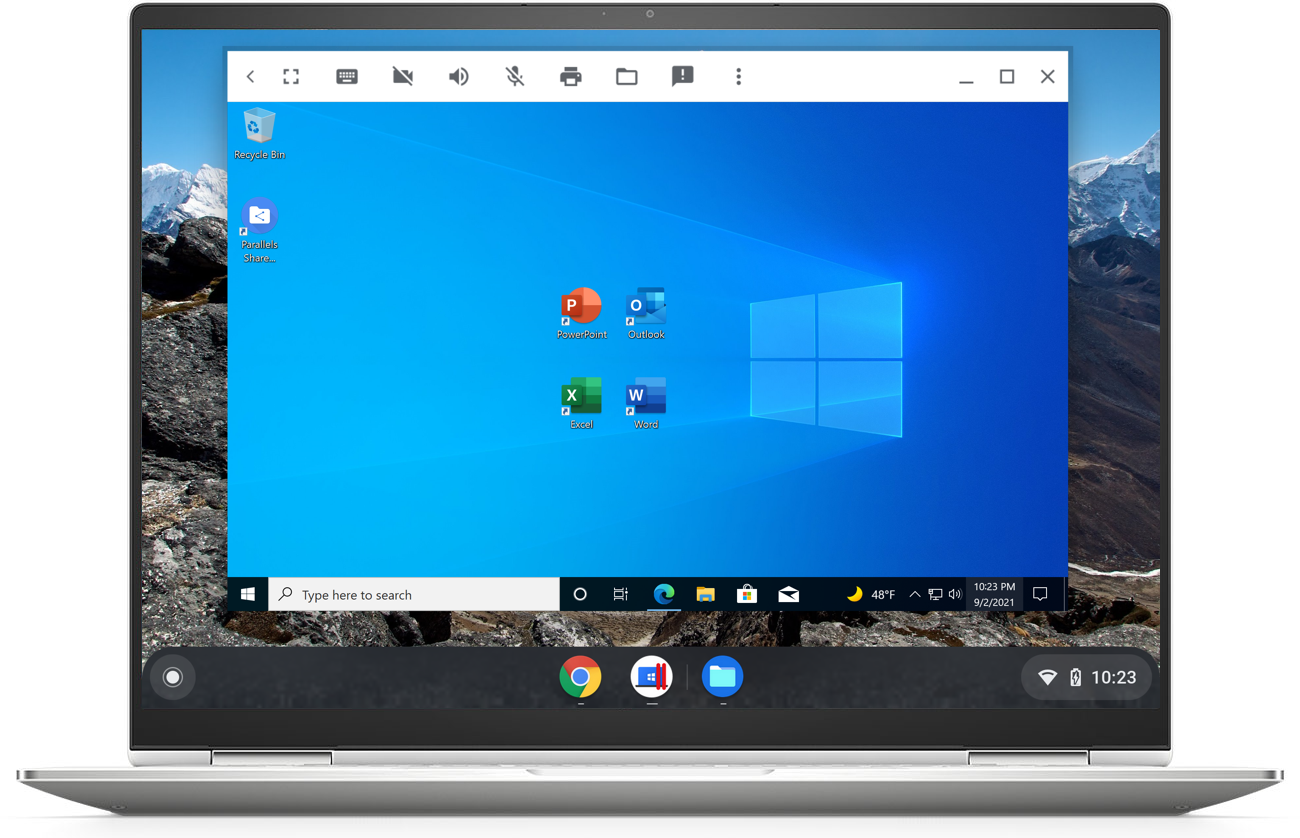
You can install and use Parallels on Chromebook and Googlebook through Parallels Client from Google Play or via Parallels DaaS in your browser. While the legacy local hypervisor Parallels Desktop for ChromeOS has been discontinued, Parallels still lets you run full Windows applications and virtual desktops smoothly on ChromeOS.
Googlebook runs Android apps natively from Google Play alongside instant phone-app casting from the Phone Hub. This updated guide covers Parallels Client installation, Parallels DaaS options, legacy Parallels Desktop for ChromeOS requirements and Google Admin policies, and proven troubleshooting fixes.
Need help setting up Windows app access? Contact us with your laptop model and setup questions.
How to install Parallels Client on Chromebook and Googlebook
To connect to Parallels DaaS or Parallels Remote Application Server (RAS) from ChromeOS, install the official Parallels Client app from Google Play in a few quick steps:
The official Google Play listing identifies Parallels Client under the package identifier com.parallels.client. If your organization uses Parallels web workspaces, you can also open published Windows apps directly inside Google Chrome without installing a client.
If the Play Store is missing on your laptop, check Google’s Android app setup guide for Chromebook or the guide on installing apps on Googlebook. On managed school or workplace devices, IT administrators control Play Store access and virtual desktop policies.
Cast Parallels Client from your phone on Googlebook
If you already have your remote Windows workspaces and server profiles saved inside Parallels Client on your Android phone, Googlebook’s Cast My Apps feature lets you open that active session straight onto your laptop screen. Open the Phone Hub in the bottom-right corner of your Googlebook shelf, click Cast My Apps, and choose Parallels Client to work in a floating desktop window without re-entering server addresses or transferring files.
Parallels Desktop for ChromeOS status and modern alternatives
Parallels discontinued sales of its local ChromeOS hypervisor (Parallels Desktop for ChromeOS) and ended support for existing deployments on April 21, 2026. Today, ChromeOS users and IT teams rely on cloud-delivered Windows options instead of heavy local virtual machines:
Legacy Parallels Desktop for ChromeOS requirements
If you are auditing an existing enterprise fleet or migrating away from a local Parallels Desktop for ChromeOS virtual machine, these were the official hardware and licensing requirements:
- Processor: minimum 11th Gen Intel Core i3 or AMD Ryzen 3 5000 series; Intel Core i5/i7 or AMD Ryzen 5/7 with fan cooling recommended for active multitasking.
- Memory and storage: minimum 8 GB RAM and 128 GB SSD; 16 GB RAM and 256 GB or more storage recommended to hold Windows and local project files comfortably.
- ChromeOS and management licenses: ChromeOS 85 or later, Chrome Enterprise Upgrade or Chrome Education Upgrade, and access to the Google Admin Console.
- Windows image and license: a valid Windows 10 or Windows 11 license paired with a corporate-hosted Windows ISO or pre-configured Parallels virtual machine (
.pvm) image.
Google Admin Console setup and Windows integration features
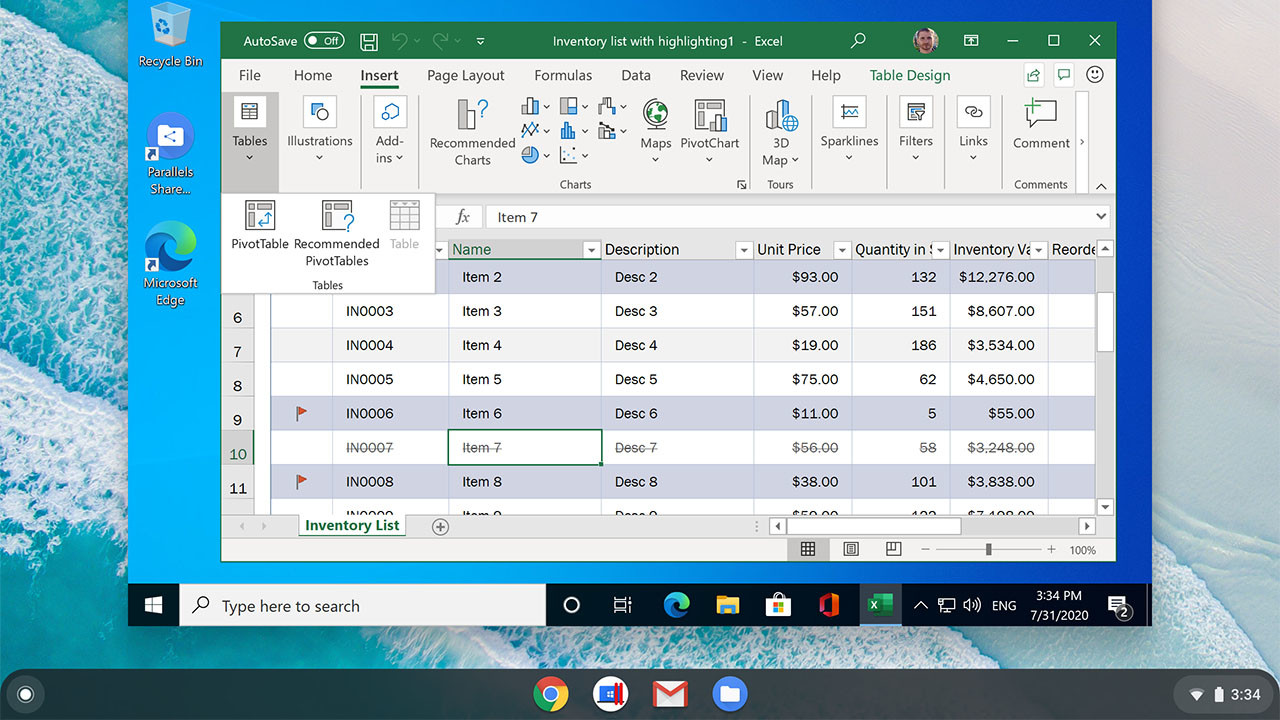
Unlike consumer Android apps, legacy Parallels Desktop for ChromeOS was deployed through the Google Admin Console and offered deep desktop integration once Parallels Tools was installed:
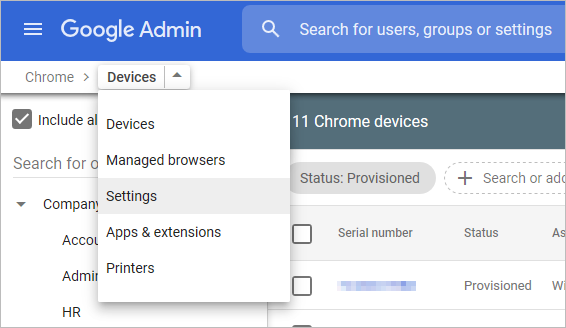
- Organizational unit deployment: admins navigated to Devices > Chrome > Settings > Users & browsers in the Google Admin Console to enable Parallels Desktop and point devices to the hosted Windows image URL and SHA-256 hash.
- Shared folders and drag-and-drop: right-clicking any folder in the ChromeOS Files app and choosing Share with Parallels Desktop exposed it inside Windows under Network > ChromeOS.
- Shared clipboard and profiles: under Options > Integration, users could copy and paste text between Chrome tabs and Windows apps and pass through ChromeOS printer and USB connections.
- Resource tuning: Parallels settings allowed adjusting allocated CPU cores and RAM based on whether the Chromebook had 8 GB or 16 GB+ of memory.
Troubleshooting Parallels policies and VM errors on ChromeOS
Whether you are maintaining an existing legacy deployment or connecting through Parallels Client, these checks resolve the most common ChromeOS issues:
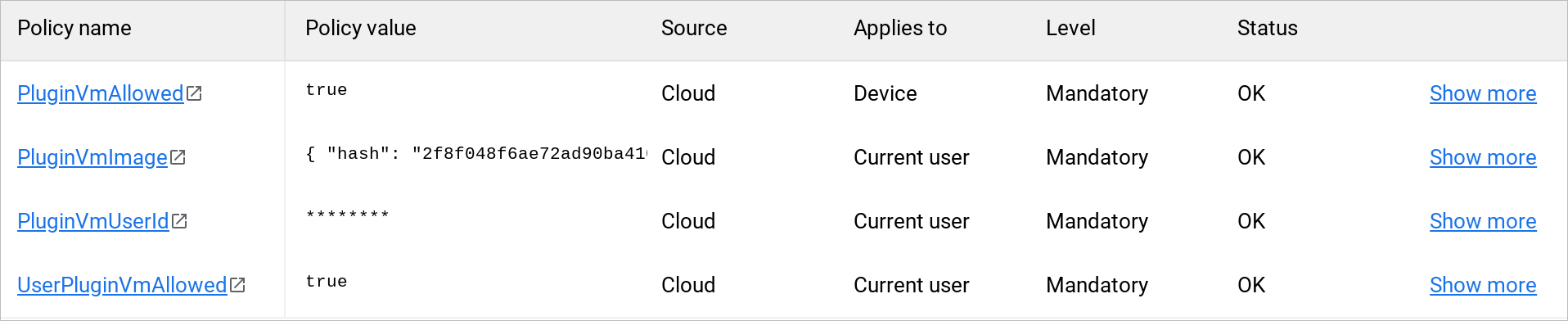
- Inspect
chrome://policy: open Chrome and visitchrome://policyto confirmPluginVmAllowedandUserPluginVmAllowedare set totrueandPluginVmImagepoints to a valid server path. - Decode VM setup error codes: Error 4 indicates an invalid Windows image URL, Error 8 points to a network blockage during download, and Error 10 means the image file’s SHA-256 hash does not match the policy.
- Reboot after policy edits: restart your Chromebook after saving changes in the Google Admin Console so updated ChromeOS device policies take effect.
- Parallels Client connection failures: confirm your VPN or corporate firewall allows traffic to your Parallels DaaS or RAS gateway, and clear app cache under ChromeOS Settings > Apps > Manage your apps > Parallels Client if sessions freeze.
- Official documentation: review Parallels Support and Google’s Chrome Enterprise documentation for policy reference, or check Parallels for ChromeOS to explore current cloud desktop options.
Frequently asked questions about Parallels on Chromebook and Googlebook
Is Parallels Desktop for ChromeOS still available?
No. Parallels discontinued sales of Parallels Desktop for ChromeOS and ended customer support on April 21, 2026. Existing organizations are encouraged to migrate to Parallels DaaS or Cameyo for running Windows apps on ChromeOS.
How can I run Windows apps on Chromebook and Googlebook now?
You can install Parallels Client from Google Play to connect to Parallels DaaS or Parallels RAS, or use browser-based Virtual App Delivery tools like Cameyo. Both run smoothly on Chromebook and Googlebook without requiring a heavy local Windows virtual machine.
What are the hardware requirements for legacy Parallels Desktop for ChromeOS?
Legacy local deployments required at least an 11th Gen Intel Core i3 or AMD Ryzen 3 5000 processor, 8 GB of RAM (16 GB recommended), 128 GB of SSD storage (256 GB recommended), ChromeOS 85 or later, and a Chrome Enterprise or Education Upgrade.
How do I cast Parallels Client from my Android phone to Googlebook?
Open the Phone Hub in the bottom-right corner of your Googlebook shelf, select Cast My Apps, and choose Parallels Client. Your active remote Windows session opens in a floating desktop window without re-entering server credentials.
Why am I seeing Error 4, Error 8, or Error 10 in ChromeOS PluginVm policies?
In legacy Parallels Desktop for ChromeOS setups, Error 4 points to an invalid Windows image URL in Google Admin Console, Error 8 indicates a network download failure, and Error 10 means the downloaded image does not match the configured SHA-256 hash.
Companion Windows and productivity guides for ChromeOS
Explore more ways to run Windows software, connect to remote PCs, and pick capable ChromeOS hardware:
- Virtual app delivery: Learn how Google’s acquisition brings browser-streamed Windows software to ChromeOS in our coverage of Cameyo’s Virtual App Delivery on Chromebooks.
- Remote desktop tools: Compare RDP, VNC, and cloud-streaming clients in our roundup of the best remote desktop apps for Chromebook.
- Business laptops: Find high-memory devices built for multitasking and cloud workspaces in our guide to the best Chromebooks for work.
- Everyday productivity: Streamline documents, notes, and daily tasks with our curated picks to work smarter not harder with these Chromebook apps.
Discover more from Chrome Geek
Subscribe to get the latest posts sent to your email.