How to Install and Use QuickBooks on Chromebook and Googlebook
 by
Juniya Sankara
Post Updated: November 2, 2026
You can install and use QuickBooks on Chromebook and Googlebook through the official cloud web platform or via the Android app on Google Play. Trusted by more than seven million small businesses, freelancers, and growing enterprises worldwide, QuickBooks delivers a modern accounting workstation right to ChromeOS. From real-time bank reconciliation and automatic invoice generation to cash flow forecasts and tax categorization, managing small business finances on a laptop has never been easier.
Googlebook runs Android applications natively through Google Play and features seamless phone app casting, making it simple to mirror your on-the-go mobile expense logs onto a larger display. This comprehensive guide covers both web PWA and Play Store installation, phone-to-laptop casting, live bank feeds, receipt snapping, Intuit AI automations, and Chromebook keyboard shortcuts.
Need help setting up your accounting workflow or importing financial transactions? Contact us with your laptop model and any setup questions.
How to install QuickBooks on Chromebook and Googlebook
QuickBooks offers two primary installation methods on ChromeOS: the official Android application via Google Play and the standalone Progressive Web App (PWA) via Google Chrome. Depending on whether you prioritize touch-first mobile logging or deep ledger management, you can choose the setup that fits your routine.
Method 1: Install the QuickBooks Android app via Google Play
Setting up the mobile application takes only a minute and gives you access to optical receipt capture and offline invoice drafts:
The official Google Play listing confirms Intuit Inc. as the verified developer under the package name com.intuit.quickbooks. Installing through Google Play guarantees automatic background updates, secure biometric unlocking, and smooth integration with your device’s camera.
Method 2: Install QuickBooks Online as a Chrome desktop web app (PWA)
For power users handling extensive chart of accounts, multi-vendor payroll, and quarterly tax filings, running QuickBooks Online in a dedicated desktop window offers the best performance:
If the Play Store is not visible on your laptop, review Google’s Android app setup guide for Chromebook or the official guide on installing apps on Googlebook. Note that school or enterprise managed devices may restrict app installations through administrative policy. While there is no native Debian Linux package for QuickBooks, both the Chrome PWA and Android application provide complete coverage for bookkeeping workflows.
Cast QuickBooks from your phone on Googlebook
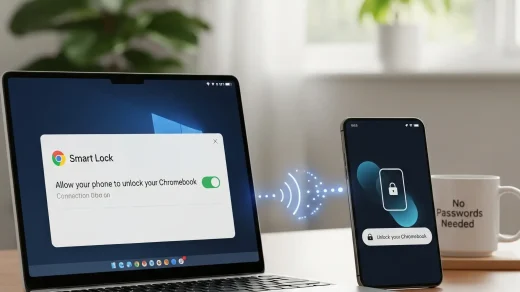
If you spend your workday scanning client receipts or logging trip mileage on an Android smartphone, you can instantly review those entries on your laptop without manually syncing files. Click the Phone Hub utility on the bottom shelf of your Googlebook, select Cast My Apps, and tap QuickBooks. Your mobile app session mirrors immediately to your laptop screen in an interactive streaming window. You can verify captured figures, approve pending expense categories, and respond to client billing inquiries without opening a second login session.
Live financial dashboard, bank feeds, and cash flow projections
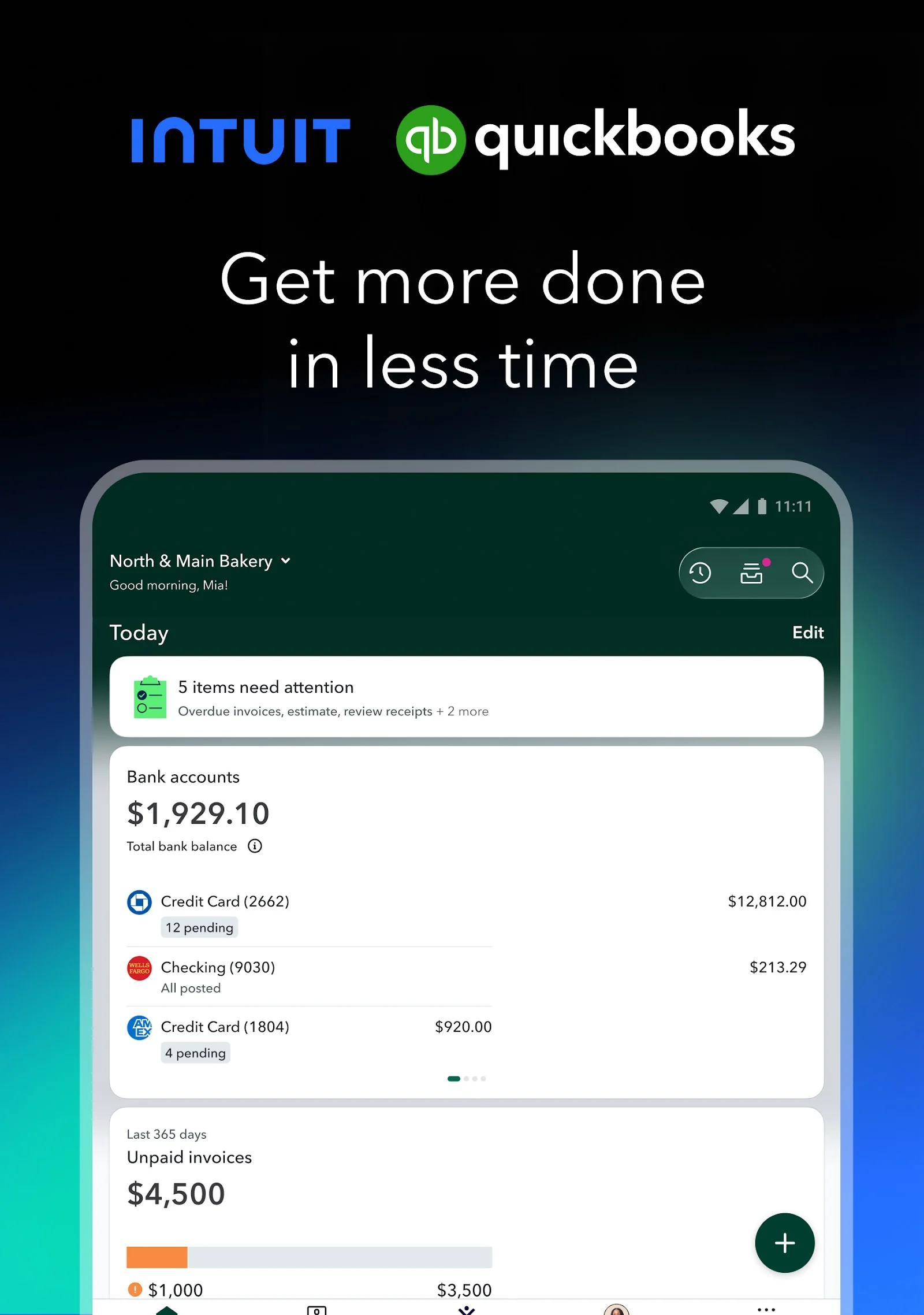
The centerpiece of QuickBooks on ChromeOS is its dynamic financial command center. The dashboard synthesizes all incoming revenue, outstanding receivables, and business expenditure into clean, actionable visual cards:
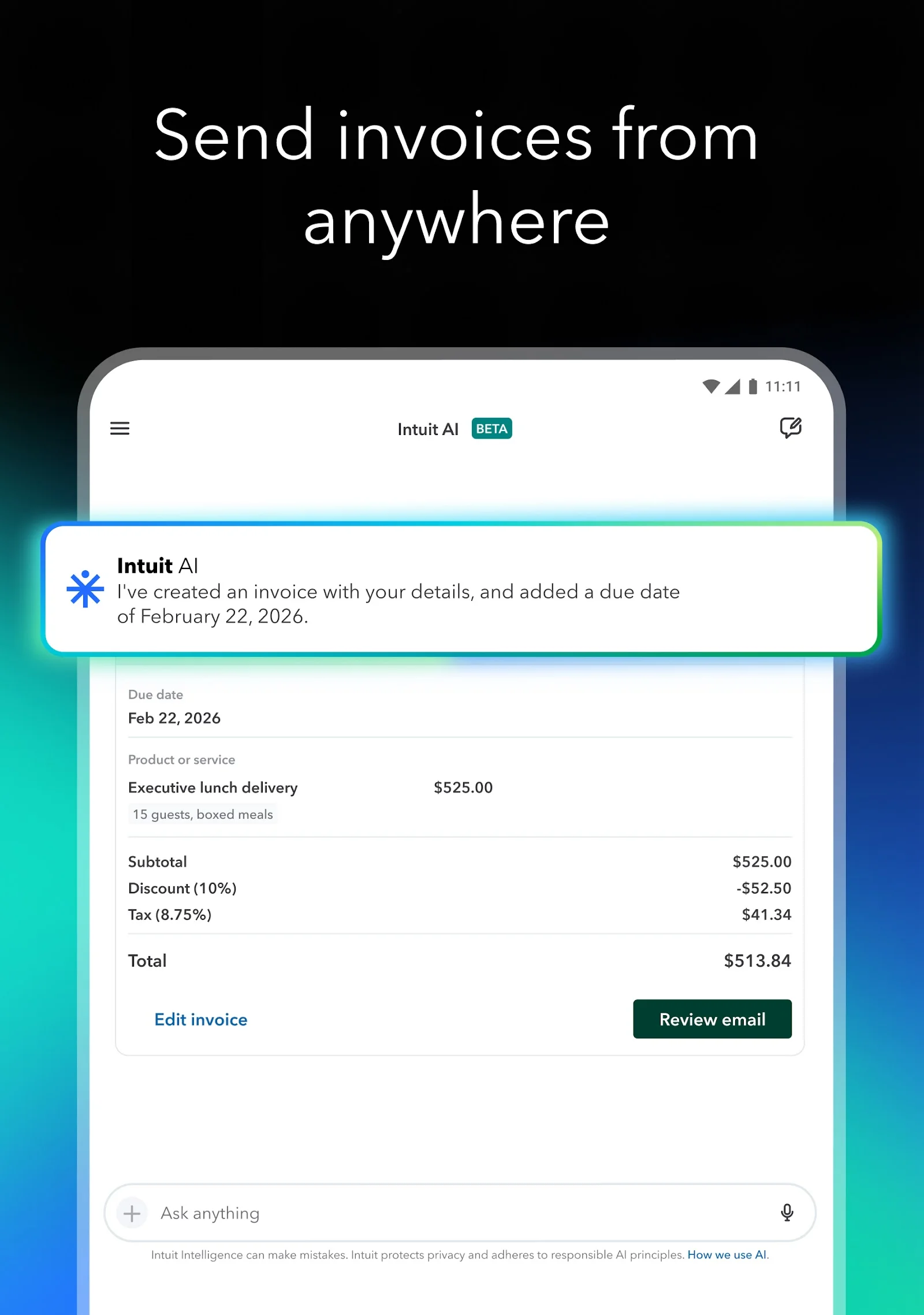
Fast invoice generation, online payments, and Intuit AI workflows
Getting paid promptly is essential for every business owner. QuickBooks on Chromebook and Googlebook simplifies billing with customizable invoice templates and smart payment integrations:
- Custom branded invoices: Add your business logo, custom color palette, payment terms, and personalized thank-you notes to produce professional billing documents.
- Integrated digital payment links: Customers can pay invoices online immediately via credit card, debit card, ACH bank transfer, Apple Pay, or Google Pay directly from their email inbox.
- Intuit AI automation: Let built-in intelligence draft invoices from your email notes, calculate sales tax rates automatically by customer jurisdiction, and set up automated reminder schedules for past-due balances.
- Automated recurring billing: Set up retainer agreements or recurring subscriptions that charge clients on a predictable monthly or quarterly cycle without repetitive manual entry.
Optical receipt capture, automatic mileage tracking, and tax categorization
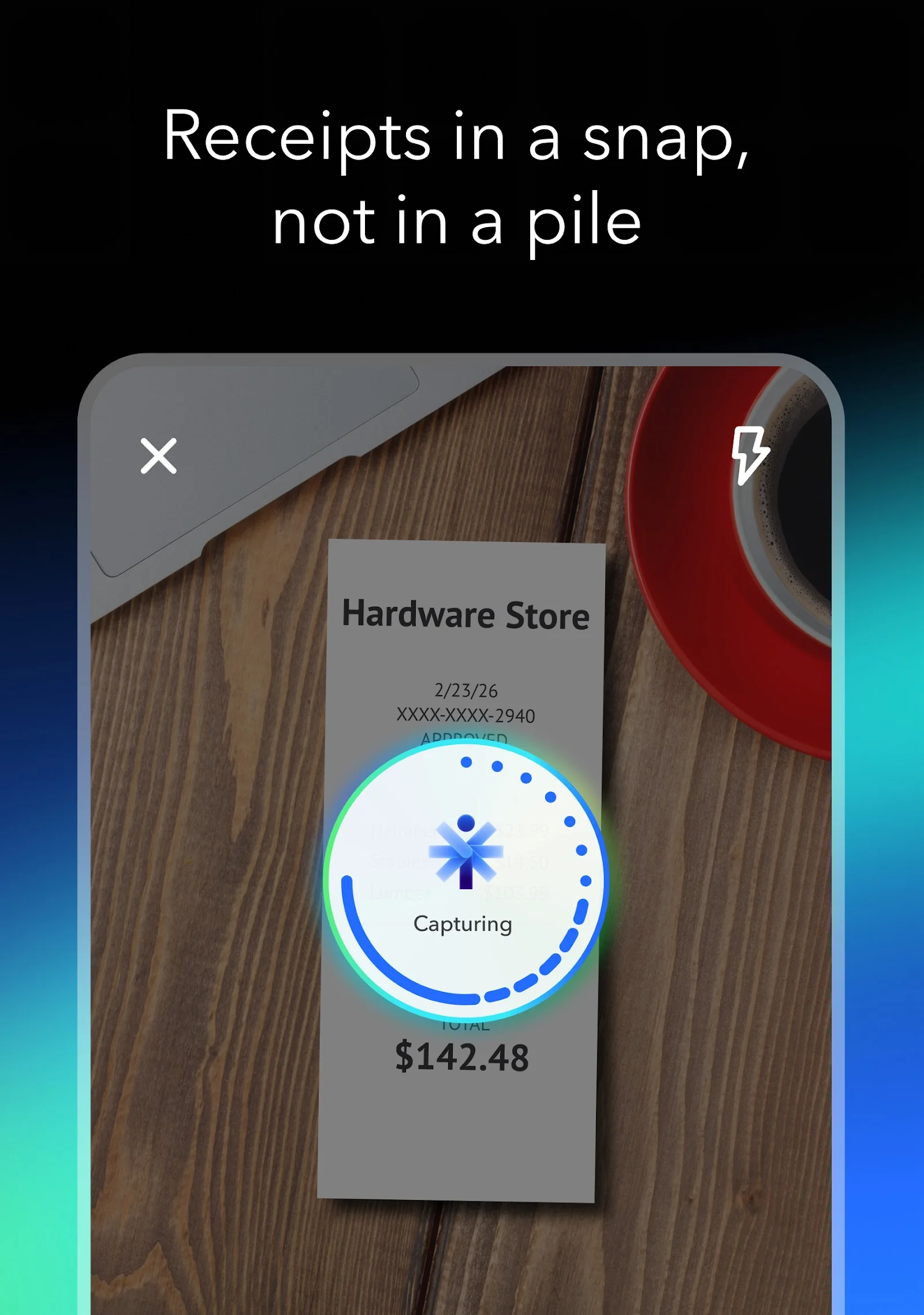
Ditch paper shoeboxes and lost receipts. QuickBooks provides mobile-first expense capture tools that ensure every deductible business dollar is accounted for ahead of tax season:
- Snap and match receipts: Take a photo of any physical store receipt with your device camera. Optical character recognition (OCR) extracts the vendor name, purchase date, total amount, and sales tax, automatically pairing it with the corresponding bank charge.
- GPS mileage tracking: When using the mobile app on the go, GPS logs business travel trips automatically in the background. Swipe right to categorize a trip as business and swipe left for personal.
- Schedule C and corporate tax mapping: Every business expense is categorized into standard tax deductible categories, saving your CPA dozens of hours during annual filing.
- Multi-currency handling: Conduct commerce internationally with live foreign exchange conversion rates tracked per transaction.
Optimizing ChromeOS settings and keyboard shortcuts for QuickBooks
To maximize your daily bookkeeping speed on Chromebook and Googlebook, take advantage of these ChromeOS productivity adjustments:
- ChromeOS split screen snap: Drag your QuickBooks PWA window to one side of the screen and your banking portal or supplier PDF invoice to the other. ChromeOS will snap both windows side by side for fast, frictionless cross-referencing.
- QuickBooks transaction hotkeys: When working inside QuickBooks Online, use standard keyboard shortcuts to navigate faster: press Ctrl + Alt + I to create a new invoice, Ctrl + Alt + X to record an expense, and Ctrl + Alt + C to view customers.
- Virtual Desks for financial workflows: Press the Overview key (or swipe up with three fingers) and create a dedicated Accounting desk. Keep QuickBooks, payroll, and your spreadsheets together on one workspace without mixing them with personal browsing.
- Clear cached app data: If bank connection pages ever fail to load or report rendering slows down, open Chrome Settings > Privacy and security > Delete browsing data, and clear cached images and cookies for QuickBooks to refresh the connection.
Ready to simplify bookkeeping, send professional invoices, and automate expense tracking? Sign up through our exclusive partner link to lock in special subscription discounts for your first several months. Take control of your company finances today on Chromebook and Googlebook.
Frequently asked questions about QuickBooks on Chromebook and Googlebook
Is QuickBooks free to use on Chromebook and Googlebook?
QuickBooks offers a 30-day free trial for new users to test out core accounting features. Ongoing bookkeeping requires an active subscription, but signing up through our partner link gives you an exclusive discount on your initial subscription months.
What is the difference between QuickBooks Online web and the Android app on ChromeOS?
The web version of QuickBooks Online provides the complete desktop bookkeeping experience with full reporting, tax preparation, advanced payroll, and comprehensive bank reconciliations. The Android app from Google Play is optimized for mobile and tablet touchscreens, making it ideal for snapping receipt photos, logging on-the-go mileage, and quickly reviewing cash flow.
Can I snap receipt photos with my Chromebook or phone?
Yes. If your Chromebook features an integrated webcam or convertible rear camera, you can snap receipt photos directly inside the QuickBooks Android app. Alternatively, snap receipts on your Android phone and sync them automatically to your QuickBooks cloud ledger, or cast the mobile app onto your Googlebook via Phone Hub.
How do I cast QuickBooks from an Android phone to a Googlebook?
Connect your Android phone to your Googlebook using the Phone Hub utility on your bottom shelf. Open Phone Hub, select Cast My Apps, and tap QuickBooks. Your active mobile session streams immediately into an interactive laptop window with zero extra file transfers or separate logins.
What device specifications work best for QuickBooks on ChromeOS?
QuickBooks Online and its Android app run smoothly on any modern Chromebook or Googlebook with at least 4GB of RAM and an updated ChromeOS release. A multi-core processor (Intel Core, AMD Ryzen, or modern ARM) ensures snappy report generation and instant transaction filtering.
Explore more business and productivity guides on ChromeGeek
- Work Smarter Not Harder with These Chromebook Apps: Boost your daily efficiency with top organization, document management, and workflow suites for ChromeOS.
- Gemini Small Business Hub: Brand Kits & Finance Help: Discover how Gemini AI tools assist small businesses with financial analysis, customer communications, and branding.
- Best Chrome Extensions Worth Installing: Level up your browser experience with essential productivity, security, and multitasking extensions.
- Googlebook News and Guides Hub: Learn about the latest Googlebook laptop hardware, Gemini AI intelligence, and phone-to-laptop casting capabilities.
Discover more from Chrome Geek
Subscribe to get the latest posts sent to your email.