How to Install and Use Truth Social on Chromebook and Googlebook
 by
Frank Cross
Post Updated: October 26, 2026
You can install and use Truth Social on Chromebook and Googlebook through the official Android app from Google Play or directly via the web platform at truthsocial.com. It delivers public conversation feeds, direct messaging, community interest groups, and live TV streaming through Truth+ straight to your desktop and laptop display.
Googlebook runs Android applications natively through Google Play, giving you the same dependable social experience alongside seamless phone-app casting. This comprehensive guide walks you through the Google Play installation, Chrome browser setup and PWA shortcuts, community engagement, Truth+ streaming, message privacy controls, and targeted troubleshooting fixes.
Need help setting up your social and streaming apps? Contact us with your laptop model and any setup or login questions.

How to install Truth Social on Chromebook and Googlebook
Setting up the official Truth Social app takes less than two minutes through Google Play:
The official Google Play listing identifies Truth Social under the package identifier com.truthsocial.android.app. Installing the official app provides automatic background security updates, touch gesture navigation, and native push alerts.
If the Play Store is not active on your device, check Google’s Android app setup guide for Chromebook or the guide on installing apps on Googlebook. On school or workplace laptops, administrator policies may limit Play Store downloads. There is no official Debian package (.deb) for ChromeOS Linux, but you can always navigate directly to truthsocial.com in Google Chrome to read feeds, compose posts, and watch streams without installing extra software.
Cast Truth Social from your phone on Googlebook
If your Android phone is already logged into Truth Social with active conversations, customized notification preferences, and saved login tokens, you can mirror your mobile session directly to your laptop display using Phone Hub. Click the Phone Hub icon in the bottom-right shelf of your Googlebook, select Cast My Apps, and choose Truth Social. Your live mobile session immediately opens in an adaptive desktop container, allowing you to review incoming mentions, draft posts, and stream live channels without re-authenticating across devices.
Truth Social Web vs. Android app: choosing your ideal ChromeOS setup
On Chromebooks and Googlebooks, you have the flexibility to run the native Android app or access Truth Social via Google Chrome. Both options deliver full conversational capability, but each format caters to different computing preferences:
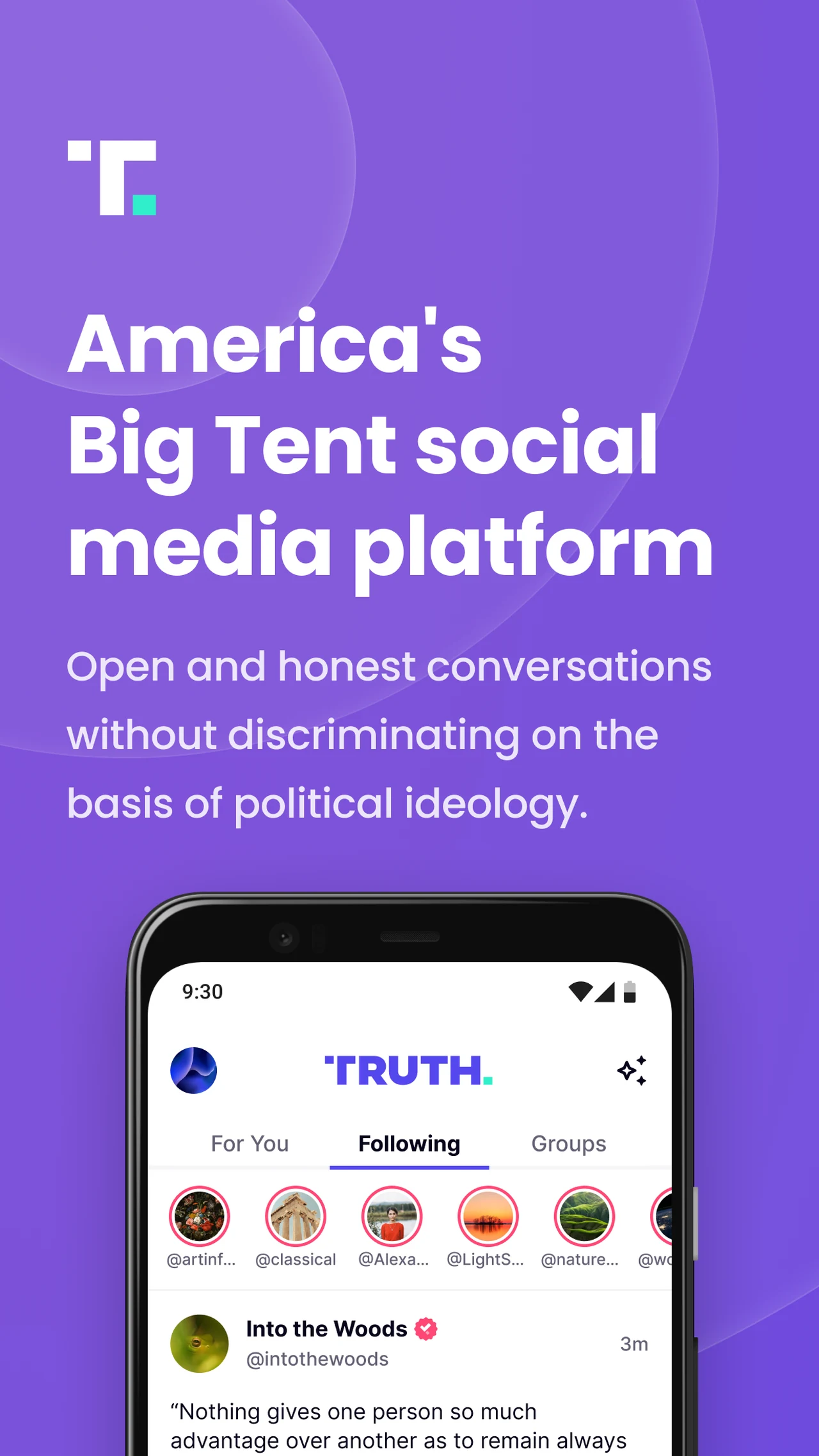
Navigating the Truth Feed, posting Truths, and joining community groups
Truth Social on a laptop provides an expansive canvas for participating in public debates and community discussions:
- Dual feed streams (Following & For You): toggle effortlessly between accounts you actively follow and the algorithm-driven For You stream highlighting viral commentary, breaking news, and trending discussions across the platform.
- Composing Truths and Re-Truths: share your perspective by drafting posts (called Truths), reposting community messages (Re-Truths), or quoting other users with your commentary. Attach photos and video links directly from your ChromeOS Files app.
- Interactive community polls: embed multi-choice polls into your posts to solicit feedback and gauge audience reactions on current events, policy questions, or personal topics.
- Specialized community groups: explore dedicated interest hubs, from outdoor recreation and gardening to technology and regional discussion groups, enabling focused conversations without cluttering your main personal feed.
Watching live broadcasts and streaming channels with Truth+
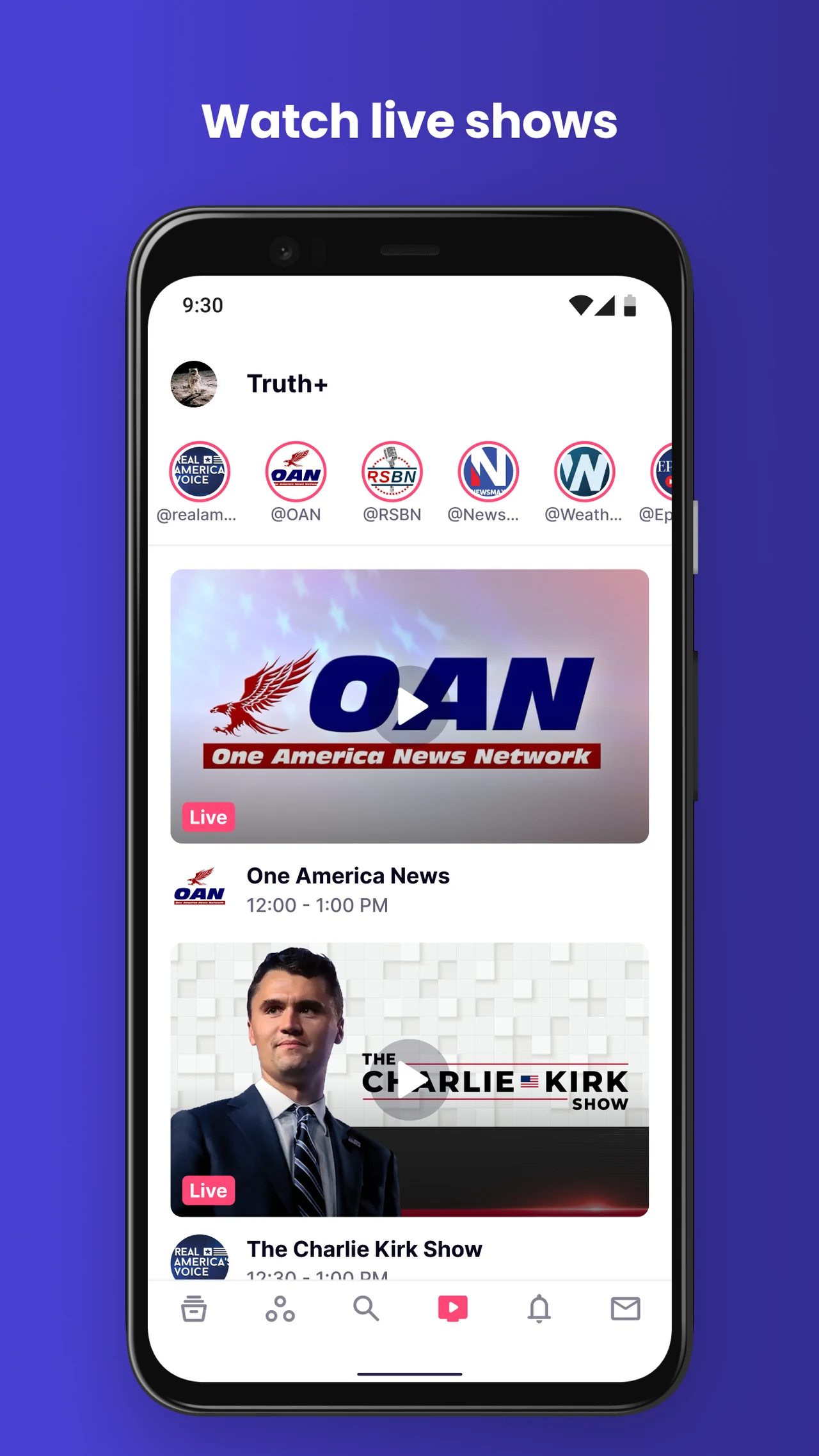
Truth Social incorporates Truth+, an integrated live television and video streaming platform designed for news and entertainment:
- Live TV streaming network: access real-time broadcasts from news outlets and commentary networks (including One America News, Real America’s Voice, and Right Side Broadcasting Network) directly within the app.
- Picture-in-picture multitasking: pop video broadcasts into a floating picture-in-picture window on ChromeOS to keep watching live commentary while taking notes, answering emails, or browsing other tabs.
- Widescreen display optimization: streaming video adapts smoothly to 16:9 and 16:10 laptop screens, providing high-definition full-screen viewing with clear audio through your Chromebook speakers.
- On-demand talk shows and series: catch up on archived episodes, featured interviews, and special programming whenever your schedule permits.
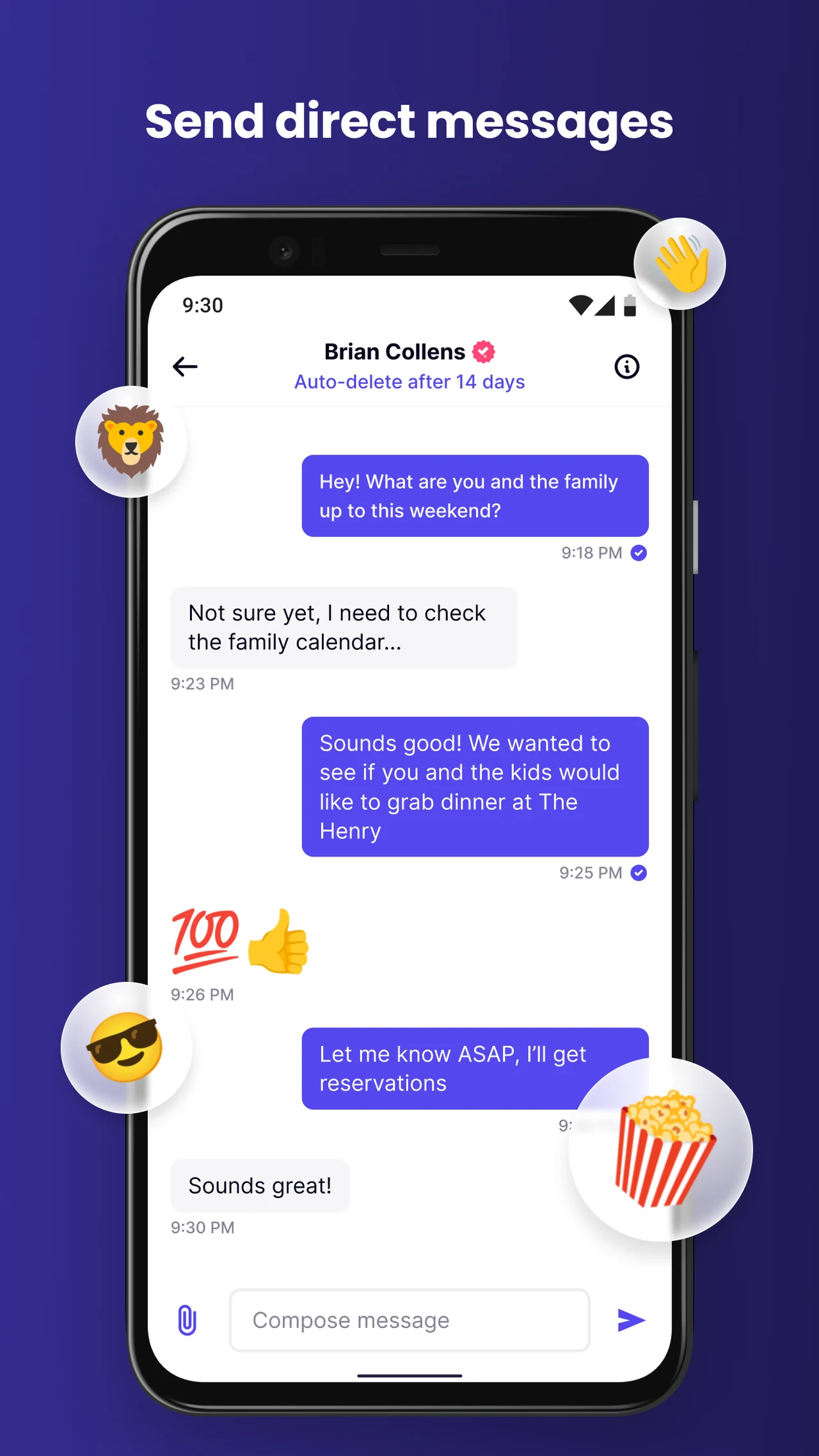
Private direct messaging with customizable auto-deletion timers
Truth Social provides built-in 1-on-1 private messaging with strong conversational privacy controls:
- Auto-delete message timers: configure conversations to automatically purge messages after 7, 14, 30, or 90 days on a per-chat basis, ensuring private exchanges do not linger indefinitely.
- Granular chat notifications: silence push alerts for individual conversations or mute direct messages entirely when focusing on study or work tasks.
- Direct message permissions: choose who can initiate direct chats with you in profile preferences, allowing incoming messages from all followers or restricting outreach.
- Comfortable laptop messaging: type long replies comfortably using your laptop’s physical keyboard, copy message text, or report suspicious unsolicited contact with a single click.

Supercharge your workflow on Chromebook and Googlebook with Gemini AI integrated into Gmail, Docs, Drive, and Meet. Collaborate seamlessly with custom business email, expandable cloud storage, and enterprise security.
Account security, privacy settings, and notifications
Safeguarding your profile and communications is crucial when browsing on shared or portable laptops:
- Two-Factor Authentication (2FA): protect your login credentials by enabling two-factor verification in Account Settings. Use SMS or an authenticator app (such as Google Authenticator) to verify sign-ins on new devices.
- High-contrast dark mode: toggle between light and dark visual themes to reduce eye strain during evening browsing sessions or preserve battery life on OLED Chromebooks.
- Mute and block controls: filter toxic interactions by blocking bad actors or muting specific profiles and keyword mentions without unfollowing.
- ChromeOS notification management: configure notification preferences in ChromeOS Settings > Apps > Manage your apps > Truth Social to decide whether badges appear on your shelf or generate audible alerts.
Troubleshooting Truth Social issues on Chromebook and Googlebook
If you experience video buffering, login glitches, or app crashes, apply these quick troubleshooting steps:
- App crashes or white screen on startup: clear corrupted temporary cache by going to ChromeOS Settings > Apps > Manage your apps > Truth Social > Storage and clicking Clear cache. Relaunch the application.
- Truth+ live video buffering or stuttering: ensure Chrome hardware graphics acceleration is enabled. Open Chrome Settings, search for acceleration, and verify that Use graphics acceleration when available is active.
- Desktop notifications not showing: if using truthsocial.com in Google Chrome, navigate to
chrome://settings/content/notificationsand confirm thathttps://truthsocial.comis allowed to deliver alerts. - Play Store app unavailable on your laptop: on school or work-managed Chromebooks, the Google Play Store or specific social apps may be disabled by system policy. Use the Chrome browser at
truthsocial.comas a fast, installation-free alternative. - Image upload error when composing Truths: make sure media files are saved in your local Downloads folder or Google Drive rather than an unmounted USB drive or protected external partition.
Frequently asked questions about Truth Social on Chromebook and Googlebook
Is Truth Social free to install and use on Chromebook and Googlebook?
Yes. Truth Social is completely free to install from Google Play and free to access via the web at truthsocial.com. Core features, including reading the Truth Feed, composing Truths and Re-Truths, creating polls, joining community groups, sending direct messages, and streaming live broadcasts on Truth+, are available without subscription fees.
Should I use the Truth Social Android app or the web version on ChromeOS?
Both options provide full access to the platform. The web version at truthsocial.com (or installed as a Chrome PWA) offers fast desktop navigation, comfortable physical keyboard typing, and widescreen live streaming while using minimal local storage. The Google Play Android app is ideal if you use a 2-in-1 convertible in tablet mode or want native ChromeOS shelf notification badges.
What is Truth+ and can I stream live video on my laptop?
Truth+ is Truth Social’s built-in live television and streaming video platform, featuring news networks, commentary channels, and on-demand broadcasts. You can watch Truth+ streams on both Chromebook and Googlebook in full-screen or as a picture-in-picture window while browsing other tabs.
How do auto-deleting direct messages work in Truth Social?
Truth Social includes privacy controls for 1-on-1 direct messaging, allowing you to set messages to automatically delete after 7, 14, 30, or 90 days on a per-conversation basis. You can also customize notification alerts per chat or restrict direct messages in your profile preferences.
How do I cast Truth Social from my phone to Googlebook?
Open the Phone Hub from your Googlebook shelf and verify that your Android phone is linked. Click Cast My Apps, then select Truth Social from your mobile apps list. Your phone’s active Truth Social session streams into a floating desktop window, letting you review notifications and post updates without signing in again.
Explore more social media apps and guides on ChromeGeek
- How to Install and Use Threads on Chromebook and Googlebook: Share text updates, explore fediverse connectivity, and join topic communities on ChromeOS.
- How to Install and Use Snapchat on Chromebook and Googlebook: Send visual snaps, use AR Lenses, and join group video calls on ChromeOS.
- How to Install and Use Instagram on Chromebook and Googlebook: Share photo carousels, watch Reels, post Stories, and chat with friends on ChromeOS.
- How to Install and Use TikTok on Chromebook and Googlebook: Watch trending short videos, discover creators, and explore full-screen playback.
- How to Install and Use Messenger on Chromebook and Googlebook: Set up chat heads, group messaging, and end-to-end encrypted calls.
- How to Install and Use Facebook Lite on Chromebook and Googlebook: Stay connected on older Chromebooks with a lightweight, low-RAM social app.
- How to Install and Use RedNote on Chromebook and Googlebook: Explore lifestyle notes, travel itineraries, and real-time comment translation.
- X on Chromebook: Install Guide & Web Access: Follow real-time breaking news, audio Spaces, and creator commentary on ChromeOS.
- Googlebook News and Guides Hub: Learn about Googlebook hardware, Gemini AI features, and phone-laptop casting capabilities.
Discover more from Chrome Geek
Subscribe to get the latest posts sent to your email.