How to Install and Play Sea of Stars on Chromebook and Googlebook
 by
Joseph Vance
November 23, 2026
You can install and play Sea of Stars on Chromebook and Googlebook through the official Google Play release by Playdigious. Developed by Sabotage Studio, this retro-inspired turn-based RPG follows Solstice Warriors Zale and Valere as they combine sun and moon magic to stop the Fleshmancer’s creations.
Googlebook runs Android games natively via Google Play and can also cast the game from your Android phone. This guide covers Google Play installation, cloud streaming options, turn-based combat tips, controls, and quick fixes.
Need help setting up Sea of Stars? Contact us with your laptop model and ChromeOS version.
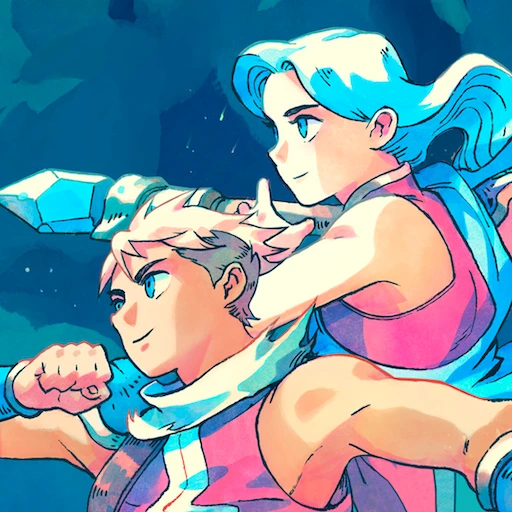
How to install and play Sea of Stars on Chromebook and Googlebook
On ChromeOS, Sea of Stars runs natively as a full Android port. Install it once from Google Play to play the complete adventure locally, even offline:
The official Google Play listing uses package ID com.playdigious.seaofstars. Keep automatic updates enabled in Google Play so you always have the latest patches and widescreen improvements.
If Google Play is missing from your laptop, check Google’s Android app setup guide for Chromebook or the guide on installing apps on Googlebook. On school or work Chromebooks, your administrator controls whether Play Store games are allowed.
Play Sea of Stars via Xbox Cloud Gaming, GeForce NOW, or Boosteroid
If you already own Sea of Stars on Steam or Xbox, or if your Chromebook does not support Google Play, you can stream the desktop version directly in Chrome:
- Xbox Cloud Gaming: Stream the Xbox version in Chrome with an Xbox Game Pass Ultimate subscription or a supported digital Xbox Store purchase.
- GeForce NOW: Link your Steam or Xbox/PC Game Pass account to stream Sea of Stars on cloud hardware right inside the Chrome browser.
- Boosteroid: Connect your Steam library to launch Sea of Stars in a cloud desktop session with keyboard, mouse, or controller input.
Play Sea of Stars on Googlebook from your phone (Cast My Apps)
If you already play Sea of Stars on your Android phone and want to continue on a bigger display without waiting for a download, Googlebook’s Cast My Apps feature mirrors the active phone session to your desktop. Open the Phone Hub from the bottom-right shelf of your Googlebook, choose Cast My Apps, and tap Sea of Stars. It works well for managing equipment or quick story scenes, though installing the native Google Play app gives you smoother frame pacing for timed combat.
Exploring the world and mastering turn-based combat
Sea of Stars blends seamless world exploration with active turn-based battles where timing matters on every turn. You climb cliffs, swim across rivers, solve light puzzles, and fight enemies directly on the map without random encounter screens.
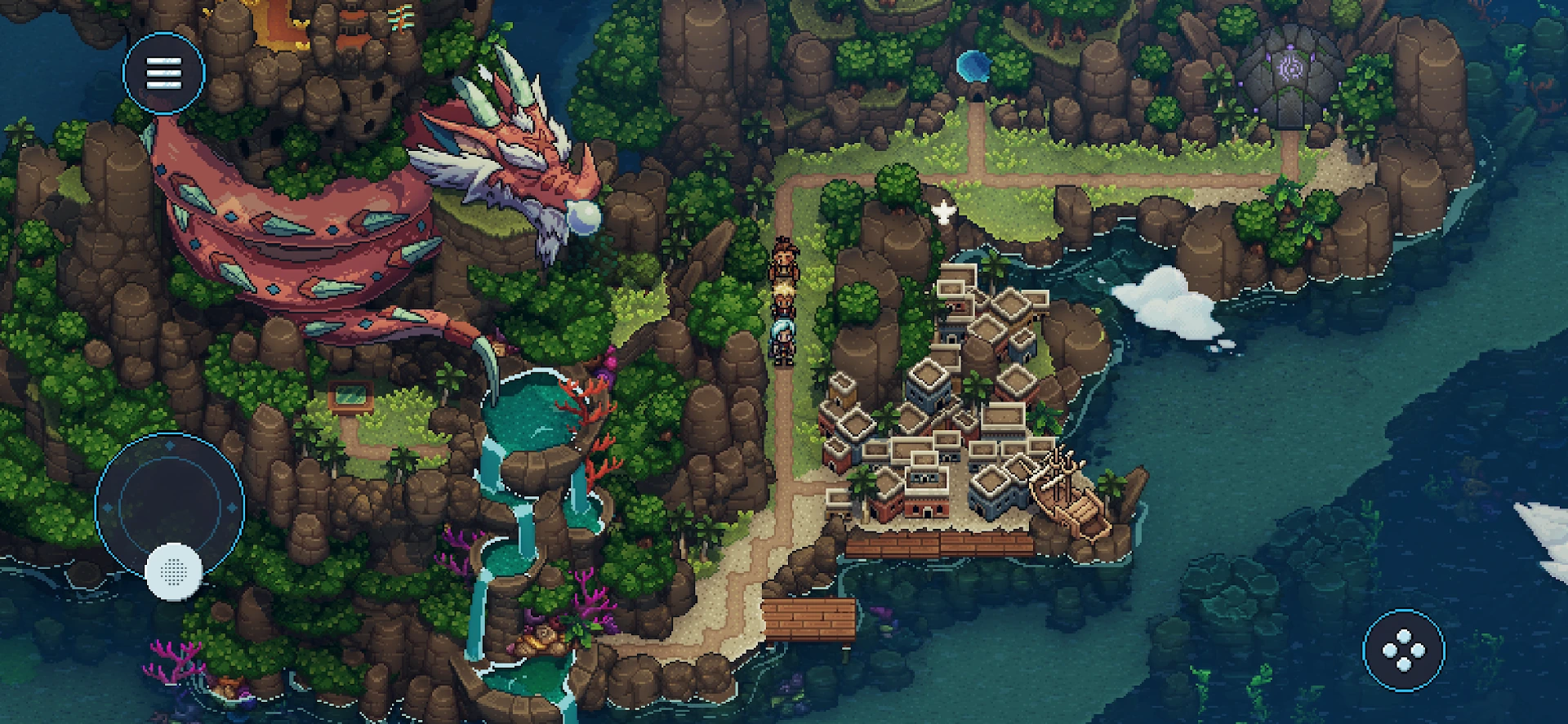
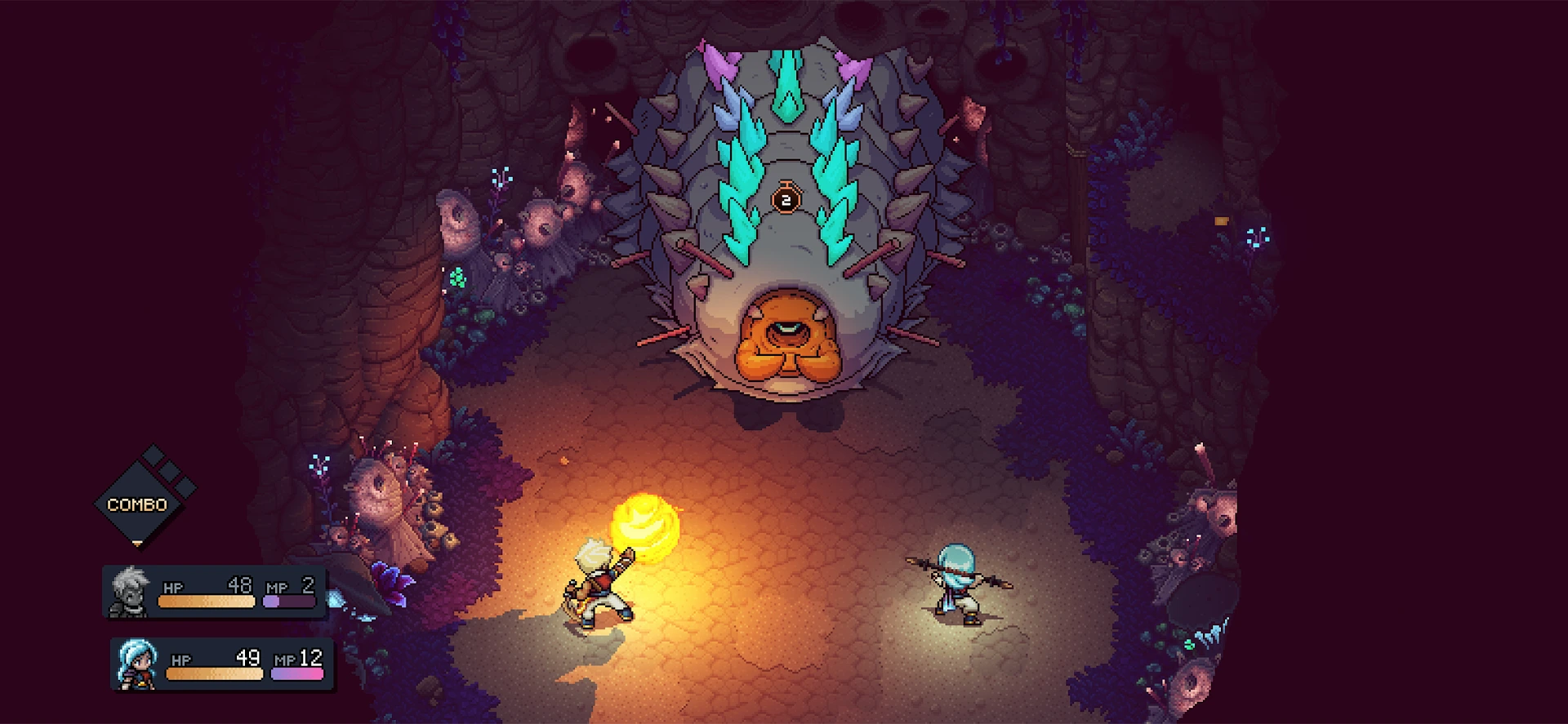
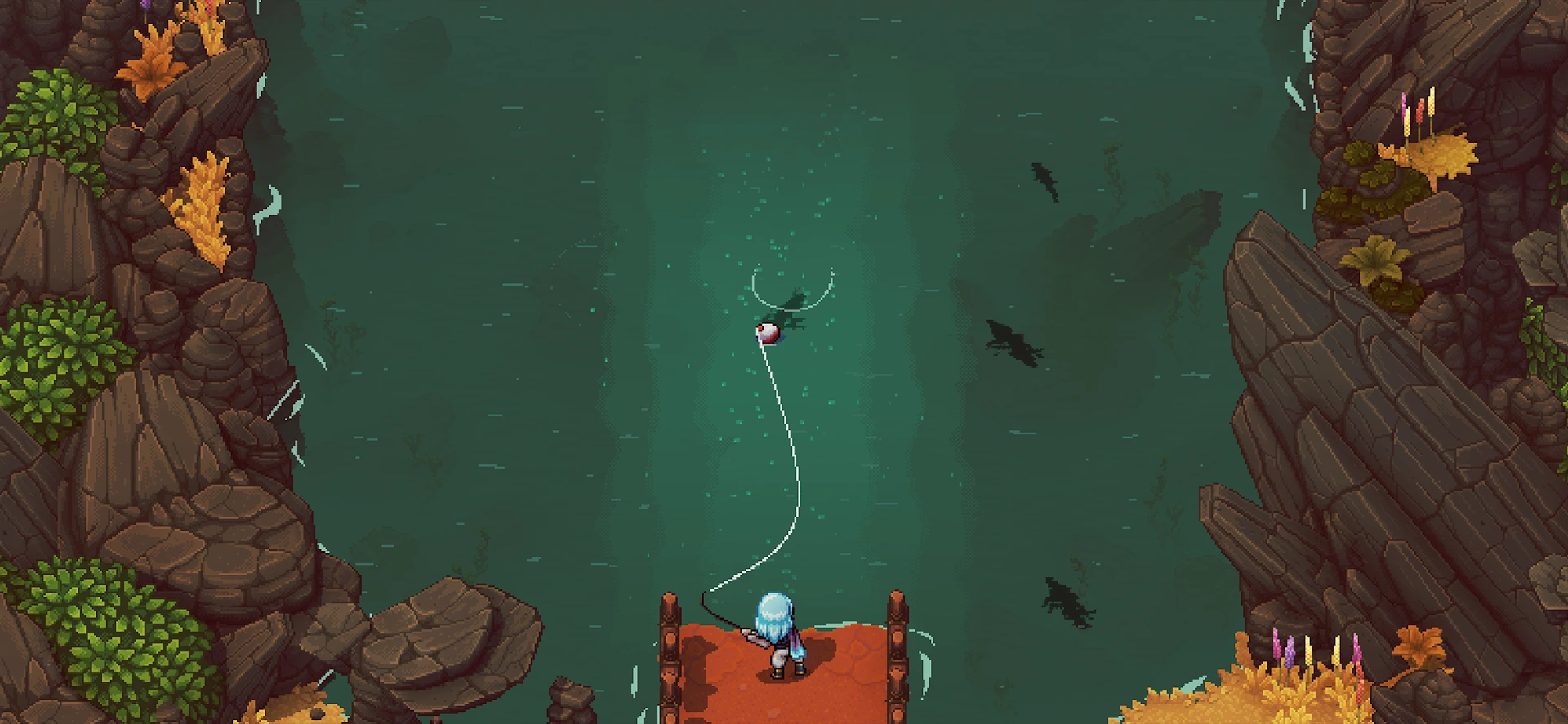
Between dungeons, you can set up camp to cook healing meals, talk with your party, sail across the world map, or spend a quiet few minutes fishing at lakes and docks to stock up on ingredients.
Sea of Stars controls on Chromebook and Googlebook
The Playdigious Android port includes a redesigned interface that adapts cleanly between touchscreens, keyboards, and gamepads:
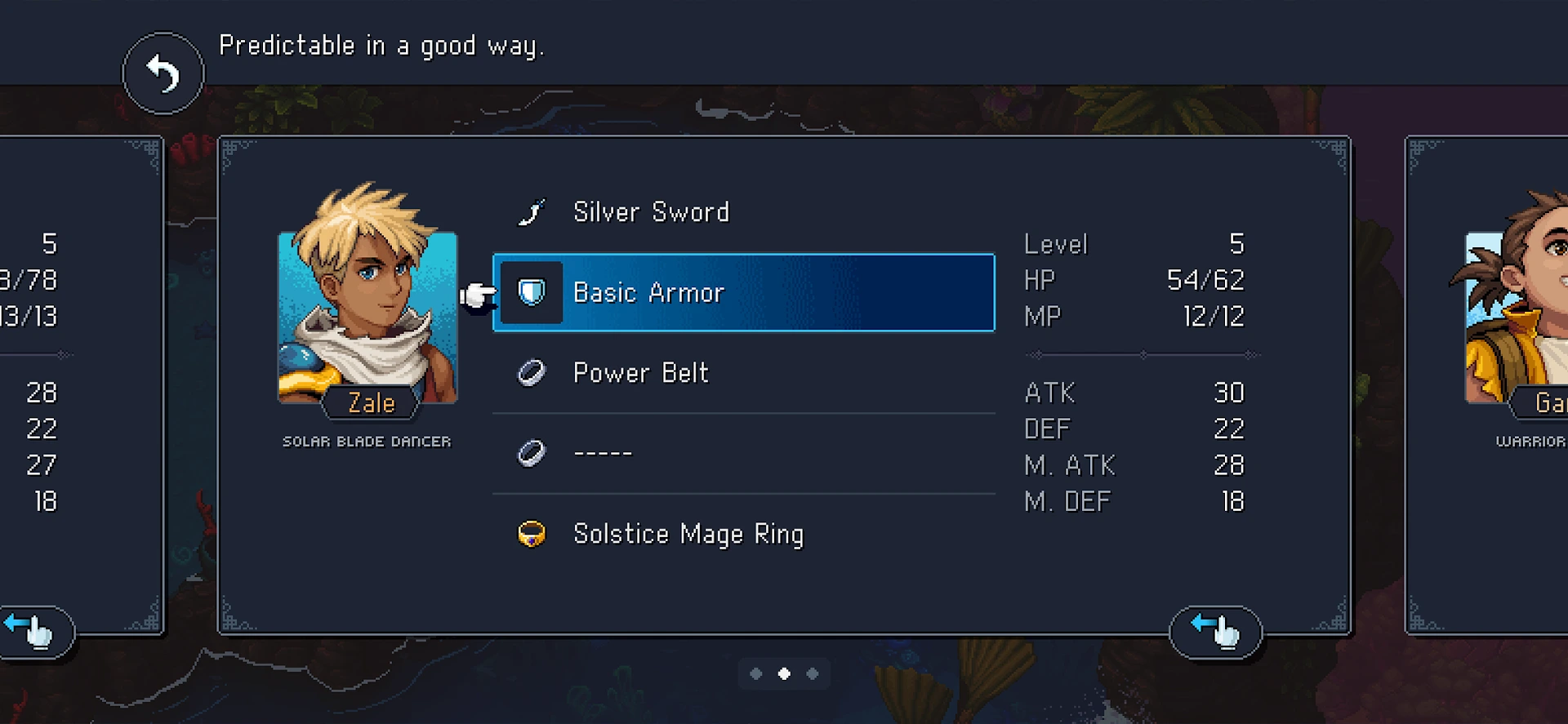
- USB or Bluetooth controller (recommended): Plug in an Xbox, PlayStation, or generic USB/Bluetooth controller for the most responsive Timed Hits and blocks in battle.
- Keyboard: Move with W, A, S, and D or the arrow keys, confirm actions and Timed Hits with Enter or Space, and open party menus with Esc or Tab.
- Touchscreen (2-in-1 Chromebooks): Tablet mode displays an on-screen movement stick and large action buttons for combat, climbing, and menus.
- Relics for accessibility: Open the Relics menu in-game if you want extra help with Timed Hit windows, boosted HP, or automatic healing between fights.
Troubleshooting Sea of Stars on Chromebook and Googlebook
If Sea of Stars will not launch, stutters, or misses inputs on your laptop, try these fixes:
- Google Play is missing: Open ChromeOS Settings > Apps and turn on Google Play Store. If the option is absent, your device or school administrator restricts Android apps, so use Xbox Cloud Gaming or GeForce NOW in Chrome instead.
- Timed Hits feel slightly delayed: Switch from Bluetooth headphones to wired audio or laptop speakers, and use a wired USB controller if your Bluetooth gamepad has noticeable input lag.
- Frame drops or stuttering: Close background Chrome tabs and Linux apps before launching the game so ChromeOS keeps memory free for the Android container.
- Cloud saves not appearing: Make sure you are signed into the same Google account in the Google Play Games app and have an active internet connection when opening the title screen.
- Crash or black screen on launch: Go to Settings > Apps > Manage your apps > Sea of Stars > Storage & cache, select Clear cache, and check Google Play for an update.
Frequently asked questions about Sea of Stars on Chromebook and Googlebook
Can you play Sea of Stars on a Chromebook?
Yes. You can buy and install the official Sea of Stars Android port by Playdigious from Google Play on any Chromebook with Play Store support, or stream the PC or Xbox version through Xbox Cloud Gaming, GeForce NOW, or Boosteroid in Chrome.
How much does Sea of Stars cost on Chromebook?
The Google Play version of Sea of Stars is a one-time $9.99 purchase with no ads or in-app microtransactions. If you already own the game on Steam or have Xbox Game Pass Ultimate, you can also stream it through supported cloud gaming services.
Can I play Sea of Stars offline on a Chromebook?
Yes. Once you install the Google Play version of Sea of Stars and finish the initial download, the full single-player story runs offline without an internet connection.
Can I play Sea of Stars on Googlebook?
Yes. Googlebook runs the Google Play version of Sea of Stars natively with keyboard, touch, and controller support, and you can also cast your phone session using Cast My Apps in the Phone Hub.
Does Sea of Stars support controllers on ChromeOS?
Yes. Sea of Stars includes full USB and Bluetooth controller support on ChromeOS alongside keyboard and touchscreen controls, and using a gamepad makes Timed Hits and blocking much easier.
Explore more game guides on ChromeGeek
If you enjoy story-driven RPGs and offline adventures on ChromeOS, check out these companion guides:
- 18 Best RPG Games for Chromebook and Googlebook: More turn-based and action RPGs that run well on ChromeOS.
- 22 Best Offline Games for Chromebook and Googlebook: Great titles to download and play without Wi-Fi.
- 18 Best Adventure Games for Chromebook and Googlebook: Story-rich worlds and puzzle adventures for your laptop.
- How to Play Minecraft on Chromebook and Googlebook: Build, explore, and play with friends across devices.
- Best Chromebooks for Gaming: Laptops with the displays and hardware for smooth Android and cloud play.
Discover more from Chrome Geek
Subscribe to get the latest posts sent to your email.