How to Install and Play Zenless Zone Zero on Chromebook and Googlebook
 by
Joseph Vance
November 23, 2026
You can install and play Zenless Zone Zero on Chromebook and Googlebook through the official Google Play app or stream it in Chrome. HoYoverse’s free urban action RPG puts you in New Eridu, where you lead three-Agent squads through fast real-time battles inside shifting Hollows.
Googlebook runs Android games natively via Google Play and can also cast the game from your phone. This guide covers installation, cloud streaming options, storage and performance tips, controller setup, and quick fixes.
Need help setting up Zenless Zone Zero? Contact us with your laptop model and ChromeOS version details.
How to install and play Zenless Zone Zero on Chromebook and Googlebook
Before installing, make sure your Chromebook or Googlebook has at least 20 GB to 25 GB of free storage for the full in-game data download:
The official Google Play listing uses the package ID com.HoYoverse.Nap. Keep automatic Play Store updates turned on so major version patches install smoothly.
If Google Play is missing on your laptop, follow Google’s Android app setup guide for Chromebook or the guide on installing apps on Googlebook. School or work administrators can restrict Play Store access on managed devices. If your laptop lacks storage or graphics power for a local install, you can also stream the PC version in Chrome using NVIDIA GeForce NOW or Boosteroid with the same HoYoverse account.
How to play Zenless Zone Zero on Googlebook from your phone (Cast My Apps)
If Zenless Zone Zero is already installed on your Android phone, Googlebook’s Cast My Apps feature lets you open it in a window without using laptop storage. Open Phone Hub in the bottom-right corner of your Googlebook shelf, choose Cast My Apps, and tap Zenless Zone Zero. Phone casting works well for claiming daily rewards, spending Battery Charge, or managing your squad, while native Google Play or cloud streaming gives you smoother frame rates for timed dodges and boss fights.
Combat, squads, and New Eridu exploration
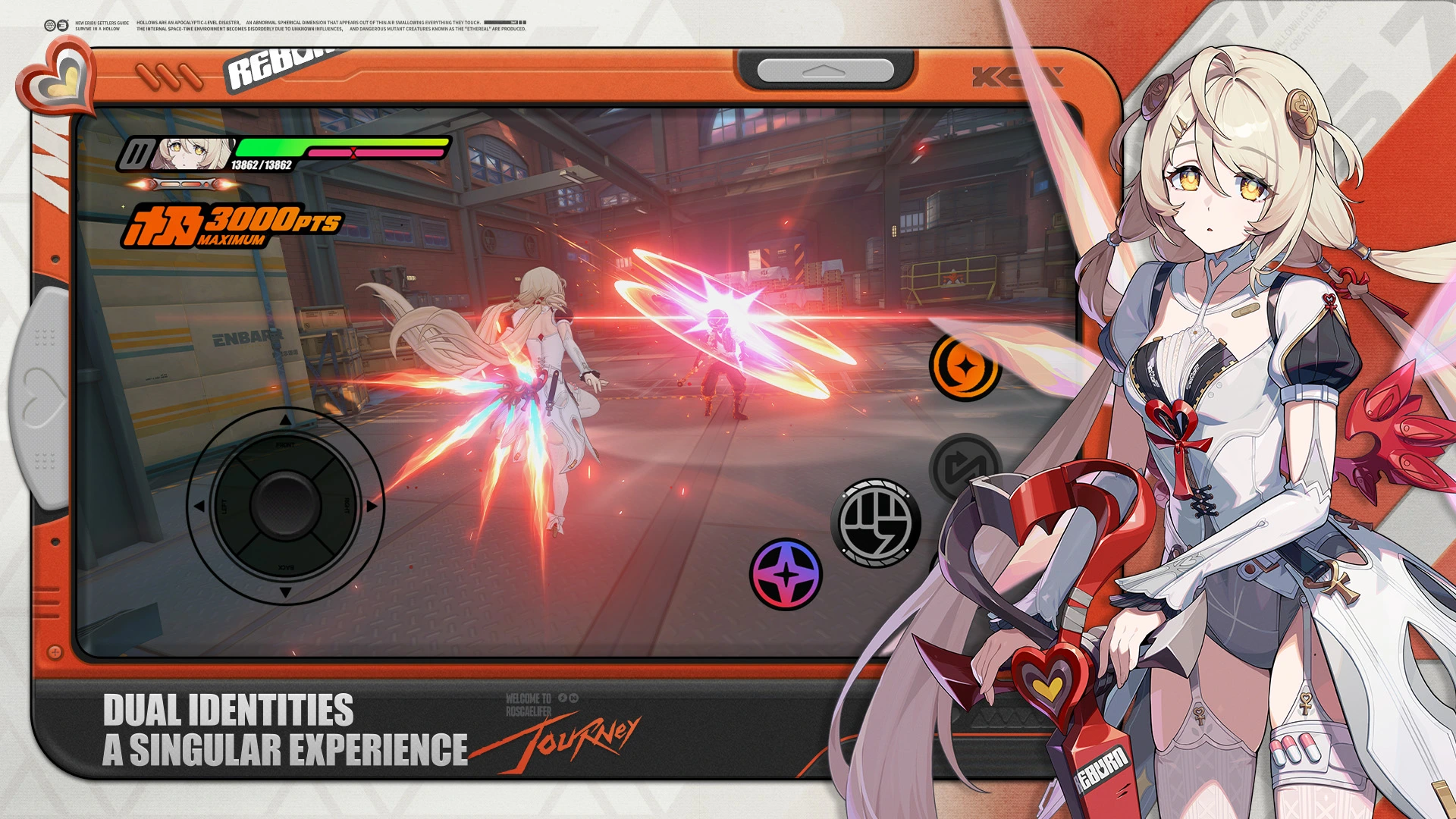
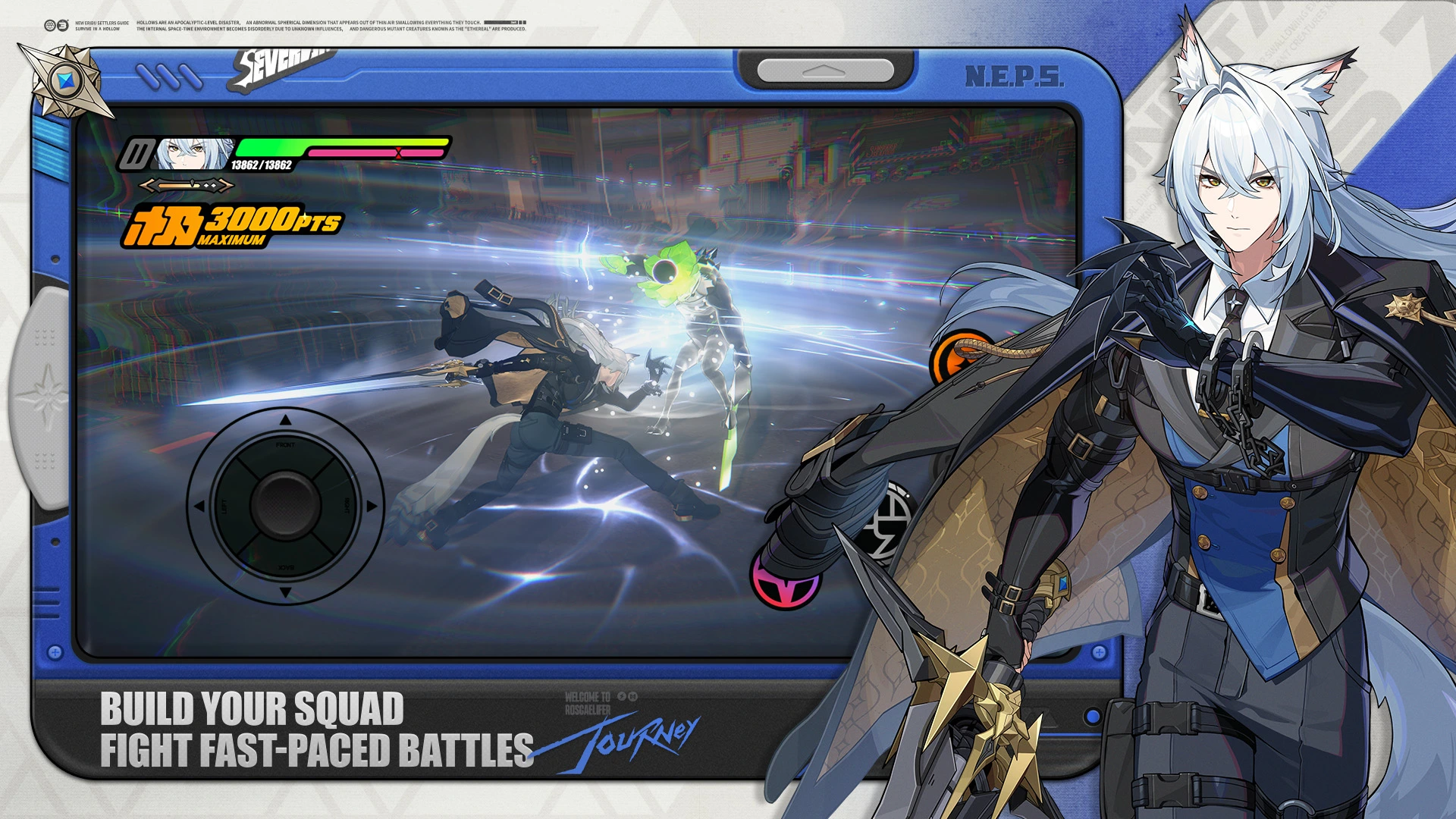
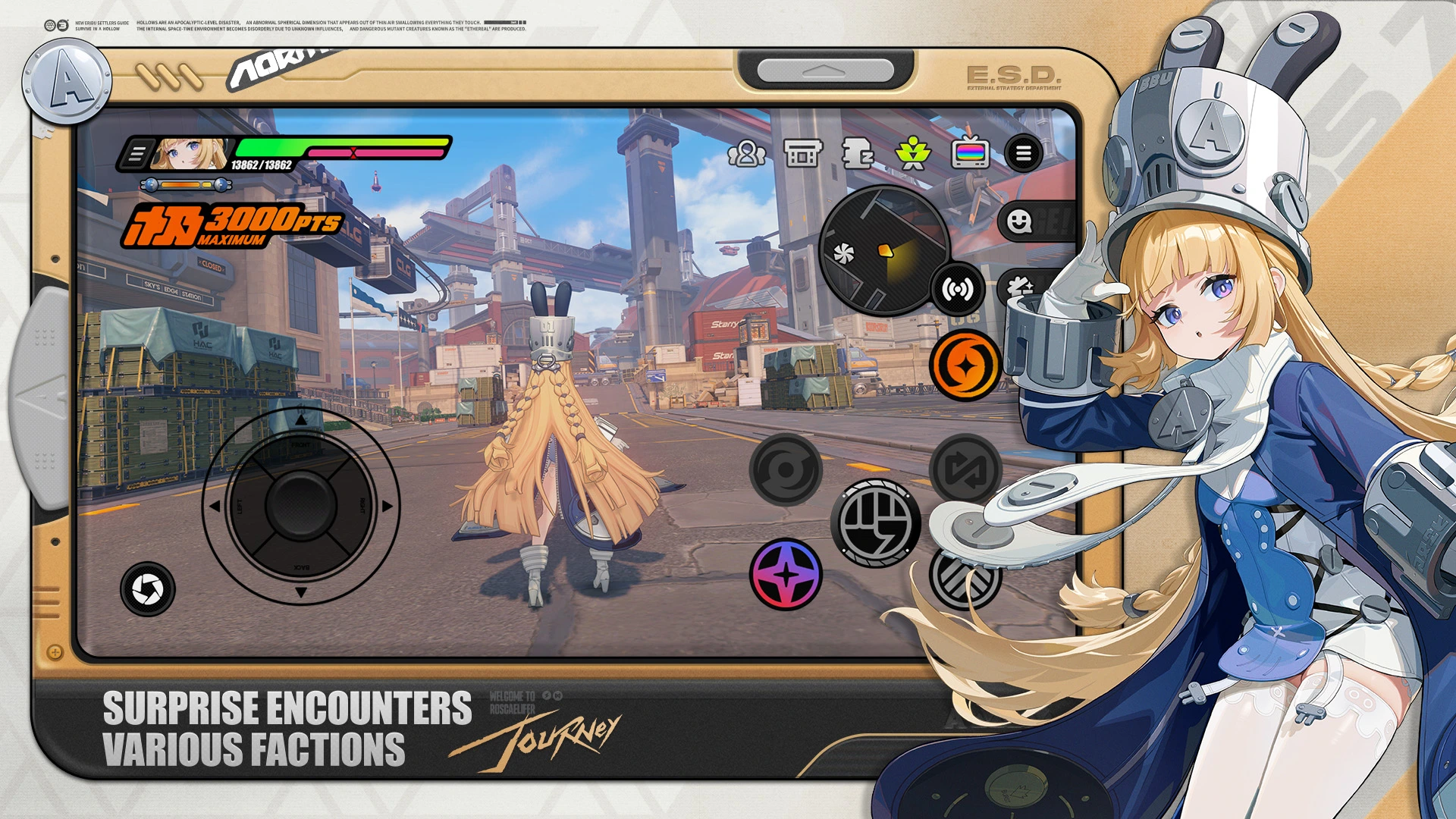
Zenless Zone Zero blends stylish arena action with hub exploration in New Eridu. You switch between three Agents on the fly to stagger enemies and chain finishing blows:
Storage and performance tips for Chromebook
Zenless Zone Zero is a demanding 3D action game, so a few settings tweaks make a noticeable difference on ChromeOS:
- Plan for 20 to 25 GB of space: While the initial Google Play download is small, the full asset pack needs around 15 GB to 20 GB. Leave extra room for unpacking and future patches.
- Lower graphics presets: Open Options > Graphics inside the game and set overall quality to Low or Medium, with shadows and special effects turned down on entry-level Chromebooks.
- Match your frame rate cap: Start at 30 FPS for steadier thermals and battery life, or switch to 60 FPS on higher-end Intel, AMD, or Chromebook Plus models.
- Close background Chrome tabs: Free up RAM before launching the game so Android and ChromeOS do not compete for memory during heavy boss fights.
- Trim extra voice packs: Keep only the voice language you use in settings to save several gigabytes of local storage.
Controls on Chromebook and Googlebook
Because the Google Play build is designed for mobile and tablet hardware, you have two main ways to control combat:
- Connect a controller (recommended): Pair an Xbox, PlayStation, or USB-C gamepad to your Chromebook or Googlebook, then open Options > Input in the game and switch the layout from Touch to Controller.
- Use touchscreen controls: On 2-in-1 Chromebooks or tablet screens, the virtual stick, dodge button, and Agent swap icons respond directly to touch.
- Keyboard and mouse limits: The Android app does not offer full native PC mouse-look everywhere like the Windows build, so a controller or cloud streaming via GeForce NOW feels much cleaner on a clamshell laptop.
Troubleshooting Zenless Zone Zero on Chromebook and Googlebook
If the game fails to download, stutters, or ignores your controller, check these common fixes:
- Insufficient storage error: Clear old downloads, Linux files, or unused Android apps so you have at least 20 GB to 25 GB free before starting the in-game resource download.
- Google Play is missing or blocked: Go to Settings > Apps and turn on Google Play Store. If the setting is disabled by a school or work admin, use a personal device.
- Stuttering or crashes in combat: Lower Rendering and Shadow quality to Low, cap frame rate at 30 FPS, and clear app cache under Settings > Apps > Manage your apps > Zenless Zone Zero.
- Controller not working in-game: Make sure the gamepad is paired in ChromeOS Bluetooth settings first, then switch Input from Touch to Controller inside the game’s Options menu.
- Progress is missing after sign-in: Double-check that you logged into the exact same HoYoverse account and selected the same server region (America, Europe, Asia, or TW/HK/MO) as your other device.
Frequently asked questions about Zenless Zone Zero on Chromebook and Googlebook
Can you play Zenless Zone Zero on a Chromebook?
Yes. You can install the official Zenless Zone Zero app from Google Play on Chromebooks with Android app support, or stream the PC version in Chrome through NVIDIA GeForce NOW or Boosteroid.
How much storage does Zenless Zone Zero need on Chromebook?
The initial Google Play download is small, but the full in-game resource pack takes roughly 15 GB to 20 GB. Keep at least 20 GB to 25 GB of free space for unpacking and updates.
Can I play Zenless Zone Zero on Googlebook?
Yes. Open Google Play on your Googlebook to install Zenless Zone Zero natively, or use Cast My Apps in the Phone Hub to mirror the game from your Android phone for quick daily checks.
Does Zenless Zone Zero support controllers on Chromebook and Googlebook?
Yes. Connect an Xbox, PlayStation, or compatible USB-C or Bluetooth gamepad, open Options in the game, and switch the Input setting from Touch to Controller.
Does Zenless Zone Zero have cross-progression with PC and console?
Yes. Sign in with the same HoYoverse account and choose the same server region to carry your Agents, story progress, and items across Android, PC, and consoles.
Explore more game guides on ChromeGeek
Looking for more action RPGs, cloud streaming setups, or gaming laptops? Check these guides next:
- How to Install and Play Arknights: Endfield on Chromebook and Googlebook: Another 3D anime action RPG you can run natively on ChromeOS.
- Best Chromebooks for Gaming: Laptops with faster processors, high-refresh screens, and extra storage for demanding games.
- How to Install and Use GeForce NOW on Chromebook and Googlebook: Stream the PC version of Zenless Zone Zero in Chrome without the 20 GB download.
- How to Install and Use Boosteroid on Chromebook and Googlebook: Another browser-based cloud option for playing PC action games on ChromeOS.
Discover more from Chrome Geek
Subscribe to get the latest posts sent to your email.