How to Install and Play Deep Rock Galactic: Survivor on Chromebook and Googlebook
 by
Joseph Vance
Post Updated: November 23, 2026
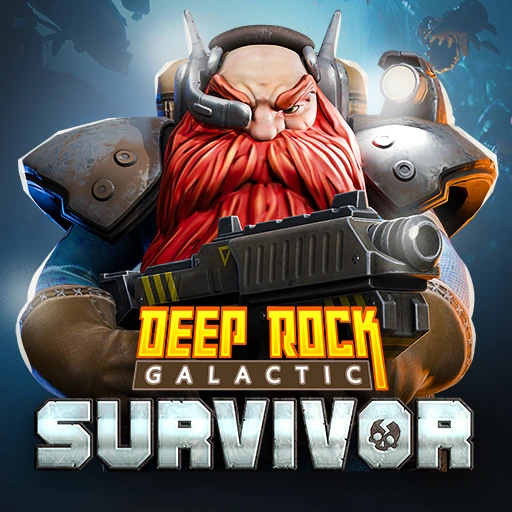
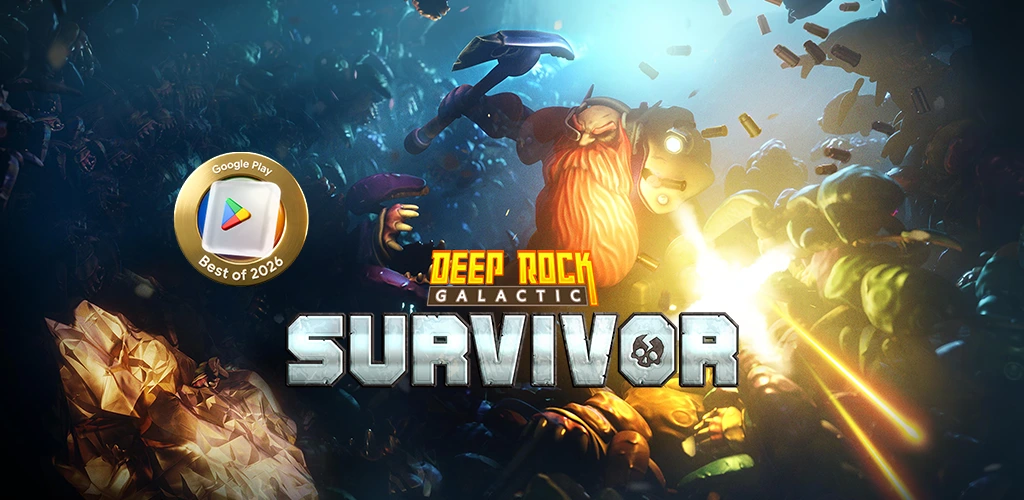
You can install and play Deep Rock Galactic: Survivor on Chromebook and Googlebook directly through the official Android app on Google Play. Developed by Funday Games and published by Ghost Ship Publishing ApS, this single-player auto-shooter drops you onto planet Hoxxes IV to mine minerals, level up automatic weapons, and survive relentless alien swarms.
Googlebook runs Android games natively from Google Play and can also cast an active session from your phone. This guide covers installation, Phone Hub casting, dwarf classes and biomes, keyboard and controller controls, survival tips, and quick fixes.
Need help getting Deep Rock Galactic: Survivor running? Contact us with your laptop model and ChromeOS version details.
How to install and play Deep Rock Galactic: Survivor on Chromebook and Googlebook
Deep Rock Galactic: Survivor runs natively as an Android app on ChromeOS, so you only need to download it once from Google Play:
The official Google Play listing uses package ID com.ghostshippublishing.deeprockgalacticsurvivor. Keep automatic Play Store updates turned on so balance patches and new mission assignments arrive automatically.
If Google Play is not active on your laptop, check Google’s Android app setup guide for Chromebook or the guide on installing apps on Googlebook. On school or work Chromebooks, administrator policies control whether games from Google Play can be installed. If you own the PC version on Steam, you can also stream it in Chrome through cloud gaming services like GeForce NOW.
How to play Deep Rock Galactic: Survivor on Googlebook from your phone (Cast My Apps)
If you already play Deep Rock Galactic: Survivor on your Android phone and want to continue a dive on a larger screen without transferring files, Googlebook’s Cast My Apps feature mirrors your phone’s active session into a desktop window. Open Phone Hub on the right side of the Googlebook shelf, select Cast My Apps, and choose Deep Rock Galactic: Survivor. This works well for spending meta-upgrades or checking milestone progress, while native Google Play installation delivers smoother frame rates during intense late-stage swarms.
Dwarf classes, weapons, and Hoxxes IV biomes
Every run sends one of four dwarven specialists into deep subterranean caverns packed with destructible rock walls, mineral veins, and escalating glyphid waves. Weapons fire automatically, letting you focus on positioning, mining, and building synergies:
As you complete dives and Hazard levels, you unlock deeper biomes across Hoxxes IV, each with distinct environmental hazards:
- Crystalline Caverns: Your starting biome with balanced terrain, glowing crystals, and clear sightlines for learning weapon builds.
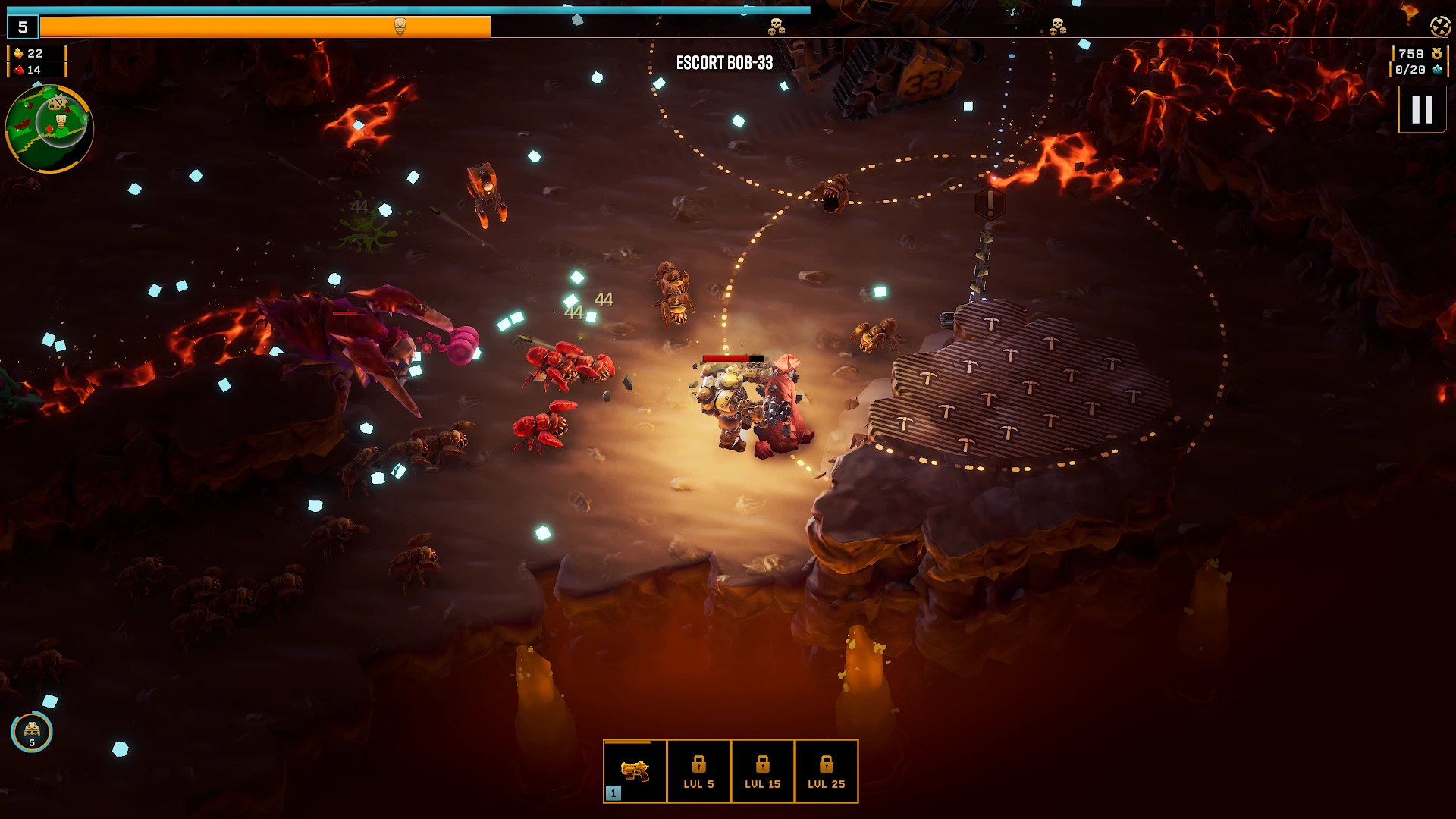
- Magma Core: A fiery cavern filled with glowing lava fissures and explosive vents that punish careless footing.
- Hollow Bough: A dense organic cave system packed with thorny vines and tight corridors where drilling escape routes is essential.
- Salt Pits and Azure Weald: Deeper biomes featuring brittle salt formations, bioluminescent flora, and tougher elite enemies.
Keyboard, controller, and touchscreen controls on Chromebook
Because weapons fire automatically, Deep Rock Galactic: Survivor feels crisp on a Chromebook keyboard, external gamepad, or touchscreen:
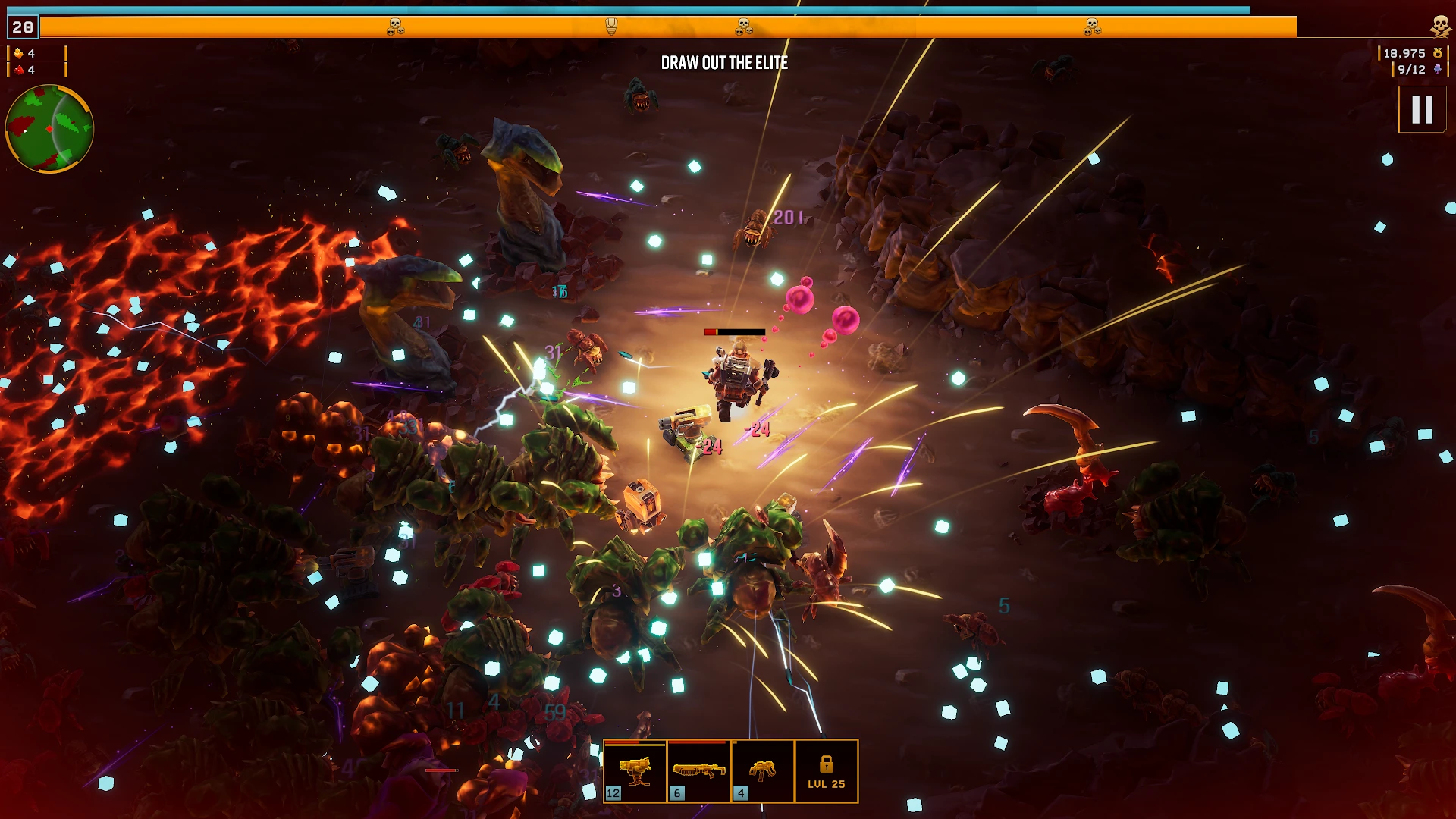
- Keyboard movement: Use the W, A, S, D keys or the Arrow keys to steer your dwarf, mine into soft rock walls, and weave around acid spitters.
- Upgrade selection: Click upgrade cards with your trackpad or mouse, or press Enter / Spacebar when navigating menus with a keyboard.
- External controller: Connect a USB or Bluetooth Xbox, PlayStation, or Switch controller. Use the left thumbstick for smooth 360-degree movement and face buttons to pick level-up bonuses.
- Touchscreen mode: On a 2-in-1 Chromebook or tablet, drag the virtual on-screen thumbstick to move and tap upgrade cards directly between waves.
Survival tips for longer dives
Higher Hazard levels ramp up swarm speed quickly. Keep these habits in mind to survive until the Drop Pod arrives:
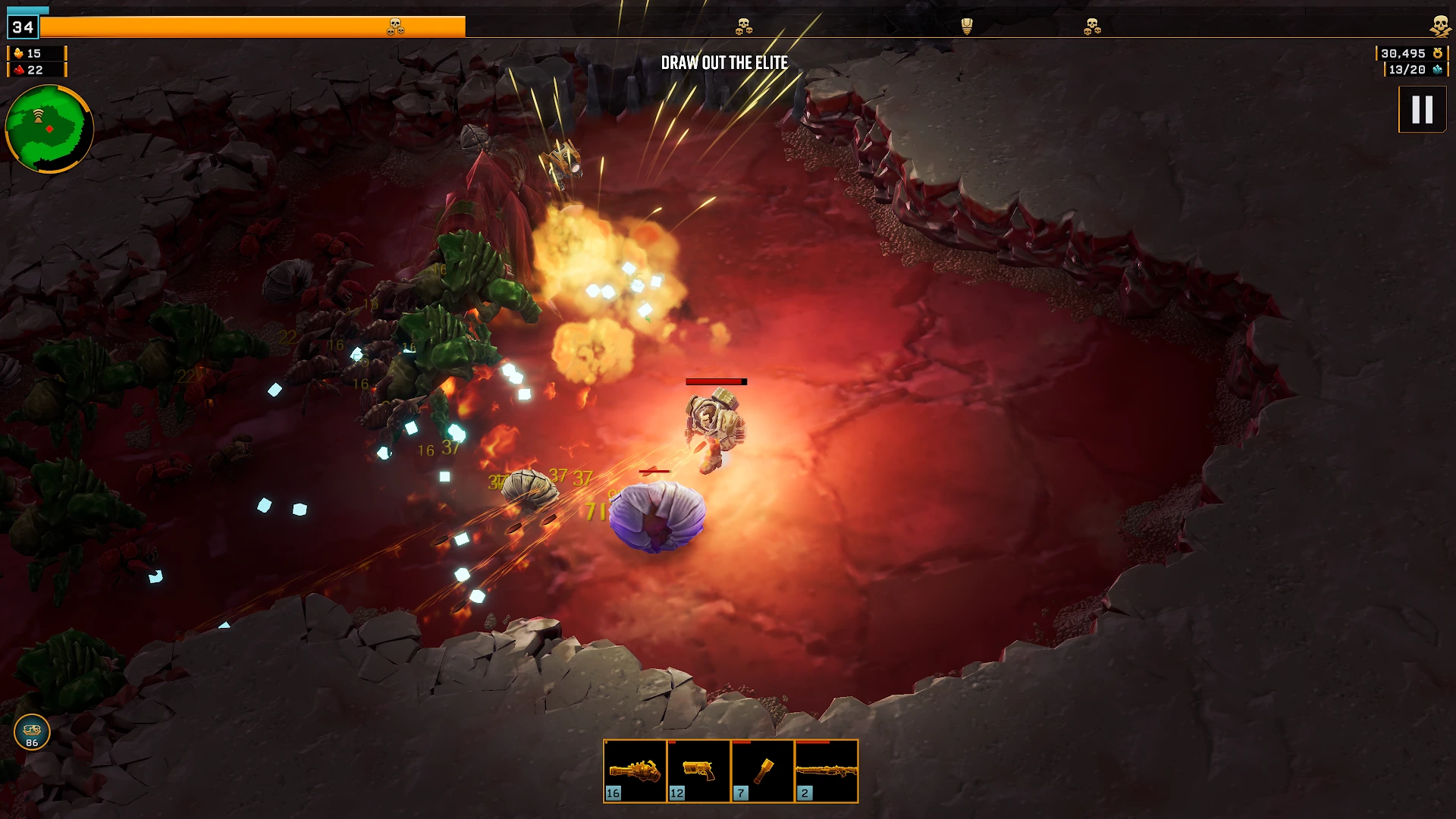
- Mine Nitra and Gold early: Digging through rock veins gives you Gold for shop rerolls and Nitra for damage and critical-hit upgrades, while carving shortcuts to escape cornered situations.
- Clear the Supply Pod zone: When the Supply Pod beacon lands, dig out any rock inside the dotted circle and clear nearby bugs so the pod drops on schedule and heals you.
- Push weapons to Overclock tiers: Leveling one or two favorite weapons to Level 6, 12, and 18 unlocks major Overclock power spikes faster than spreading points across four low-level guns.
- Watch the Drop Pod countdown: Once the stage boss falls, leave stray XP gems behind if the timer is low and sprint straight to the Drop Pod ramp before it departs.
Troubleshooting Deep Rock Galactic: Survivor on Chromebook and Googlebook
If the game fails to install, stutters during heavy swarms, or ignores keyboard input, try these ChromeOS fixes:
- Keyboard keys do not respond: Click once inside the Deep Rock Galactic: Survivor window so ChromeOS focuses keyboard input on the Android app instead of another browser tab.
- Frame rate drops in late waves: Lower graphics quality and damage-number clutter in the in-game settings menu, and close heavy background Chrome tabs to free RAM.
- Window opens in a narrow frame: Click the maximize button in the top-right corner of the app window or switch to resizable mode in the Android window bar for full widescreen play.
- App crashes on launch: Open ChromeOS Settings > Apps > Manage your apps > Deep Rock Galactic: Survivor > Storage & cache, select Clear cache, and check Google Play for updates.
- Blocked on a school Chromebook: Managed school or work accounts often restrict Google Play games. Switch to a personal Google account on an unmanaged device if the Play Store is disabled.
Frequently asked questions about Deep Rock Galactic: Survivor on Chromebook and Googlebook
Can you play Deep Rock Galactic: Survivor on a Chromebook?
Yes. Install the official Deep Rock Galactic: Survivor app published by Ghost Ship Publishing ApS from Google Play on your Chromebook, open it from the launcher, and start diving. Your Chromebook needs Google Play enabled, and managed school or work devices may block game downloads.
Is Deep Rock Galactic: Survivor free on Chromebook and Googlebook?
Deep Rock Galactic: Survivor is free to download and try from Google Play, letting you play the opening content before unlocking the full game with a single one-time in-app purchase.
How do you control Deep Rock Galactic: Survivor on a Chromebook?
Use the WASD or Arrow keys on your keyboard to move, mine through rock walls, and dodge alien swarms while your weapons fire automatically. You can also connect a USB or Bluetooth controller, or use the virtual thumbstick on a touchscreen Chromebook.
Can I play Deep Rock Galactic: Survivor on Googlebook?
Yes. Open Google Play on your Googlebook to install Deep Rock Galactic: Survivor natively, or use Cast My Apps in the Phone Hub to mirror an active session from your Android phone.
Can you play Deep Rock Galactic: Survivor with a controller on ChromeOS?
Yes. Deep Rock Galactic: Survivor supports external gamepads on ChromeOS. Pair a Bluetooth controller or plug in a USB gamepad to steer your dwarf with the left thumbstick and pick weapon upgrades with face buttons.
Explore more game guides on ChromeGeek
Looking for more action and survival games to play on your laptop? Check out these ChromeGeek guides:
- How to Install and Play Warframe on Chromebook and Googlebook: Jump into fast-paced sci-fi action and co-op missions on ChromeOS.
- How to Install and Play Arknights: Endfield on Chromebook and Googlebook: Explore real-time squad combat and base building on your laptop.
- How to Play Dandy’s World on Chromebook and Googlebook: Learn how to set up controls and survive the Twisteds in this popular co-op horror run.
- How to Install and Play Subway Surfers City on Chromebook and Googlebook: Surf across connected city districts with keyboard or touch controls.
- Best Chromebooks for Gaming: Compare laptops with high-refresh screens and fast processors for Android and cloud games.
Discover more from Chrome Geek
Subscribe to get the latest posts sent to your email.