Crosh Commands Cheat Sheet (2026): Storage, Battery & Network Diagnostics
 by
Frank Cross
Post Updated: October 15, 2026
by
Frank Cross
Post Updated: October 15, 2026
Whether you are troubleshooting Wi-Fi, checking battery health, or testing your hardware, the Crosh shell (ChromeOS Developer Shell) gives you direct access to built-in diagnostic tools right inside your browser without needing Developer Mode.
In 2026, Crosh remains the fastest way to check Storage Health, inspect Battery Wear, and run Network Diagnostics. Below are the most useful commands grouped by category and safety level.
Have feedback or need help with a command? Contact us here or leave a comment below.
Download the Crosh Commands Cheat Sheet
How to Open Crosh on Any Chromebook
- Press Ctrl + Alt + T on your keyboard.
- A new browser tab will open with a dark terminal prompt:
crosh> - Type
helpfor basic commands orhelp_advancedfor the full diagnostic list. - To close Crosh at any time, type
exitor close the browser tab.
1. System & Hardware Diagnostics (100% Safe)
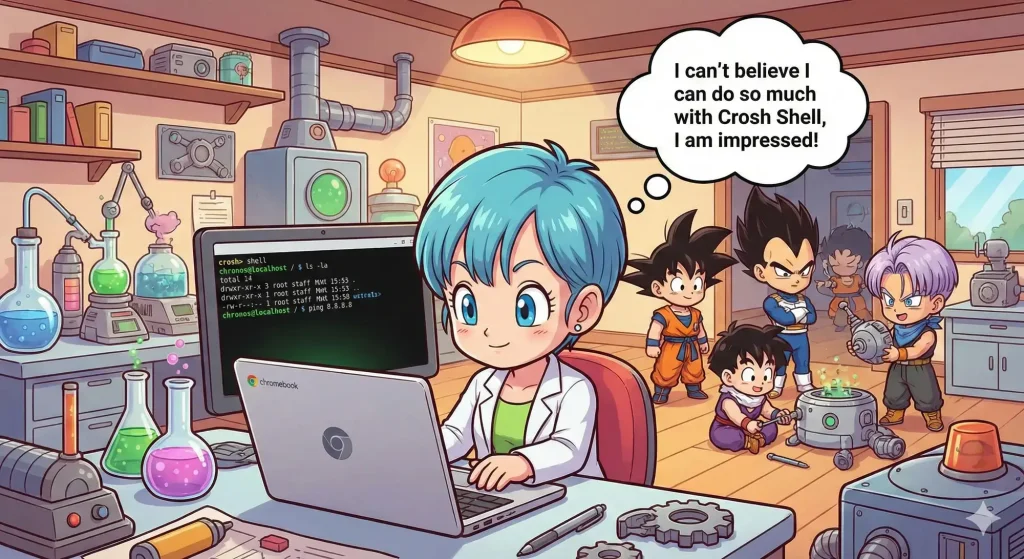
These commands are read-only and safe to run on any standard Chromebook. Use them to check if your battery is degrading, inspect SSD or eMMC storage wear, or see which processes are using your CPU.
| Command | What It Does |
|---|---|
battery_test 60 |
Runs a 60-second discharge test (unplug charger first). Shows Battery Health % and discharge rate. |
battery_firmware info |
Displays detailed battery voltage, cycle count, and design capacity stats. |
storage_test_1 |
Checks your SSD or eMMC storage health (short SMART status check). |
storage_test_2 |
Runs an extended surface read test on your internal storage drive. |
memory_test |
Runs a deep RAM check. Use this if your Chromebook freezes or crashes randomly. |
top |
Shows real-time CPU and RAM usage by process. Press Q to exit. |
meminfo |
Displays total, free, and cached memory breakdown in kilobytes. |
uptime |
Shows how long the device has been running since the last reboot and CPU load averages. |
uname -a |
Prints your exact Linux kernel version and CPU architecture (x86_64 or ARM). |
ccd_pass |
Verifies the status of Case Closed Debugging (Cr50/Ti50 Security Chip). |
How to Read Your battery_test Output
When you unplug your Chromebook and run battery_test 60, Crosh returns output that looks like this:
- 85% to 100% Battery Health: Your battery is in great shape and holding close to its factory design capacity.
- 70% to 84% Battery Health: Normal wear after 1 to 2 years of regular charge cycles. You will notice slightly shorter battery life.
- Below 70% Battery Health: Significant degradation. If your Chromebook shuts off unexpectedly or drains over 3% in a single 60-second test while idle, the battery may need replacement.
2. Network & Wi-Fi Troubleshooting
Wi-Fi dropping or pages loading slowly? Use these commands to test whether the issue is your Chromebook, your router, or your internet provider.
| Command | What It Does |
|---|---|
ping google.com |
Tests connection latency and packet loss. Press Ctrl + C to stop the test. |
tracepath google.com |
Traces every router hop your data takes to pinpoint where a connection drops. |
network_diag |
Runs a full suite of network tests (DNS, Proxy, Firewall, Latency) and saves a log to your Files app. |
ipaddrs -4 |
Displays your local IPv4 address (use ipaddrs -6 for IPv6). |
dns |
Runs a quick DNS resolution check to verify if domain names are resolving properly. |
modem help |
Advanced cellular diagnostics for LTE and 5G enabled Chromebooks. |
3. Linux (Crostini), Developer & Advanced Tools
Note: Commands labeled below either manage the built-in Linux VM or require Chromebook Developer Mode to be enabled.
| Command | What It Does |
|---|---|
vmc start termina |
Manually boots the built-in Linux (Crostini) virtual machine container. |
vsh termina |
Opens a direct shell session inside your running Linux container. |
vmc list |
Lists all active virtual machines and their disk size usage in bytes. |
shell |
DEV MODE Opens the full root Linux Bash shell. |
packet_capture |
DEV MODE Captures Wi-Fi packets for deep network analysis. |
rollback |
WIPES DATA Reverts ChromeOS to the previous version and Powerwashes your device. |
4. Input & Peripheral Testing
Need to troubleshoot a jumpy touchpad or unresponsive touchscreen? These commands inspect hardware input directly.
| Command | What It Does |
|---|---|
evtest |
DEV MODE Monitors live real-time events from your touchscreen, touchpad, or keyboard. |
gesture_prop |
Views or adjusts low-level touchpad gesture properties on supported models. |
Related Guides from ChromeGeek
- Enable Developer Mode on Chromebook + Shortcuts Cheat Sheet
- ChromeOS PowerControl: Advanced Hardware Management
- What Is Crosh Shell on Chromebook?
Discover more from Chrome Geek
Subscribe to get the latest posts sent to your email.