6 Best Keyboards for Chromebook and Googlebook (2026)
 by
Joseph Vance
Post Updated: November 14, 2026
The best keyboards for Chromebook and Googlebook are the Logitech Pebble Keys 2 K380s for slim, quiet everyday typing, the Logitech MX Keys S for a premium backlit desk setup, and the Logitech Wave Keys for all-day comfort. Each one pairs in seconds and works with ChromeOS shortcuts out of the box.
We picked keyboards for every setup, from Bluetooth models that need no adapter to a plain USB-C wired keyboard and a touchpad keyboard for a Chromebox on the TV. Each card shows how it connects and what it works with.
Having trouble pairing a keyboard? Contact us with your laptop and keyboard model, and we will help you get it working.
Best keyboards for Chromebook and Googlebook
Logitech Pebble Keys 2 K380s
$ Budget
Bluetooth
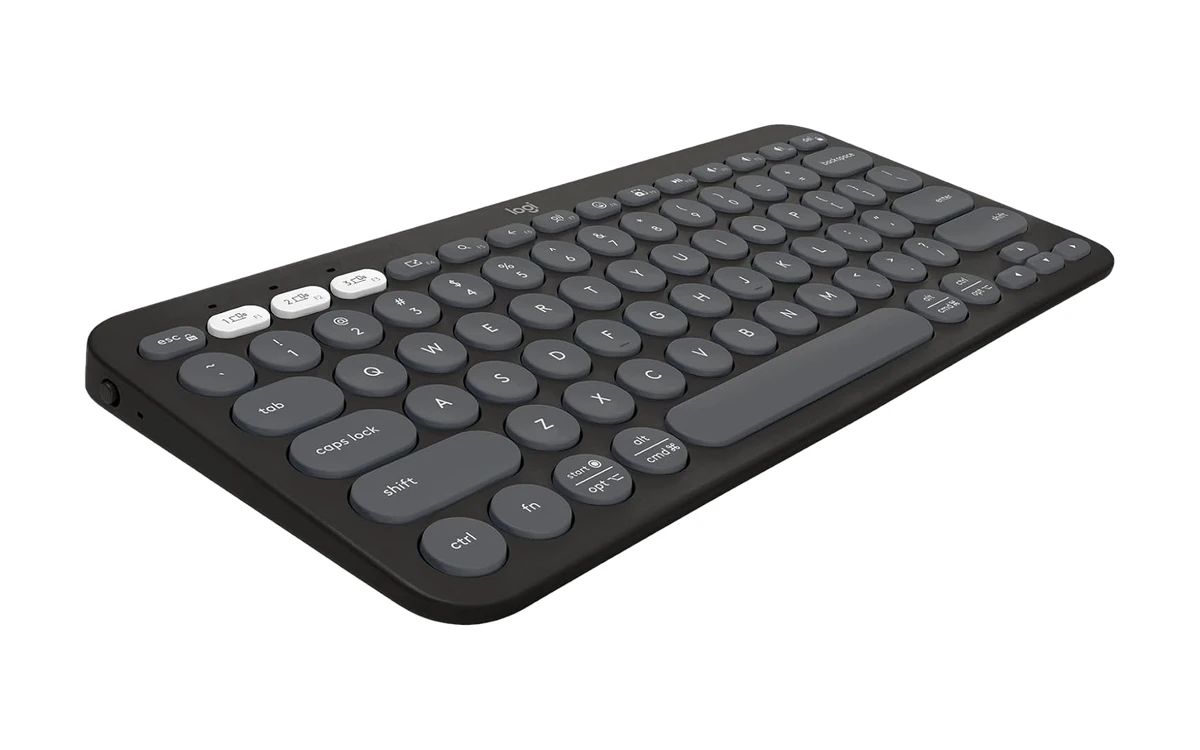
The Logitech Pebble Keys 2 K380s is the keyboard we would recommend to most Chromebook and Googlebook owners. It is slim, quiet and light enough to toss in a bag, and because it connects over Bluetooth, you never need a USB port or adapter.
- No adapter needed: Bluetooth pairing works on any Chromebook or Googlebook, including models with only USB-C ports.
- Switch between 3 devices: Easy-Switch buttons jump between your laptop, tablet and phone with one press.
- Batteries that last for ages: Logitech rates it at up to 3 years on a set of AAA batteries, with auto-sleep to save power.
Worth knowing: It has no number pad or backlighting, and the round keys take a day or two to get used to if you are coming from a full-size keyboard.
Logitech MX Keys S
$$$ Premium
Backlit
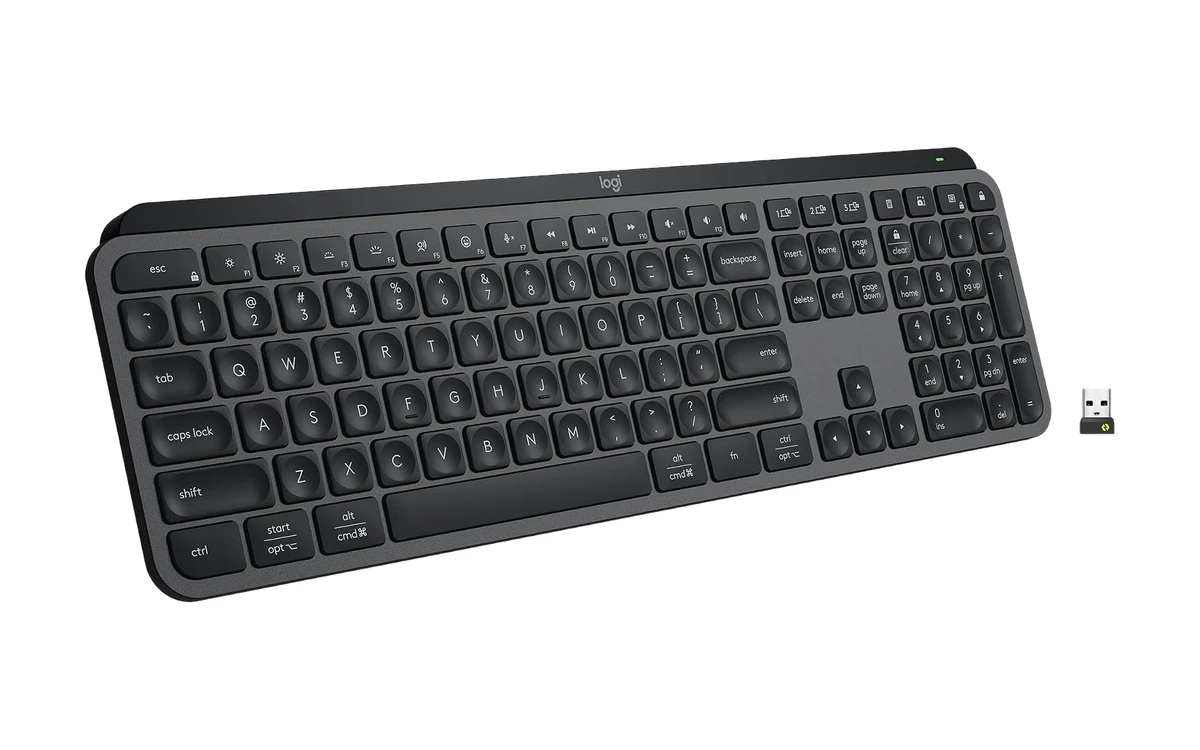
The Logitech MX Keys S is the keyboard to get if you spend all day at a desk. The low-profile keys have a dished shape that feels precise and quiet, the backlight wakes up as your hands approach, and it recharges over USB-C like your laptop. Logitech lists Googlebook OS by name as a supported system.
- Smart backlight: The keys light up as your hands get close and adjust to the room’s lighting.
- Full-size layout: A number pad and full arrow cluster make spreadsheets and data entry easier.
- Rechargeable over USB-C: Charge it with the same cable as your Chromebook or Googlebook.
Worth knowing: It is the most expensive pick. The included Logi Bolt receiver is USB-A, so use Bluetooth or a USB-C adapter on laptops with only USB-C ports.
Logitech Wave Keys
$$ Mid-range
Ergonomic
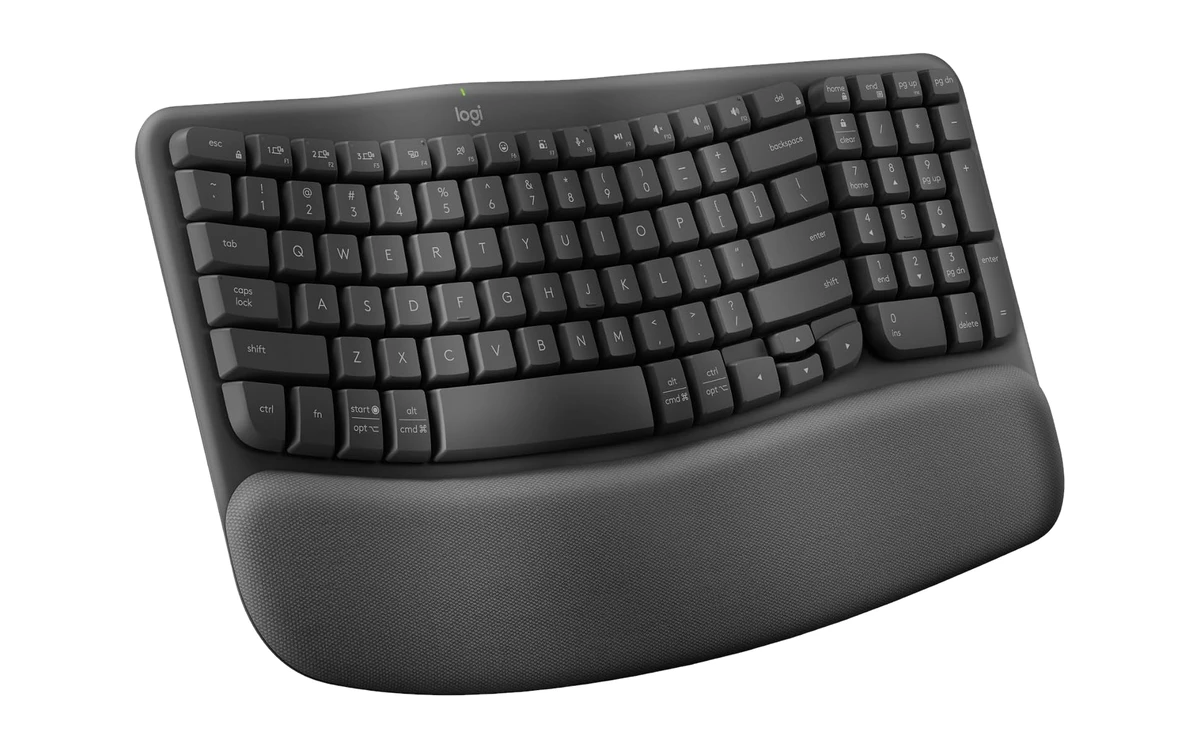
The Logitech Wave Keys has a gentle wave shape that puts your hands, wrists and forearms in a more natural position. The cushioned palm rest is built in, so it is a great pick for long typing sessions without the learning curve of a split keyboard.
- Natural typing posture: The curved layout and raised center take strain off your wrists.
- Built-in palm rest: Memory foam cushioning supports your hands all day.
- ChromeOS support: Logitech lists ChromeOS as compatible, and it pairs over Bluetooth or the Logi Bolt receiver.
Worth knowing: It takes up more desk space than a compact keyboard and is not built for travel. The Logi Bolt receiver is USB-A.
Logitech K480
$ Budget
Multi-Device
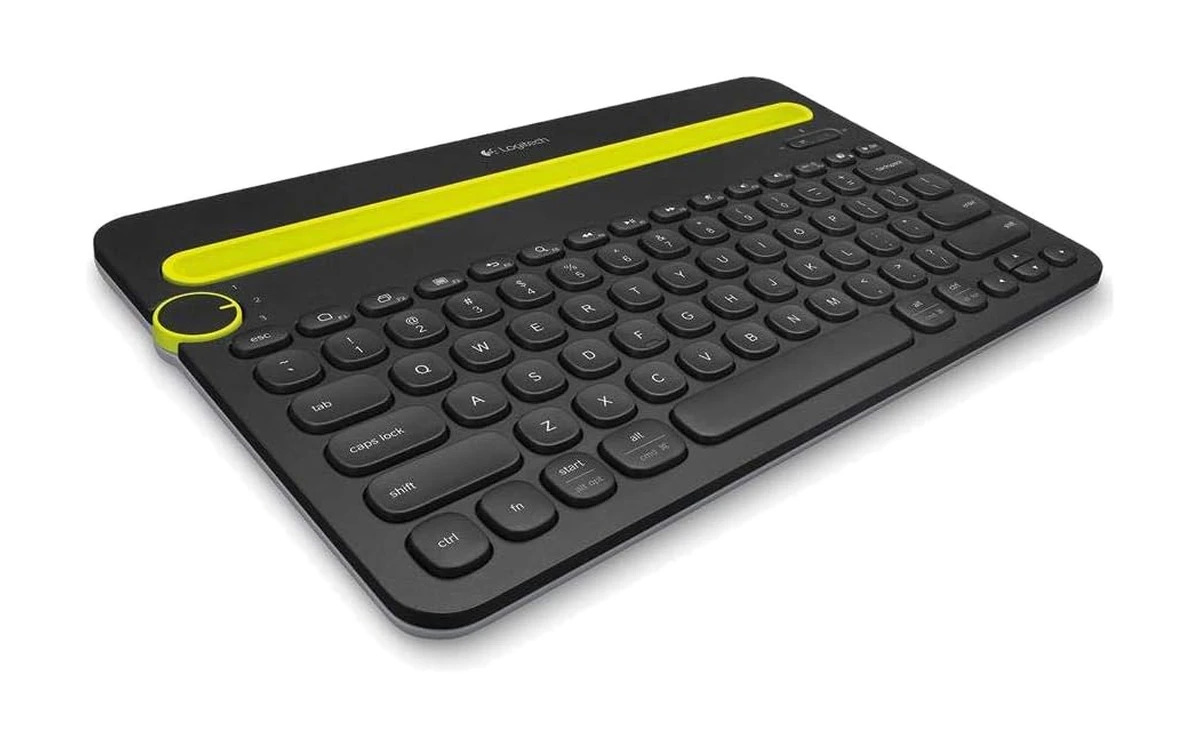
The Logitech K480 has a built-in cradle that holds your phone or tablet upright while you type, and a dial that switches between three paired devices. It is perfect for answering messages on your phone and writing on your Chromebook from the same keyboard.
- Built-in device cradle: Stand a phone or tablet in the groove and type on it like a laptop.
- Easy-Switch dial: Turn the dial to move between your laptop, tablet and phone.
- Chrome OS listed: Logitech lists Chrome OS and Android among its supported systems.
Worth knowing: It is heavier and chunkier than the Pebble Keys 2, so it is better for a desk than a bag. On Amazon it currently ships from a third-party seller.
Lenovo 305 USB-C Keyboard
$ Budget
Wired USB-C
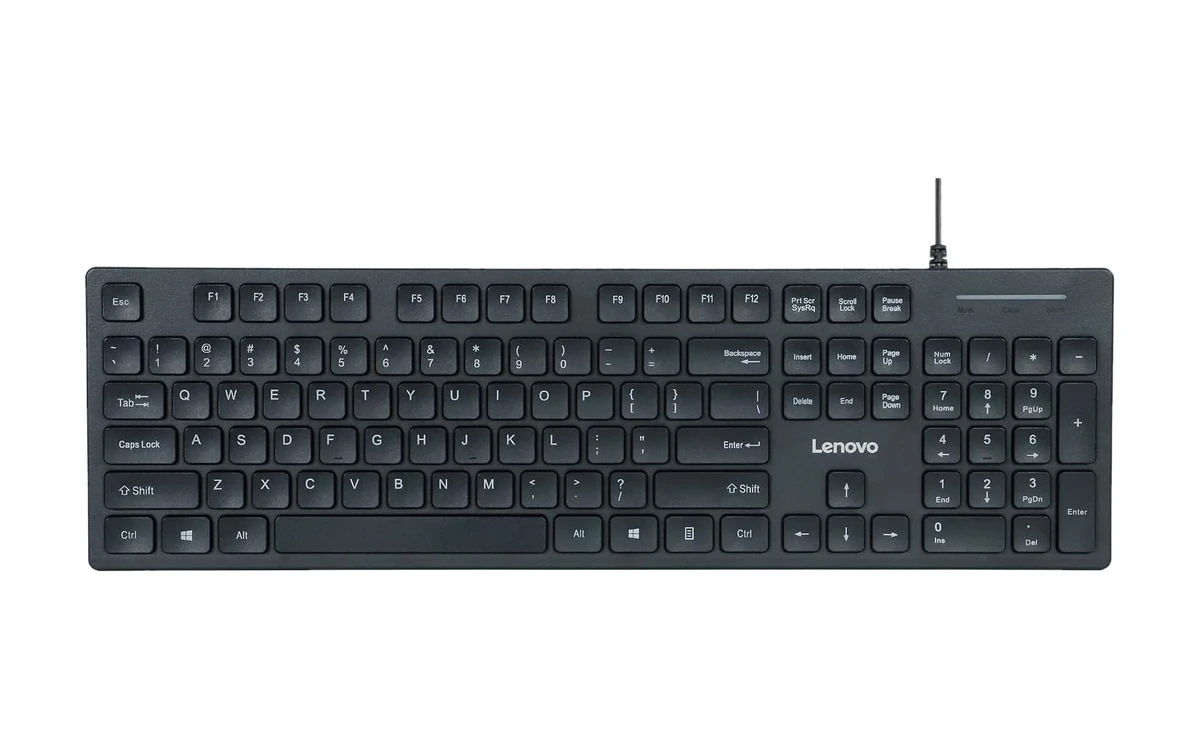
The Lenovo 305 is a simple, slim, full-size keyboard that plugs straight into a USB-C port. There is nothing to pair or charge, which makes it a reliable desk keyboard for Googlebooks and newer Chromebooks that only have USB-C ports.
- Plugs straight into USB-C: No adapter, receiver or batteries needed.
- Full-size layout: The number pad helps with spreadsheets and data entry.
- Works like any keyboard: ChromeOS treats it as a standard keyboard, and the Windows key works as the Launcher key.
Worth knowing: It is labeled for Windows, so a few keys show Windows symbols. Lenovo does not list ChromeOS specifically, though standard USB keyboards work on Chromebooks.
Logitech K400 Plus
$ Budget
Built-in Touchpad
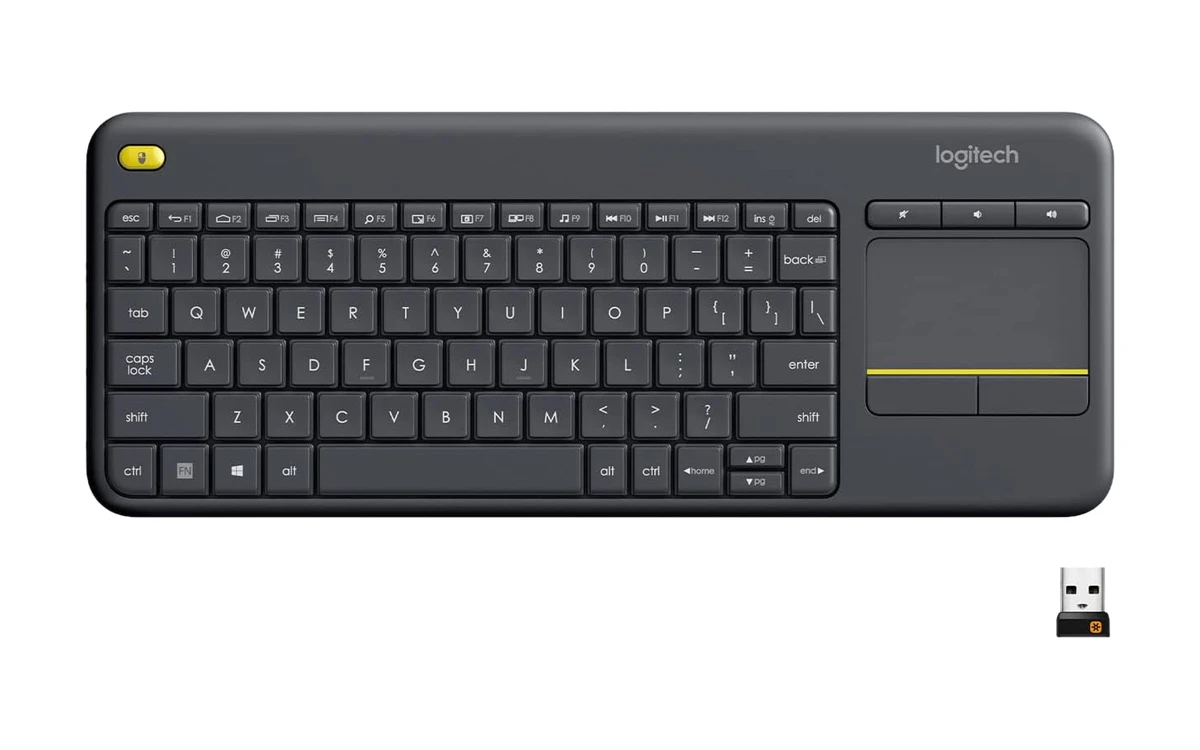
The Logitech K400 Plus puts a keyboard and touchpad in one slim unit, so you can control a Chromebox or a Chromebook connected to your TV from the couch. Logitech lists Chrome OS as a supported system.
- Keyboard and touchpad in one: No separate mouse needed when you are on the couch.
- Long wireless range: Up to 33 feet of range for living-room setups.
- Spill-resistant design: A small spill is less likely to end in a dead keyboard.
Worth knowing: It uses a USB-A receiver, so you will need a USB-C adapter for Googlebooks and Chromebooks with only USB-C ports.
How to choose a keyboard for Chromebook and Googlebook
Bluetooth or USB receiver?
Bluetooth works with every Chromebook and Googlebook and needs no port. Keyboards with a USB-A receiver need a small USB-C adapter on laptops that only have USB-C ports, such as some Googlebooks.
ChromeOS keys
Any standard keyboard works. On Windows-style keyboards, the Windows key acts as the Launcher key, and you can remap keys in Settings, then Device, then Keyboard and inputs.
Multi-device switching
Easy-Switch buttons let one keyboard type on your laptop, tablet and phone. It is worth having if you use more than one device at your desk.
Size and comfort
Compact keyboards are best for travel and small desks. Full-size models add a number pad, and ergonomic shapes help on long typing days.
Frequently asked questions
Do regular keyboards work with a Chromebook?
Yes. Almost any USB or Bluetooth keyboard works with a Chromebook or Googlebook. Windows-labeled keyboards work too: the Windows key acts as the Launcher key, and you can remap other keys in the keyboard settings.
How do I connect a Bluetooth keyboard to a Chromebook?
Put the keyboard in pairing mode, then open Quick Settings, select Bluetooth and choose Pair new device. Select the keyboard from the list, and enter the code on screen if it asks for one.
Do Bluetooth keyboards work with Googlebook?
Yes. Googlebooks pair with Bluetooth keyboards the same way Chromebooks do. Bluetooth is the easiest choice because some Googlebooks only have USB-C ports, which means USB-A receivers need an adapter.
Where is the Launcher key on a Windows keyboard?
On a Chromebook or Googlebook, the Windows key works as the Launcher (Everything) key. Press it to open search and your apps, just like the dedicated key on a Chromebook keyboard.
Can I use Logitech Options+ on a Chromebook?
Logitech’s Options+ app is made for Windows and macOS, so you cannot install it on a Chromebook. The keyboards still work out of the box, and you can change key behavior in ChromeOS keyboard settings instead.
More Chromebook guides
- Pairing your keyboard with a new laptop? See our best Chromebook Plus laptops.
- Setting up a home office? Check the best Chromebooks for work.
- Typing a lot of Word documents? Our guide to using Microsoft 365 on a Chromebook walks through setup.
- Buying for school? See the best Chromebooks for students.
Discover more from Chrome Geek
Subscribe to get the latest posts sent to your email.