15 Best Screenshot and Screen Recorder Extensions for Chrome
 by
Frank Cross
Post Updated: October 16, 2026
by
Frank Cross
Post Updated: October 16, 2026
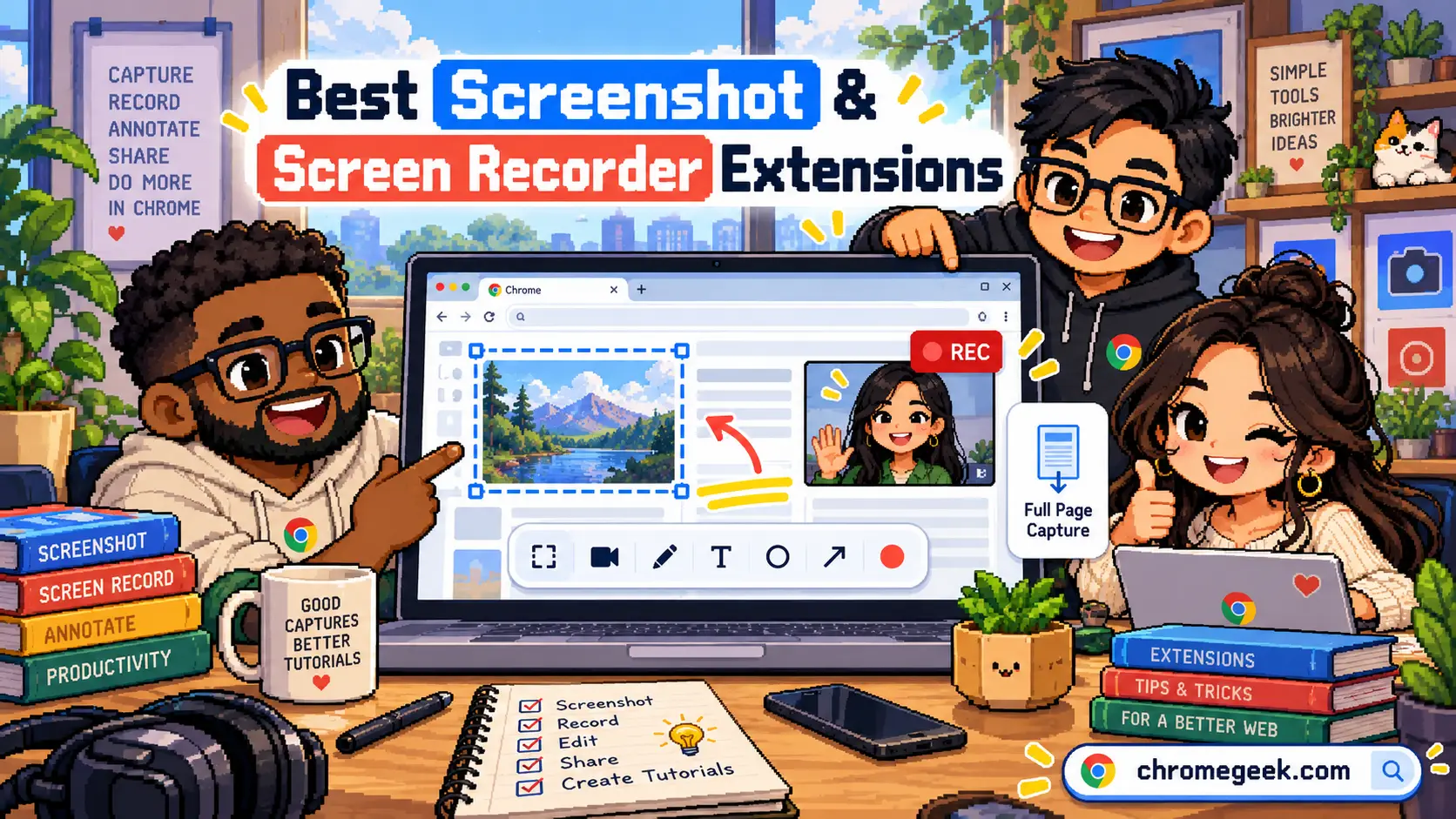
The best screenshot and screen recording extensions for Chrome include Awesome Screenshot for capturing images and videos in one place, GoFullPage for saving entire webpages, and Screenity for free screen recordings without signing up.
We also picked tools for making video tutorials, sharing quick screen recordings, marking up screenshots, and saving webpages as PDFs. Each recommendation explains what it does, why we chose it, and what you should know before installing.
1. Awesome Screenshot & Screen Recorder
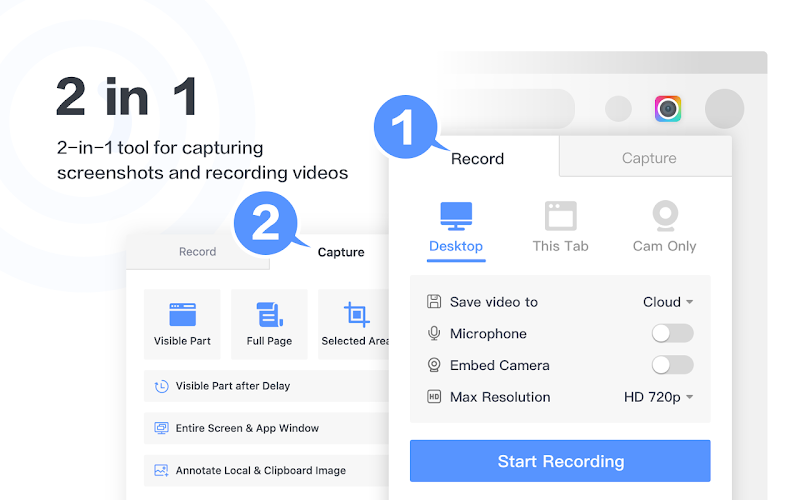
What it does: Captures full webpages, selected regions, or visible browser tabs as images, and records your screen, desktop window, webcam, and microphone as video from one toolbar menu.
👍 Why we chose it: Most extensions specialize in either still images or video clips, forcing you to install two separate tools. Awesome Screenshot handles both well in a single Chrome popup, letting you crop, blur private details, add arrows to screenshots, or record MP4 and WebM videos in any Chrome browser, including on a Chromebook.
Good to know: Saving screenshots directly to your computer is unlimited, and local video recordings are free for up to five minutes per clip. Saving items to the online cloud workspace is capped at 20 videos and 100 screenshots on the free plan before you need to delete older files or pay for an upgrade.
2. GoFullPage
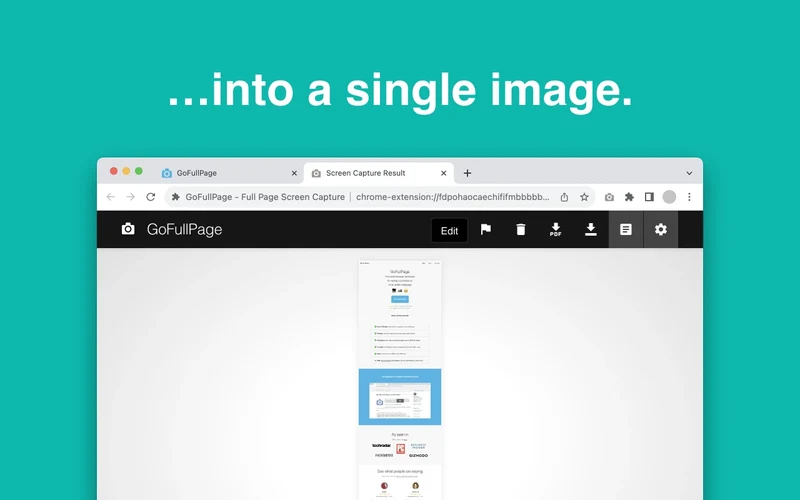
What it does: Automatically scrolls down your current browser tab from top to bottom and stitches the entire webpage into a single tall PNG, JPEG, or PDF file.
👍 Why we chose it: Capturing long articles, receipts, or complex layouts with inside scrollbars often breaks in basic screenshot tools. GoFullPage handles sticky headers and embedded frames cleanly with one click, requires no account sign-up, and opens your finished capture in a clean viewer tab where you can download it straight to your computer.
Good to know: It is strictly a full-page screenshot tool and does not record video or capture partial screen regions on initial click. Unlimited PNG, JPEG, and basic PDF downloads are free, while cropping, annotations, and smart PDF page splitting require a paid plan at $1 per month billed yearly.
3. Screenity
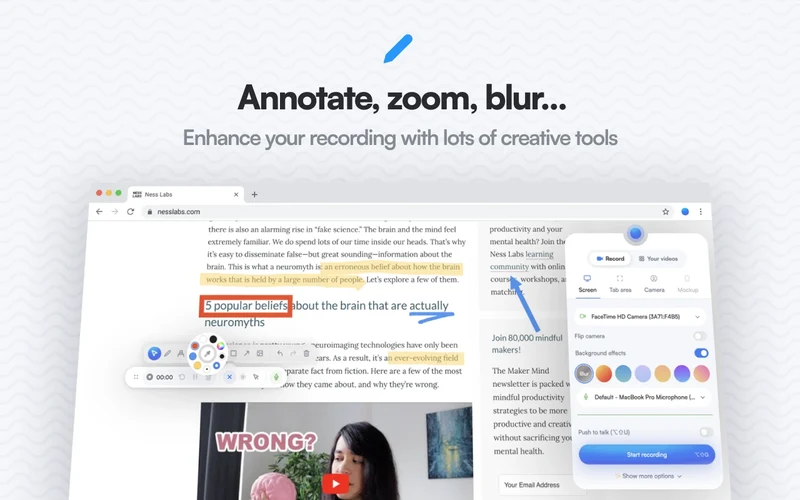
What it does: Records your browser tab, desktop screen, application window, webcam, and microphone audio with live on-screen drawing, cursor highlighting, and smooth zoom effects.
👍 Why we chose it: Many free recorders lock you behind an account login, stamp watermarks on your clips, or cut you off after five minutes. Screenity lets you record as many videos as you want with no time limit and no sign-up required, while giving tutorial creators a live pen tool, click spotlights, and built-in trimming right in Chrome.
Good to know: It focuses on video recording rather than still webpage screenshots. Because free recordings are processed and saved locally to your device or your own Google Drive, very long videos can use a lot of browser memory while exporting to MP4, WebM, or GIF. Optional cloud link hosting requires a paid Screenity Pro plan.
4. Loom
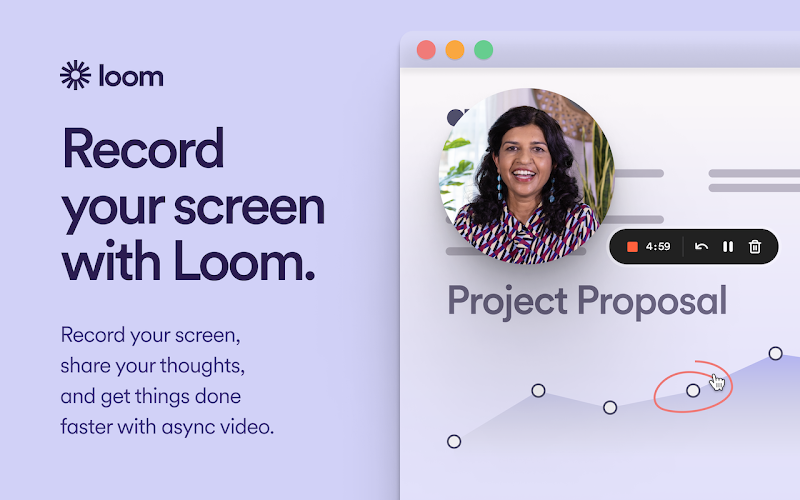
What it does: Records your screen, microphone, and a circular webcam bubble at the same time, uploads the clip to the cloud, and copies a shareable link to your clipboard as soon as you finish.
👍 Why we chose it: When you want to explain a project update or report a bug without scheduling a live meeting, speed matters more than complex video editing. Recipients can watch your Loom link in their browser without downloading heavy video files, leave comments tied to exact moments in the timeline, and react with emojis.
Good to know: Requires a free account sign-in before you can record. The free Starter plan limits you to 25 stored videos in your library and caps each recording at five minutes and 720p resolution, so longer walkthroughs require a paid subscription.
5. FireShot
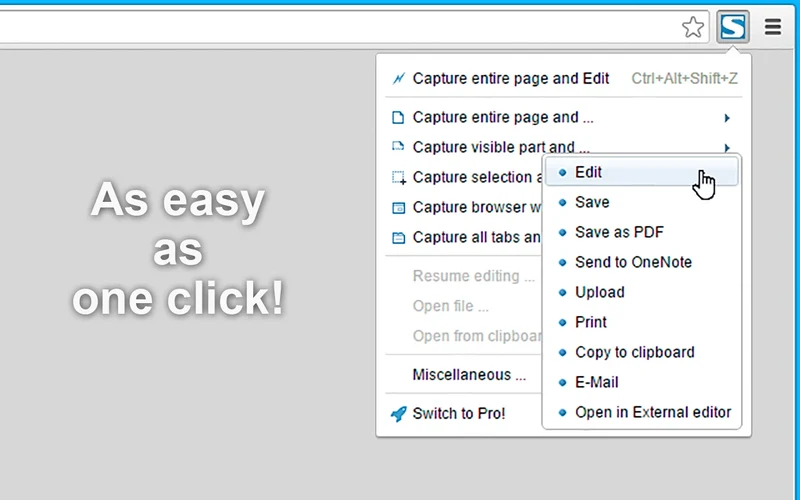
What it does: Saves entire webpages, visible screen areas, or custom selections locally to your computer as PDF, PNG, or JPEG files.
👍 Why we chose it: Unlike GoFullPage, which always captures the full scrolling page first, FireShot lets you pick between the whole page, the visible window, or a dragged selection box right from its menu. It also works offline, stores files locally on your drive without requiring an account, and can capture all open browser tabs at once.
Good to know: Does not record video. While capturing pages and saving basic PDFs or images is free, built-in image editing, annotation arrows, blurring, and searchable multi-page PDFs with clickable links require a paid FireShot Pro upgrade.
6. Screencastify
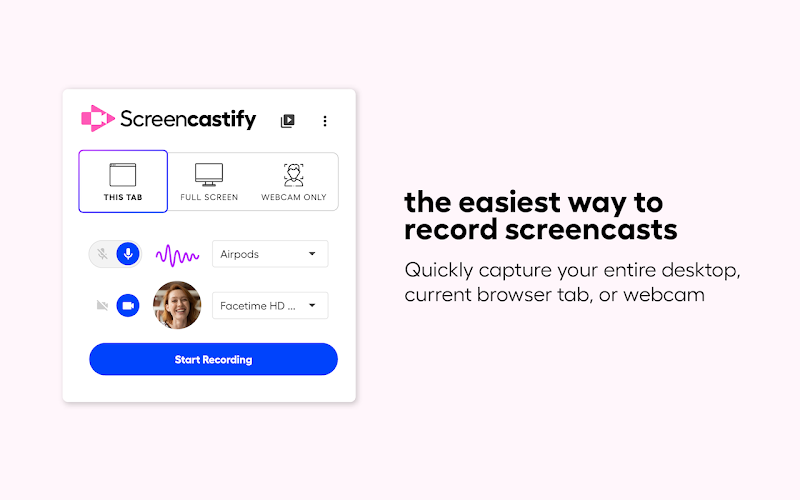
What it does: Records your browser tab, full desktop, or webcam with microphone narration, then lets you trim clips, add captions, and insert multiple-choice questions for viewers.
👍 Why we chose it: Teachers, trainers, and Chromebook users benefit from how closely it connects with Google Drive and Google Classroom. You can draw on your tab while speaking, check who watched your lesson, and add pop-up quiz questions inside the video player to see if students or coworkers understood the material.
Good to know: You need an account to use Screencastify. You can create 10 videos for free, each up to 30 minutes long. Deleting an old video won’t give you another free recording.
7. Scribe
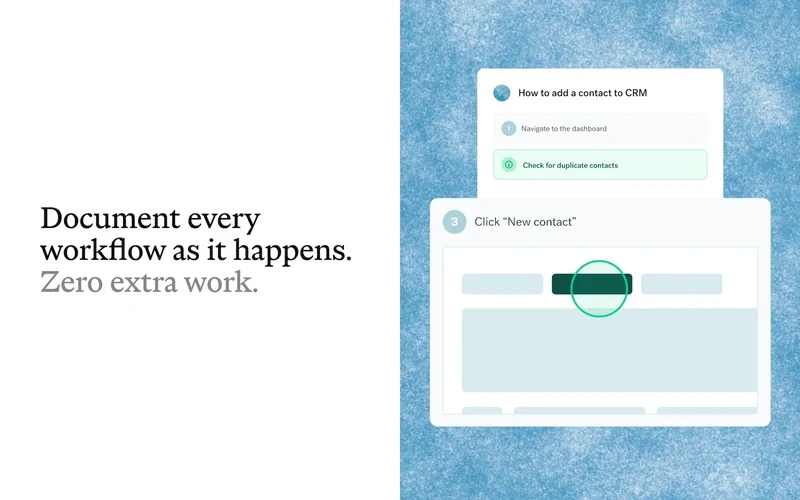
What it does: Follows along as you click and type in Chrome, automatically taking cropped screenshots of each action and writing out a numbered how-to guide.
👍 Why we chose it: Many coworkers and clients prefer skimming a written checklist with pictures rather than watching a ten-minute video. Instead of taking 15 separate screenshots by hand and pasting them into a document, you click record once, complete the task in your browser, and let Scribe build the illustrated guide for you.
Good to know: Scribe creates written step-by-step guides with still screenshots rather than conventional screen-recording videos with audio. Requires an account, and the free Basic plan only captures actions inside browser tabs; recording desktop software outside Chrome or exporting guides to PDF requires a paid plan.
8. Scrnli
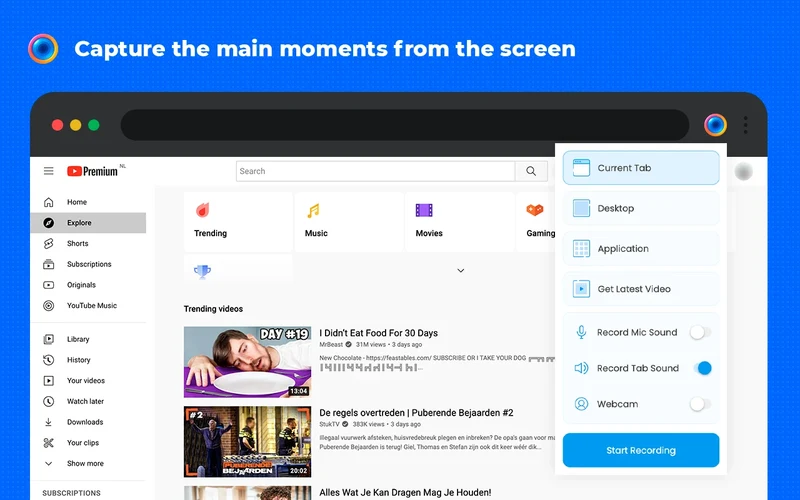
What it does: Takes full-page, visible-area, or custom-region screenshots with a built-in markup editor, and records your screen or browser tab with microphone and webcam support.
👍 Why we chose it: If you want both screenshot annotations and video recording without creating an account or hitting a five-minute timer, Scrnli is a practical alternative to Awesome Screenshot. You can capture a page, add text or arrows, convert recordings between WebM and MP4, and download files straight to your computer for free.
Good to know: It lacks cloud team libraries, viewer analytics, and advanced video editing timelines. Video exports happen inside your browser tab, so converting long recordings to MP4 can take extra time on slower computers.
9. ScreenPal
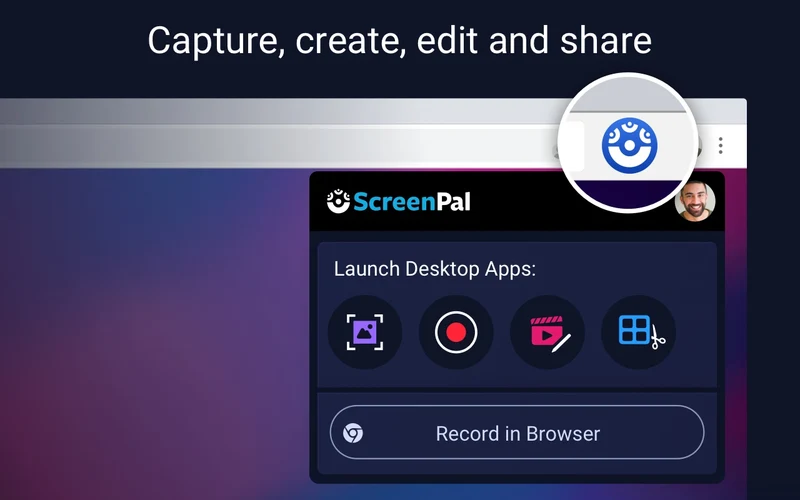
What it does: Combines in-browser screen and webcam recording with screenshot tools and a launcher for ScreenPal’s desktop video and image editors.
👍 Why we chose it: Formerly known as Screencast-O-Matic, ScreenPal lets you drop quick video messages with animated GIF previews right inside Gmail, Slack, or comment boxes on the web. When you need more than a basic browser clip, it connects to a fuller editor for multi-clip timelines, green screen filters, and captions.
Good to know: Free recordings are capped at 15 minutes per video when signed in to a free account, or five minutes without signing in. While basic browser recording and screenshots work on ChromeOS, the full desktop recorder and advanced multi-track editor require installing Windows or Mac software and upgrading to a paid plan.
10. Zight
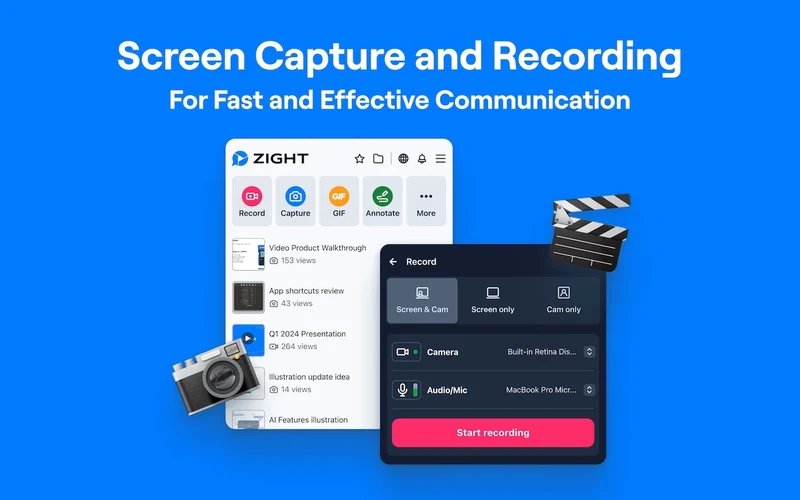
What it does: Captures annotated screenshots, screen recordings, and short animated GIFs, uploading each file to the cloud and copying a short share link to your clipboard.
👍 Why we chose it: Previously called CloudApp, Zight stands out for customer support and software testing teams. Beyond quick GIF captures, its Request Video feature lets you send a link to a customer so they can record a bug in their browser without installing anything, automatically attaching browser console and network logs for developers.
Good to know: Requires signing in to a Zight account because files upload to the cloud by default. On the free plan, video recordings are limited to five minutes at 720p, GIFs cap at 15 seconds, and older uploads become inaccessible once you pass the free storage limit unless you upgrade.
11. Lightshot
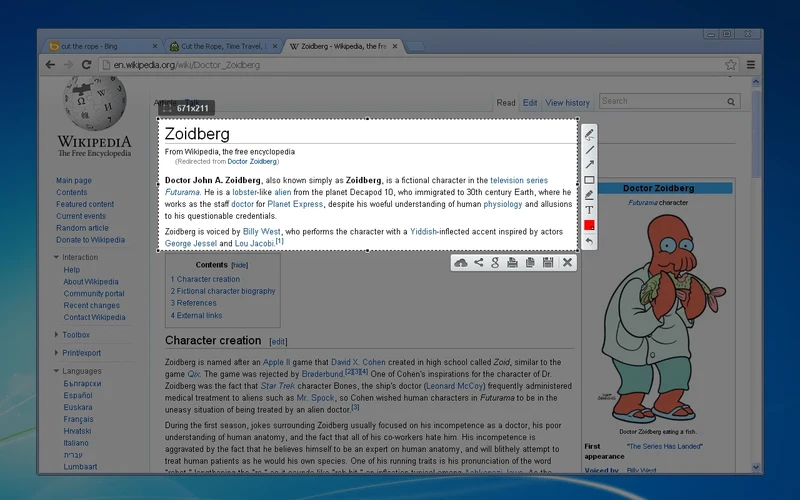
What it does: Dims your current browser tab so you can drag a selection box around any area, add arrows or text right on the page, and save or copy the image.
👍 Why we chose it: When you just want to grab a chart or paragraph and paste it into a chat message in five seconds, heavy all-in-one suites feel slow. Lightshot opens no separate editor tab; its small toolbars sit right along the edge of your selection box so you can mark up and copy the image immediately.
Good to know: Only captures visible screen selections inside your active browser tab; it cannot take scrolling full-page screenshots or record video. Also be careful with its cloud upload button, which posts screenshots to a public prntscr.com web link rather than a private vault, so use local Save or Copy for sensitive information.
12. Vidyard
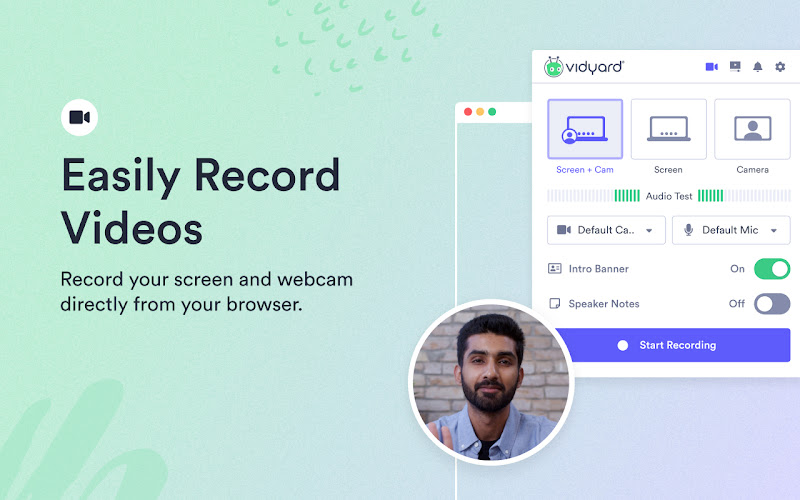
What it does: Records your screen and webcam in HD, hosts the video online, and notifies you when recipients open your link and how much of the clip they watch.
👍 Why we chose it: While Loom is built for internal team chats, Vidyard is tailored for sales reps, freelancers, and account managers sending video pitches or walkthroughs to clients. It includes built-in on-screen speaker notes so you can read your talking points while recording without them showing up in the final video.
Good to know: Requires a Vidyard account and focuses on video rather than still screenshot editing. The free plan allows recordings up to 30 minutes long, but limits you to creating five new videos per month.
13. Markup Hero
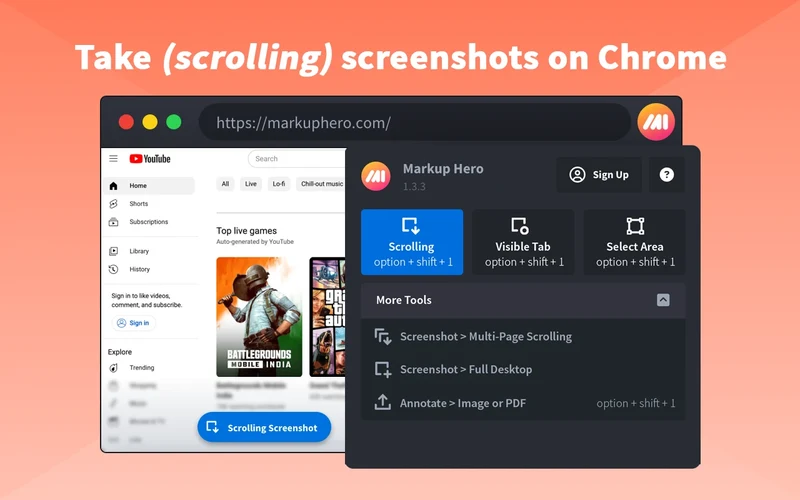
What it does: Captures full scrolling webpages or selected areas and opens them in an online editor where you can add arrows, text, and notes to your screenshots or uploaded PDFs.
👍 Why we chose it: Most screenshot tools permanently flatten your arrows and text as soon as you save the image, meaning you cannot fix a typo later. Markup Hero lets you reopen past screenshots in your browser to move arrows, edit text, or add new notes anytime.
Good to know: It does not record video. You can try it without an account, but saving your past captures requires signing up. The free plan lets you save up to 25 markups and edit them for 24 hours, while editing older files requires a $3 monthly upgrade.
14. Tella
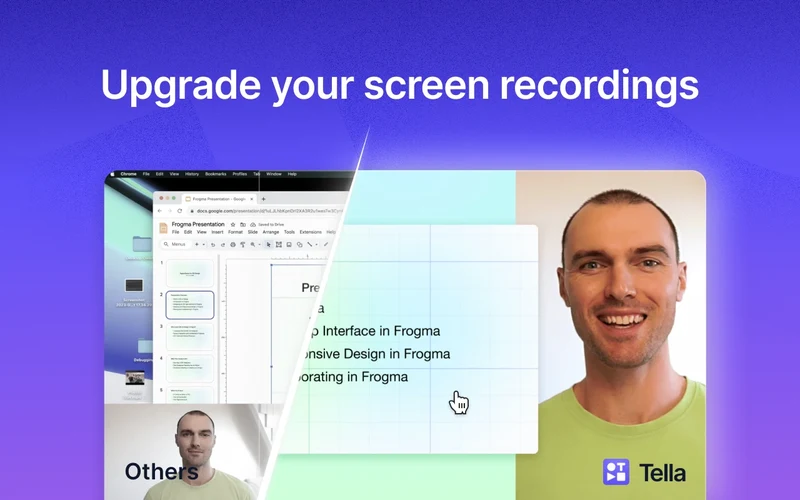
What it does: Records your screen and camera in separate customizable layouts, then lets you cut out awkward pauses, remove filler words, add zoom animations, and place custom backgrounds behind your window.
👍 Why we chose it: Raw screen recordings often look plain when you are publishing a product launch video, online course module, or YouTube tutorial. Tella gives browser recordings a studio look without requiring complex desktop editing software, letting you record in short clips, rearrange scenes, and export up to 4K.
Good to know: Unlike the other tools on this list, Tella does not offer a permanent free plan. Every new account starts with a seven-day free trial with no credit card required, after which you must subscribe to a paid plan to record new videos.
15. Cap
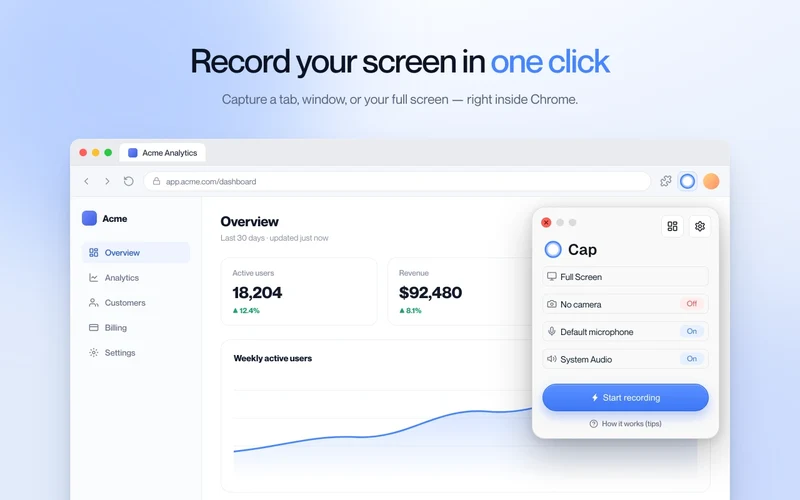
What it does: Records your browser tab, window, full screen, camera, and microphone in Chrome, creating a shareable video link the second you stop recording.
👍 Why we chose it: Cap is a free, open-source alternative to Loom that gives you fast video links without waiting for a long export. It is ideal for sending quick bug reports, project updates, or how-to demos to teammates without booking a meeting.
Good to know: The Chrome extension is built for quick links and has a smaller community of around 10,000 users compared with tools like Loom. Free shared links are capped at five minutes per video, and advanced editing tools like custom zoom effects require installing the desktop app.
Quick Comparison of the Best Screen Capture and Recording Extensions for Chrome
Compare all 15 Chrome screenshot and screen recording extensions by their main use case, pricing model, and key limitation.
View extension comparison table
Click to expand
| Extension | Best for | Pricing | Key limitation or consideration |
|---|---|---|---|
| Awesome Screenshot & Screen Recorder | Screenshots and video recording in one tool | Freemium | Free cloud storage caps at 20 videos and 100 images; free local videos cap at 5 minutes |
| GoFullPage | Capturing entire scrolling webpages | Freemium | Does not record video; cropping and annotation tools require a paid upgrade |
| Screenity | Free screen recording without signing up | Free (Optional Pro Cloud) | Focuses on video rather than still screenshots; long local exports use browser memory |
| Loom | Fast team video updates and link sharing | Freemium | Requires an account; free plan limits you to 25 videos and 5 minutes per recording |
| FireShot | Saving webpages as PDFs and capturing open tabs | Freemium | Screenshot-only; built-in editing and searchable PDFs require FireShot Pro |
| Screencastify | Video lessons, quizzes, and Google Drive workflows | Freemium | Free plan allows 10 videos total (up to 30 minutes each), not 10 stored videos; deleting an old video won’t give you another free recording |
| Scribe | Turning browser tasks into written screenshot guides | Freemium | Creates step-by-step guides rather than video; free plan only captures inside browser tabs |
| Scrnli | No-account screenshots and basic video recording | Free | No cloud workspace or timeline video editor; MP4 conversion runs in the browser |
| ScreenPal | Quick browser recordings with optional desktop editing | Freemium | Free videos cap at 15 minutes; advanced editing requires desktop apps and a paid plan |
| Zight | Sharing cloud shortlinks, GIFs, and bug reports | Freemium | Requires an account; free plan limits videos to 5 minutes and GIFs to 15 seconds |
| Lightshot | Fast selected-area screenshots without opening a new tab | Free | No scrolling capture or video; cloud upload links are public by default |
| Vidyard | Client outreach videos with viewer tracking alerts | Freemium | Requires an account; free plan limits you to 5 new video recordings per month |
| Markup Hero | Re-editable screenshot annotations and notes | Freemium | Screenshot-only; free plan caps at 25 saved markups and 24-hour editing |
| Tella | Polished product demos with auto-cut silences and custom layouts | Free Trial (Paid Plans) | No permanent free tier; requires a paid subscription after the 7-day free trial |
| Cap | Open-source quick video links | Freemium (Open Source) | Smaller Chrome user base; free links cap at 5 minutes and advanced editing needs the desktop app |
If you use ChromeOS or GooglebookOS and want built-in keyboard shortcuts before adding browser tools, read our guide on how to take a screenshot on your Chromebook, or check out the best photo editors for Chromebook when you need deeper image editing after capturing a screen.
For role-specific browser tools that pair well with screen recorders, see our roundups of the best Chrome extensions for teachers and the best Chrome extensions for web developers.
Discover more from Chrome Geek
Subscribe to get the latest posts sent to your email.