How to Install and Use Lensa on Chromebook and Googlebook
 by
Juniya Sankara
Post Updated: November 3, 2026
You can install and use Lensa on Chromebook and Googlebook through the official Android app from Google Play or the modern web app, giving you AI-driven portrait retouching, Magic Avatars, and desktop-class photo editing. Developed by Prisma Labs, Lensa delivers automated background replacement, smart object erasing, one-tap photo enhancement, and artistic color grading across ChromeOS.
Googlebook and modern Chromebooks run Android applications natively through Google Play and support full-featured web editors inside Google Chrome. Whether you prefer editing with a touchscreen, stylus, or precision trackpad, ChromeOS provides fast hardware acceleration and flexible windowing for your creative workflow. This guide walks you through the Google Play installation, phone casting on Googlebook, AI object erasing, super-resolution enhancement, portrait beauty retouching, artistic presets, and quick troubleshooting fixes.
Need assistance perfecting your photos? Contact us with your laptop model and any setup questions.

Why choose Lensa for ChromeOS photo editing
The official Google Play listing identifies Prisma Labs, Inc. as the verified developer. Using the official app ensures full compatibility with ChromeOS hardware acceleration, secure Google account logins, and local gallery integration.
How to install Lensa on Chromebook and Googlebook
If your laptop is managed by a school or workplace organization, check with your administrator if Google Play installations are restricted. For device setup details, consult the official Google Android app setup guide for Chromebook and companion guide on installing apps on Googlebook. Lensa runs natively on ChromeOS and does not require complex Linux emulation or Wine configurations.
Cast Lensa from your phone on Googlebook
If you already have Lensa installed on your Android smartphone and want to continue fine-tuning an active photo session on a larger laptop display without transferring files or re-authenticating your account, you can use the Googlebook phone hub. Open the phone hub on your Googlebook shelf, select connected devices, and choose Cast My Apps. This streams your active phone session directly to a floating desktop window on Googlebook, allowing you to use your laptop keyboard and mouse alongside your phone camera roll in real time.
Remove background distractions with AI object eraser
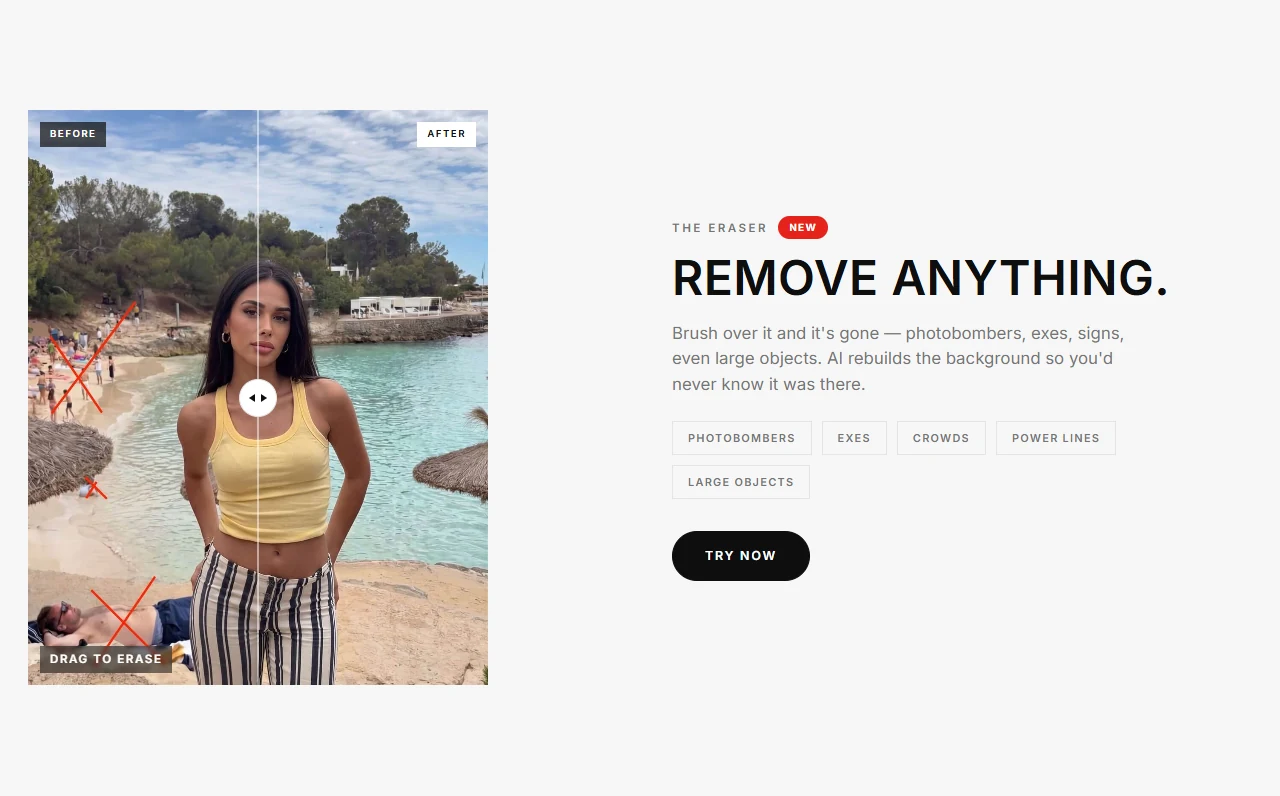
Unwanted background elements like passing crowds, stray trash cans, or photobombers can spoil an otherwise stunning portrait. Lensa incorporates an intelligent AI object eraser that lets you brush over distractions directly on your Chromebook screen.
Rather than simply blurring or smudging pixels, Lensa’s generative inpainting algorithm analyzes surrounding lighting, textures, and lines to reconstruct the covered background. You can adjust brush size with precision using your trackpad or touchscreen to erase small blemishes, power lines, or prominent background figures without leaving visible artifacts.
Upscale photos and rescue low-light shots with AI enhancer
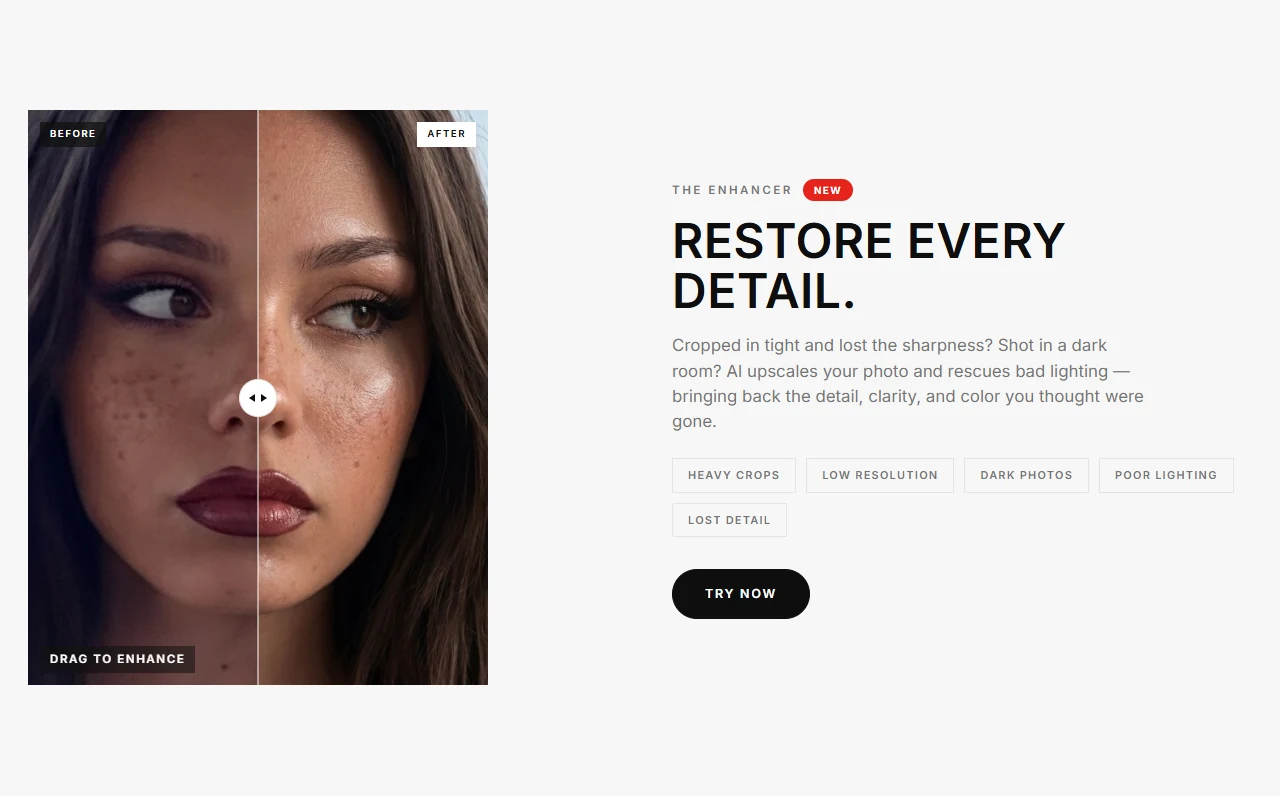
Cropping deeply into an image or shooting in dim evening lighting often leads to pixelation, digital noise, and lost details. Lensa’s AI photo enhancer provides automated super-resolution processing designed to restore clarity across your entire photo library.
The enhancer uses deep neural networks to evaluate facial contours, hair strands, fabric textures, and edge sharpness. With a single tap, it balances dynamic contrast, eliminates sensor noise, and sharpens micro-textures, making tight crops and low-light mobile shots look like they were captured on professional camera gear.
Retouch portraits naturally with Hollywood AI beauty toolkit
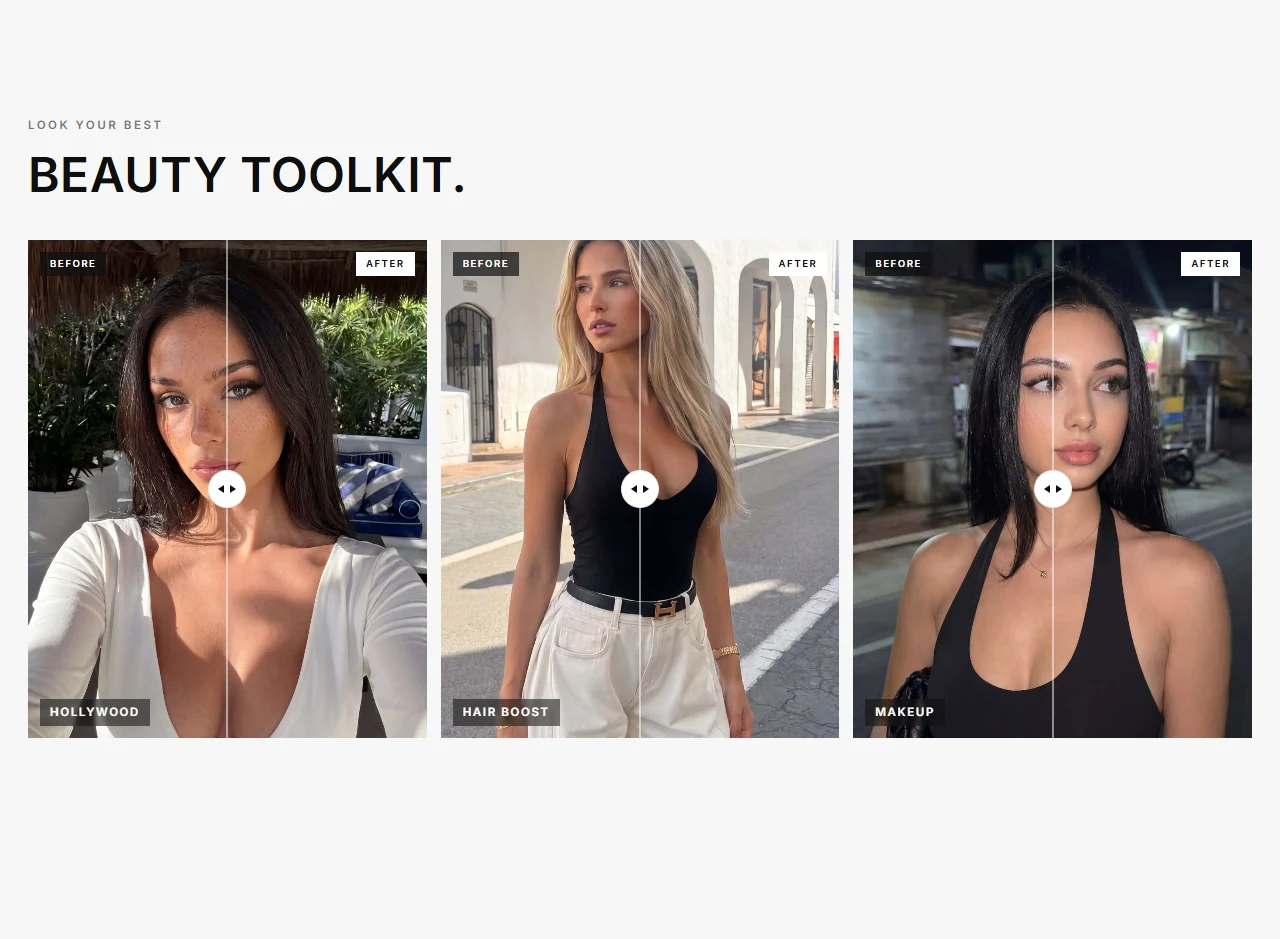
Lensa made its reputation on sophisticated facial retouching that preserves natural human character while eliminating common camera flaws. The Hollywood AI beauty toolkit automatically segments facial features, separating skin, eyes, eyebrows, lips, and hair into independently controllable layers.
Using interactive sliders, you can soften skin texture, reduce under-eye bags, boost iris clarity, and whiten teeth naturally. The app also includes simulated studio lighting adjustments, allowing you to reposition directional highlights and add warm contour shadows to give your selfies a polished studio appearance on your Chromebook display.
Transform photo aesthetics with curated artistic presets
Consistent color grading gives photo albums and social feeds a recognizable aesthetic identity. Lensa features an extensive gallery of curated presets ranging from warm Golden Hour glows and retro disposable camera grain to moody cinema tones and clean pastel palettes.
Unlike simple color filters that tint the entire canvas uniformly, Lensa grades tonal highlights, midtones, and deep shadows separately. This maintains accurate skin tones while dramatically altering background color ambiance, giving you cohesive, publication-ready photos in seconds.
Quick fixes for common Lensa issues
- App fails to load photos from local folders: navigate to ChromeOS Settings > Apps > Manage your apps > Lensa > Permissions, and verify that “Photos and videos” or “Files and media” access is allowed.
- AI features indicate server connection error: neural enhancements like Magic Avatars and Eraser require active internet communication with Prisma Labs servers. Verify your Wi-Fi connection or check that school/work firewalls do not block cloud AI endpoints.
- Window sizing feels cramped on clamshell laptops: click the window management pill at the top center of the Lensa window and select “Fullscreen” or “Resizable” to stretch the editing canvas across your Chromebook screen.
- Subscriptions do not sync across devices: open Lensa settings and tap “Restore Purchases” while signed in to the same Google Play account you used to subscribe.
Related creative and photo editing guides
- 12 Best Photo Editors for Chromebook: Discover top photo editing apps, RAW processors, and online design tools for ChromeOS.
- Snapseed on Chromebook and Googlebook: Edit photos with selective Nik control points, non-destructive stacks, and RAW file development.
- Canva on Chromebook and Googlebook: Design social media graphics, photo collages, and promotional templates in your browser.
- Photoshop Express on Chromebook: Create quick photo collages, apply creative borders, and touch up pictures with Adobe tools.
- Polarr Photo Editor on Chromebook: Fine-tune photos with creator aesthetic presets, HSL color grading, and AI facial retouching.
Frequently asked questions
Is Lensa free to install and use on Chromebook and Googlebook?
Can I use Lensa offline on ChromeOS?
Does Lensa work on Chromebooks without a touchscreen?
How do I generate Magic Avatars in Lensa on Chromebook?
How does Lensa compare to Snapseed and Canva on Chromebook?
Discover more from Chrome Geek
Subscribe to get the latest posts sent to your email.