How to Install and Use Freshdesk on Chromebook and Googlebook
 by
Frank Cross
Post Updated: November 2, 2026
You can install and use Freshdesk on Chromebook and Googlebook through the official app from Google Play or directly through the web support desk. It gives customer service teams an omnichannel ticketing platform to manage inquiries, automate repetitive triage, and track resolution response times from any ChromeOS laptop.
Googlebook runs Android apps natively alongside your cloud workspace, offering smooth ticket management and seamless phone casting. This guide walks you through the Google Play installation, web desk alternative, ticket views, canned responses, automated workflows, and phone casting setup.
Need help configuring your support desk? Contact us with your laptop model and helpdesk setup.
Choose Freshdesk for customer support and ticketing
Freshdesk does not lock you into a single interface. Support agents can handle incoming queues on their laptops through the native Android application or open multiple browser tabs in Google Chrome to manage enterprise ticketing queues simultaneously. The official Google Play listing is published by Freshworks Inc.
How to install Freshdesk on Chromebook and Googlebook
If the Play Store is not visible, check Google’s Android app setup guide for Chromebook or the guide on installing apps on Googlebook. On managed enterprise or school laptops, your administrator may restrict Play Store access. In those cases, you can access your helpdesk directly in Google Chrome at freshdesk.com.
Cast Freshdesk from your phone on Googlebook
If you already have your support queues and active credentials configured on your phone, Googlebook’s Cast My Apps feature lets you stream your phone’s Freshdesk session straight to your laptop screen. Connect your mobile device via the Googlebook phone hub, launch Cast My Apps, and select Freshdesk. This allows you to respond to client escalations immediately without entering two-factor authentication codes or re-syncing your account.
Ticket triage and SLA response tracking
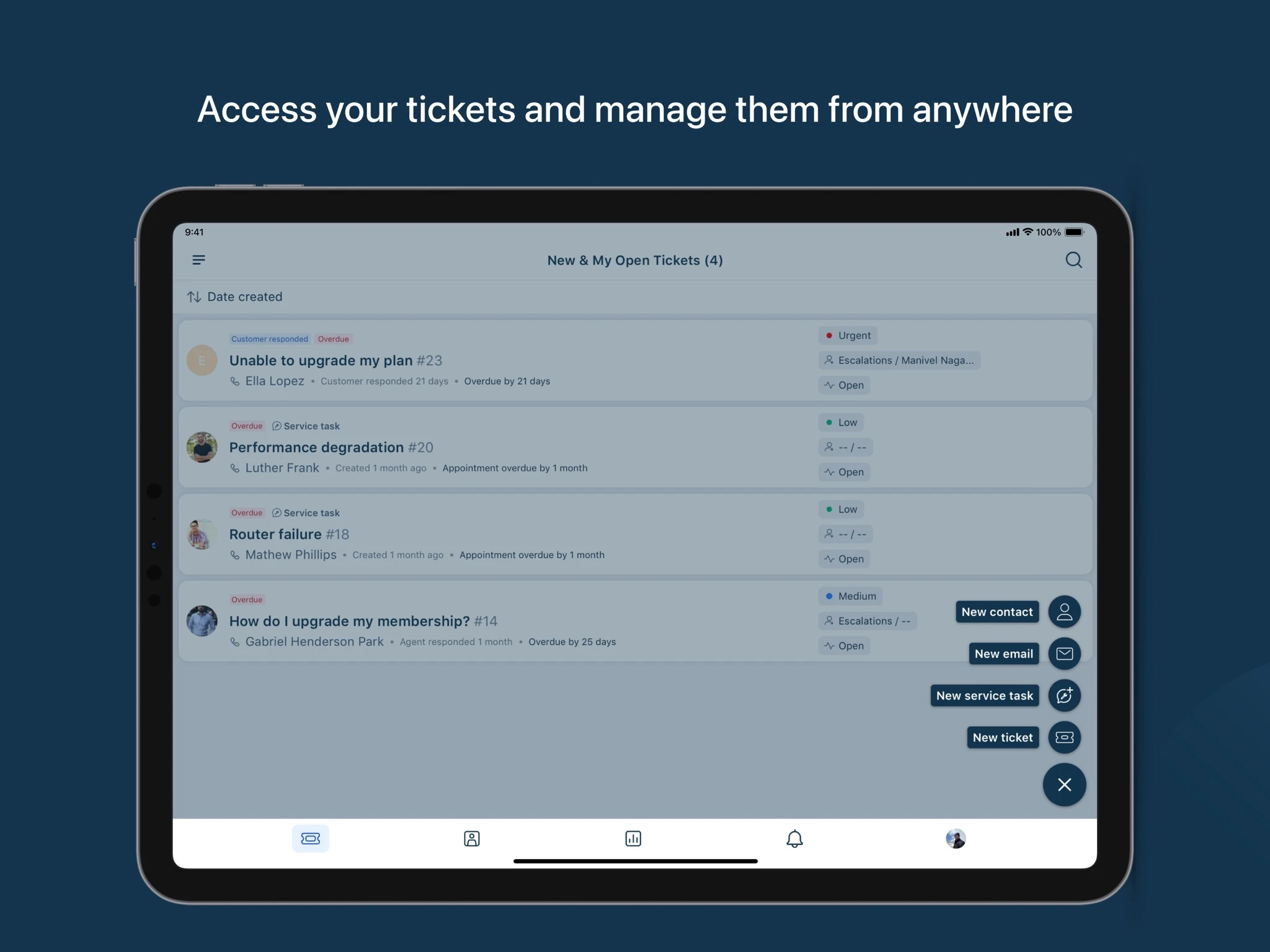
When running on Chromebook in tablet or laptop mode, Freshdesk expands its ticket dashboard across the widescreen display, grouping support requests by priority, status, and creation date. Each ticket card highlights essential metadata at a glance:
- SLA countdown timers: Visual badges highlight response due dates and trigger red “Overdue” alerts when service level agreements are at risk.
- Priority categorization: Color-coded indicators designate Low, Medium, High, and Urgent requests to help agents address critical blockers first.
- Agent collision detection: Prevents multiple team members from working on or replying to the exact same customer ticket simultaneously.
- One-touch actions: Quick action buttons let agents generate new tickets, dispatch direct customer emails, or create service tasks with a single tap.
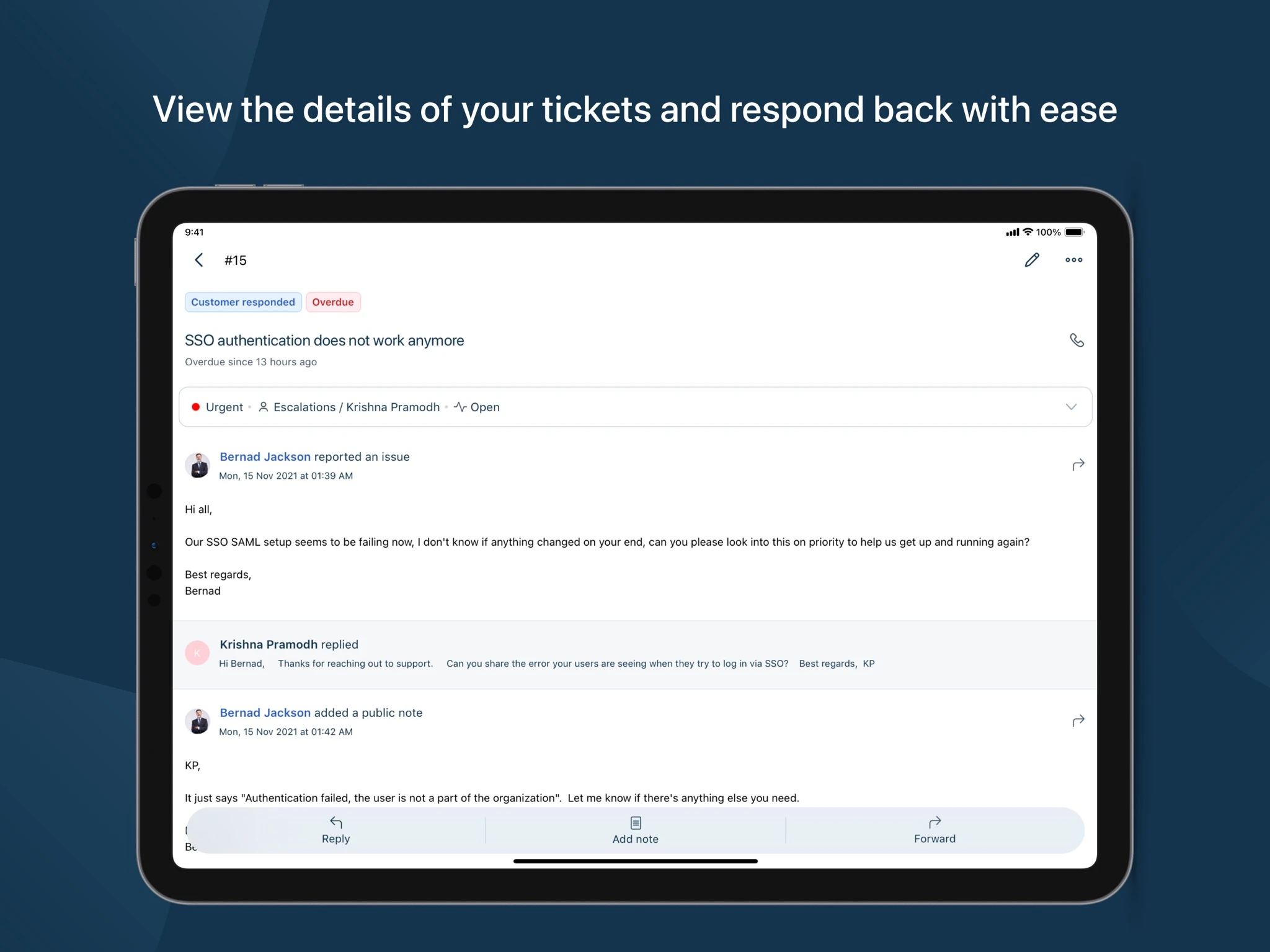
Customer conversation threads and canned responses
Selecting a ticket opens the full conversation thread. On larger laptop and tablet displays, agents have ample space to review inquiry context, customer history, and previous replies without continuous vertical scrolling:
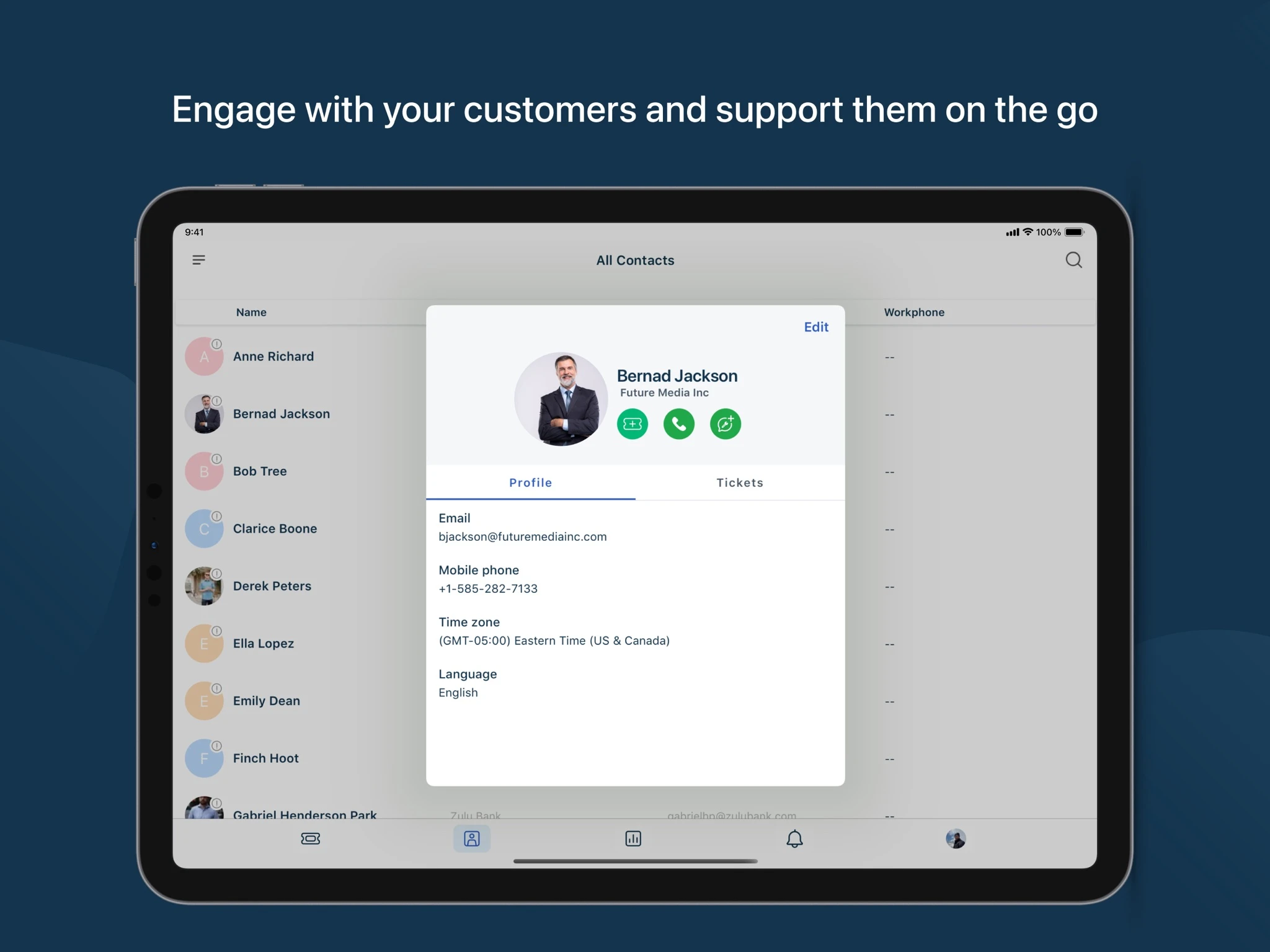
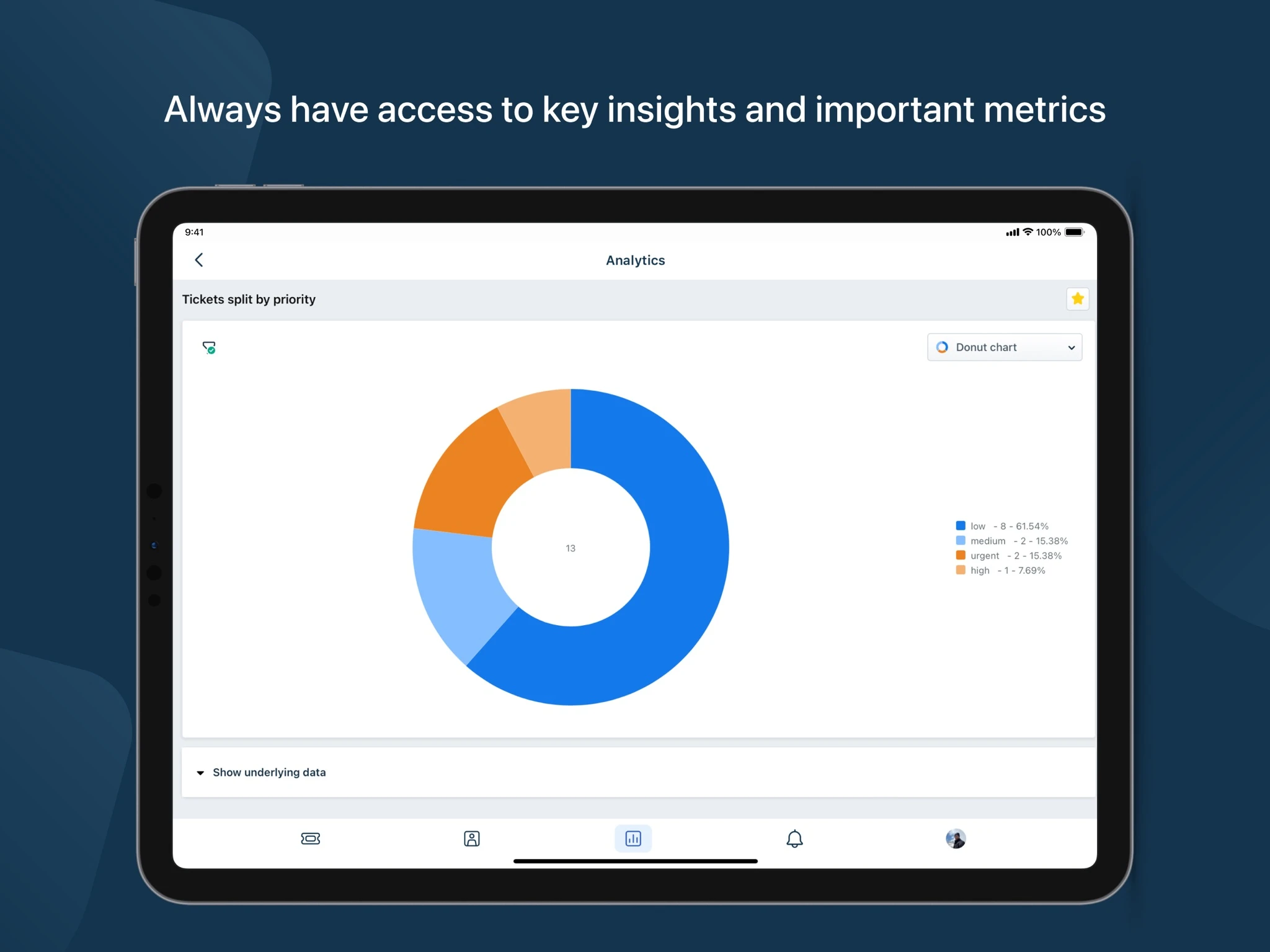
Analytics, metrics, and customer insights
The tablet analytics module provides live oversight of support desk health directly on your Chromebook. Visual donut charts and breakdown tables show ticket distribution across priority levels, unassigned ticket volume, and team resolution velocity. Supervisors and support leads can track operational load in real time to reassign agents and maintain fast customer response times.
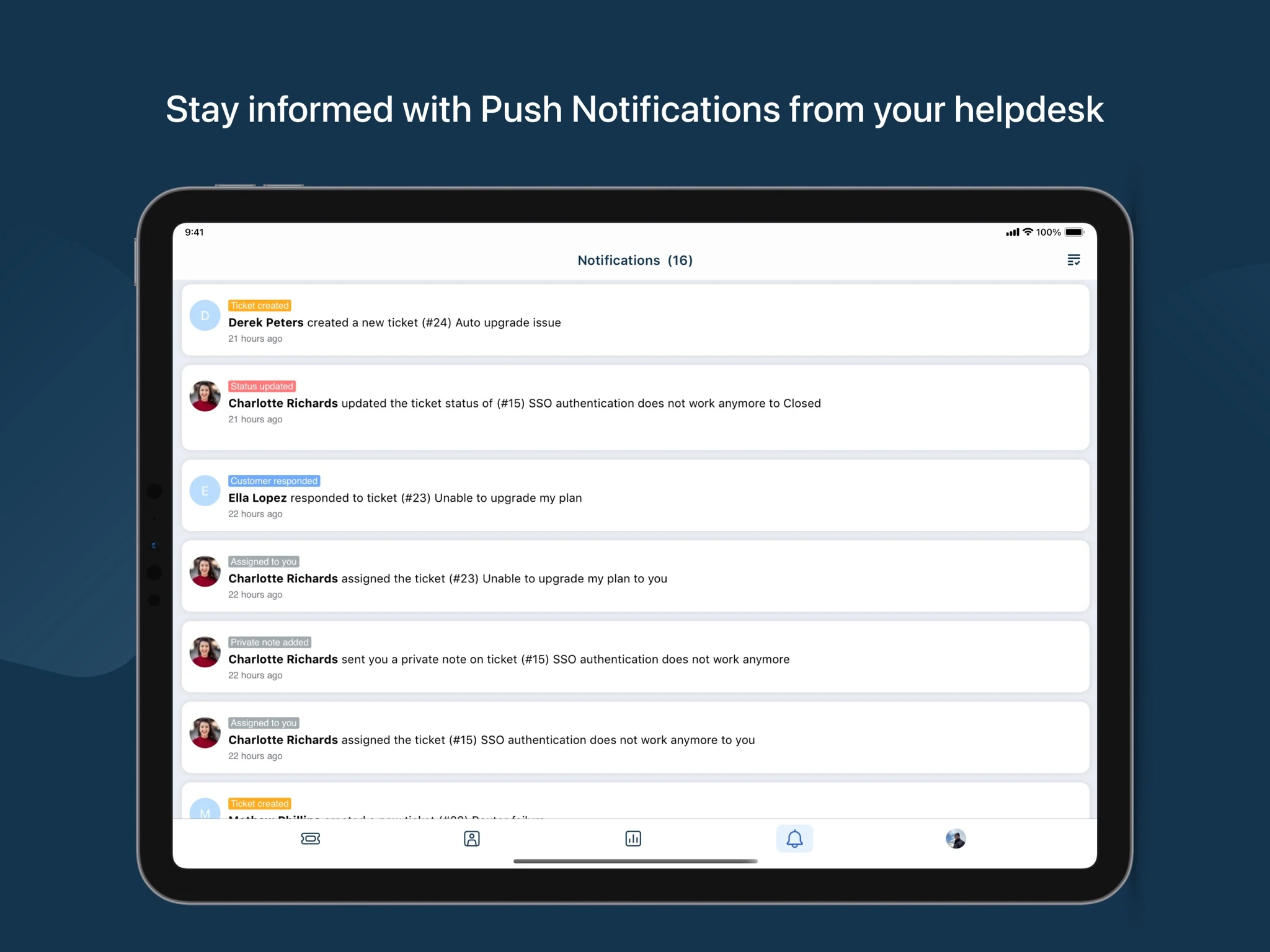
Push notifications and real-time team alerts
Staying responsive is critical for customer service teams. Freshdesk on Chromebook integrates with the native ChromeOS notification center to deliver real-time push alerts whenever new tickets arrive, existing tickets are assigned to you, or customers reply to pending conversations.
Quick fixes for common Freshdesk issues on ChromeOS
- Push notifications do not appear: Open ChromeOS Settings > Apps > Manage your apps > Freshdesk > Permissions and verify that Notifications are toggled on. Also check that “Do Not Disturb” is turned off in the ChromeOS quick settings tray.
- Single Sign-On (SSO) login loops: If logging in via Google Workspace or Okta fails to redirect properly, clear browsing cookies for freshdesk.com in Google Chrome or verify that third-party cookies are not blocked in Chrome privacy settings.
- Google Play Store is disabled: On school or managed enterprise Chromebooks, administrators may restrict Android app installation. Open your helpdesk directly in Google Chrome at
yourcompany.freshdesk.com. - App window sizing and layout: If the Android app launches in phone layout mode, click the window maximize button or click the top header bar and select “Tablet” or “Resizable” to expand Freshdesk into full widescreen mode.
Related business and productivity guides
To build an efficient business and customer management setup on ChromeOS, explore these companion guides:
- Best Remote Desktop Apps for Chromebook: Compare top remote access platforms for troubleshooting client hardware and resolving escalated support tickets.
- Chrome Remote Desktop on Chromebook: Set up secure, unattended screen sharing to connect directly with users needing hands-on technical assistance.
- Best Chromebooks for Work: Choose high-performance laptops optimized for heavy customer service multitasking, multi-monitor setups, and cloud desks.
- QuickBooks on Chromebook: Streamline business bookkeeping, client invoicing, and customer payment tracking alongside your helpdesk workflow.
Frequently asked questions
Is Freshdesk free to use on Chromebook and Googlebook?
Does Freshdesk work offline on ChromeOS?
Should I use the Freshdesk Android app or the web portal on Chromebook?
How do I enable push notifications for urgent tickets on Chromebook?
Can Freshdesk integrate with Google Workspace, Slack, and Microsoft Teams?
Discover more from Chrome Geek
Subscribe to get the latest posts sent to your email.