How to Install and Use Pluto TV on Chromebook and Googlebook
 by
Juniya Sankara
Post Updated: November 3, 2026
You can install and use Pluto TV on Chromebook and Googlebook through the official Android app from Google Play or the instant web client in Google Chrome. Owned by Paramount, Pluto TV provides a premier free ad-supported streaming television (FAST) experience featuring over 250 curated live channels, breaking news coverage, live sports, and thousands of on-demand movies and television series without requiring a paid subscription or account sign-up.
Whether you want to lean back with traditional linear TV channels, catch up on classic primetime sitcoms, or stream blockbuster films during study breaks, ChromeOS and Googlebook offer flexible ways to watch in high definition. This comprehensive guide walks you through the Google Play installation, phone casting integration, live channel navigation, on-demand catalog browsing, playback customization, and quick troubleshooting fixes.
Need help setting up streaming apps or connecting external monitors to your laptop? Contact us with your device details and we will be happy to assist.

How to install Pluto TV on Chromebook and Googlebook
The most direct and touch-friendly way to enjoy Pluto TV on ChromeOS is via the official Android application available on the Google Play Store. It delivers smooth hardware acceleration, intuitive gesture controls, and dedicated sidebar navigation:
If this is your first time configuring Android applications on ChromeOS, check Google’s Android app setup guide for Chromebook or the guide on installing apps on Googlebook. If you are using a school or enterprise device where Google Play access is restricted by policy, you can watch instantly by opening pluto.tv directly in Google Chrome.
Cast Pluto TV from your phone on Googlebook
Googlebook’s Cast My Apps feature lets you stream your phone’s Pluto TV session directly on your laptop screen. If you were watching a live news broadcast or crime documentary on your smartphone during your commute, you do not need to hunt down the same channel on your laptop. Simply open Phone Hub from your Googlebook shelf, select the running Pluto TV app window, and continue enjoying playback on your widescreen laptop display while keeping your saved channel lineup intact.
Streaming 250+ live television channels and electronic program guides
Pluto TV recreates the effortless experience of traditional television with its electronic program guide (EPG). The live channel directory divides content into organized categories including News and Opinion, Sports, Comedy, Classic TV, Crime, Sci-Fi, and Gaming. Channels broadcast round the clock with scheduled programming blocks, giving you familiar options like CBS News 24/7, CNN Headlines, NBC News NOW, and dedicated single-series channels.
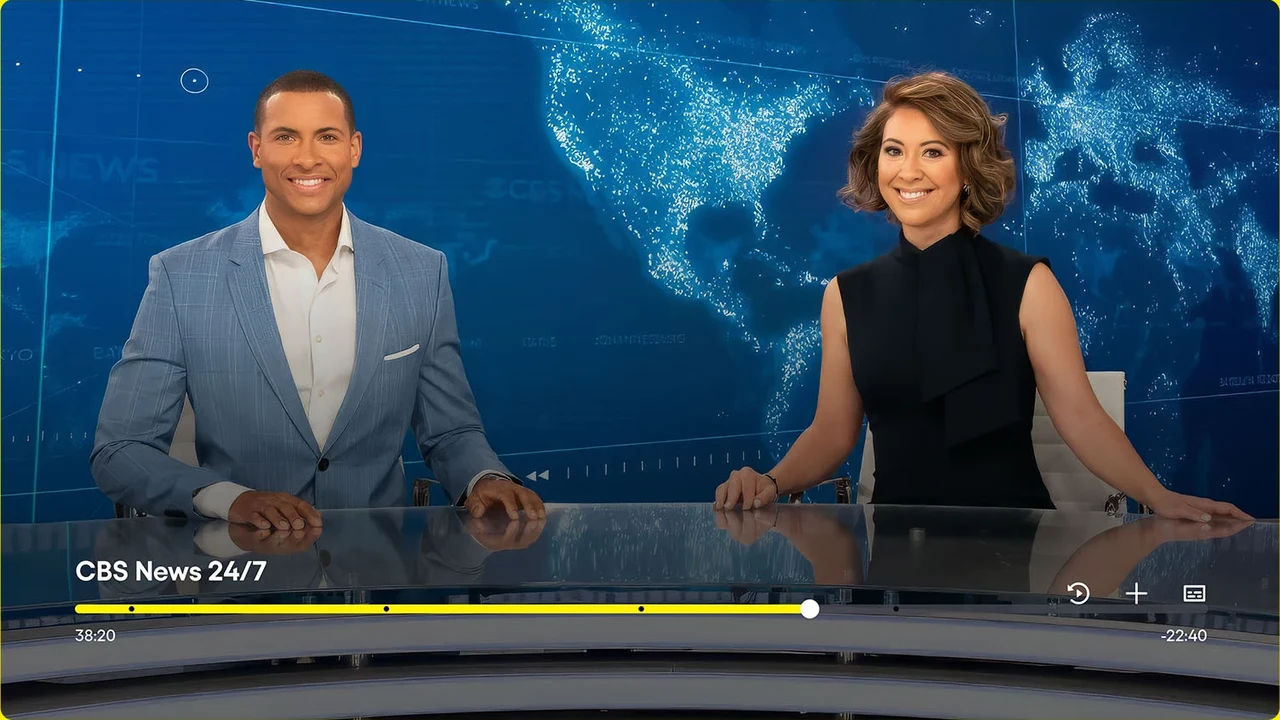
The video playback controls provide instant response on ChromeOS hardware. You can check the current progress scrub bar to see how much time remains in an active broadcast, jump backward to rewatch crucial moments on supported feeds, toggle closed captions, and expand the stream to full screen with a single click. When switching between tasks, the player minimizes into a picture-in-picture floating frame so you can stay updated while researching or typing notes.
On-demand blockbuster movies, bingeable series, and curated categories
When you prefer on-demand entertainment over live broadcasts, switch to the On Demand tab from the left sidebar navigation drawer. Pluto TV hosts a massive library of thousands of movies and full television series from major Hollywood studios including Paramount Pictures, MGM, Sony Pictures, and Lionsgate. Content is grouped into intuitive thematic rows such as Most Popular Movies, Action Adventures, Family Movie Night, and Critically Acclaimed Dramas.
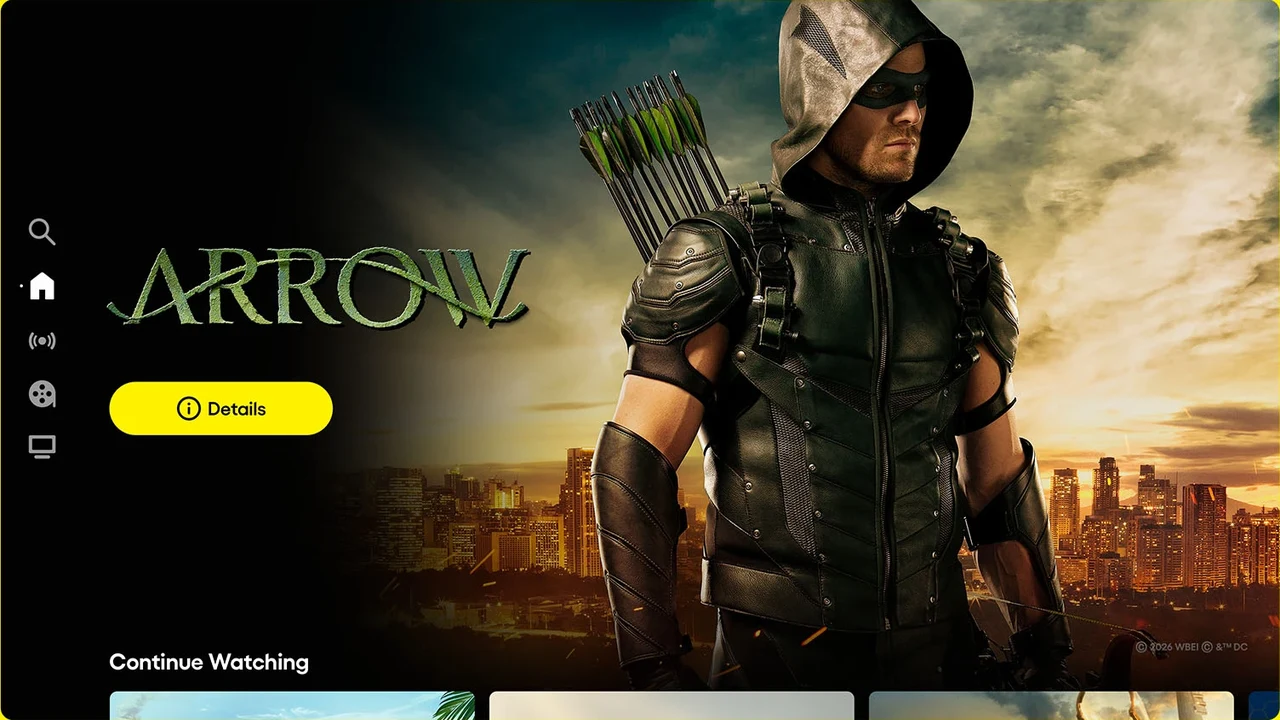
The home dashboard highlights featured titles with full cinematic banners and direct access to title details. When you start an on-demand movie or show, Pluto TV automatically places it into your “Continue Watching” shelf at the bottom of the screen. This allows you to pause an episode and resume right where you left off across sessions without losing your place.
Discovering binge-worthy television dramas and classic retro programming
One of Pluto TV’s standout attractions is its curated selection of complete multi-season television dramas, comedies, and cult classics. From popular procedural hits and supernatural mysteries to heartwarming romantic dramas and nostalgic sitcoms, viewers can watch full seasons on demand or tune into 24/7 marathon channels dedicated exclusively to specific fan-favorite series.
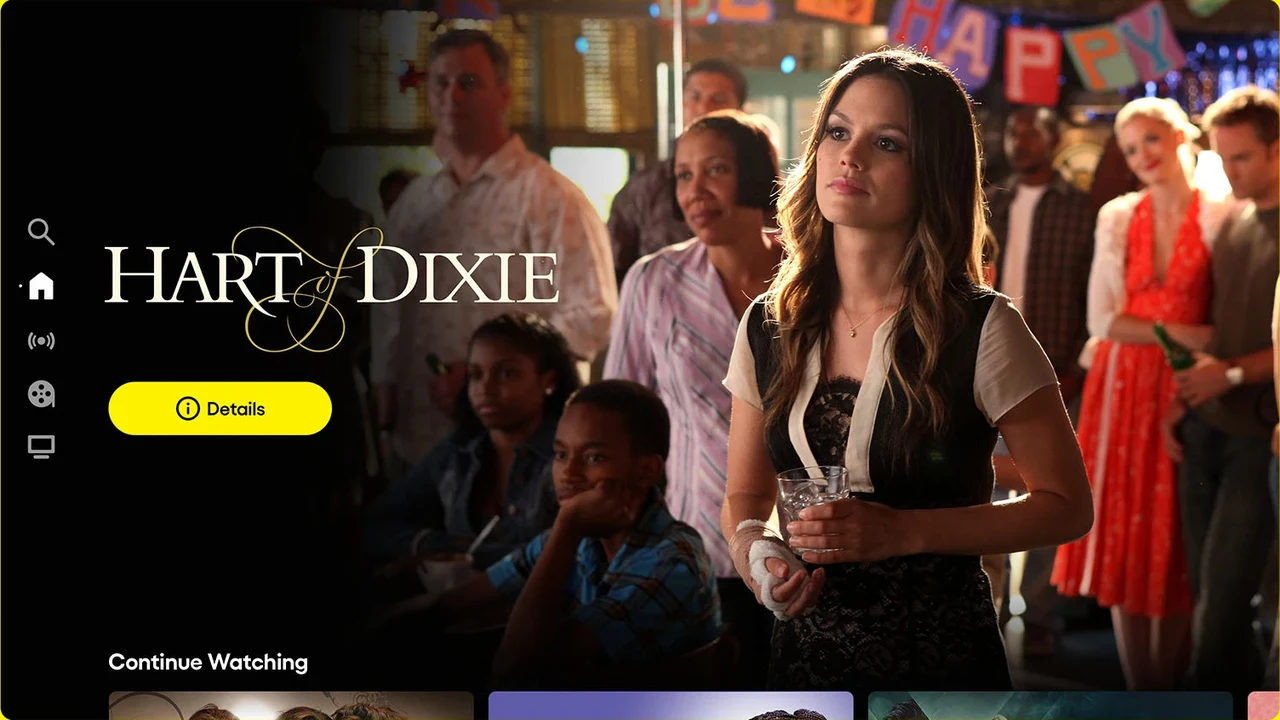
Selecting any title opens a clean details overlay displaying the synopsis, runtime, age rating, cast information, and episode directory. You can easily scroll through season lists and select specific episodes without navigating through complex menu structures, making it an enjoyable platform for casual weekend binging on a laptop screen.
Customizing video playback, closed captions, and watchlist favorites
Pluto TV gives you multiple personalization settings to improve your streaming experience across ChromeOS laptops and convertibles. By tapping the search icon on the navigation panel, you can search across both live TV guides and on-demand titles simultaneously, making it quick to locate specific actors, directors, or show names.
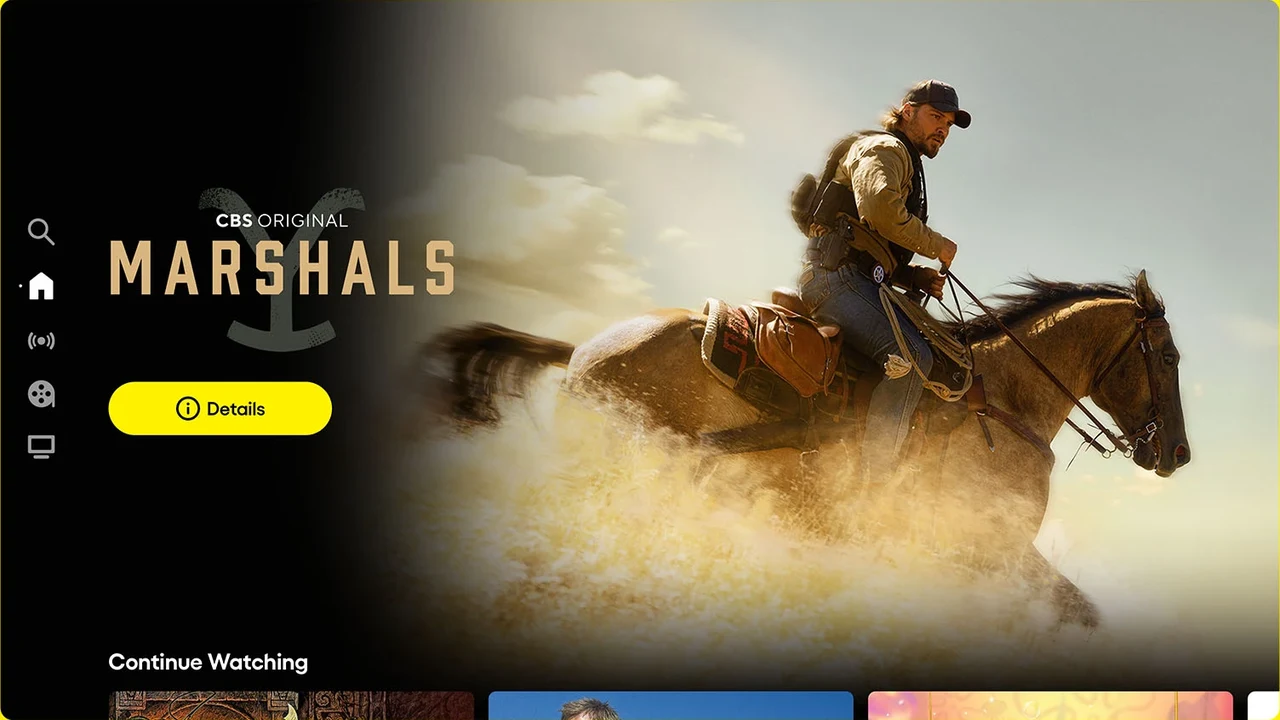
You can also customize closed captions with adjustable font sizes, background contrast, and text styles to ensure optimal readability. If you sign up for a free Pluto TV profile, you can click the heart icon on any channel or movie to bookmark it in your Favorites list, creating a tailored guide containing only the networks and genres you watch most frequently.
Pluto TV Android app vs. Pluto TV Web browser streaming
Depending on whether you use a touchscreen 2-in-1 Chromebook or prefer standard keyboard and mouse navigation, here is how the primary Pluto TV access methods compare on ChromeOS:
Troubleshooting common Pluto TV issues on ChromeOS
If you encounter video stuttering, audio desync, or loading problems while streaming Pluto TV, these tested solutions resolve most common issues quickly:
Frequently asked questions about Pluto TV on Chromebook
Is Pluto TV completely free on Chromebook and Googlebook?
Yes. Pluto TV is 100% free and ad-supported. You do not need a paid subscription, cable provider login, or credit card to access over 250 live channels and thousands of on-demand movies and television series. Creating a free user account is completely optional and lets you save favorite channels and sync watch progress.
Should I use the Pluto TV Android app or web browser on Chromebook?
Both access methods deliver reliable streaming. The Pluto TV Android app from Google Play is optimized for Chromebook touchscreens, 2-in-1 convertibles, and tablet gestures with full navigation drawer controls. The Pluto TV web client at pluto.tv in Google Chrome provides instant, zero-install streaming with full trackpad and keyboard shortcuts, making it ideal for managed school or enterprise laptops.
Can I download movies and shows from Pluto TV for offline viewing?
No. Pluto TV operates exclusively as a live and on-demand streaming platform and does not offer offline downloads on Android or web clients. To stream content smoothly, connect your Chromebook to a Wi-Fi network, mobile hotspot, or Ethernet connection.
What internet speed do I need to stream Pluto TV smoothly on ChromeOS?
Pluto TV automatically adjusts video resolution based on your available bandwidth. A stable internet connection of at least 5 Mbps is recommended for standard definition playback, while 10 Mbps or higher ensures uninterrupted high-definition (HD) streaming without buffering or audio desynchronization.
Can I cast Pluto TV from my Chromebook or Googlebook to a television?
Yes. You can cast Pluto TV directly to any Chromecast, Google TV, or Cast-compatible smart television. In Google Chrome, click the three-dot menu > Cast, save and share, or tap the Cast icon directly inside the Pluto TV video player to broadcast live channels onto your living room display.
Explore more streaming entertainment and media tools
Looking to expand your digital entertainment lineup on ChromeOS? Stream award-winning originals with Amazon Prime Video on Chromebook, explore thousands of free on-demand movies through Tubi on Chromebook, follow live gaming broadcasts using Twitch on Chromebook, or manage your local video library with our roundup of the best media players for Chromebook.
Discover more from Chrome Geek
Subscribe to get the latest posts sent to your email.