How to Install and Use Twitch on Chromebook and Googlebook
 by
Juniya Sankara
Post Updated: November 3, 2026
You can install and use Twitch on Chromebook and Googlebook through the official app from Google Play or directly via the web. It gives you instant access to millions of live gaming channels, esports tournaments, creative streams, and interactive creator communities.
Googlebook and Chromebook laptops run Android apps natively through Google Play, giving you full access to customizable stream quality, chat emotes, and push notifications alongside Googlebook phone app casting. This guide walks you through the Google Play installation, web streaming options, touch and keyboard controls, theater mode, and quick fixes for common playback issues.
Need help setting up your favorite streams? Contact us with your laptop model and any streaming questions.

Choose between the Twitch Android app and web platform
Both access methods provide high-definition video feeds, interactive chat, and personalized channel recommendations. The official Google Play listing identifies Twitch Interactive, Inc. as the verified developer.
How to install Twitch on Chromebook and Googlebook
If the Play Store is not visible, check Google’s Android app setup guide for Chromebook or the guide on installing apps on Googlebook. On school or workplace laptops, the administrator may manage app installations. Advanced users can also stream Twitch directly in Google Chrome or run broadcasting tools via the Debian Linux environment.
Cast Twitch from your phone on Googlebook
If you already have your favorite channels, notifications, and subscriptions configured in Twitch on your Android phone, Googlebook’s Cast My Apps feature lets you stream your phone’s Twitch session directly on your laptop screen. Connect your phone through your Googlebook phone hub setup, open Cast My Apps, and select Twitch. This lets you watch live broadcasts and participate in chat immediately without re-authenticating or transferring settings.
Explore gaming categories, live channels, and esports
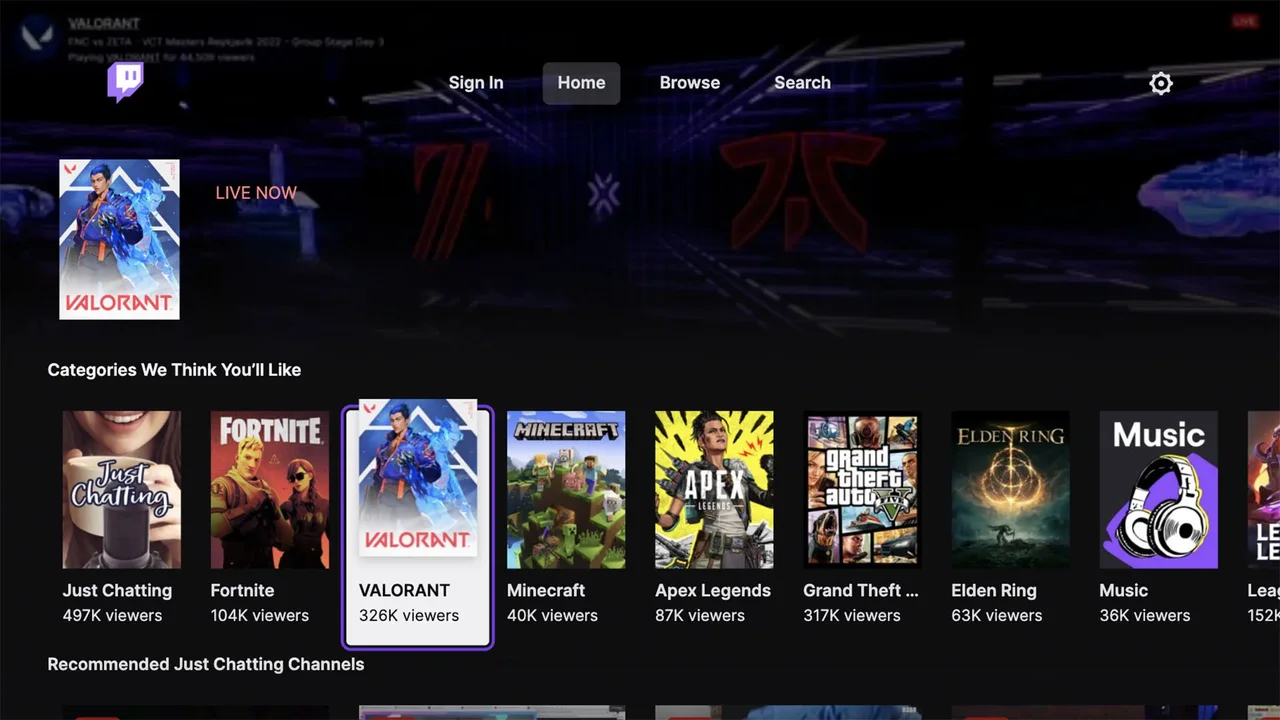
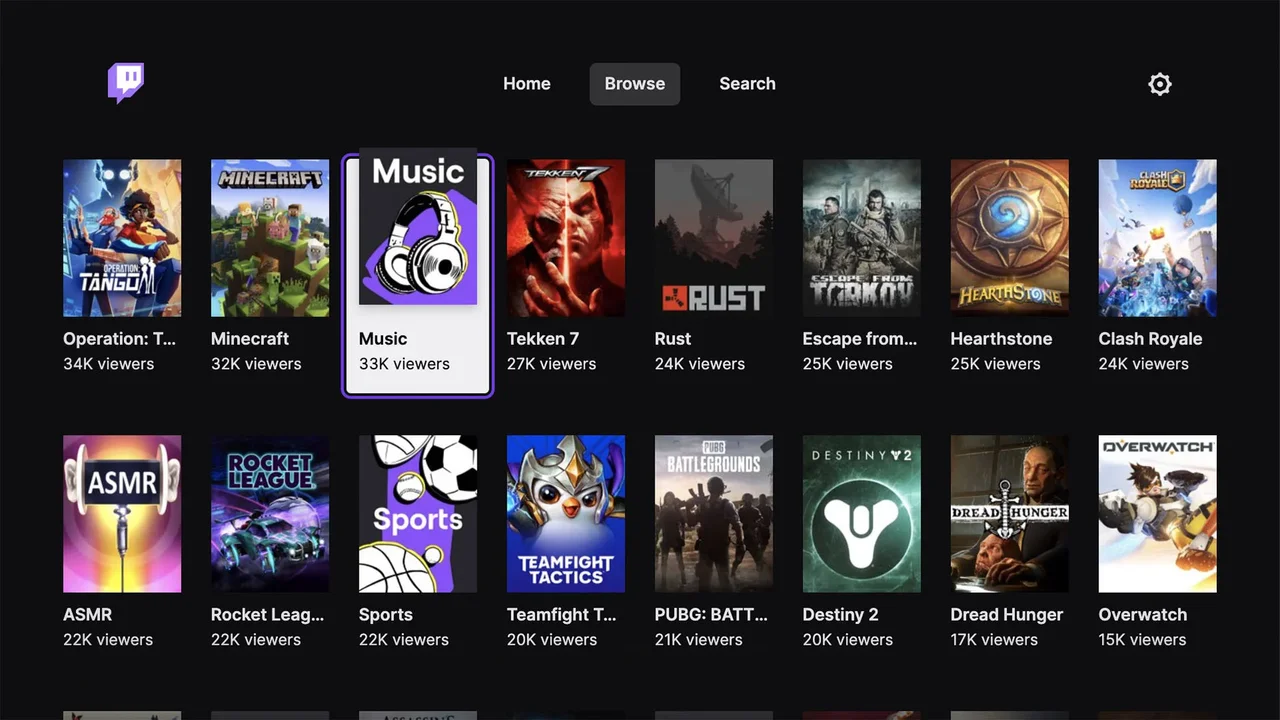
The Twitch Browse directory organizes live broadcasts across thousands of individual titles, competitive esports circuits, and community interest hubs. You can filter streams by active language, viewer count, competitive rank, or gameplay style:
- Competitive esports: tune into official league broadcasts and tournaments for titles like Valorant, League of Legends, Rocket League, and Counter-Strike.
- Top gaming titles: browse dedicated directories for popular open-world, multiplayer, and sandbox adventures such as Minecraft, Fortnite, Grand Theft Auto V, and Apex Legends.
- Creative and IRL streams: explore non-gaming categories including Just Chatting, Music, Art, Software Development, and live podcast discussions.
- Custom tag filters: sort channels by community tags like Speedrun, Multiplayer, Casual, or Co-op to discover emerging creators matching your exact interests.
Interactive chat, channel points, and community features
Twitch integrates real-time viewer interaction directly alongside video streams. On Chromebook and Googlebook screens, you get ample display space to keep chat open while watching full-resolution gameplay:
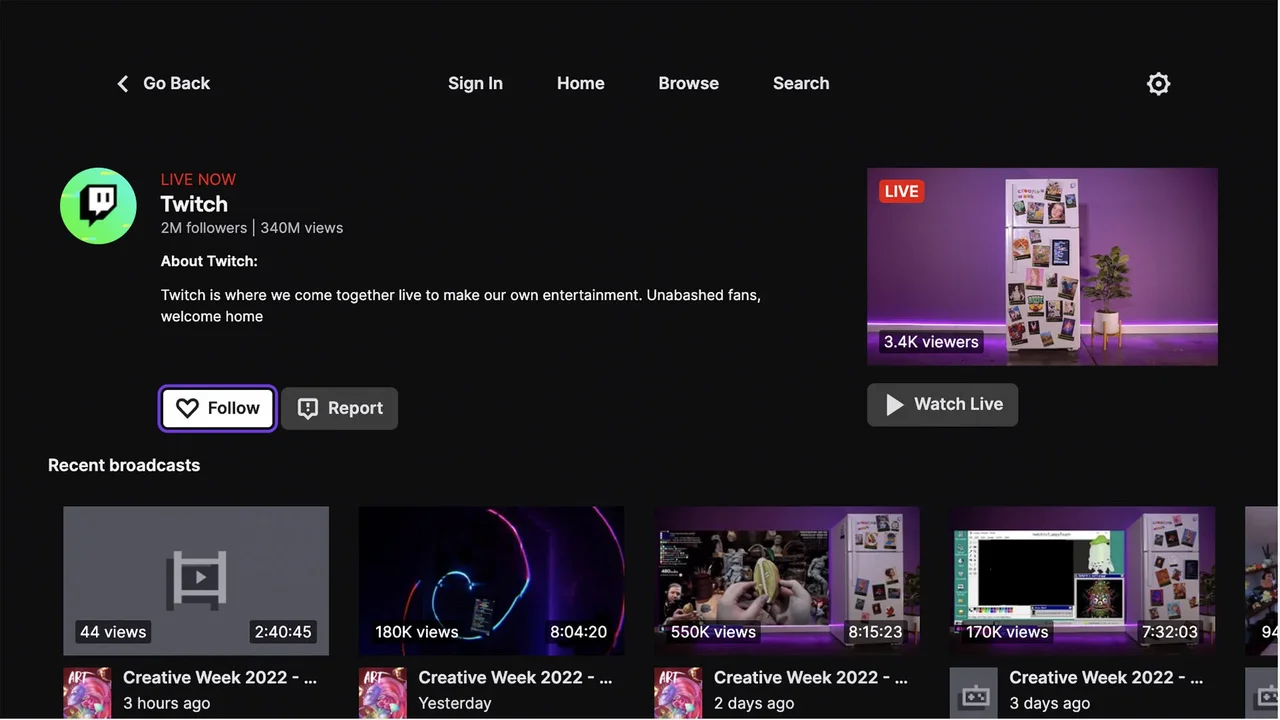
Watch tournament broadcasts and on-demand stream replays
If you miss a live match, Twitch saves past broadcasts (VODs) and creator highlights on channel profiles. You can catch up on full multi-hour tournament events, jump through timeline chapters, or create and share 30-second clips of standout plays across social media.
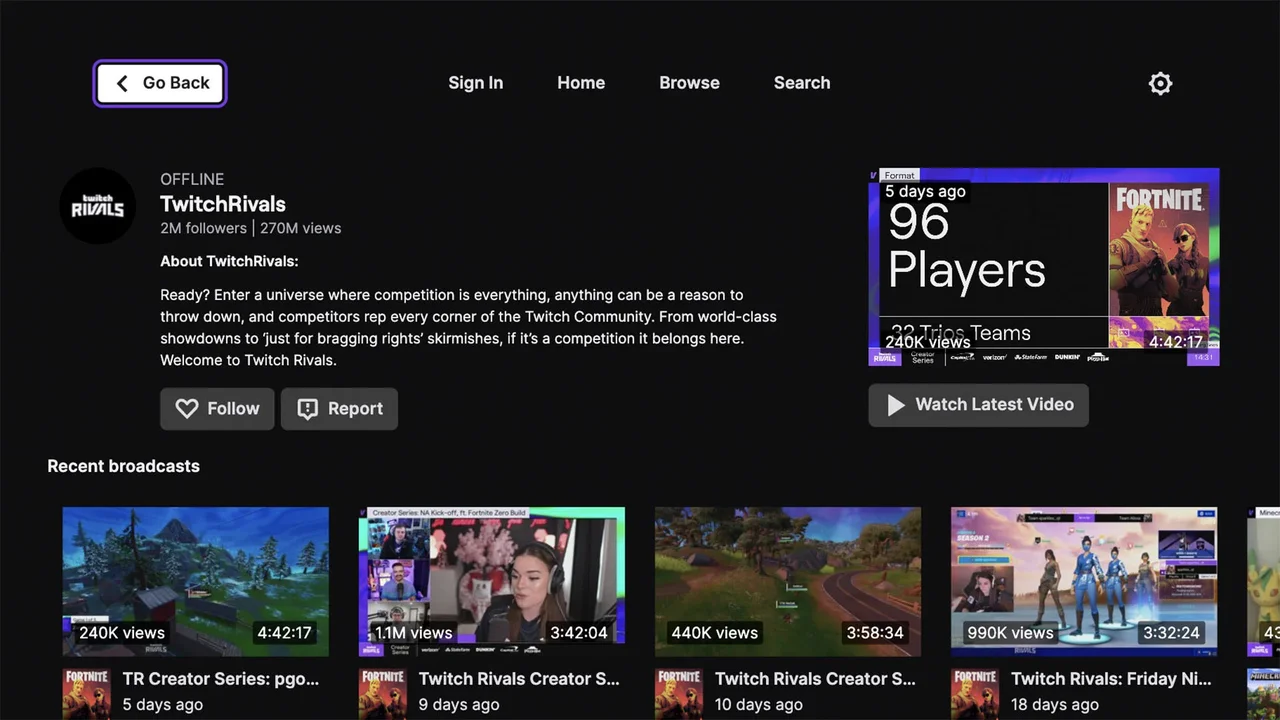
Quick fixes for common Twitch streaming issues
- Stream buffers or drops frames: click the player gear icon and lower the video quality from 1080p60 down to 720p or Auto to match your current network speed.
- Audio and video are out of sync: click pause and play on the video player or refresh the browser tab to clear the low-latency playback buffer.
- Live chat fails to load: verify that third-party ad blockers or privacy extensions are not restricting WebSocket connections to twitch.tv, or try opening the stream in an incognito window.
- Channel notifications do not show up: open ChromeOS Settings > Apps > Manage your apps > Twitch and verify that notification permissions are allowed for the Android application.
Related gaming and media guides
- Best Chromebooks for Gaming: Discover the top laptops optimized for cloud streaming, high refresh rate displays, and smooth gameplay.
- Steam on Chromebook: Install Steam to download and play PC games locally with Proton compatibility.
- Spotify on Chromebook: Set up music streaming and background listening queues while enjoying your favorite streams.
- Best Media Players on Chromebook: Compare leading media applications for offline video playback and local file management.
Frequently asked questions
Is Twitch free on Chromebook and Googlebook?
Should I use the Twitch Android app or the web browser on Chromebook?
Can I stream my own gameplay to Twitch from a Chromebook?
How do I enable notifications for my favorite Twitch streamers?
Can I watch Twitch streams offline on Chromebook?
Discover more from Chrome Geek
Subscribe to get the latest posts sent to your email.