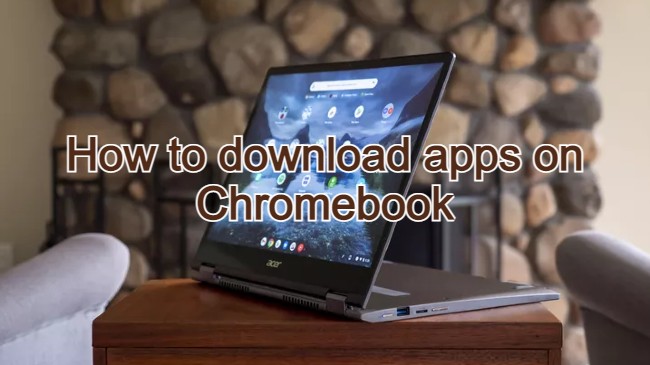
How to Install and Use ABCmouse on Chromebook and Googlebook
 by
Juniya Sankara
Post Updated: November 3, 2026
You can install and use ABCmouse on Chromebook and Googlebook through the official Android app from Google Play or by accessing the online learning academy in Google Chrome. Designed for early learners ages 2 to 8, it provides a comprehensive educational foundation across reading, early math, science, social studies, art, and music with over 10,000 engaging interactive activities.
Googlebook and ChromeOS run Android apps seamlessly with multi-window flexibility, responsive touch navigation, and native phone casting. Whether your child learns in laptop mode with a physical keyboard or uses tablet mode on a touchscreen display, this guide covers Google Play installation, browser access, phone-hub streaming, curriculum features, and everyday family settings.
Need help setting up your ABCmouse subscription or student profiles? Contact us with your device model and any setup questions.

Choose your preferred way to run ABCmouse
Depending on your child’s learning setup, you can install ABCmouse as a standalone Android app from the official Google Play Store listing or explore the complete curriculum in your browser at abcmouse.com.
How to install ABCmouse on Chromebook and Googlebook
If the Play Store is missing or disabled, review Google’s Android app setup guide for Chromebook or the guide on installing apps on Googlebook. On school-issued or family-managed accounts with Play Store restrictions, children can access the complete curriculum by visiting abcmouse.com in Google Chrome without needing administrative installation rights.
Cast ABCmouse from your phone on Googlebook
If your child already has an active learning session on your family smartphone and you want to switch to a larger laptop display without signing in again, Googlebook’s Cast My Apps feature lets you stream your phone’s ABCmouse app directly to your laptop screen. Simply pair your phone in the Googlebook phone hub, open Cast My Apps, and select ABCmouse. Your child can continue their phonics stories, counting games, and puzzles with a larger view while using the physical keyboard or touchscreen.
Core subjects and curriculum features on ChromeOS
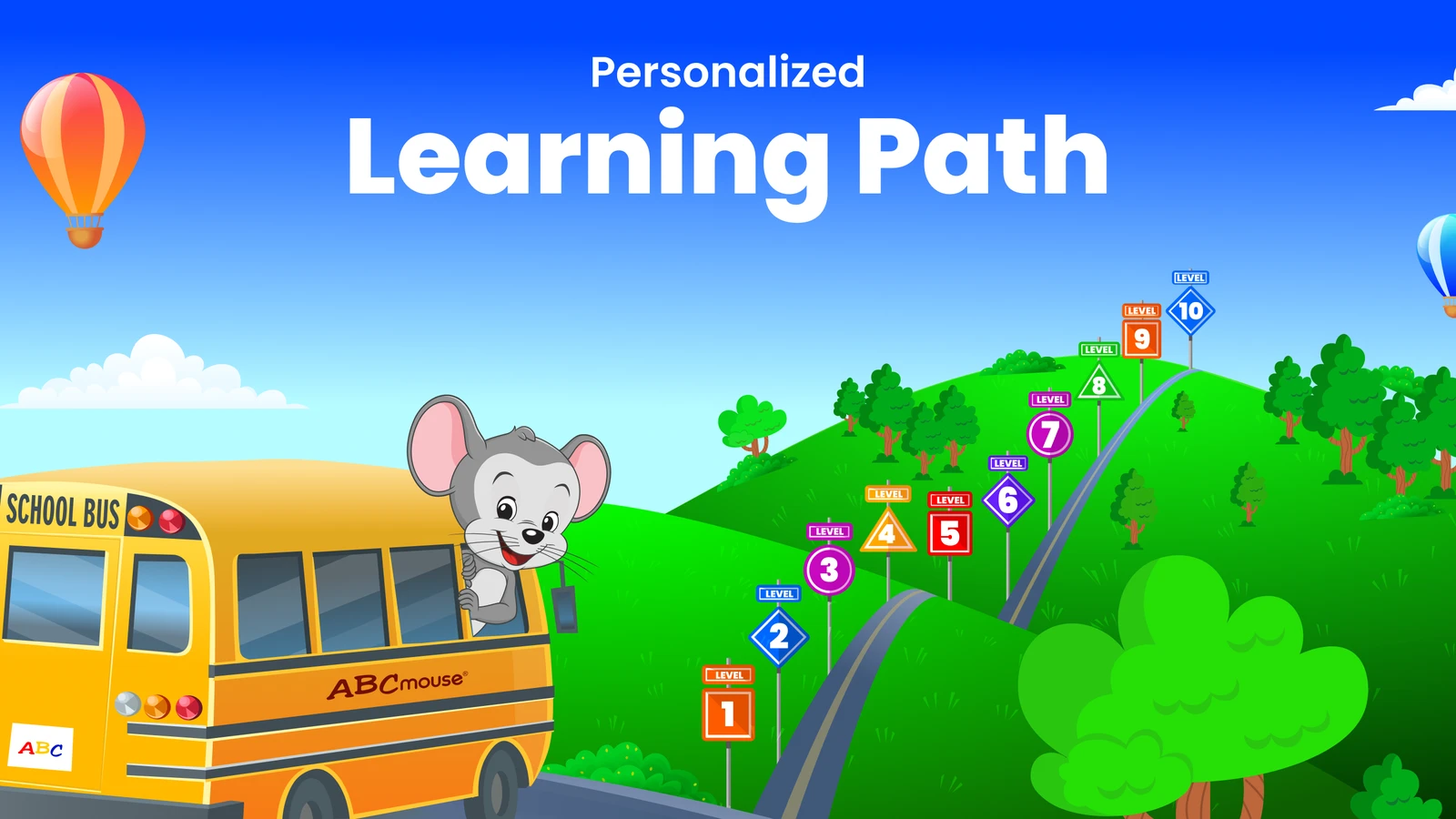
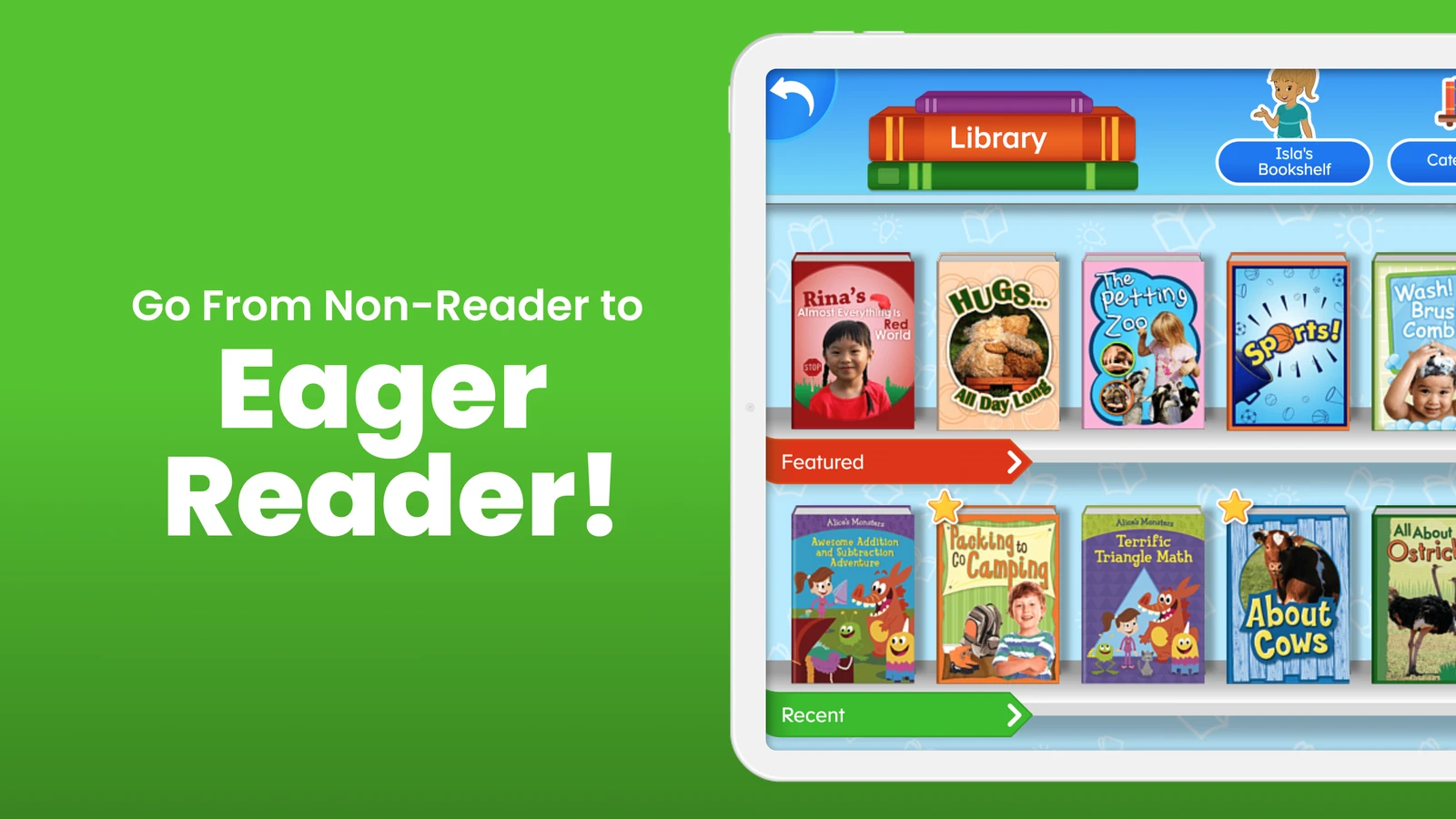
ABCmouse organizes these subjects into a comprehensive curriculum designed by nationally recognized early education experts. Each completed activity awards digital tickets that children can spend in the virtual classroom store to personalize their avatar, decorate their room, or care for interactive pets, providing positive reinforcement without intrusive ads.
Tips for the best learning experience on Chromebook
- Switching between Laptop and Tablet modes: Fold a 2-in-1 convertible into tablet mode for intuitive finger-tap activities, or use laptop mode with a mouse to build early cursor coordination.
- Managing offline downloads: Use the Android app’s download feature to cache favorite read-aloud books and learning songs before family travel or car rides.
- Headphone and volume controls: Connect kid-safe volume-limiting headphones via the 3.5mm jack, USB-C, or Bluetooth to help young children focus during school or quiet hours.
- Parent dashboard and progress reports: Access the Parent Section from the top navigation to view completed activities, track curriculum progress, and customize ticket rewards.
Quick fixes for common ABCmouse issues
- Black screen or loading spinner in Android app: Clear app storage via ChromeOS Settings > Apps > Manage your apps > ABCmouse > Storage > Clear Cache, or restart your Chromebook.
- Audio not playing during lessons: Check ChromeOS sound output in the bottom-right shelf to confirm the correct output device (internal speakers or headphones) is selected and not muted.
- Web page asks for Flash Player: ABCmouse has fully transitioned to modern HTML5. If you see an old Flash prompt, clear your browser cache or update Chrome to the latest stable release.
- Subscription or login not syncing: Verify you are signed in with the primary family account email address under Parent Settings.
Related learning and creative guides
- Scratch on Chromebook and Googlebook: Code interactive stories, animations, and games with block-based programming.
- ScratchJr on Chromebook and Googlebook: Introduce coding and creative storytelling to younger children ages 5 to 7.
- Duolingo ABC on Chromebook and Googlebook: Practice early literacy, phonics, and handwriting with bite-sized daily lessons.
- Chromebooks That Support Android Apps: Check hardware compatibility and optimize Google Play performance on school and home devices.
Frequently asked questions
Is ABCmouse free to use on Chromebook and Googlebook?
Can I use ABCmouse on Chromebook without installing the Android app?
How many children can use one ABCmouse account on a Chromebook?
Does ABCmouse work offline on Chromebooks?
Can my child use a touch screen or a mouse with ABCmouse?
Discover more from Chrome Geek
Subscribe to get the latest posts sent to your email.