How to Install and Use Polish – Photo Editor on Chromebook and Googlebook
 by
Juniya Sankara
Post Updated: November 19, 2026
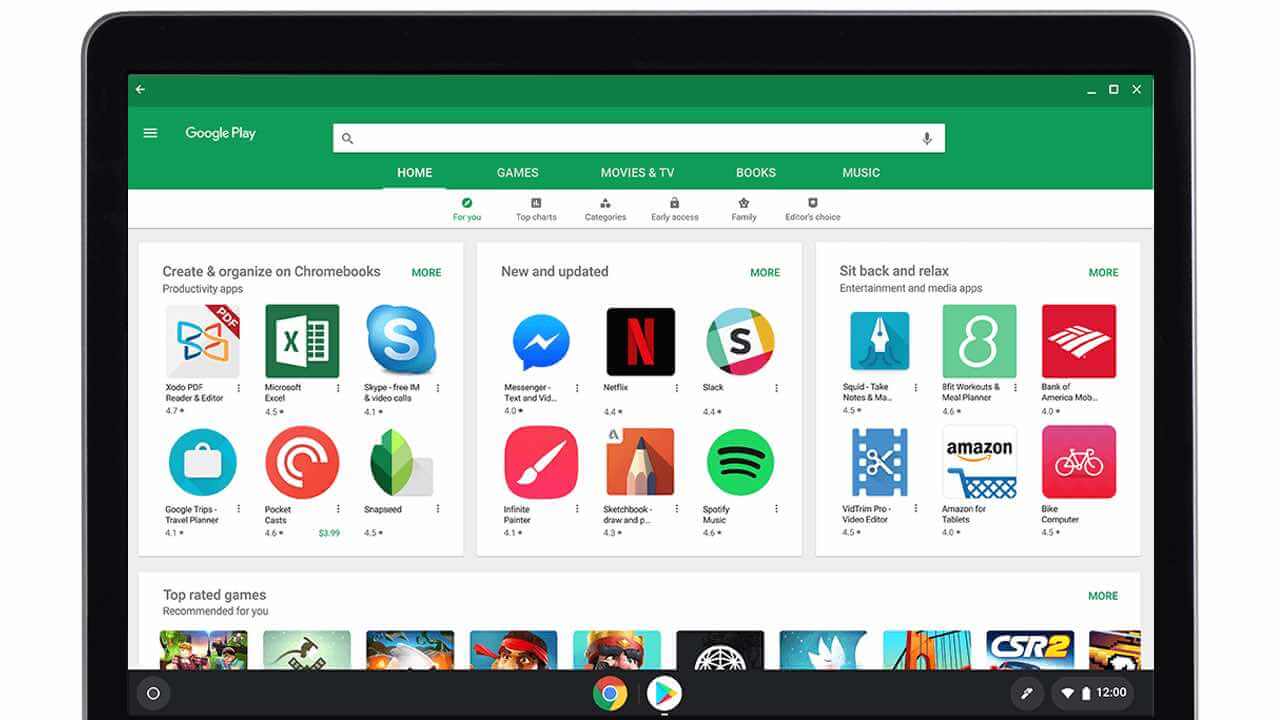
You can install and use Polish – Photo Editor on Chromebook and Googlebook through the official Android app on Google Play. It gives you one-tap AI background removal, generative image expansion, portrait retouching, filters, and collage tools right on your laptop screen.
Googlebook runs Android apps natively from Google Play alongside instant phone-app casting from the Phone Hub. This guide covers installing Polish, choosing between touch and mouse workflows, using its core AI editing tools, and fixing common ChromeOS issues.
Need help setting up Polish – Photo Editor? Contact us with your laptop model and any installation or editing questions.

How to install Polish – Photo Editor on Chromebook and Googlebook
Installing the official Polish – Photo Editor app (also listed as AI Photo Editor – Polish on Google Play) takes less than a minute:
The official Google Play listing identifies Polish under the package identifier photo.editor.photoeditor.photoeditorpro. Installing the Android app gives you full access to local file exports and hardware-accelerated image previews.
If the Play Store is not active on your device, check Google’s Android app setup guide for Chromebook or the guide on installing apps on Googlebook. On school or workplace laptops, administrator policies may restrict Play Store downloads. There is no official web editor or native Linux Debian package (.deb) for Polish, so running the Android app is the standard way to use it on ChromeOS.
Cast Polish – Photo Editor from your phone on Googlebook
If your recent camera roll photos or half-finished edits are sitting on your Android phone, Googlebook’s Cast My Apps feature lets you mirror your phone’s app directly onto your laptop screen. Open the Phone Hub in the bottom-right corner of your Googlebook shelf, click Cast My Apps, and choose Polish. Your phone’s active session opens immediately in a resizable desktop window so you can finish an edit and save it without transferring raw photos first.
Touchscreen vs. mouse and keyboard editing on ChromeOS
Polish – Photo Editor adapts cleanly to different ChromeOS form factors, whether you are editing on a 2-in-1 convertible or a traditional clamshell laptop:
AI Expand, background removal, and portrait retouching
Beyond basic color sliders, Polish focuses on automated AI tools that handle time-consuming edits in a few clicks:
- AI background remover and cutout: Automatically separate people, pets, or products from busy backgrounds and drop them onto transparent layers, solid colors, or custom backdrops.
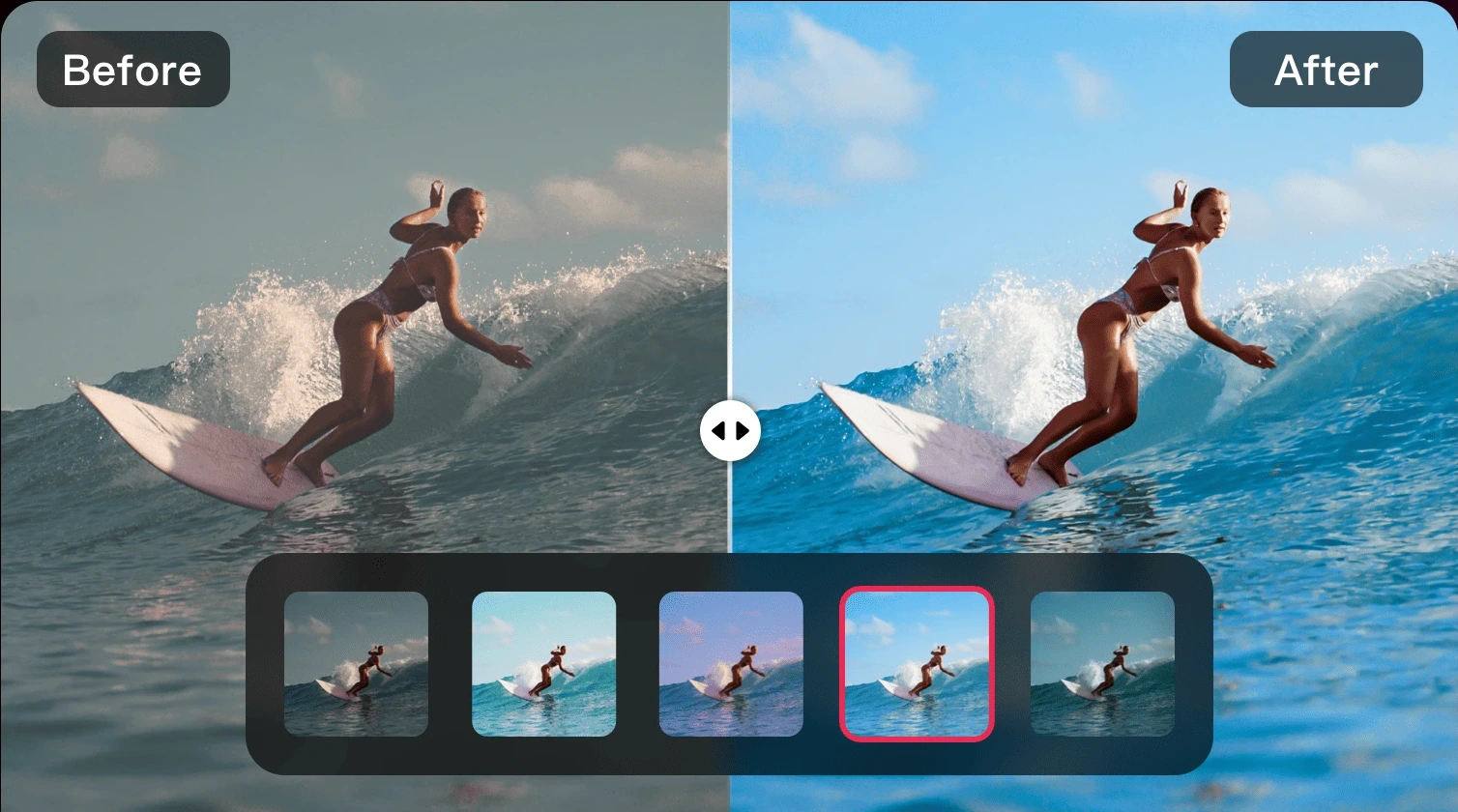
- AI Expand framing: Extend the borders of a tightly cropped photo so it fits widescreen wallpapers, thumbnails, or vertical social posts without losing the subject.
- Object and blemish removal: Brush over power lines, bystanders, or skin blemishes to blend them cleanly into the surrounding texture.
- Portrait and body retouching: Smooth skin texture, brighten teeth, adjust facial lighting, or apply subtle body-shaping sliders with live before-and-after previews.

Filters, photo collages, text, and stickers
When you want stylized graphics or multi-photo layouts for social posts and school projects, Polish includes built-in design tools:
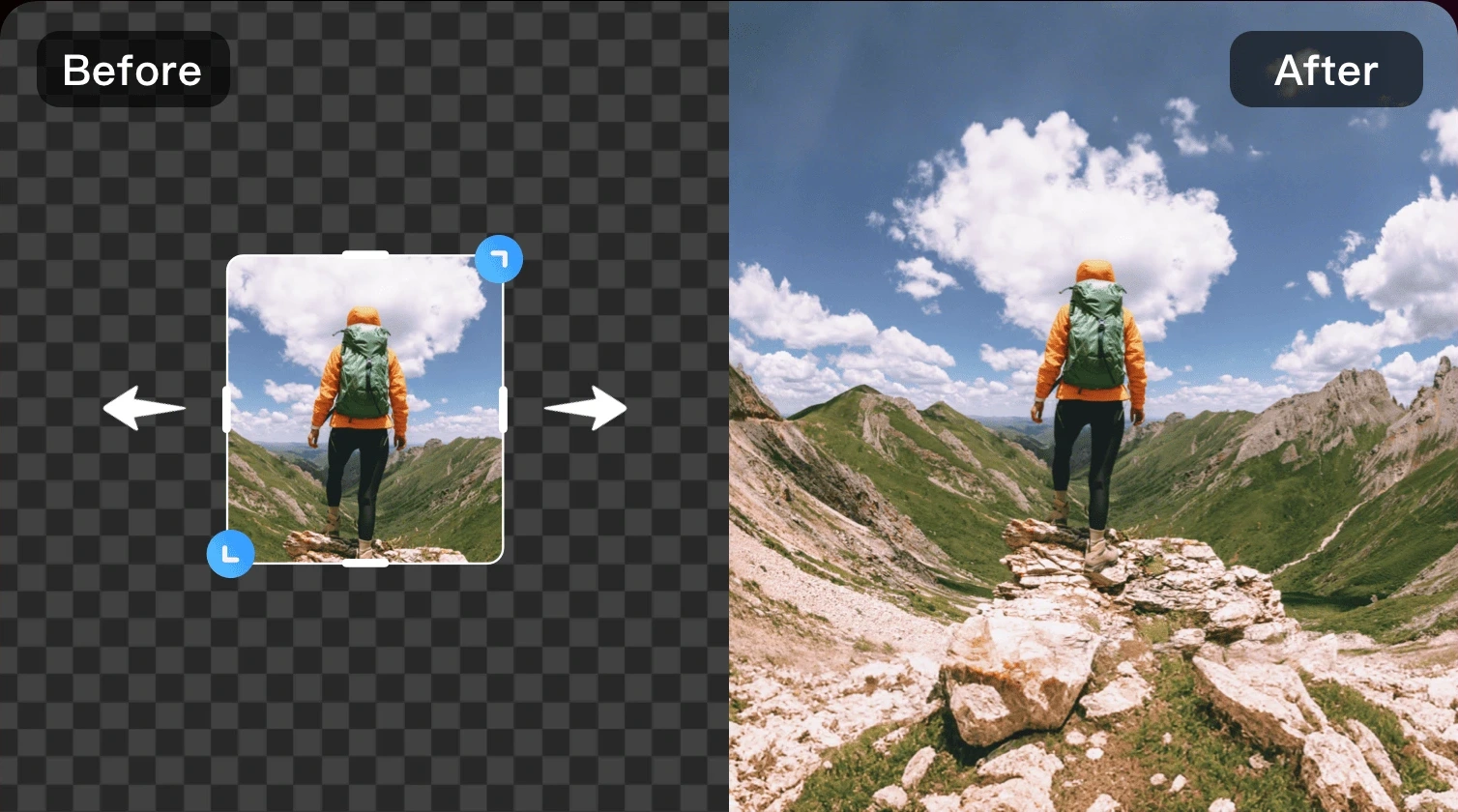
- Filter packs and Light FX: Browse film, vintage, glitch, neon, and light-leak overlays, and fine-tune filter intensity with a single slider.
- Custom collage maker: Combine multiple photos into adjustable grids or freeform scrapbook layouts with custom borders, rounded corners, and background patterns.
- Text, fonts, and stickers: Add layered titles, curved text, shadows, and decorative stickers with straightforward drag-and-rotate handles.
- High-resolution export: Save finished edits directly to your Chromebook or Googlebook storage for easy uploading in Google Chrome.

Troubleshooting Polish – Photo Editor on ChromeOS
If Polish slows down, cannot find your photos, or runs into installation errors on your laptop, try these fixes:
- Cannot find photos from Downloads: The Android app looks inside Play files first. Move images into
Play files > Picturesin the ChromeOS Files app, or tap the folder switcher inside Polish’s gallery picker. - AI Expand or cutout tools fail to load: Generative AI tools process on remote servers and need a steady Wi-Fi connection. Check your network and disable strict ad-blocking VPNs temporarily if an AI tool hangs.
- Sluggish performance on high-resolution photos: Close unused Chrome tabs before editing large multi-layer collages so ChromeOS keeps enough RAM free for the Android container.
- Window looks cramped on a large display: Click the maximize button in the top-right title bar of the app window, or switch from Phone size to Tablet/Resizable in the window header menu.
- App crashes on launch: Open ChromeOS Settings > Apps > Manage your apps > Polish > Storage and select Clear cache, then reopen the app.
Frequently asked questions about Polish – Photo Editor on Chromebook and Googlebook
Is Polish – Photo Editor free to use on Chromebook and Googlebook?
Yes. You can download Polish – Photo Editor for free from Google Play and use its core filters, cropping, collage layouts, and basic adjustments at no cost. Optional in-app purchases and a Pro subscription unlock advanced AI tools, extra sticker packs, and ad-free editing.
Can I use Polish – Photo Editor offline on ChromeOS?
Standard editing tools such as color adjustments, filters, cropping, text, and collages work offline once the app is installed. Cloud-powered AI features like generative AI Expand and certain AI portrait styles require an active internet connection.
Does Polish – Photo Editor require a touchscreen Chromebook?
No. While touchscreens and USI styluses make brushing masks and dragging stickers feel natural on 2-in-1 convertibles, every tool in Polish works with a standard mouse, trackpad, and keyboard on clamshell Chromebooks and Googlebooks.
How do I cast Polish – Photo Editor from my Android phone to Googlebook?
Open the Phone Hub from the bottom-right corner of your Googlebook shelf and make sure your Android phone is linked. Click Cast My Apps and select Polish – Photo Editor to open your phone’s active editing session in a desktop window without transferring files.
Where are my edited photos saved on a Chromebook or Googlebook?
Exported images are saved inside the Android Pictures folder. To access them in ChromeOS, open the Files app and check Play files > Pictures > Polish (or PhotoEditorPro), where you can move or upload them directly from Chrome.
Companion photo editing and creative guides
Explore more photo editing workflows, drawing apps, and creative tools on ChromeOS with our companion guides:
- RAW color grading: If you shoot DSLR or mirrorless photos and need non-destructive exposure and tone curves, read our guide to Adobe Lightroom on Chromebook.
- Quick touch-ups and presets: For fast healing, perspective fixes, and social templates, check out Adobe Photoshop Express on Chromebook.
- Digital drawing and layers: If you want full custom brushes, line art, and stylus illustration tools, learn How to Install and Use ibis Paint X on Chromebook and Googlebook.
- Compare top editors: Browse browser-based, Android, and Linux options side by side in our roundup of the Best Photo Editors for Chromebook.
Discover more from Chrome Geek
Subscribe to get the latest posts sent to your email.