How to Install and Use Pixlr on Chromebook and Googlebook
 by
Juniya Sankara
Post Updated: November 3, 2026
You can install and use Pixlr on Chromebook and Googlebook through the official Google Play app or directly inside Chrome as a versatile, lightweight photo editor. It gives you a complete Photoshop-style creative suite featuring layered image editing, generative AI background tools, and customizable design templates without heavy system overhead.
Googlebook runs Android apps natively through Google Play, giving you the same dependable editing tools alongside phone-app casting. This guide walks you through the Google Play installation, Chrome PWA setup, layer adjustments in Pixlr E, AI effects in Pixlr Express, and performance tips for ChromeOS.
Need help setting up your editing workspace? Contact us with your laptop model and creative project goals.

Choose between Pixlr Web Suite and Google Play app
Pixlr runs seamlessly as both a browser-based web suite and a local Android application. For heavy retouching and graphic design projects, the web suite on pixlr.com offers full desktop functionality. For quick touchscreen adjustments or offline editing on the go, the official Google Play app provides an intuitive mobile interface.
How to install Pixlr on Chromebook and Googlebook
If the Play Store is not visible on your laptop, check Google’s Android app setup guide for Chromebook or the guide on installing apps on Googlebook. On school or enterprise-managed laptops, the administrator may regulate app installations. The browser version at pixlr.com works universally on any ChromeOS device without administrator permissions.
Cast Pixlr from your phone on Googlebook
If you regularly take photos on your smartphone and want to edit them immediately on a bigger display without transferring files, Googlebook’s Cast My Apps feature lets you control your phone’s Pixlr app directly on your laptop screen. Pair your phone in the Googlebook phone hub, launch Cast My Apps, and select Pixlr. This lets you view your mobile photo gallery, apply saved presets, and polish images with your physical keyboard and trackpad in real time.
Multi-layer editing and precision tools in Pixlr E
Pixlr E delivers a comprehensive desktop workspace that feels immediately familiar to Photoshop and GIMP users. It provides precise control over every pixel in your composition:
- Layer management: build complex graphics with unlimited image layers, text layers, vector shapes, layer groups, and customizable opacity.
- Selection and cutout tools: isolate subjects cleanly with magic wand, lasso, polygonal selection, and AI auto-selection masks.
- Retouching and healing: clean up portraits and remove unwanted blemishes using the clone stamp tool, spot healing brush, and sharpen/blur brushes.
- Color and tonal grading: adjust brightness, contrast, levels, curves, hue, saturation, and color balance to achieve cinematic visuals.
Generative AI tools and creative templates in Pixlr Express
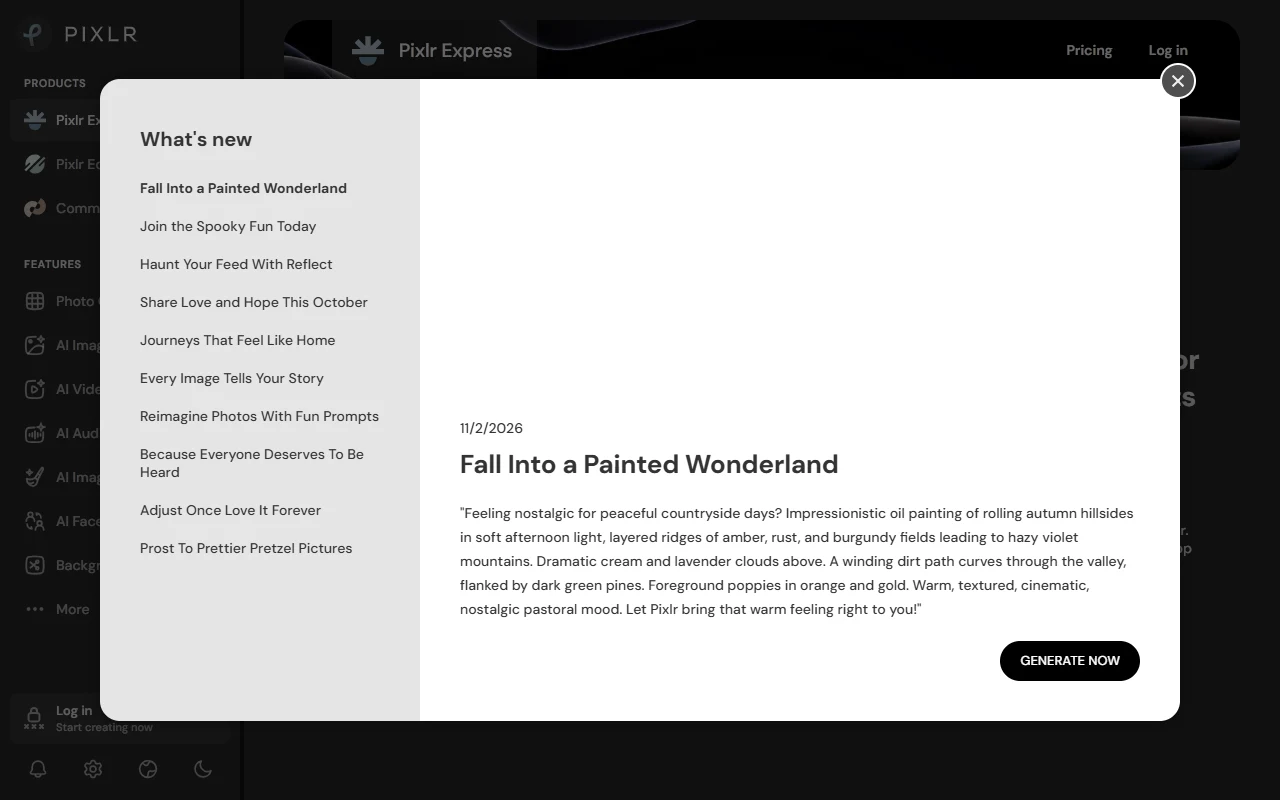
Pixlr Express streamlines modern graphic design by combining automated artificial intelligence features with pre-formatted layout presets:
- One-click background remover: instantly cut out people, products, or cars from complex backgrounds with clean edge detection.
- Generative fill and expand: add, replace, or expand image boundaries by typing natural text prompts to extend photographic scenes.
- Template library: start from thousands of ready-made designs for YouTube thumbnails, Instagram posts, posters, business cards, and presentations.
- Typography and effects: apply decorative fonts, retro color grades, glitch filters, lens flares, and light leaks in seconds.
Quick tips for the best Pixlr performance on ChromeOS
- Enable hardware acceleration: open Chrome Settings > System and verify that “Use graphics acceleration when available” is turned on for smooth canvas rendering and fast filter processing.
- Use windowed PWA mode: installing Pixlr as a progressive web app runs it in an isolated window free from browser tab clutter and reduces accidental tab closures.
- Save editable projects as PXD: when working on complex multi-layer designs, save a copy in Pixlr’s native .pxd format so you can revisit and adjust individual layers later.
- Export in modern WebP format: use Pixlr’s export dialog to save web graphics in WebP or PNG format for crisp visual quality and lightweight file sizes.
Related photo editing and design guides
- Canva on Chromebook and Googlebook: Design social graphics, marketing posters, and presentations using collaborative cloud templates.
- Snapseed on Chromebook and Googlebook: Fine-tune mobile photos with selective filter brushes, perspective control, and double exposures.
- Adobe Lightroom on Chromebook and Googlebook: Process high-resolution RAW camera captures, manage color grading, and organize cloud photo libraries.
- 12 Best Photo Editors for Chromebook: Compare top photo editing apps and online creative suites across ChromeOS.
Frequently asked questions
Is Pixlr free on Chromebook and Googlebook?
Can Pixlr open and edit Photoshop PSD files?
Does Pixlr work offline on ChromeOS?
What is the difference between Pixlr E and Pixlr Express?
Can I cast Pixlr from an Android phone to a Googlebook?
Discover more from Chrome Geek
Subscribe to get the latest posts sent to your email.