How to Install and Use Bing App on Chromebook and Googlebook
 by
Juniya Sankara
Post Updated: November 20, 2026
You can install and use the Bing app on Chromebook and Googlebook through Google Play or directly in Chrome at bing.com. It pairs web search with AI Overviews, visual image search, daily news feeds, and Microsoft Rewards.
Googlebook runs Android apps natively from Google Play alongside phone casting, so you get the same fast search tools across both laptops. This guide covers Google Play installation, Chrome PWA setup, AI search and visual tools, and simple troubleshooting fixes.
Need help setting up the Bing app? Contact us with your laptop model and any sign-in or app questions.

How to install the Bing app on Chromebook and Googlebook
Installing the official Microsoft Bing app from Google Play takes less than a minute and gives you a dedicated search window on your laptop:
The official Google Play listing identifies the Bing app under the package identifier com.microsoft.bing. Installing the Android app gives you quick access to Bing’s home feed, visual search, and voice queries directly from your app launcher.
If the Play Store is not active on your device, check Google’s Android app setup guide for Chromebook or the guide on installing apps on Googlebook. On school or workplace laptops, administrator policies may manage or restrict app downloads. While there is no standalone Linux desktop installer for Bing, you can always open bing.com in Google Chrome without installing extra software.
Cast the Bing app from your phone on Googlebook
If your Android phone already has the Bing app open with a saved search, local weather feed, or active Microsoft Rewards session, Googlebook’s Cast My Apps feature lets you open that phone app directly on your laptop screen. Open the Phone Hub from the bottom-right corner of your Googlebook shelf, click Cast My Apps, and choose Bing. Your phone’s active session appears immediately in a desktop window without transferring files or signing in again.
Bing Web vs. Bing Android app: choosing your ideal ChromeOS setup
On Chromebooks and Googlebooks, you can run the Bing app from Google Play or use Bing directly in Google Chrome. Both options share your Microsoft account data, but each fits a different workflow:
AI Overviews, voice search, and visual lookup
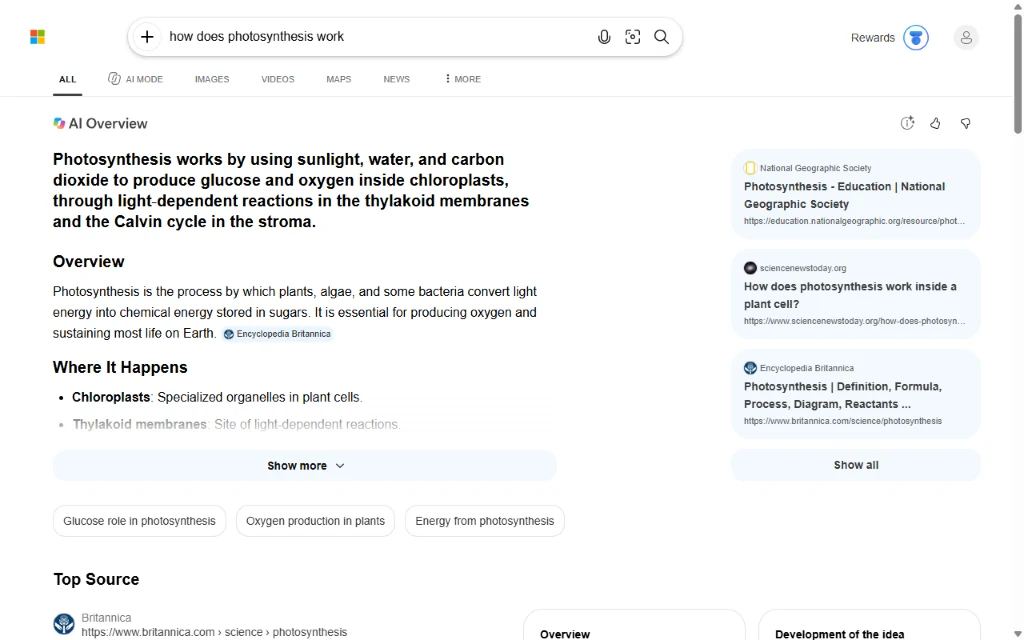
The Bing app combines traditional web links with AI-assisted summaries and quick lookup tools that save time when researching on a laptop:
- AI Overviews with source links: complex questions surface a clear summary right above standard results, complete with clickable reference cards so you can verify facts quickly.
- AI Mode for follow-up questions: switch from the All tab to AI Mode when you want to refine a topic, compare options, or ask follow-up questions in one thread.
- Voice search from the bar: click the microphone icon in the search box to speak queries hands-free using your Chromebook or Googlebook built-in mic.
- Visual search by image: use the camera icon next to the search bar to upload a photo or paste an image link to find matching products, landmarks, or similar photos.
Bing Images, daily news feeds, and Microsoft Rewards
Beyond text search, the Bing app includes dedicated tabs and account perks that work smoothly on larger laptop screens:
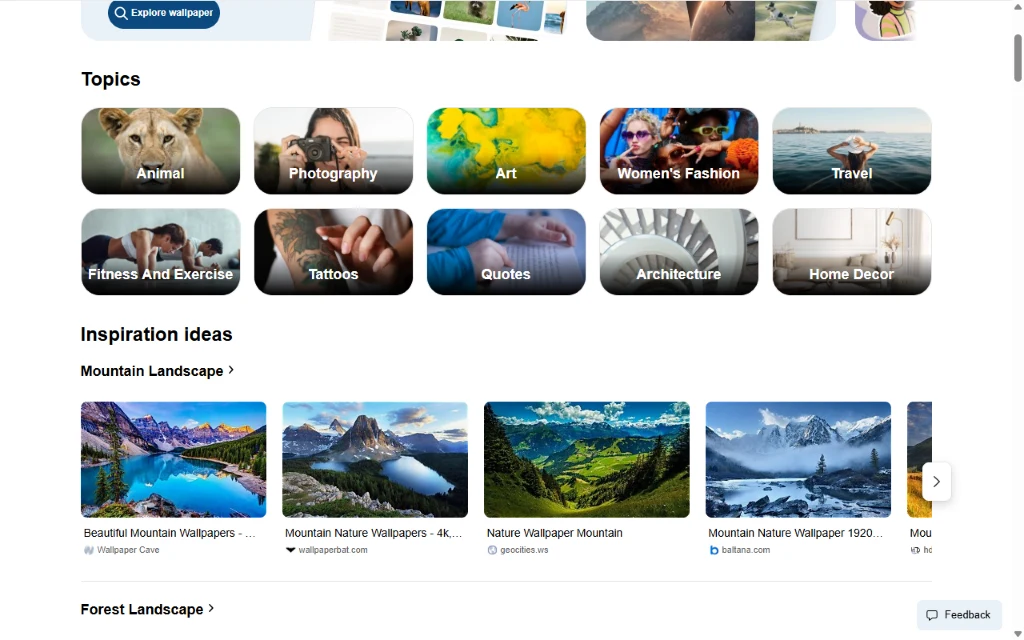
- Bing Images and topic grids: browse curated photography topics, filter results by resolution or license, and open high-resolution previews without leaving the grid.
- Maps, Videos, and News tabs: jump straight from the top navigation bar to video previews, street maps, or current headlines tailored to your interests.
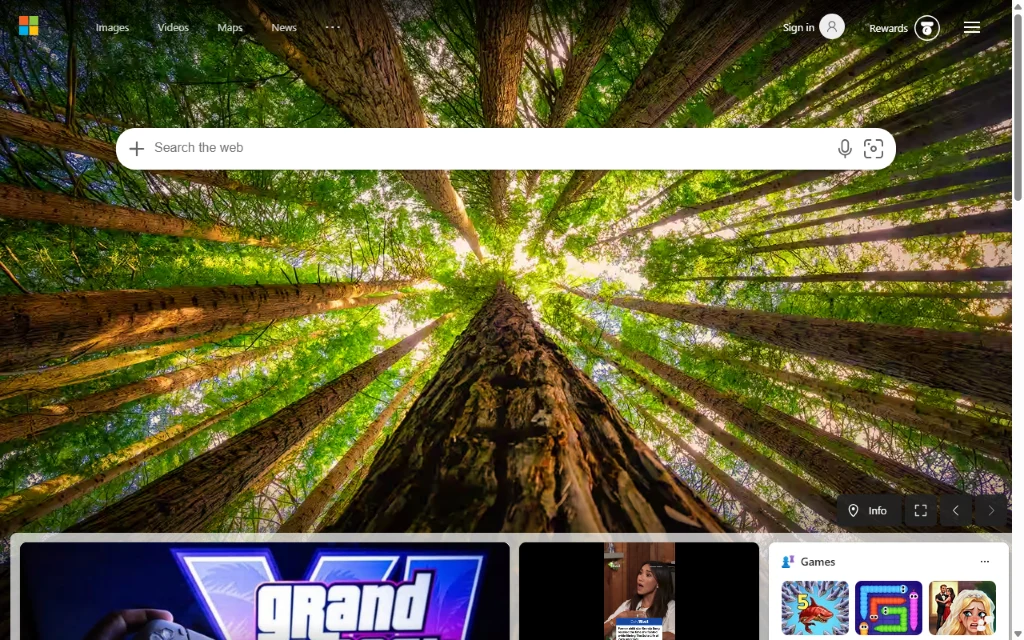
- Daily homepage wallpapers: enjoy rotating high-resolution photography on the Bing start page with quick info cards about each location.
- Microsoft Rewards points: when signed in with a Microsoft account, daily searches and quizzes earn points you can redeem for gift cards or charitable donations.
Troubleshooting the Bing app on Chromebook and Googlebook
If the Bing app feels slow, fails to sign in, or misses voice input on your laptop, try these quick ChromeOS fixes:
- Voice or camera search not responding: open ChromeOS Settings > Apps > Manage your apps > Bing > Permissions and confirm both Microphone and Camera access are allowed.
- AI Overviews or pages load slowly: check your Wi-Fi connection and close unused browser tabs. If a VPN or ad-blocker extension is active in Chrome, pause it briefly for
bing.comto rule out script filtering. - Microsoft Rewards points not updating: confirm you are signed into the same Microsoft account in the Bing app or browser and that tracking protection is not blocking the Rewards dashboard.
- Android app freezes or fails to launch: go to ChromeOS Settings > Apps > Manage your apps > Bing > Storage and click Clear cache, then reopen the app.
- Prefer a lighter desktop window: if the Android app feels cramped on your display, switch to bing.com in Google Chrome or install it as a standalone Chrome shortcut.
Frequently asked questions about the Bing app on Chromebook and Googlebook
Is the Microsoft Bing app free to install and use on Chromebook and Googlebook?
Yes. Both the Bing Android app on Google Play and the web version at bing.com are completely free to use on Chromebook and Googlebook. You can search, read news, and view AI Overviews without a paid subscription.
Should I use the Bing Android app or bing.com in Google Chrome?
Both work smoothly on ChromeOS. Use bing.com in Google Chrome (or install it as a Chrome PWA) for fast desktop multitasking, keyboard shortcuts, and zero local storage usage. Install the Google Play Bing app if you want a dedicated mobile-style feed, widget-like quick access, or touch navigation on a 2-in-1 convertible.
Do I need a Microsoft account to use the Bing app on my laptop?
No. You can run web searches, view AI Overviews, and browse Bing Images as a guest. Signing in with a free Microsoft account lets you sync saved collections, search preferences, and Microsoft Rewards points across your devices.
How do I cast the Bing app from my Android phone to Googlebook?
Open the Phone Hub in the bottom-right corner of your Googlebook shelf and confirm your Android phone is linked. Click Cast My Apps and select Bing to open your phone’s active app session in a desktop window without signing in again.
Why is voice or visual search not working in the Bing app on ChromeOS?
Make sure microphone and camera permissions are enabled for the Bing app. Open ChromeOS Settings > Apps > Manage your apps > Bing > Permissions, then allow Microphone and Camera access. If you use bing.com in Chrome, click the lock or site settings icon in the address bar to allow microphone access.
Companion Microsoft and productivity guides
Build out your search, browser, and daily task workflow on ChromeOS with these companion guides:
- Full desktop browser: Pair Bing search with Microsoft’s browser features, collections, and vertical tabs by installing Microsoft Edge on Chromebook.
- Synced daily tasks: Keep your Microsoft account reminders, shopping lists, and work tasks organized with Microsoft To-Do on Chromebook.
- Play Store compatibility: If you are not sure whether your older laptop supports Android apps from Google Play, check our guide to Chromebooks that can run Android apps.
- Fast voice dictation: Speed up writing emails, notes, and search prompts across ChromeOS apps with Wispr Flow on Chromebook and Googlebook.
Discover more from Chrome Geek
Subscribe to get the latest posts sent to your email.