How to Install and Use Instagram on Chromebook and Googlebook
 by
Gloria Brown
Post Updated: November 2, 2026
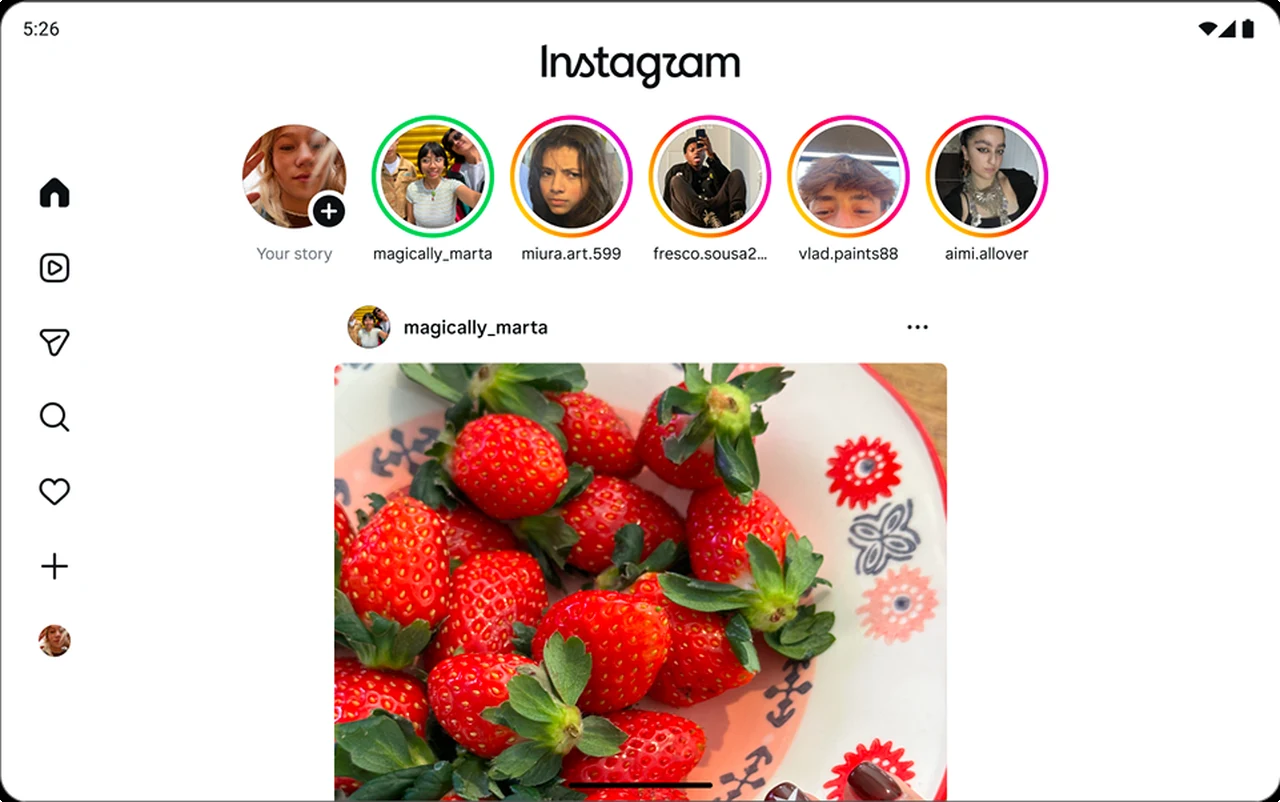
You can install and use Instagram on Chromebook and Googlebook through the official Android app from Google Play or directly via the web PWA at instagram.com. It brings full-resolution photo carousels, vertical Reels, disappearing Stories, dual-pane Direct Messages (DMs), and creator publishing tools straight to your laptop screen.
Googlebook runs Android apps natively through Google Play, giving you the same dependable social experience alongside phone-app casting. This comprehensive guide walks you through the Google Play setup, Chrome browser access and PWA installation, split-screen messaging, keyboard navigation shortcuts, content creation, account security, and quick troubleshooting fixes.
Need help setting up your social and media apps? Contact us with your laptop model and any setup or camera questions.

How to install Instagram on Chromebook and Googlebook
Setting up the official Instagram app takes less than two minutes through Google Play:
The official Google Play listing identifies Instagram under the package name com.instagram.android. Installing the official app ensures automated background security updates, touchscreen gesture support, and push notifications.
If the Play Store is not visible, check Google’s Android app setup guide for Chromebook or the guide on installing apps on Googlebook. On school or workplace laptops, administrator policies may limit Play Store downloads. There is no official Debian package (.deb) for ChromeOS Linux, but you can always navigate directly to instagram.com in Google Chrome to browse feeds, view Stories, and chat without installing software.
Cast Instagram from your phone on Googlebook
If your Android phone is already signed into Instagram with your active drafts, saved audio clips, and tailored algorithm, you can stream your mobile session directly to your laptop display using Phone Hub. Click the Phone Hub icon in the bottom-right shelf of your Googlebook, select Cast My Apps, and tap Instagram. Your phone’s live Instagram app opens immediately in a responsive desktop container, allowing you to review Story replies, scroll through saved collections, or manage multiple accounts without re-entering passwords or triggering suspicious login checkpoints.
Instagram Web vs. Android app: choosing your ideal ChromeOS setup
On Chromebooks and Googlebooks, you can choose between running the Android application from Google Play or accessing Instagram through Google Chrome. Both deliver a dependable experience, but each format brings distinct advantages for desktop and laptop use:
Messaging friends with dual-pane Direct Messages and Notes
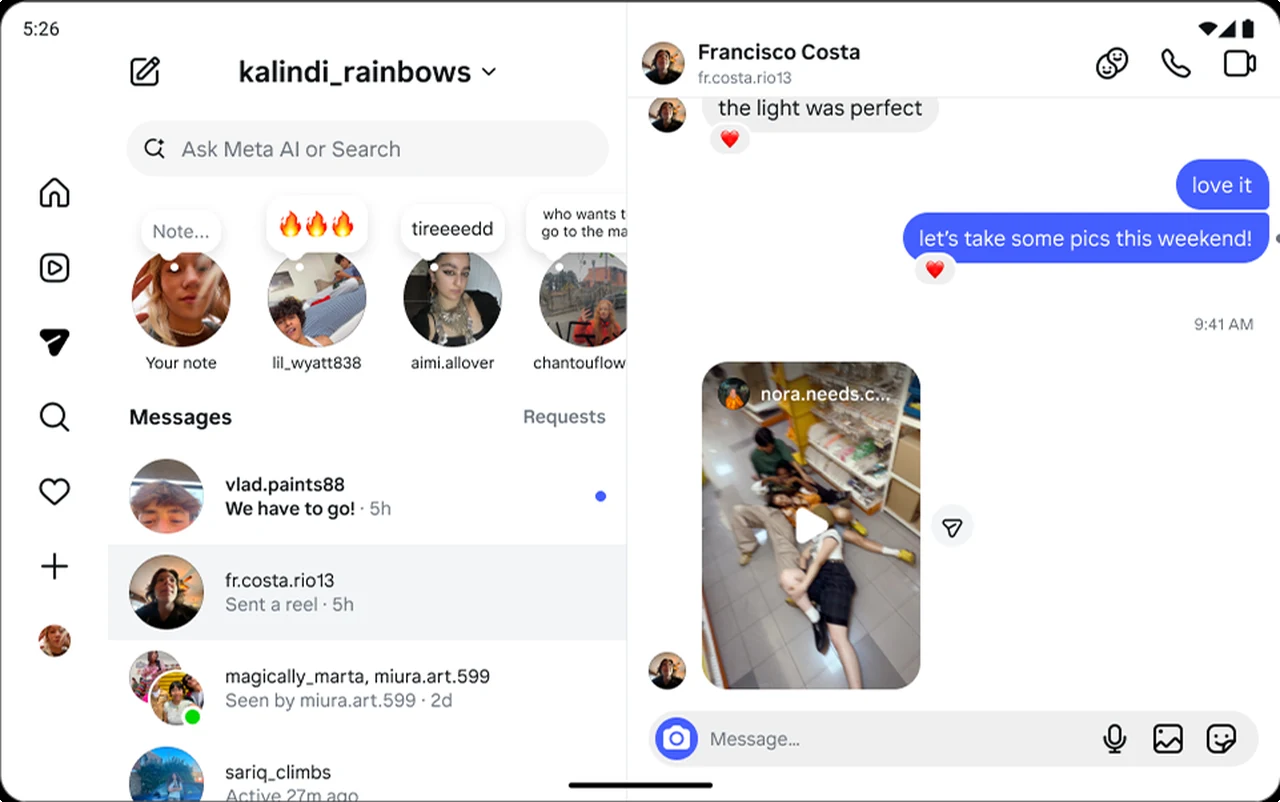
Instagram Direct on Chromebook and Googlebook provides an efficient desktop messaging layout designed for productivity and social connection:
- Dual-pane conversation view: on wider laptop screens, Instagram displays your active conversation threads and message requests on the left, with the selected chat stream on the right for continuous conversation.
- 24-hour status Notes: post short thought bubbles, mood tracks, and music snippets above your message inbox that disappear after 24 hours.
- Media sharing and voice clips: share photo carousels, trending Reels, and GIFs directly within chats, or record quick voice notes with your Chromebook microphone.
- Video and voice calling: launch high-definition one-on-one or group video calls with up to 8 participants directly from your open chat header.
Exploring Reels, Stories, and creator tools on larger screens
Watching and creating content on a laptop screen gives you greater precision and clarity:
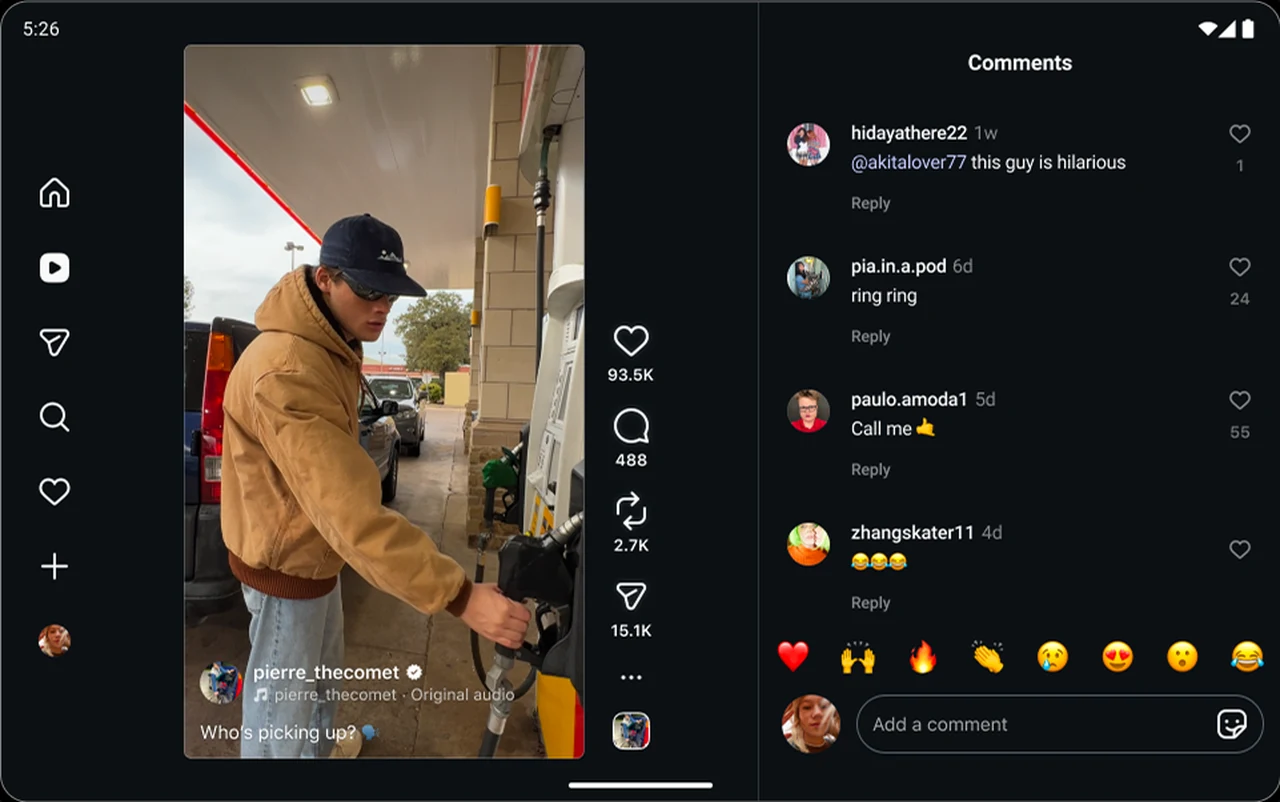
- Immersive Reels playback: scroll through full-height vertical video feeds using your touchpad or arrow keys, inspect creator audio tracks, and read comments side-by-side without covering video playback.
- Content creation studio: click the Create (+) icon on the web navigation sidebar or Android app to upload high-resolution photos and video clips directly from your ChromeOS Files app or Google Drive.
- Aspect ratio and cropping tools: fine-tune your posts with 1:1 square, 4:5 portrait, or 16:9 landscape aspect ratios, apply visual presets, and adjust contrast and brightness before publishing.
- Scheduling and creator insights: professional and creator accounts can schedule upcoming feed posts and Reels in advance and monitor reach, impressions, and engagement analytics.

Supercharge your workflow on Chromebook and Googlebook with Gemini AI integrated into Gmail, Docs, Drive, and Meet. Collaborate seamlessly with custom business email, expandable cloud storage, and enterprise security.
Account security, privacy settings, and two-factor authentication
Protecting your profile and personal media is essential when accessing social accounts on laptops:
- Two-Factor Authentication (2FA): navigate to Settings > Accounts Center > Password and security > Two-factor authentication. Enable security verification via an authenticator app (such as Google Authenticator) or text message to stop unauthorized logins.
- Close Friends list: curate a private Close Friends list to share personal Stories and Reels exclusively with a trusted inner circle without making your general profile private.
- Login activity audit: check Where you’re logged in in Accounts Center to review active sessions across mobile devices, Chrome browsers, and tablets, and immediately terminate unfamiliar connections.
- Hidden words and comment filtering: enable automated filtering for offensive comments and message requests in Settings > Privacy > Hidden words to block abusive spam or spoilers automatically.
Troubleshooting Instagram issues on Chromebook and Googlebook
If you encounter video playback glitches, camera errors, or login warnings, follow these targeted troubleshooting steps:
- Camera or microphone permissions denied: for the Google Play app, go to ChromeOS Settings > Apps > Manage your apps > Instagram > Permissions and toggle Camera and Microphone to Allowed. If using the web client in Google Chrome, click the tune icon beside
instagram.comin the URL bar and ensure Camera and Microphone are permitted. - Black screen or app freeze on launch: clear corrupted temporary cache by opening ChromeOS Settings > Apps > Manage your apps > Instagram > Storage > Clear cache. Relaunch the application.
- Suspicious login checkpoint warning: when signing into Instagram from a new Chromebook device or browser, Meta security may ask for email or SMS verification. Complete the one-time code prompt to authorize your laptop.
- Choppy Reels or video lag: check that Chrome hardware graphics acceleration is enabled. Open Chrome Settings, search for acceleration, and ensure Use graphics acceleration when available is active.
- Web PWA notification alerts not showing: in Google Chrome, go to
chrome://settings/content/notificationsand confirm thathttps://www.instagram.comis allowed to deliver alerts to your ChromeOS shelf.
Frequently asked questions about Instagram on Chromebook and Googlebook
Is Instagram free to install and use on Chromebook and Googlebook?
Yes. Instagram is completely free to install from Google Play and free to access via the web at instagram.com. All core features, including browsing feeds, sharing Stories, watching and posting Reels, direct messaging, and voice or video calling, are free. Optional Meta Verified subscriptions are available for users seeking verification badges and direct account support.
Should I use the Instagram Android app or the Instagram web version on ChromeOS?
The choice depends on your daily workflow. The web version at instagram.com (or installed as a Chrome PWA) offers keyboard shortcuts, a responsive widescreen layout, faster navigation, and dual-pane messaging while consuming virtually no local storage. The Google Play Android app is ideal if you have a 2-in-1 touchscreen convertible, want native background notifications, or frequently post Stories and Reels with mobile camera filters.
Can I post photos, Stories, and Reels to Instagram from my Chromebook or Googlebook?
Yes. Both the Instagram Android app and the web version at instagram.com allow you to upload photos and videos directly from your laptop’s local storage or Google Drive. On the web client, click the Create (+) button on the left sidebar to select media, crop aspect ratios, apply filters, and write captions. For Stories with interactive stickers and real-time camera effects, the Android app provides direct webcam access.
How do I cast Instagram from my phone to Googlebook?
Open the Googlebook Phone Hub from the desktop shelf and verify that your Android phone is connected. Select Cast My Apps, then click Instagram from your linked apps list. Your active mobile Instagram session will stream directly into a floating desktop window, allowing you to view Stories, scroll through Reels, and reply to DMs without signing in again or triggering security checkpoint warnings.
Why does Instagram show a black screen or fail to open on my Chromebook?
A black screen or launch crash usually stems from corrupted temporary cache or missing app permissions. Navigate to ChromeOS Settings > Apps > Manage your apps > Instagram > Storage and click Clear cache. Next, check Permissions to ensure Camera, Microphone, and Photos and videos are set to Allowed. If the issue persists, verify ChromeOS is up to date or use the web client at instagram.com.
Explore more social media companion apps on ChromeGeek
Pair your Instagram routine with these companion communication and video platforms for ChromeOS:
- Threads on Chromebook: Install Guide & Features: Connect your existing Instagram account to share real-time text updates, join public conversations, and engage with followers.
- How to Install and Use Messenger on Chromebook and Googlebook: Keep cross-app chats, group video calls, and Facebook direct messages organized in a dedicated desktop window.
- How to Install and Use TikTok on Chromebook and Googlebook: Discover trending short videos, follow creative sounds, and edit vertical clips alongside your Instagram Reels.
- How to Install and Use Snapchat on Chromebook and Googlebook: Share disappearing photo moments, create custom Bitmojis, and experiment with augmented reality camera lenses.
Discover more from Chrome Geek
Subscribe to get the latest posts sent to your email.