Prezi Video on Chromebook and Googlebook: Setup Guide & Features
 by
Gloria Brown
Post Updated: November 3, 2026
You can use Prezi Video on Chromebook and Googlebook through its official web platform and Google Workspace integration to create dynamic, interactive video presentations without installing traditional desktop software. Instead of forcing viewers to stare at a disconnected slide deck while you talk in a tiny thumbnail, Prezi Video places your graphics, charts, and bullet points directly on screen right beside you in real time.
Whether you are an educator recording asynchronous classroom lessons, a student presenting a remote research project, or a professional delivering virtual pitches, Prezi Video runs seamlessly in Google Chrome on ChromeOS. Our comprehensive guide covers web studio setup, PowerPoint slide conversion, meeting integrations, and practical performance tips.
Encountering camera permission prompts or audio synchronization questions on your device? Contact us with your laptop hardware details and our team will be glad to help.
How to set up and use Prezi Video on Chromebook and Googlebook
Because Prezi Video operates as a high-performance web platform, there is no need to download Android packages or manage separate Linux binaries. You can start creating video presentations directly inside the Chrome browser in just a few quick steps:
If your school or organization uses Google Workspace, you can link Prezi Video through the Google Workspace Marketplace. Once added to Google Drive, right-click anywhere inside your Drive folders and select More > Prezi Video to create and store video files directly in cloud storage. For standard device administration, refer to official Google support on managing web apps across ChromeOS.
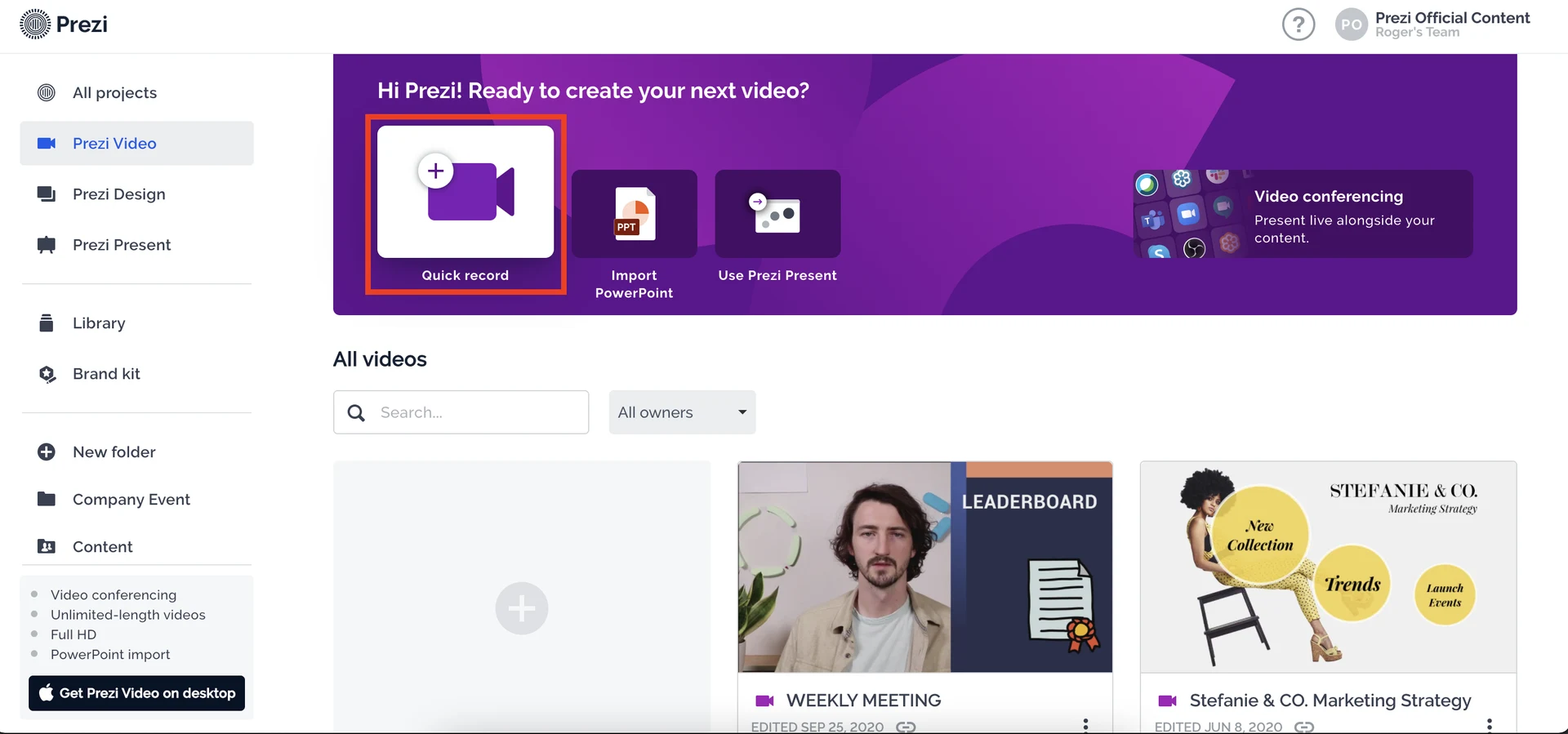
Create video presentations, import PowerPoint slides, or launch video conferences directly from the Prezi Video web dashboard on ChromeOS.
Cast Prezi Video from your phone on Googlebook
If you have existing slide outlines, recorded practice pitches, or graphic assets saved on your mobile device, you can leverage Googlebook’s built-in phone hub to bridge your workflow. By selecting Cast My Apps from the Googlebook shelf, you can stream your mobile presentation sessions directly onto the larger laptop display, allowing you to review speaking notes and preview slide transitions using your physical trackpad and keyboard without manually transferring media files.
Key features of Prezi Video on ChromeOS
Prezi Video replaces standard static presentations with motion-driven visual elements designed specifically to keep audience attention focused:
Keep eye contact with your viewers while your graphics, charts, and bullet points appear on screen right beside you, eliminating cold full-screen slide transitions.
Upload your existing PowerPoint (.pptx) decks or Google Slides presentations. Prezi automatically extracts visuals and converts them into customizable floating overlays.
Record high-definition video presentations directly in Chrome. Pause, re-record sections, trim beginnings and endings, and export shareable links or MP4 files instantly.
Generate direct video links with granular privacy settings, embed video players into digital portfolios, or post assignments directly to online classroom portals.
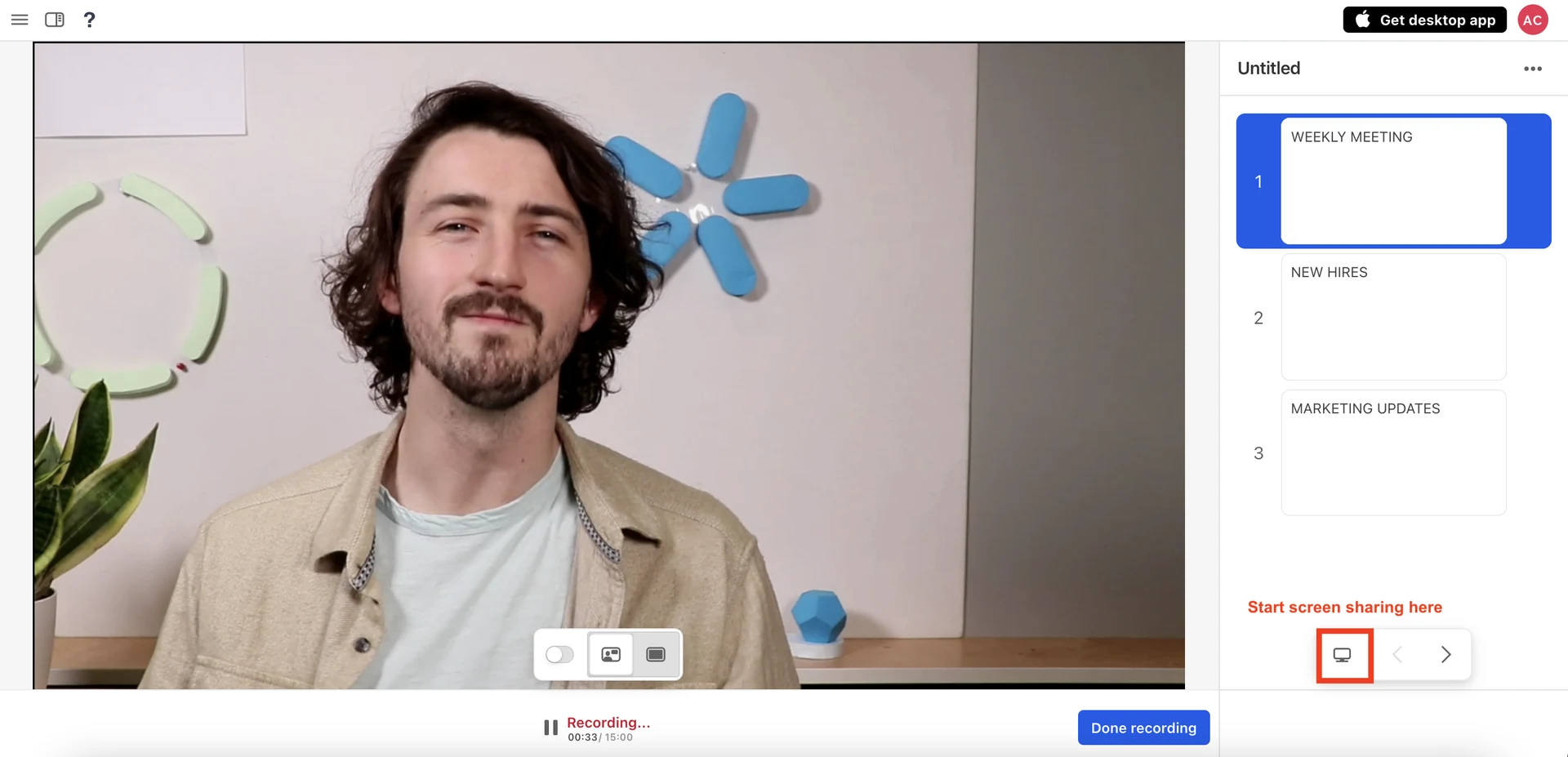
Record video presentations in the Chrome browser with interactive graphics and meeting bullet points floating alongside you on screen.
Delivering live video calls with Prezi Video on Chromebook
While traditional desktop computers use virtual camera drivers for live video feeds, Chromebook and Googlebook users can seamlessly present Prezi Video in real-time meetings across major communication platforms:

Maintain visual connection with your audience by placing presentation slides directly into your video frame rather than hiding behind a screen share.
In video meeting software, click Share Screen and select Chrome Tab > Prezi Video. Check Share tab audio so embedded presentation audio streams smoothly to all attendees.
Use the web studio practice mode to rehearse slide timing, verify that your lighting cleanly highlights your face, and check that visual text objects do not obscure your camera framing.
Toggle dynamically between three visual layouts using keyboard shortcuts: presenter only, presenter beside content, or full-screen visuals when highlighting intricate data tables.
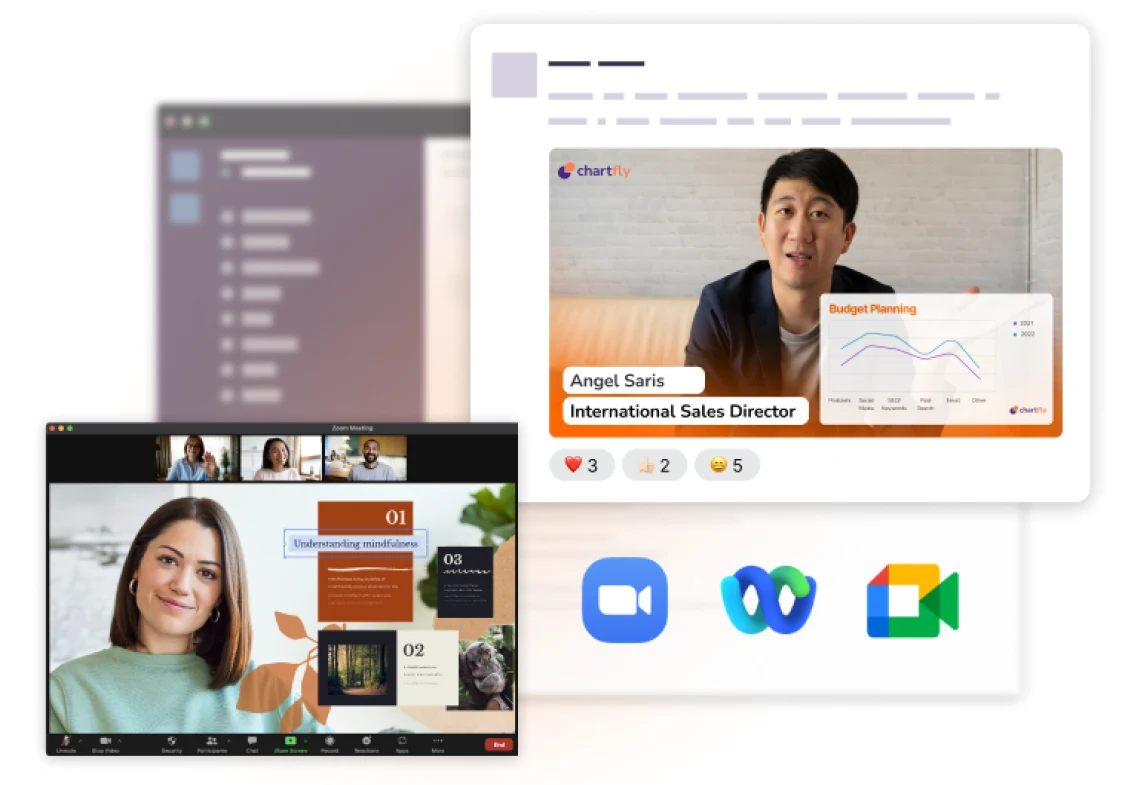
Streamline virtual meetings and classroom lectures by sharing Prezi Video presentations in Zoom, Google Meet, and Microsoft Teams.
Recommended hardware and system requirements
Prezi Video performs video encoding and real-time graphics rendering directly in the browser engine. To ensure smooth recording framerates on ChromeOS, verify the following baseline hardware specifications:
Troubleshooting common Prezi Video issues on ChromeOS
If you experience camera detection delays, audio sync issues, or recording stutters, apply these practical optimizations:
If Chrome blocks camera access, click the padlock or site settings icon on the left side of the Chrome address bar. Change Camera and Microphone permissions to Allow and refresh the page.
Recording video in high resolution consumes CPU cycles. Close unused background Chrome tabs, disable unneeded extensions, and ensure your Chromebook is plugged into wall power for full processor performance.
Check Chrome Settings > System and verify that Use graphics acceleration when available is enabled. This delegates video compositing to the device GPU, resulting in smoother frame delivery.
If your school-managed Google account blocks third-party website authorization, ask your network administrator to allow `prezi.com` and install the Prezi Video app through the Google Workspace Marketplace console.
Frequently asked questions about Prezi Video on Chromebook
Is Prezi Video free to use on Chromebook and Googlebook?
Yes. Prezi Video offers a free basic tier that lets you create, record, and share unlimited public video presentations up to 15 minutes each. Upgrading to Prezi Plus unlocks unlimited video recording length, 1080p Full HD video downloads, offline desktop access, and custom brand watermarks.
Is there an Android app or Chrome extension required to run Prezi Video?
No. Prezi Video runs entirely through the Google Chrome web browser at prezi.com/video, eliminating the need to install separate Android APKs or browser extensions. For direct cloud integration, you can also connect the official Prezi Video app through the Google Workspace Marketplace to create videos straight from Google Drive.
Can I use Prezi Video live during Zoom or Google Meet calls on ChromeOS?
Yes. While live camera virtual drivers are designed for desktop operating systems, Chromebook and Googlebook users can present Prezi Video in video calls by sharing their active Chrome browser tab or window during Zoom, Google Meet, or Microsoft Teams sessions with full audio and visual clarity.
How do I turn existing PowerPoint or Google Slides into a Prezi Video?
Open the Prezi Video web dashboard in Chrome and click ‘Import PowerPoint’ or select your Google Drive presentation. Prezi automatically converts your slides into dynamic on-screen visual assets, allowing you to position them alongside your camera feed and navigate them smoothly while speaking.
How do I cast Prezi Video from an Android phone to a Googlebook?
Connect your Android smartphone to your Googlebook using the integrated phone hub. Open the phone hub menu from your shelf, select ‘Cast My Apps’, and choose your mobile browser or presentation app. This wirelessly streams your active mobile slides directly to your laptop display for easy reviewing.
Explore more presentation and productivity tools on Chromebook
Looking to enhance your virtual presentations and productivity on your Chromebook or Googlebook? Connect with remote colleagues and clients using Webex Meetings on Chromebook, collaborate on shared whiteboard channels with Microsoft Teams on Chromebook, join high-definition virtual classrooms using Zoom on Chromebook, design custom presentation slide decks using Canva on Chromebook, or edit cloud video recordings with WeVideo on Chromebook.
Discover more from Chrome Geek
Subscribe to get the latest posts sent to your email.