How to Install and Use Webex Meetings on Chromebook and Googlebook
 by
Frank Cross
Post Updated: November 3, 2026
You can install and use Webex Meetings on Chromebook and Googlebook through the official Android app from Google Play or the modern web platform. Powered by Cisco, Webex delivers an enterprise-grade collaboration ecosystem featuring AI-enhanced video meetings, acoustic noise removal, interactive digital whiteboards, persistent team messaging spaces, and secure cloud calling.
Whether you are attending remote university lectures, collaborating with enterprise teams across time zones, or connecting with clients, ChromeOS and Googlebook offer multiple optimized ways to join meetings with crisp audio and video. This guide walks you through the Google Play installation, phone casting integration, screen sharing, digital whiteboarding, audio settings, and practical troubleshooting fixes to ensure seamless calls.
Need help configuring audio peripherals or joining meetings on a managed school device? Contact us with your laptop model and we will be happy to assist.

How to install Webex Meetings on Chromebook and Googlebook
The most versatile way to run Webex on ChromeOS hardware is through the official Android application distributed via the Google Play Store. It brings native multi-window support, touch gesture controls, and background notification alerts to your laptop:
If you are setting up Android applications on ChromeOS for the first time, check Google’s Android app setup guide for Chromebook or the guide on installing apps on Googlebook. On school or work-managed hardware where Google Play is disabled by policy, you can bypass installation entirely by opening webex.com directly in Google Chrome.
Cast Webex Meetings from your phone on Googlebook
Googlebook’s Cast My Apps feature lets you stream your phone’s Webex Meetings session directly on your laptop screen. When you start or receive a call on your mobile device while walking between offices, you do not need to hang up and reconnect on your computer. Simply click Phone Hub on your Googlebook shelf, select the active Webex app window, and continue speaking with full access to your laptop keyboard, external monitor, and webcam without interrupting the call flow.
Webex video conferencing and AI audio features on ChromeOS
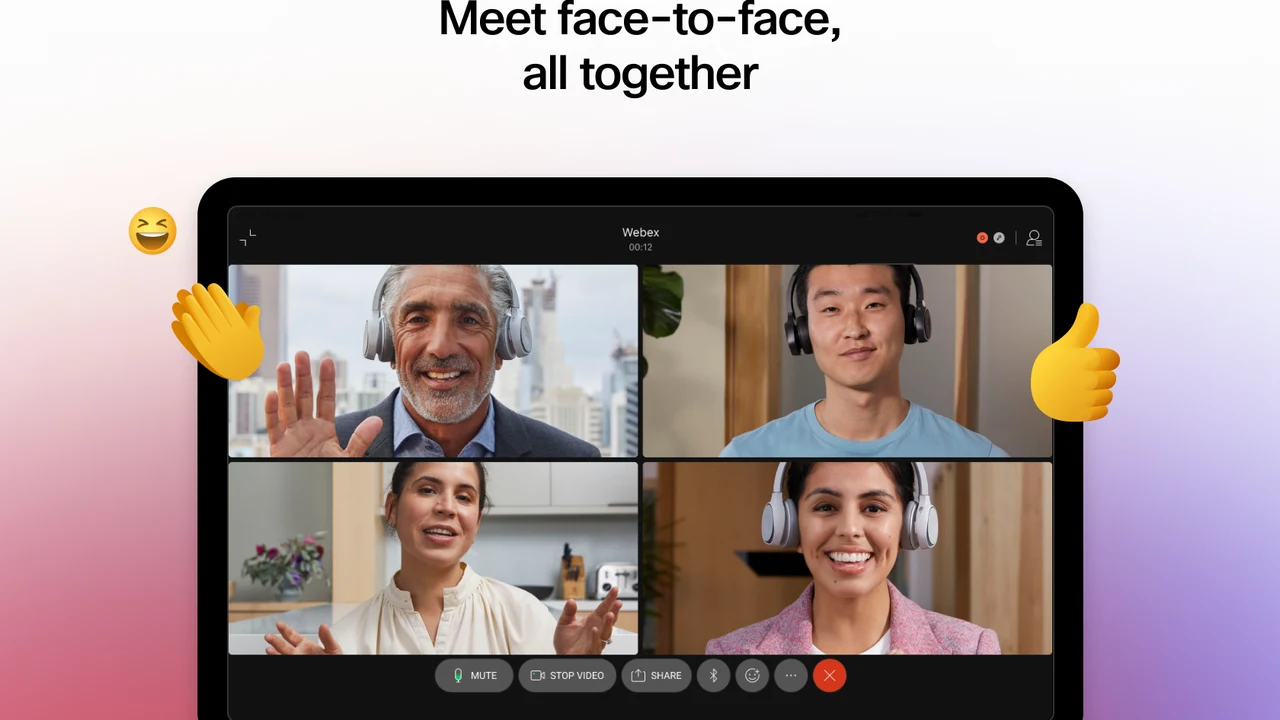
Webex delivers high-definition video conferencing engineered to handle large meetings smoothly even over variable Wi-Fi connections. The tablet interface on Chromebook adapts dynamically to your screen size, allowing you to toggle between Grid View, Stage View, and Focused Speaker View with a single click. When multiple colleagues participate, you can customize your view layout or pin key presentation streams to stay focused on crucial speakers.
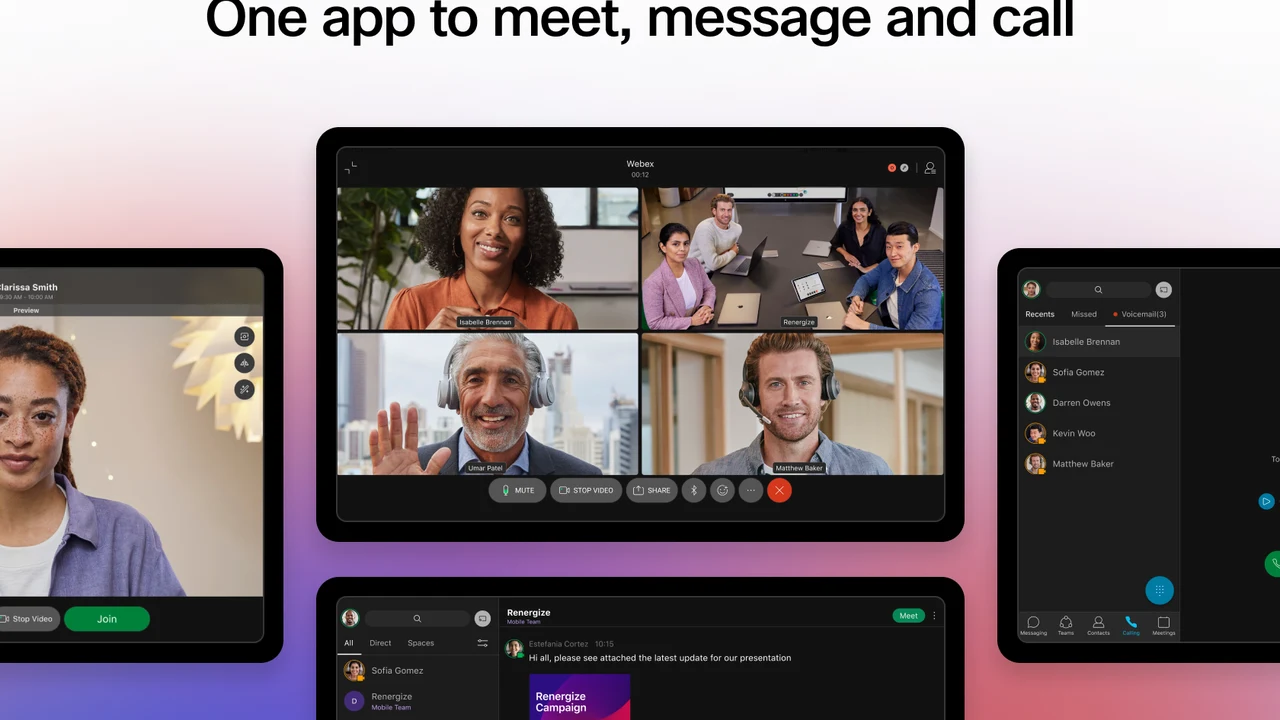
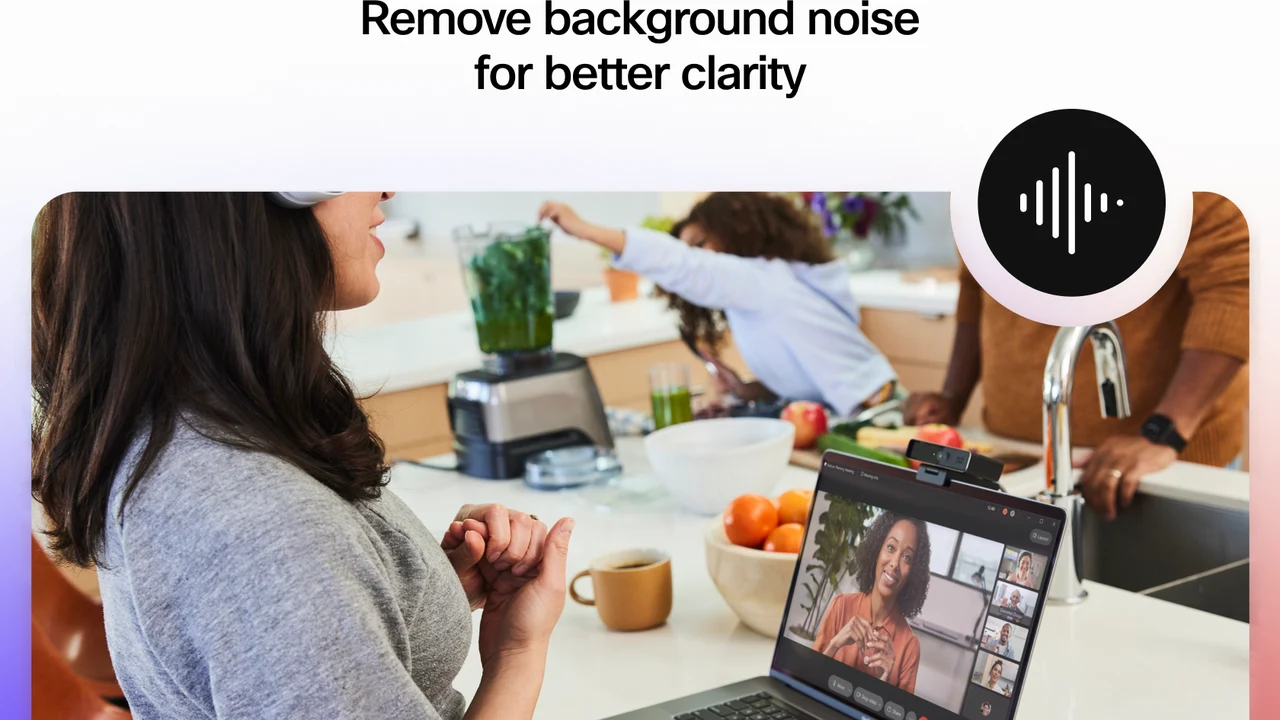
One of Webex’s standout features is its built-in acoustic intelligence. Cisco incorporates advanced background noise removal that isolates human vocal frequencies while suppressing barking dogs, coffee shop chatter, typing sounds, and sirens. In addition, real-time closed captioning and automated translations across over 100 languages ensure everyone on your team can participate comfortably regardless of location.
Interactive collaboration with Webex whiteboards and screen sharing
Visual collaboration is seamless on ChromeOS convertibles and touchscreen Chromebooks. Webex Whiteboards provide an infinite digital workspace where meeting attendees can sketch wireframes, organize ideas with color-coded sticky notes, and build project workflows collaboratively. If your Chromebook supports USI stylus input, you can write naturally by hand with near-zero latency.
When presenting data, click the Share button on the bottom control panel. You can share your entire desktop screen, a specific Chrome browser tab, or an individual application window. Participants can also request annotation control to circle metrics or draw arrows directly over your slides during live reviews.
Team messaging, dedicated spaces, and secure file sharing
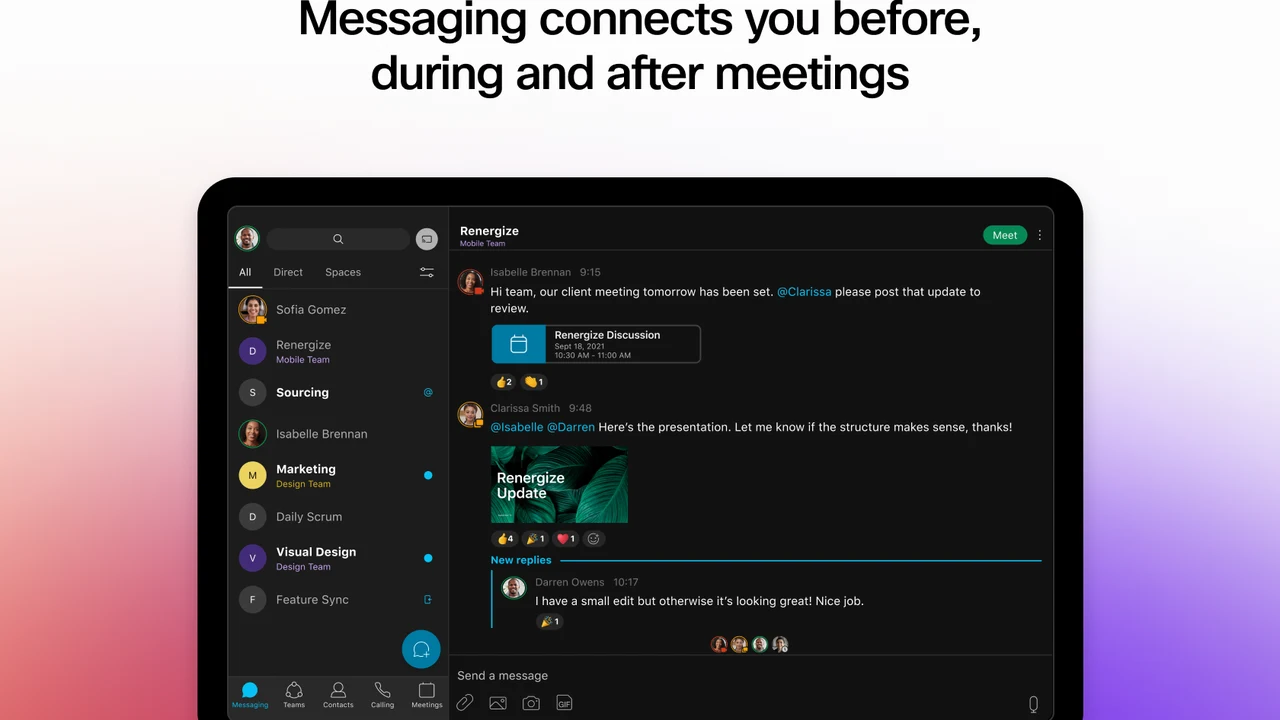
Beyond live video calls, Webex functions as a persistent team messaging hub. You can organize discussions into dedicated Spaces for specific projects, departments, or client accounts. Rich text formatting, threaded replies, and emoji reactions keep communication structured without cluttering main conversation feeds.
File sharing is integrated directly into every space. You can drag and drop spreadsheets, PDF reports, and images directly from the ChromeOS Files app or connect cloud storage providers like Google Drive, Microsoft OneDrive, and Box. End-to-end encryption ensures company proprietary data remains secure during transit and storage.
Webex enterprise cloud calling and visual voicemail
Webex integrates cloud enterprise telephony directly into your Chromebook, turning your laptop into a full-featured office phone. If your organization uses Cisco Webex Calling, you can dial external telephone numbers, receive direct customer calls, transfer calls to colleagues, and hold impromptu audio conferences without needing desk hardware.
The Calling tab gives you access to a clean dial pad, comprehensive call history, enterprise directory search, and visual voicemail. You can play back voicemail recordings directly on your laptop speakers or read automated voice-to-text transcripts when working in quiet library environments.
Webex Android app vs. Web client vs. Chrome Calling extension
Depending on whether you prioritize touchscreen responsiveness, zero-install speed, or corporate telephony, here is how the primary Webex access methods compare on ChromeOS:
Troubleshooting common Webex issues on ChromeOS
If you experience unexpected behavior during a meeting, these verified steps resolve the vast majority of technical hurdles:
Frequently asked questions about Webex on Chromebook
Is Webex Meetings free on Chromebook and Googlebook?
Yes. Webex offers a comprehensive free plan that lets you host meetings with up to 100 participants for 40 minutes per session. It includes high-definition video, interactive whiteboarding, local screen sharing, and background noise removal without requiring a paid subscription.
Should I use the Webex Android app or web browser on Chromebook?
Both methods provide excellent collaboration. The Webex Android app from Google Play is optimized for Chromebook touchscreens, 2-in-1 tablet mode, and offline messaging prep. The Webex web client in Google Chrome allows instant one-click meeting joins without installation, ideal for guest attendees or managed school devices.
Can I share my screen and presentations in Webex on Chromebook?
Yes. During any active Webex call, click the Share icon on the meeting control bar to share your entire desktop screen, a specific Google Chrome browser tab, or an application window. You can also open an interactive Webex whiteboard to sketch diagrams and annotate slides with meeting participants.
How does Webex background noise removal work on ChromeOS?
Cisco integrates intelligent background noise removal directly into Webex. Powered by acoustic AI algorithms, it automatically eliminates background distractions like keyboard typing, paper shuffling, barking dogs, and office chatter so your voice comes through with crystal-clear clarity.
Can I connect external webcams and USB headsets to Webex on Chromebook?
Yes. ChromeOS automatically recognizes USB and Bluetooth audio and video peripherals. Before joining a call, click Settings inside Webex or access the Chrome media controls in your system tray to select your preferred external microphone, Bluetooth headset, or HD webcam.
Explore more remote productivity and collaboration tools
Looking to enhance your virtual workspace on ChromeOS? Host interactive enterprise calls with Zoom on Chromebook, coordinate corporate channels using Microsoft Teams on Chromebook, access secure enterprise desktops through Citrix Workspace on Chromebook, and deliver dynamic visual presentations with Prezi Video on Chromebook.
Discover more from Chrome Geek
Subscribe to get the latest posts sent to your email.