You can install and use Microsoft Teams on Chromebook and Googlebook through the official Google Play Android app, modern web browser access, or progressive web app (PWA). Built as Microsoft’s premier unified communication and workplace collaboration hub, Teams brings high-definition video conferencing, persistent group channels, instant messaging, cloud file sharing, and calendar coordination directly into ChromeOS without demanding high-end PC hardware.
Whether you are attending university seminars, collaborating on cross-departmental business deliverables, coordinating community volunteer projects, or participating in family video catch-ups, Chromebooks and Googlebooks deliver an agile environment for hybrid work. Our complete guide walks you through the Google Play installation process, browser-based progressive web app deployment, Googlebook mobile casting workflows, multi-window multitasking, and vital troubleshooting tips to ensure flawless audio and video calls.
Encountering microphone permission prompts or need guidance configuring multi-tenant account switching on your hardware? Feel free to contact us with your device model and our team will gladly assist you.
Microsoft Teams: Unified video conferencing, team chat, and workspace collaboration
Install the official Microsoft Teams Android app from Google Play for push notifications and tablet-optimized multitasking, or launch the zero-install web client directly in Chrome for seamless desktop meetings.
How to install Microsoft Teams on Chromebook and Googlebook
Installing the official Android application via Google Play provides the most responsive mobile notification support, offline message caching, and touch-friendly tablet interface on ChromeOS hardware:
1
Launch Google Play: Launch the Play Store from your Chromebook or Googlebook app launcher and sign in with your Google account.
2
Search for Microsoft Teams: Enter Microsoft Teams in the search bar and select the official app released by Microsoft Corporation.
3
Install the application: Click Install to download the application package. ChromeOS automatically installs the software and pins the Microsoft Teams icon to your shelf and app grid.
4
Launch and authenticate: Open Microsoft Teams from your app launcher, allow camera and microphone permissions when prompted, and sign in using your Microsoft 365 work, school, or personal credentials.
If the Google Play Store is not visible or disabled on your laptop, review Google’s official Android app setup guide for Chromebook and companion guide on installing apps on Googlebook. Note that school and enterprise administrators often restrict Play Store app installations on managed laptops. In those situations, navigate to teams.microsoft.com in your Chrome browser to access the full-featured web client without needing administrative rights, or install the web app as a standalone window shortcut.
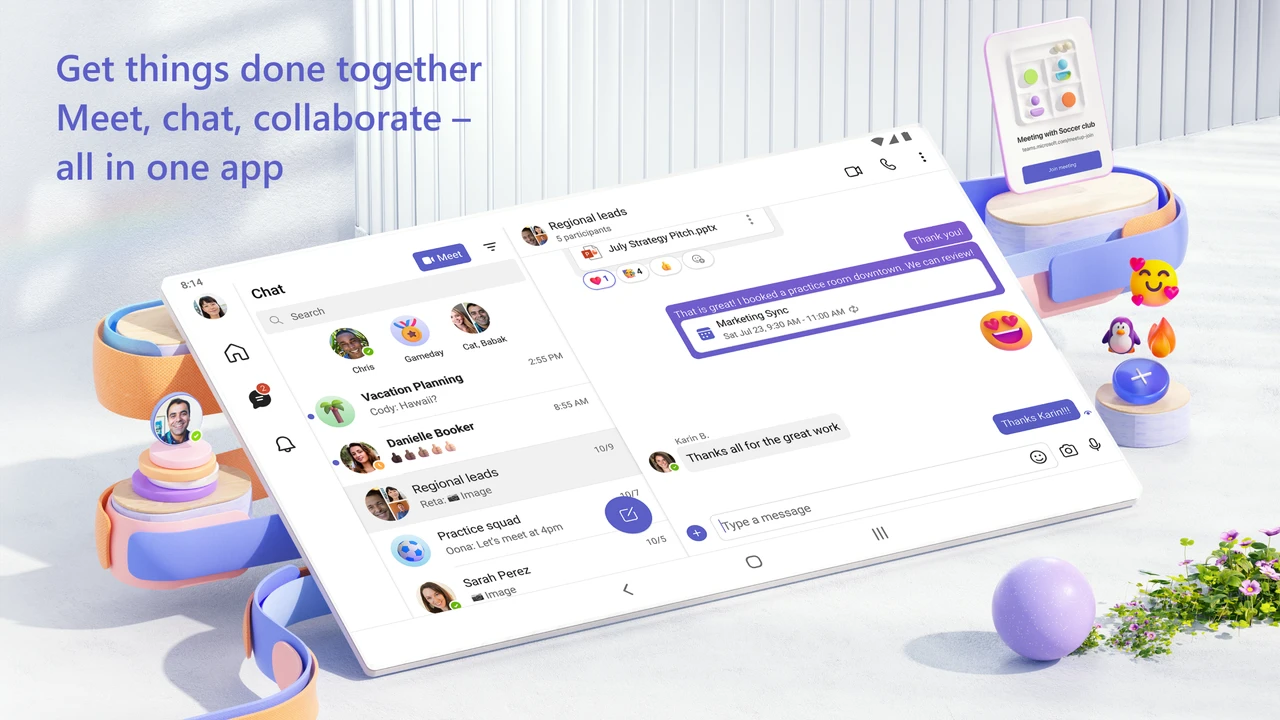
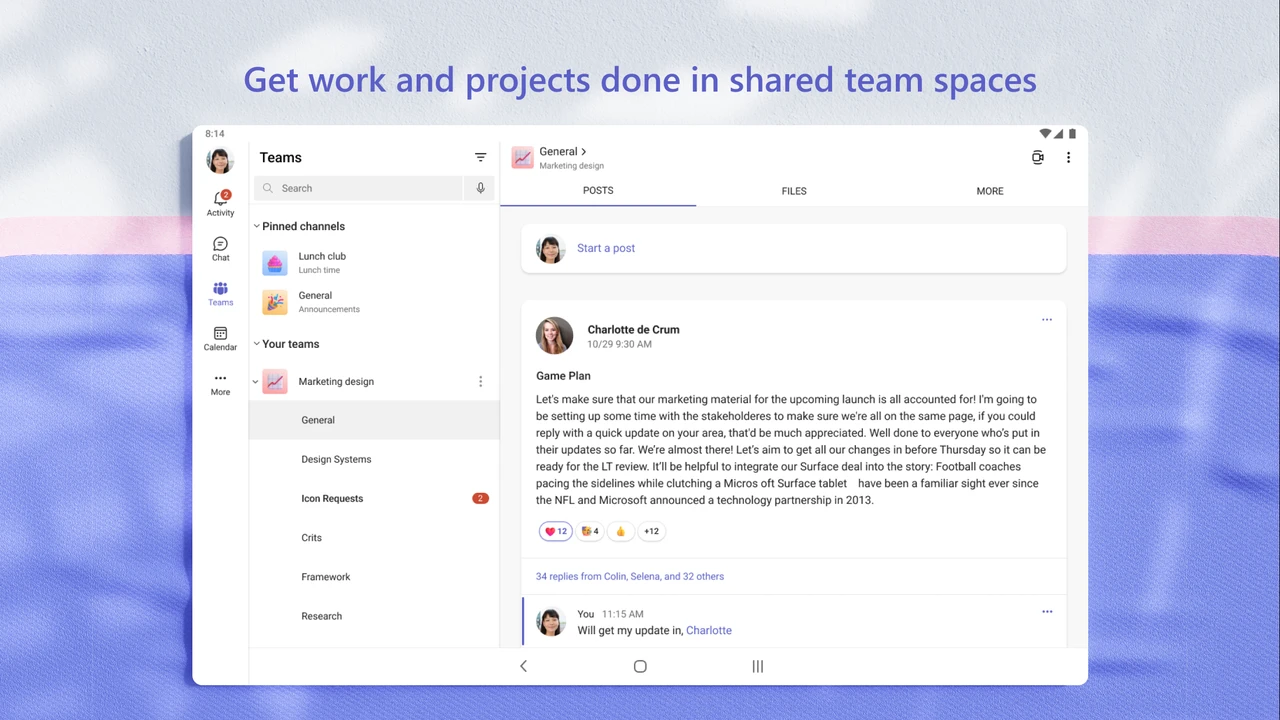
Organize direct chats, pin important conversations, and collaborate with team members using the tablet-optimized dual-pane chat view. Official screenshot: Microsoft Corporation.
Cast Microsoft Teams from your phone on Googlebook
Googlebook owners can also access Microsoft Teams through built-in phone streaming. Utilizing Cast My Apps from the Googlebook phone hub, you can wirelessly stream your phone’s ongoing Teams call, review active chat channels, and receive instant push notifications directly on your laptop display without transferring media files, connecting cords, or managing redundant installs.
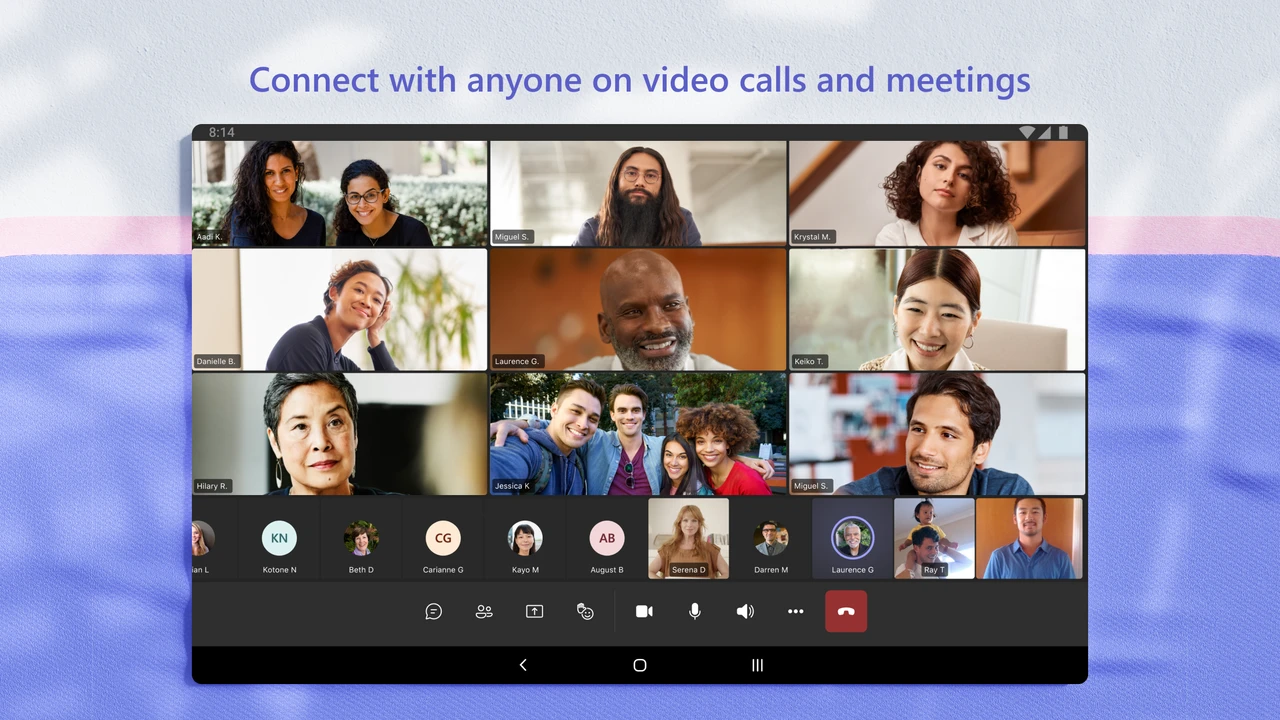
Host and join high-definition video meetings with large gallery grid views, active speaker highlights, and in-call controls. Official screenshot: Microsoft Corporation.
HD video conferencing, large gallery views, and meeting controls
Microsoft Teams delivers robust video meeting tools engineered to keep large teams, classrooms, and study groups synchronized across diverse hardware configurations:
Large Gallery Grid LayoutsView dozens of meeting attendees simultaneously on screen with dynamic video grids, speaker auto-focus, and custom participant spotlighting for presentations.
AI Noise Suppression & Audio ClarityFilter out unwanted background noises, such as typing, room chatter, or fan hum, using Microsoft’s automated audio isolation technology.
Live Meeting Reactions & Hand RaisingEngage interactively without interrupting speakers using floating emoji reactions, structured chat sidebars, and organized digital hand raising queues.
Breakout Rooms for Group CollaborationMeeting organizers can split attendees into smaller interactive breakout rooms for focused problem-solving and reunite everyone automatically.
Connect directly with colleagues on clear one-on-one video calls with camera switching, mute controls, and screen sharing. Official screenshot: Microsoft Corporation.
Channels, team workspaces, and real-time cloud collaboration
Keep departmental communications focused and organized using structured channels that consolidate conversations, project files, and planning boards:
Threaded Channel DiscussionsEliminate chat clutter by organizing discussions into specific topic threads, allowing team members to reply directly to updates without losing context.
Deep Microsoft 365 File IntegrationOpen, co-author, and review Word documents, Excel spreadsheets, and PowerPoint slide decks directly inside Teams channels backed by SharePoint and OneDrive.
Pinned Channels & Custom AlertsPin mission-critical project channels to the top of your workspace list and customize banner notification frequencies for urgent departmental announcements.
Third-Party App IntegrationsExtend channel functionality by adding tabs for GitHub, Trello, Jira, Microsoft Planner, and interactive polling bots directly into team tabs.
Centralize departmental projects into dedicated channels with structured thread conversations, announcements, and cloud files. Official screenshot: Microsoft Corporation.
Community hubs, group events, and shared resource planning
Microsoft Teams expands beyond formal corporate offices with modern community features that empower neighborhood associations, school clubs, and hobbyist groups:
Dedicated Community SpacesCreate dedicated social and project portals for parent-teacher associations, sports leagues, or volunteer initiatives with customized guidelines and badges.
Event Scheduling & RSVPsPlan club meetings, volunteer shifts, and sports practices with integrated calendar invites, attendance tracking, and reminder alerts sent to members.
Shared Media & Document LibrariesCentralize group photo galleries, volunteer rosters, rulebooks, and web links in dedicated tabs accessible to all enrolled community members.
Granular Member ModerationEmpower group leaders with administrator controls to manage participant permissions, approve new member requests, and safeguard member discussions.
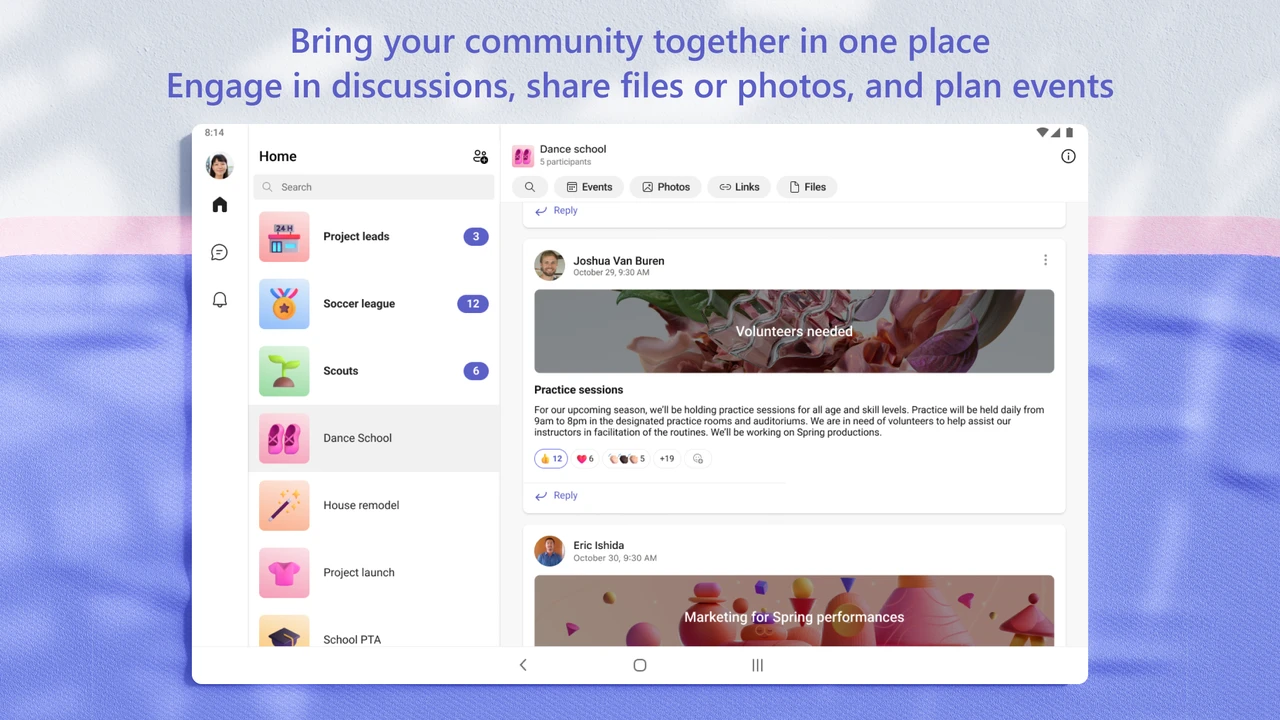
Bring school, club, or hobby communities together in shared spaces to organize volunteer events, share photos, and manage discussions. Official screenshot: Microsoft Corporation.
Integrated calendar scheduling, meeting agendas, and room coordination
The integrated calendar hub bridges your daily schedule, Outlook synchronization, and upcoming video conferences into a cohesive management interface:
Two-Way Outlook SynchronizationAny meeting created or accepted inside Teams instantly mirrors across your Microsoft Outlook calendar and ChromeOS notification center.
One-Click Meeting JoinJump straight into impending calls directly from the calendar view without scouring email threads or searching for obscure conference links.
Pre-Meeting Agenda & File SharingAttach slide presentations, agendas, and briefing memos directly to meeting invitations so attendees arrive fully prepared.
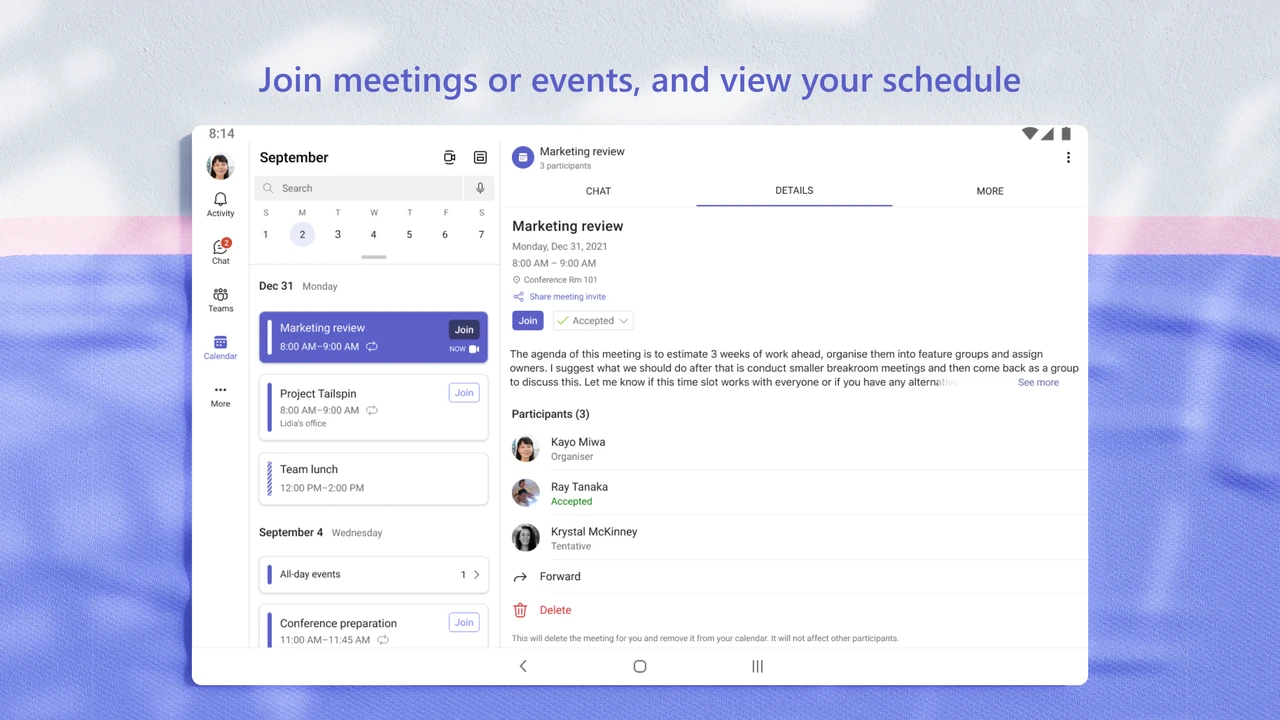
Manage your daily agenda, review meeting agendas, accept invites, and join conference room sessions directly from the calendar hub. Official screenshot: Microsoft Corporation.
Microsoft Teams Android app vs. Web client vs. Desktop Linux
Compare the principal access routes on ChromeOS to decide whether the Android app, browser client, or Linux container fits your hardware profile:
Feature
Teams Android App (Recommended)
Teams Web / PWA (teams.microsoft.com)
Teams Linux (Crostini)
Installation Footprint
Google Play Store (~85MB)
Zero Install (Instant Web)
Debian/Flatpak Container (~450MB)
Push Notifications
Native Android Notifications
Browser Web Push Alerts
Container Limited
Large Gallery Video Grid
Dynamic Multi-Tile Grid
Full 7×7 (49-Video) Gallery
Standard Gallery
Screen Sharing & Window Presenting
Full Screen Casting
Individual Tab, Window, or Screen
Requires Wayland Flag
System RAM Consumption
Moderate (~240MB)
Lightweight (~170MB browser tab)
Heavy (~700MB container)
Phone Hub Casting
Supported (Cast My Apps)
Not Applicable
Not Applicable
Troubleshooting common Microsoft Teams issues on ChromeOS
Apply these reliable solutions if you run into camera detection, multi-tenant sign-in, or audio echoing issues on your Chromebook:
Camera or Microphone Not DetectedIf video feeds remain blank or participants cannot hear you, open Settings > Apps > Manage your apps > Microsoft Teams > Permissions and verify that Camera and Microphone are set to Allow. In Chrome browser meetings, click the padlock icon in the URL bar to ensure hardware access is permitted.
App Window Stuck in Smartphone Aspect RatioIf Microsoft Teams launches in a narrow phone layout, click the centered window badge pill at the top of the window frame and switch the mode to Tablet or Resizable. This instantly opens the dual-pane sidebar view and optimizes chat layout for widescreen displays.
School or Enterprise Multi-Tenant Sign-InIf your educational institution or company requires Azure Active Directory two-factor authentication, ensure the Microsoft Authenticator app or browser security key is configured. If switching between work and personal tenants causes a login loop, clear browser cookies for microsoft.com or use an Incognito window.
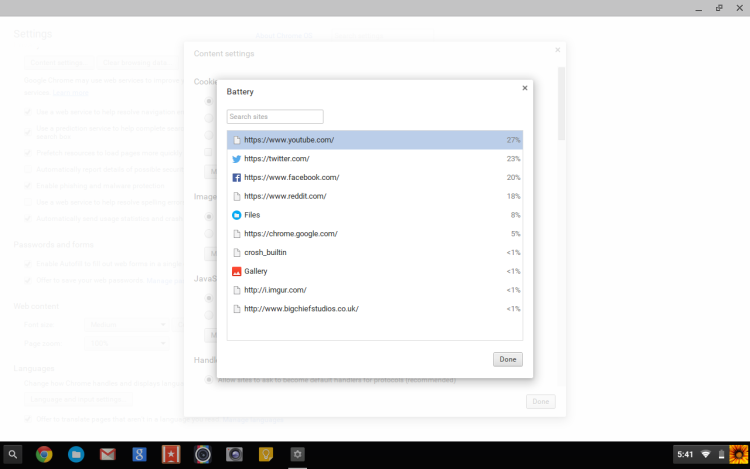
Missed Incoming Call and Chat NotificationsChromeOS may pause background Android tasks during aggressive power conservation. Go to Settings > Apps > Manage your apps > Microsoft Teams > Battery and choose Unrestricted so incoming call rings and channel alerts arrive immediately.
Frequently asked questions about Microsoft Teams on Chromebook
Can I use Microsoft Teams on Chromebook without installing the Android app?
Yes. You can access Microsoft Teams directly in the Google Chrome browser by visiting teams.microsoft.com. The web version provides virtually full desktop functionality, including scheduled video meetings, team channels, screen sharing, and real-time chat, without taking up local storage space on your device.
Is Microsoft Teams free to use on Chromebook and Googlebook?
Yes. Microsoft Teams offers a free tier for personal use, school study groups, and small teams that includes unlimited 1-on-1 meetings, 60-minute group video calls, channels, and 5GB of cloud storage. Enterprise and education users can sign in with their Microsoft 365 work or school accounts to unlock advanced recording, breakout rooms, and larger meeting capacities.
How do I fix microphone or camera issues during Teams meetings on ChromeOS?
If your camera or mic is not detected, open ChromeOS Settings > Apps > Manage your apps > Microsoft Teams > Permissions and confirm that Camera and Microphone are toggled On. If using the web client, click the site settings padlock icon in the Chrome URL address bar and ensure Camera and Microphone permissions are set to ‘Allow’.
Can I switch between multiple Microsoft Teams accounts on ChromeOS?
Yes. The Microsoft Teams Android app supports adding multiple accounts (such as a personal Microsoft account and an enterprise workplace account). Click your profile avatar in the upper corner, tap ‘Add account’, and enter your credentials. You can also run your work tenant inside a Chrome browser window while keeping personal messaging active in the Android app.
How do I cast Microsoft Teams from my phone to a Googlebook?
Pair your Android smartphone with your Googlebook using the built-in phone hub. From the Googlebook taskbar, tap the phone hub icon, choose ‘Cast My Apps’, and select Microsoft Teams. Your active mobile chat discussions and meeting sessions stream wirelessly to your laptop display, allowing you to participate using your full-sized keyboard and trackpad.
I have a passion for dogs, food, and cars, and I also have a deep interest in Chromebooks and cloud gaming/servers. I'm usually the first one in our office to try out new apps or games so if there is a trend, I am usually the first one to try things, good or bad lol. If you need help with your Chromebook or Chrome browser, you can send me an email at [email protected]

 by
Frank Cross
Post Updated: November 2, 2026