How to Install and Use Wayfinder on Googlebook
 by
Joseph Vance
Post Updated: November 8, 2026
You can install and use Wayfinder on Googlebook through Google Play to get a tabbed desktop file manager built for a keyboard and trackpad. Instead of stepping through folders one screen at a time, you can open multiple tabs in the title bar, switch between four desktop layouts, and preview files with the Space bar.
Built specifically for Googlebook OS by Fika Labs, Wayfinder lets you open ZIP and TAR archives like normal folders, copy files across a dual-pane commander view, and mount SMB, WebDAV, FTP, or Google Drive folders in the sidebar. Our guide covers Google Play installation, granting storage permissions, using its four view modes, and connecting external storage.
Need help setting up Wayfinder on your laptop? Contact us with your Googlebook model and we will help you get started.
How to install Wayfinder on Googlebook
Wayfinder is distributed on Google Play by Fika Labs specifically for Googlebooks and runs locally with no user account, ads, or analytics:
The official Google Play listing identifies Wayfinder under the package ID com.droid.wayfinder. You can also set Wayfinder as the system file picker whenever another Googlebook app asks you to attach or open a file.
If you need help enabling Play Store downloads or learning your laptop’s layout, see Google’s guide on installing apps on Googlebook and the Get started with your Googlebook overview. On school or enterprise Googlebooks where Play Store installs are restricted, you can also inspect or build the Apache 2.0 code from the Wayfinder GitHub repository.
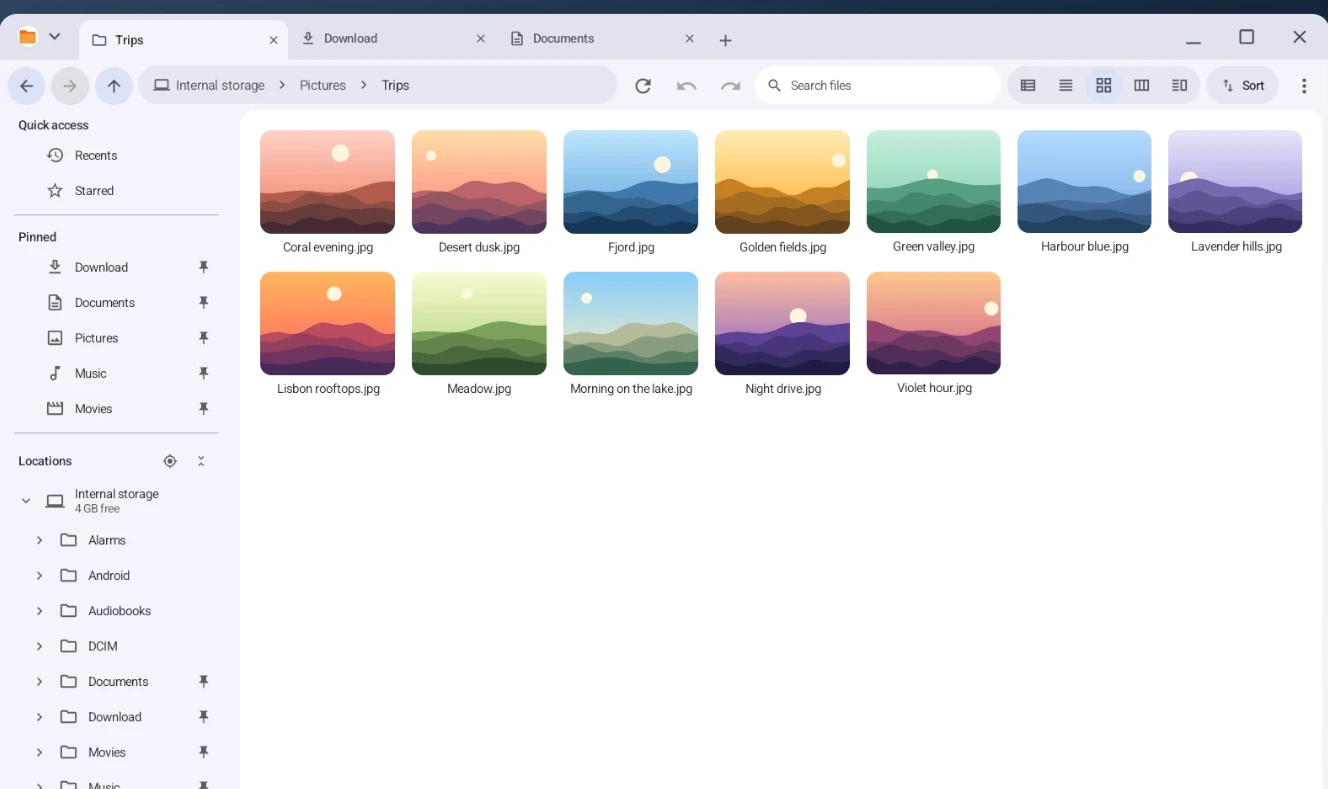
Title-bar tabs, Details view, and zoomable thumbnail grids
Wayfinder replaces mobile-style folder lists with a true desktop window layout designed for a physical keyboard, mouse, and multi-touch trackpad:
Miller columns and desktop keyboard navigation
When you are working inside deeply nested project folders, Miller columns let you see the entire folder hierarchy across side-by-side panes without losing your place:
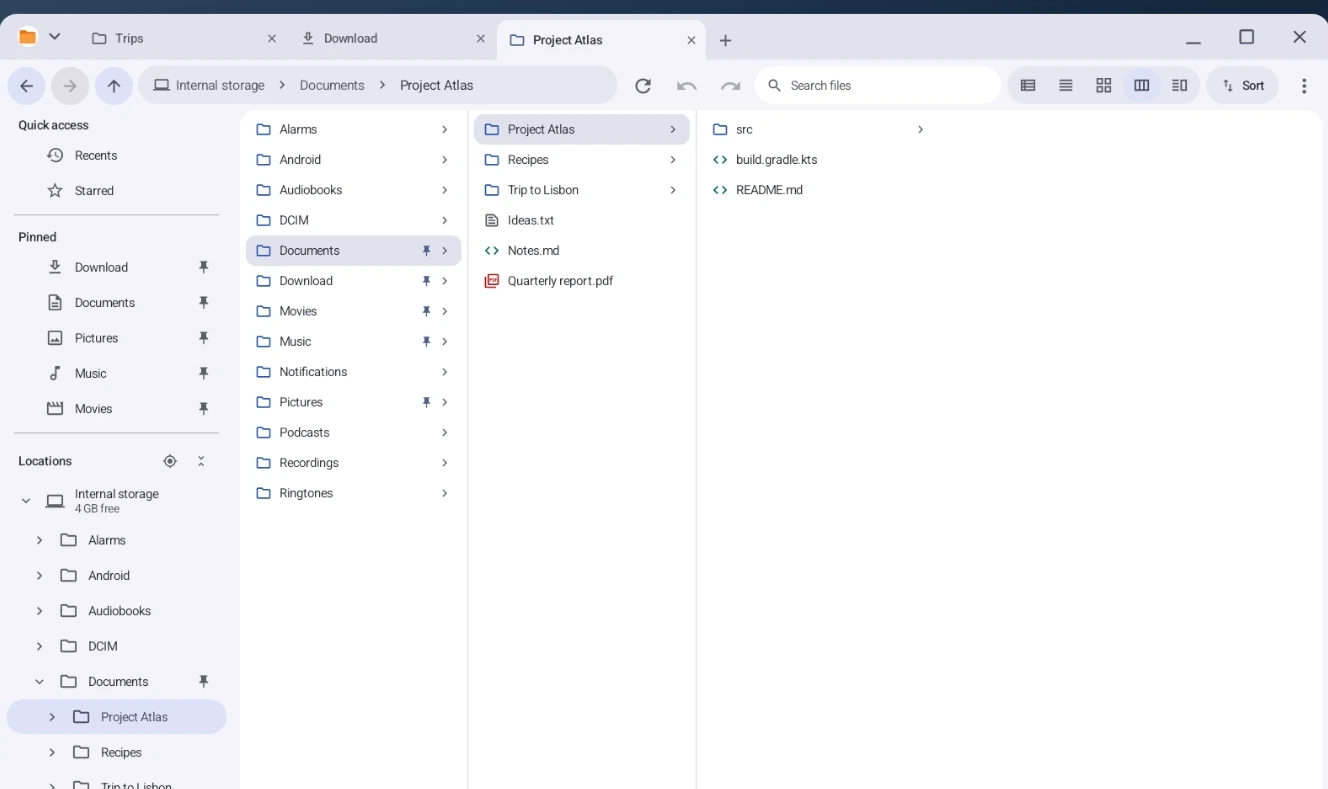
- One click per folder level: click any folder in Miller columns view to display its contents in the next column to the right, or use the left and right arrow keys to step up and down your directory tree.
- Made for mouse and trackpad: single-click to select, double-click to open, right-click for context menus, drag a rubber-band selection box across multiple items, and drag and drop files between folders or tabs.
- Desktop keyboard shortcuts: use familiar key combinations for copy, cut, paste, rename, batch rename, undo, and jumping to the editable address bar.
- Command palette & shortcut sheet: press
Ctrl + Kto search and run any action from the command palette, or pressF1to view the complete keyboard shortcut reference. - Checksums & file properties: inspect detailed file sizes, modification timestamps, permissions, and cryptographic checksums right from the properties dialog.
Dual-pane commander view and browsing ZIP/TAR archives
For moving batches of files between directories or pulling assets out of compressed downloads, Wayfinder includes a classic dual-pane commander mode and native archive browsing:
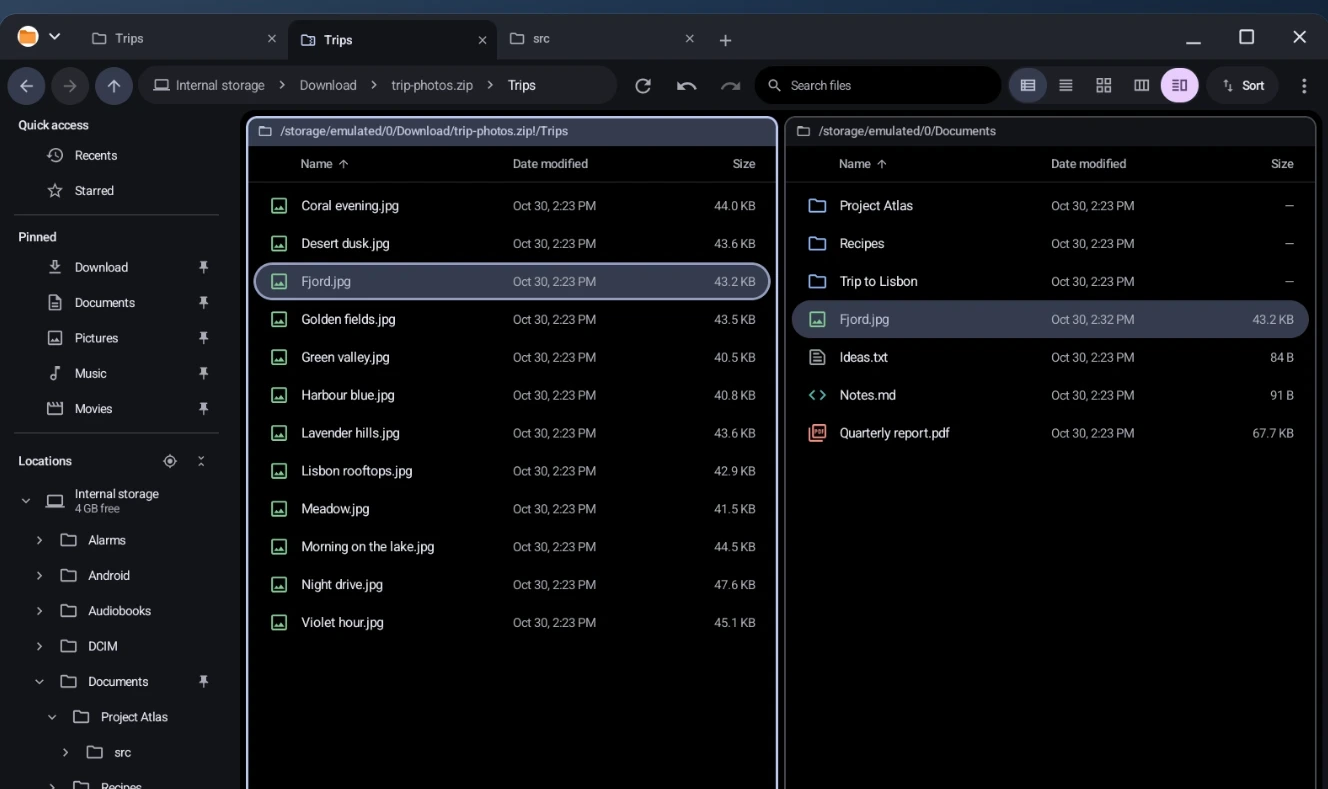
- Split the window with F3: press
F3(or click the dual-pane icon on the top-right toolbar) to place two independent folder panes side by side inside a single window. - F5 copy and F6 move: highlight files in the active pane and press
F5to copy them orF6to move them directly into the opposite pane’s folder. - Open archives like normal folders: double-click
.zip,.tar,.tar.gz, and.tgzfiles to step inside them without extracting the entire archive first. - Copy out or compress in place: drag or copy individual files straight out of an open archive into any folder, or right-click a selection of local files to compress them into a new archive.
Spacebar Quick Look, network shares, and Google Drive
Wayfinder lets you preview files with a single keystroke and brings your network servers, cloud drives, and phone storage together in the left sidebar:
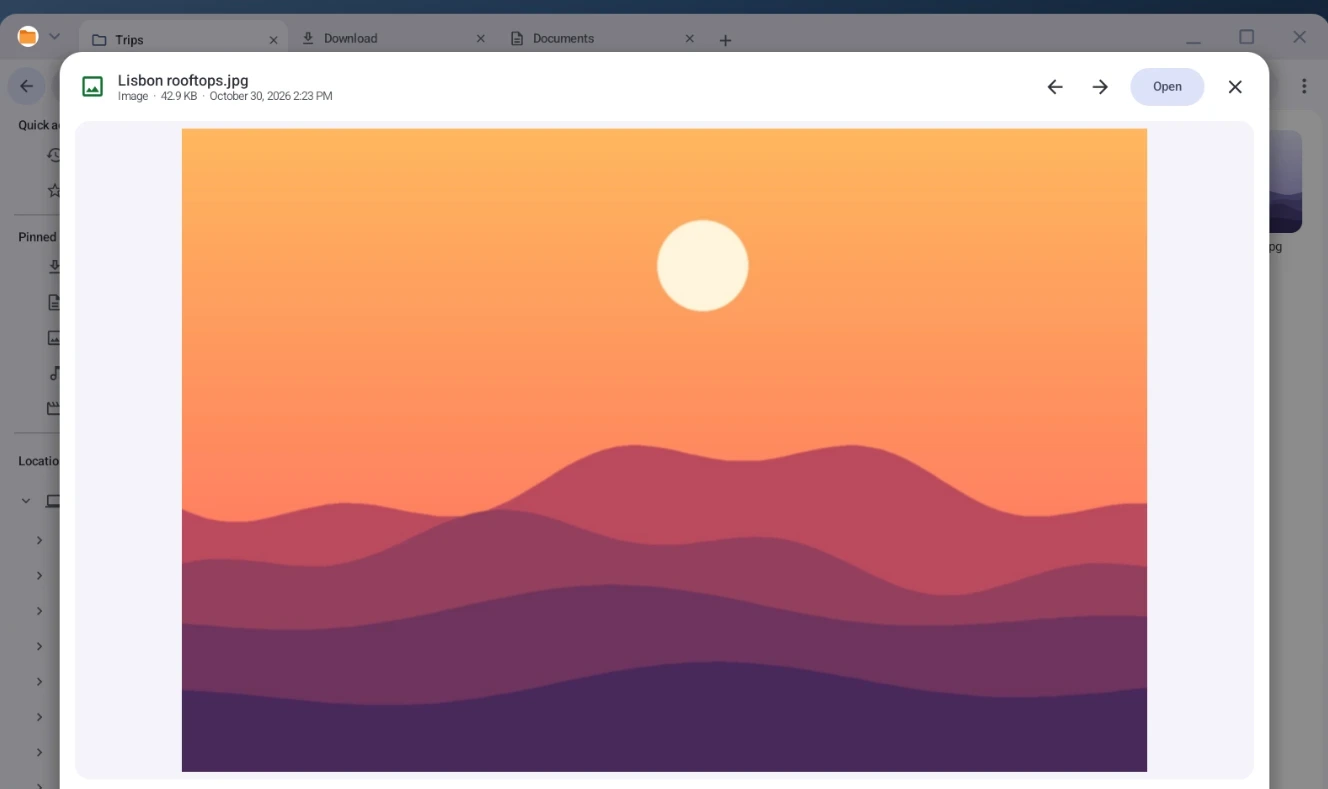
- Spacebar Quick Look: select any image, video frame, PDF document, audio track, or source code file and press
Spaceto preview it immediately, then use the arrow keys to flip through neighboring files. - SMB 2/3, WebDAV, and FTP/FTPS shares: connect to your home NAS or office file server from the Locations sidebar. Saved server passwords are encrypted by the Android Keystore, and network connections only open when you visit that server.
- Google Drive and USB storage: mount Google Drive folders, external USB flash drives, and SD cards through Android’s system folder picker so they stay accessible in your sidebar.
- Browse your Android phone’s folders: when your phone is connected over USB or paired with your Googlebook, its shared folders appear right alongside your local directories.
Troubleshooting Wayfinder on Googlebook OS
If your internal folders appear empty or a remote share refuses to connect, check these common fixes on Googlebook OS:
- Internal storage folders look empty: open your Googlebook Settings > Apps > Special app access > All files access, select Wayfinder, and turn the permission toggle on.
- SMB or FTP server fails to connect: verify that your Googlebook is on the same Wi-Fi network or VPN subnet as your NAS, confirm your server uses SMB 2 or SMB 3 (legacy SMBv1 is not supported), and double-check your port and credentials.
- USB drive or Google Drive folder is missing from Locations: click the add location button in the left sidebar and select the drive or cloud folder through the system folder picker to grant persistent access.
- Spacebar does not open Quick Look: make sure keyboard focus is inside the file list pane rather than the top search bar or an active rename field, click a file once to select it, and press
Space. - Forgot a keyboard shortcut: press
F1anywhere in Wayfinder to open the built-in shortcut guide, or pressCtrl + Kto search commands by name.
Frequently asked questions about Wayfinder on Googlebook
Is Wayfinder free and ad-free on Googlebook?
Yes. Wayfinder is a free, open-source file manager licensed under Apache 2.0 with zero ads, zero analytics, no trackers, and no account sign-in required.
Why does Wayfinder ask for All files access on Googlebook?
Googlebook OS requires full file managers to hold the All files access permission so they can browse, move, rename, and archive folders across your internal storage outside of media-only directories.
How do I use dual-pane commander view in Wayfinder?
Press F3 or click the dual-pane icon in the top-right toolbar to split the window into two side-by-side folder panes, then press F5 to copy or F6 to move selected files between them.
Can Wayfinder open ZIP and TAR archives without extracting them first?
Yes. You can double-click .zip, .tar, .tar.gz, and .tgz archives to browse their contents just like a normal folder and copy individual files out whenever you need them.
Can Wayfinder connect to NAS shares and Google Drive on Googlebook?
Yes. Wayfinder connects directly to SMB 2/3, WebDAV, and FTP/FTPS network servers from the sidebar with Android Keystore password encryption, and mounts Google Drive or USB drives via the system folder picker.
Explore more Googlebook apps and guides
Build out your Googlebook OS desktop workflow with our companion guides covering keyboard launchers, pre-installed tools, and hardware comparisons:
- Keyboard command launcher: Open apps, snap windows, calculate sums, and send prompts to Gemini with one shortcut using our guide on How to Install and Use Booklight on Googlebook.
- Built-in tutorials and free perks: Learn how to set up Better Together phone casting and claim bundled trial subscriptions in our guide on How to Install and Use My Googlebook on Googlebook.
- Build your own Googlebook apps: Wayfinder was created with the help of Google’s AI coding agent; see how to build your own desktop Android utilities in our walkthrough of Google Antigravity for Googlebook.
- Android app chip compatibility: See how processor architecture affects Play Store apps on Googlebook OS in our comparison of Intel vs. Snapdragon Googlebooks for Android Apps.
- Keep phone casting intact: Make sure wireless phone file access and app streaming continue working by reading why rooting a Googlebook breaks Cast My Apps.
Discover more from Chrome Geek
Subscribe to get the latest posts sent to your email.