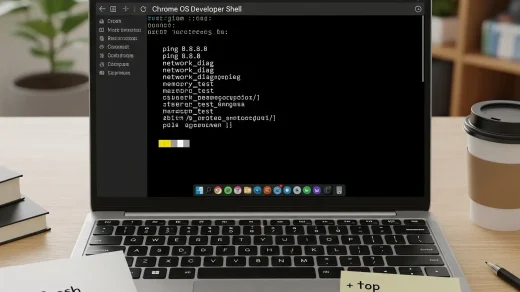
How to Install and Use Dropbox on Chromebook and Googlebook
Install and use Dropbox on Chromebook and Googlebook via Google Play, ChromeOS Files integration, or the web app. Sync files, scan docs, and cast from your phone.

The best ChromeOs Blog on the web.

Install and use Dropbox on Chromebook and Googlebook via Google Play, ChromeOS Files integration, or the web app. Sync files, scan docs, and cast from your phone.
Install and use TeamViewer on Chromebook and Googlebook via Google Play or Linux. Access remote computers, transfer files securely, and stream from phone.

Install and use Zoom on Chromebook and Googlebook via the official PWA, Google Play, or web client. Host HD video calls, share screens, and cast from your phone.

Get Free Fire and play a popular battle royale game with detailed maps, plenty of weapons and characters to choose from.
Install Snapseed on Chromebook and Googlebook from Google Play. Discover 30+ pro tools, selective control points, smart masking, and RAW DNG photo editing.

Get Mobile Legends Bang Bang for Chromebook & enjoy a popular massive online battle arena game with heroes to choose from and play 5vs5 against others.
Install Adobe Lightroom on Chromebook and Googlebook via Google Play or edit in Chrome. Discover RAW capture, Firefly AI removal, Lens Blur, and cloud sync.

Get Shadowgun Legends and play a popular FPS shooter with some of the best graphics, customizable weapons and unique gameplay controls.

Install Photoshop Express on Chromebook and Googlebook from Google Play or edit online. Discover generative AI backgrounds, aesthetic filters, and touch retouching.

Install and use Opera and Opera Mini on Chromebook and Googlebook via Google Play or Linux. Enjoy a free built-in VPN, native ad blocking, and Aria AI.