How to Install and Use Grammarly on Chromebook and Googlebook
Install and use Grammarly on Chromebook and Googlebook via Google Play, Chrome extension, or the web editor. Enhance grammar, tone, clarity, and AI rewrites.

The best ChromeOs Blog on the web.



Install and use Grammarly on Chromebook and Googlebook via Google Play, Chrome extension, or the web editor. Enhance grammar, tone, clarity, and AI rewrites.
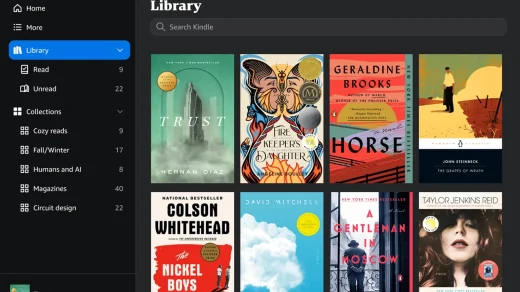
Install and use Amazon Kindle on Chromebook and Googlebook from Google Play or Kindle Cloud Reader. Explore library sync, custom fonts, and offline reading.

Install and use Dropbox on Chromebook and Googlebook via Google Play, ChromeOS Files integration, or the web app. Sync files, scan docs, and cast from your phone.
Install and use TeamViewer on Chromebook and Googlebook via Google Play or Linux. Access remote computers, transfer files securely, and stream from phone.

Install and use Zoom on Chromebook and Googlebook via the official PWA, Google Play, or web client. Host HD video calls, share screens, and cast from your phone.

Install Snapseed on Chromebook and Googlebook from Google Play. Discover 30+ pro tools, selective control points, smart masking, and RAW DNG photo editing.

Install Adobe Lightroom on Chromebook and Googlebook via Google Play or edit in Chrome. Discover RAW capture, Firefly AI removal, Lens Blur, and cloud sync.

Install Photoshop Express on Chromebook and Googlebook from Google Play or edit online. Discover generative AI backgrounds, aesthetic filters, and touch retouching.

Install and use Opera and Opera Mini on Chromebook and Googlebook via Google Play or Linux. Enjoy a free built-in VPN, native ad blocking, and Aria AI.

Install and use Firefox on Chromebook and Googlebook via Google Play or desktop Linux. Protect online privacy, configure extensions, and cast from your phone.