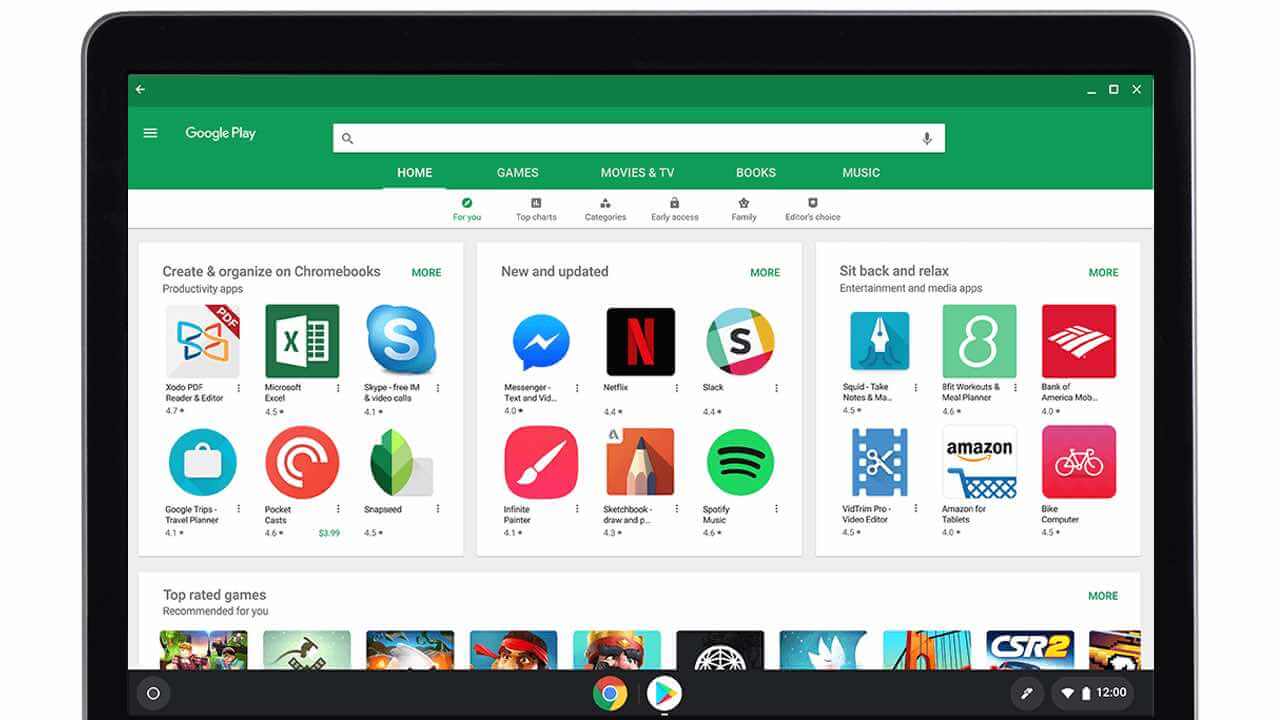
How to Install and Use Google Classroom on Chromebook and Googlebook
Install and use Google Classroom on Chromebook and Googlebook via web or Google Play. Join classes, turn in assignments, organize coursework, and grade with ease.

The best ChromeOs Blog on the web.


Install and use Google Classroom on Chromebook and Googlebook via web or Google Play. Join classes, turn in assignments, organize coursework, and grade with ease.
Install and use Microsoft Teams on Chromebook and Googlebook via Google Play or the web PWA. Host HD video calls, collaborate in channels, and cast from your phone.

Install and use Canva on Chromebook and Googlebook via the official Android app or web platform. Create graphics, edit videos, and cast from your phone.
Here is how to run PowerDirector on Chromebook and Googlebook to edit multi-track video, apply AI effects, and export 4K clips.
Learn how to install and use Pixlr on Chromebook and Googlebook via the web suite or Google Play app for advanced photo editing, graphic design, and AI tools.

Install and use ABCmouse on Chromebook and Googlebook from Google Play or the web academy. Explore guided learning paths, phonics books, and math games.

Install Snapchat on Chromebook or Googlebook via Google Play or Snapchat for Web. Discover dual-pane chats, AR Lenses, video calls, Ghost Mode, and camera fixes.

Install and use Grammarly on Chromebook and Googlebook via Google Play, Chrome extension, or the web editor. Enhance grammar, tone, clarity, and AI rewrites.
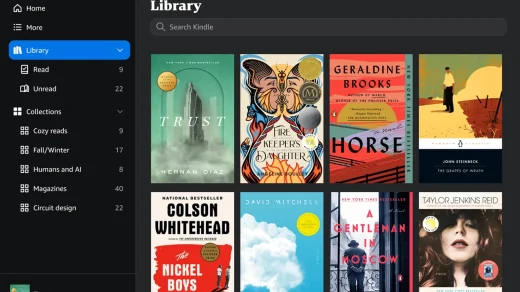
Install and use Amazon Kindle on Chromebook and Googlebook from Google Play or Kindle Cloud Reader. Explore library sync, custom fonts, and offline reading.

Install and use Dropbox on Chromebook and Googlebook via Google Play, ChromeOS Files integration, or the web app. Sync files, scan docs, and cast from your phone.