How to Install and Use Soundtrap on Chromebook and Googlebook
Install Soundtrap on Chromebook and Googlebook via Google Play or web browser. Record audio, arrange loops, make custom beats, and collaborate in real time.

The best ChromeOs Blog on the web.

Install Soundtrap on Chromebook and Googlebook via Google Play or web browser. Record audio, arrange loops, make custom beats, and collaborate in real time.
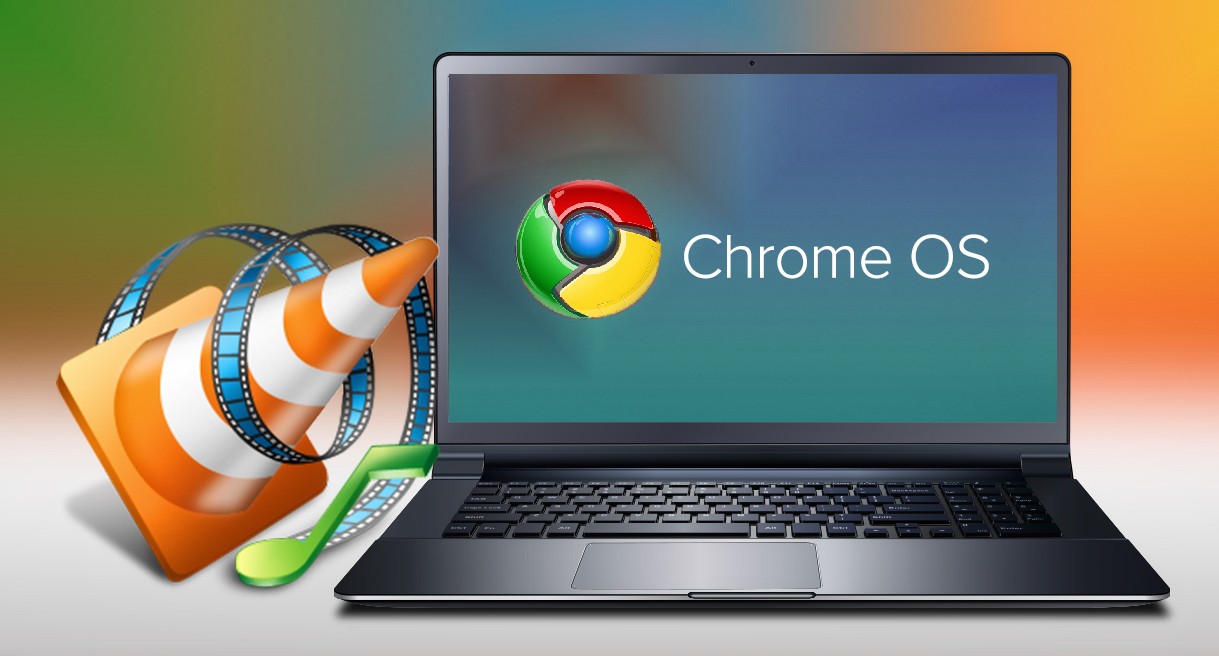
Install VLC on Chromebook or Googlebook from Google Play. Learn how to play any media format, use gesture controls, adjust audio, and browse network files.

Install WeVideo on Chromebook and Googlebook via Google Play or the cloud web editor. Create multi-track videos, record webcam and screen, and use green screen effects.

Install Polarr on Chromebook and Googlebook from Google Play or edit in Chrome. Discover creator aesthetic filters, AI object masks, and pro color grading.

Install LINE on Chromebook and Googlebook from Google Play. Discover how to chat with friends, send animated stickers, host HD group calls, and cast from phone.

Install Chrome Remote Desktop on Chromebook or Googlebook via Google Play or the web platform. Control PCs, Macs, and Linux, share screens, and cast from phone.

Install Viber on Chromebook and Googlebook from Google Play or use Linux desktop. Learn how to make HD video calls, send disappearing messages, and protect privacy.

Compare the best media players for Chromebook and Googlebook. Discover versatile local video players, offline music apps, and self-hosted streaming media hubs.

Install JSTorrent on Chromebook and Googlebook from Google Play or pair the Chrome extension. Learn how to configure downloads, manage storage, and track peers.